
Introduction
Welcome to the user manual for your TTfone TT890 4G Senior Phone. This device is designed for ease of use, featuring large buttons, a clear display, and essential functions for reliable communication. It includes 4G connectivity for faster and more stable network performance, an emergency SOS button for peace of mind, and convenient USB-C charging. Please read this manual carefully to ensure proper operation and to get the most out of your new phone.
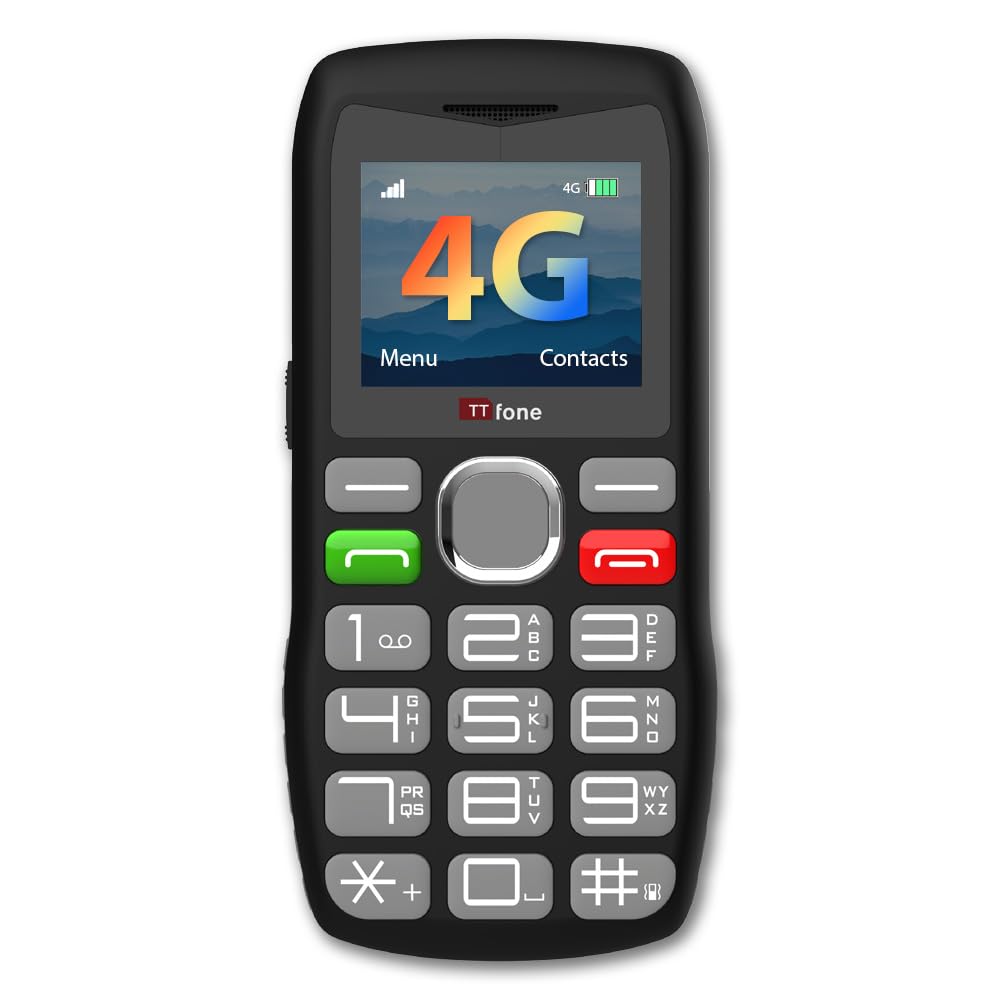
Image: Front view of the TTfone TT890 4G Senior Phone, showcasing its large buttons and clear display.
1. Setup
1.1 Installing the SIM Card and Battery
- Remove the Back Cover: Gently pry open the back cover of the phone using the notch provided.
- Insert SIM Card: Locate the SIM card slot. The TT890 uses a Nano SIM card. Insert the SIM card with the gold contacts facing down and the cut corner aligned as shown in the diagram (if applicable).
- Insert Battery: Place the battery into the battery compartment, ensuring the gold contacts on the battery align with the contacts in the phone.
- Replace Back Cover: Carefully align and press the back cover until it clicks securely into place.

Image: Front and back view of the TTfone TT890, illustrating the phone's design and the location of the SOS button on the rear.
1.2 Charging the Phone
The TT890 uses a modern USB-C port for charging.
- Connect Charger: Insert the USB-C end of the charging cable into the phone's charging port.
- Connect to Power: Plug the other end of the USB cable into a compatible USB power adapter (not always included) or a computer's USB port.
- Charging Indicator: The phone's screen will display a charging indicator. A full charge typically takes approximately 4 hours.

Image: The TTfone TT890 phone connected to a USB-C charging cable, indicating the charging process.
1.3 Powering On/Off
- To Power On: Press and hold the Green Call button until the screen lights up.
- To Power Off: Press and hold the Red End Call button until the power-off options appear, then confirm.
2. Operating Instructions
2.1 Making and Receiving Calls
- To Make a Call: Dial the number using the large keypad buttons, then press the Green Call button.
- To Answer a Call: When the phone rings, press the Green Call button.
- To End a Call: Press the Red End Call button.

Image: A hand holding the TTfone TT890, highlighting the large, easy-to-press buttons for user convenience.
2.2 Sending and Receiving Messages (SMS)
- Access Messages: Navigate to the 'Messages' menu using the navigation buttons and the 'Menu' option on the screen.
- Compose New Message: Select 'Write Message' or 'New SMS'. Enter your message using the keypad.
- Send Message: Enter the recipient's number or select from contacts, then choose 'Send'.
2.3 Emergency SOS Button
The dedicated SOS button on the back of the phone allows for quick contact in emergencies.
- Setup SOS Contacts: In the phone's settings, you can configure up to 5 emergency contacts. These contacts will be called sequentially when the SOS button is activated.
- Activate SOS: Press and hold the SOS button for a few seconds. The phone will automatically call your pre-set emergency contacts and send an emergency SMS message.

Image: A close-up view of the prominent red SOS button located on the back of the TTfone TT890, designed for quick access in emergencies.
2.4 Camera Function
The TT890 includes a basic camera for quick photos.
- Access Camera: Navigate to the 'Camera' application from the main menu.
- Take Photo: Point the camera at your subject and press the central navigation button to capture an image.
2.5 Bluetooth Connectivity
Connect your TT890 to other Bluetooth-enabled devices like headsets or car kits.
- Enable Bluetooth: Go to 'Settings' > 'Bluetooth' and turn it 'On'.
- Pair Device: Select 'Search for devices' and choose your desired device from the list. Enter the pairing code if prompted.
2.6 Torch Function
The phone features a built-in torch for convenience.
- Activate Torch: The torch can often be activated by a dedicated side switch or by pressing and holding a specific key (refer to your phone's quick guide for exact method).

Image: The TTfone TT890 phone with its integrated flashlight activated, illuminating a dark area.
2.7 Phonebook
Store and manage your contacts easily.
- Add Contact: Go to 'Phonebook' > 'Add New Contact'. Enter the name and phone number.
- Search Contact: In the 'Phonebook', use the navigation buttons to scroll through contacts or use the search function.
2.8 Keypad Lock
To prevent accidental key presses, lock the keypad.
- Lock: Typically, press the left soft key (Menu) then the '*' key.
- Unlock: Repeat the same sequence.
3. Maintenance
3.1 Cleaning the Device
- Use a soft, dry cloth to wipe the phone's surface.
- Avoid using liquid cleaners, aerosols, or harsh chemicals, as these can damage the device.
- Keep the charging port free from dust and debris.
3.2 Battery Care
- Avoid extreme temperatures, which can reduce battery life.
- Do not leave the phone charging for excessively long periods after it is fully charged.
- If the phone will not be used for an extended period, charge it to about 50% before storing.
4. Troubleshooting
| Problem | Possible Solution |
|---|---|
| Phone does not power on | Ensure the battery is correctly installed and charged. Connect the charger and try again. |
| Cannot make or receive calls | Check if the SIM card is properly inserted and activated. Ensure you have network signal. Contact your network provider if issues persist. |
| Battery not charging | Verify the USB-C cable and charger are working correctly. Try a different power source. Ensure the charging port is clean. |
| SOS button not working | Ensure emergency contacts are correctly set up in the phone's settings. Test the function in a non-emergency situation. |
| Poor sound quality during calls | Check the volume settings. Ensure the speaker and microphone are not obstructed. Move to an area with better network coverage. |
5. Specifications
| Feature | Detail |
|---|---|
| Brand | TTfone |
| Model Name | TT890 |
| Item Model Number | TT890 4G |
| Operating System | TTfone |
| Cellular Technology | 4G |
| Wireless Technology | Bluetooth, GSM |
| Screen Size | 1.8 Inches |
| Display Resolution | 320 x 240 |
| Display Type | LCD |
| Installed RAM Size | 32 MB |
| CPU Model | Cortex A7 |
| CPU Speed | 1 GHz |
| Battery Capacity | 1000 mAh (Lithium-ion) |
| Charging Time | 4 hours |
| Talk Time | 3 Hours |
| Number of SIM Card Slots | Single SIM |
| SIM Card Size | Nano |
| Charging Port Type | USB Type C |
| Headphone Jack | 3.5 mm |
| Device Flash | LED |
| Number of Rear Cameras | 1 |
| Number of Front Cameras | 1 |
| Form Factor | Bar |
| Human Interface Input | Buttons |
| Water Resistance Level | Not Water Resistant |
| Country of Origin | China |
| Box Contents | Battery, USB Cable, Mobile Phone |
| Special Product Uses | Daily communication for seniors and emergency situations |
| GPS Geopositioning Feature | False |
6. Warranty Information
The TTfone TT890 4G Senior Phone comes with a 2-year warranty. Please retain your proof of purchase for warranty claims. For detailed terms and conditions, refer to the warranty card included with your product or visit the official TTfone website.
7. Support
For further assistance, technical support, or to inquire about spare parts, please visit the official TTfone website or contact their customer service. Contact details can typically be found on the manufacturer's website or in the packaging materials.
Note: No official product video URLs were provided in the product data.


