
1. Introduction
This manual provides comprehensive instructions for the installation, setup, operation, and maintenance of your NGTeco TC4 Cloud-Based Fingerprint Time Clock. The TC4 is designed to streamline employee attendance tracking for small and medium businesses, offering a secure and efficient solution with cloud-based management capabilities.

Figure 1: NGTeco TC4 Time Clock and Mobile App Interface.
The NGTeco TC4 is a compact, white square device with a fingerprint scanner and a digital time display. It integrates seamlessly with the NGTeco Office mobile application, allowing for remote management and attendance tracking.
2. Package Contents
Before proceeding with installation, please verify that all items listed below are present in your package:
- NGTeco TC4 Device
- Power Adapter
- Mounting Template
- Accessories (screws, wall anchors)
- Quick Start Guide
- After-sales Card
Video 1: NGTeco Cloud Time Clock TC4 - Unboxing and Initial Setup Guide.
This video demonstrates the unboxing process and provides an overview of the included components, ensuring you have everything needed for installation.
3. Installation Guide
The NGTeco TC4 can be mounted on a wall or placed on a tabletop. For wall mounting, follow these steps:
- Prepare the Mounting Location: Choose a suitable location for the device, ensuring it is within reach of a power outlet and has stable 2.4G WiFi coverage.
- Use the Mounting Template: Affix the provided mounting template to the desired wall location. Use a pencil to mark the drilling points for the screws.
- Drill Holes: Drill holes at the marked points. Insert the wall anchors if necessary.
- Secure the Stand: Attach the device's stand to the wall using the provided screws. Ensure it is firmly secured.
- Mount the Device: Carefully slide the NGTeco TC4 device onto the secured stand.
- Connect Power: Plug the power adapter into the device and then into a power outlet. The device will power on automatically.
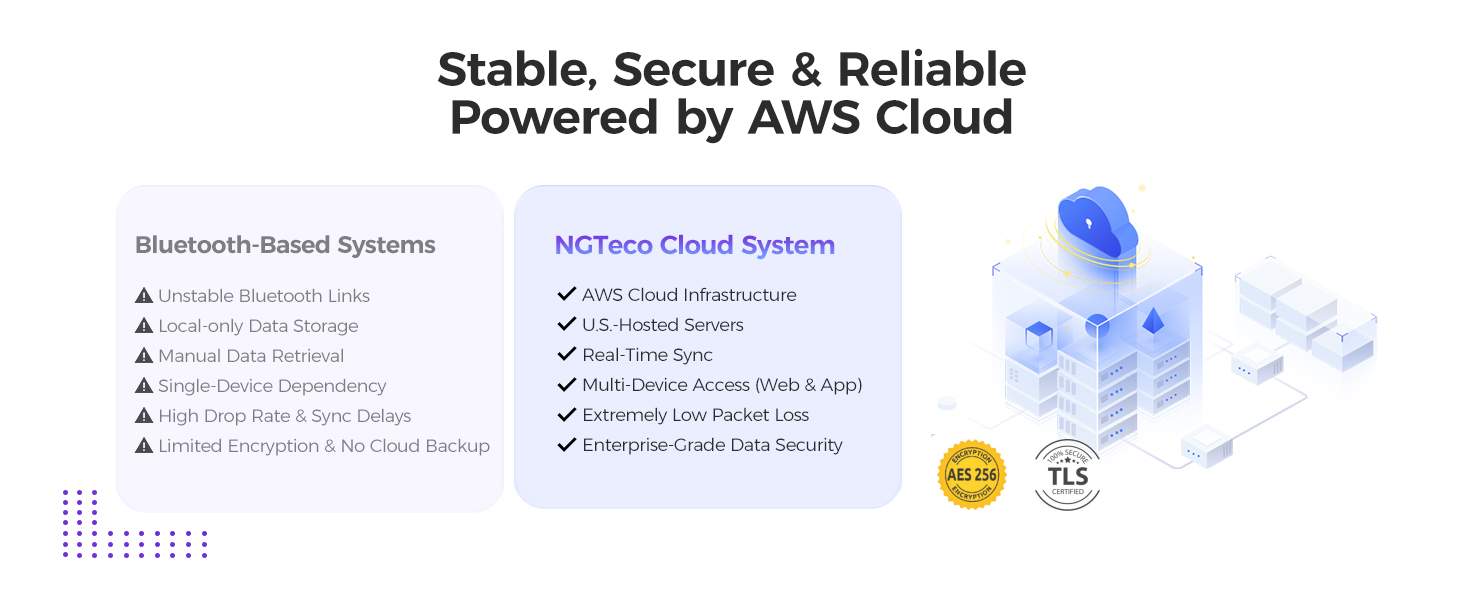
Figure 2: Secure and Reliable AWS Cloud Infrastructure.
The NGTeco TC4 operates on a stable, secure, and reliable AWS Cloud infrastructure, ensuring data integrity and accessibility.
4. Setup & Configuration
The NGTeco TC4 is configured primarily through the NGTeco Office mobile application. Ensure your mobile device's Bluetooth is enabled before starting.
- Download the NGTeco Office App: Search for "NGTeco Office" in the App Store (iOS) or Google Play Store (Android) and install the application.
- Create an Account: Open the app and follow the prompts to create a new user account. If you already have an account, simply sign in.
- Add Site: In the app, navigate to the 'Quick Start' section and add a new site for your business. Provide a site name and select the appropriate time zone.
- Add Device and Setup Network: Select the NG-TC4 model from the device list. The app will search for nearby Bluetooth devices. Confirm the Serial Number (SN) of your TC4 device to connect. Once connected via Bluetooth, proceed to set up the 2.4G WiFi network by entering your WiFi name and password.
- Add Employee: Enter the required information for each employee, including Person ID, Department, First Name, and Last Name.
- Add Timesheet (Set Attendance Rule): Define attendance rules by creating a timesheet. This includes setting check-in/check-out times, break times, and other relevant parameters for work hour calculation.
- Add Schedule: Assign employees to specific timesheets and schedules. Select the device(s) that each person can use to clock in.
- Register Fingerprint: For fingerprint verification, select the employee in the app and initiate fingerprint registration. Follow the on-screen prompts to place the employee's finger on the TC4 scanner multiple times for accurate registration.

Figure 3: NGTeco Office App for Setup and Management.
The NGTeco Office app provides a user-friendly interface for managing all aspects of your time clock system, from device setup to employee data.

Figure 4: High-Precision Fingerprint Module.
The TC4 features a high-precision fingerprint module for reliable, fast, and secure access, tested for over 1,000,000 touches and compatible with wet and dry fingers.
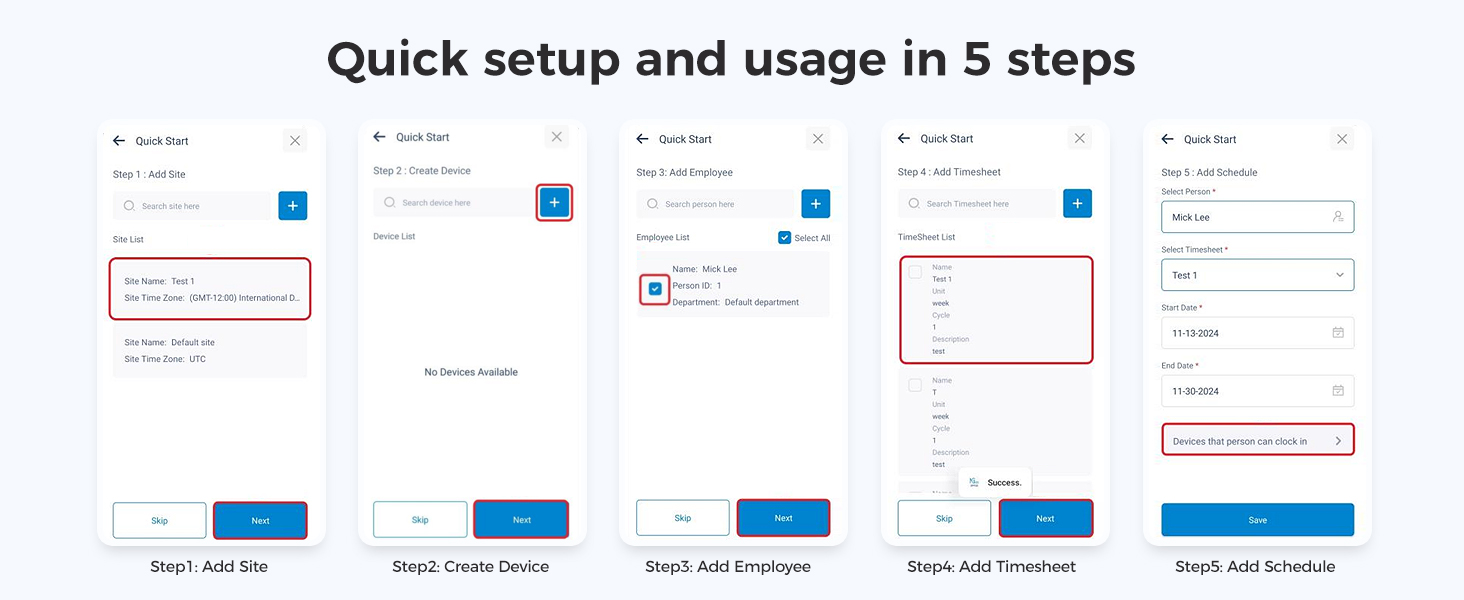
Figure 5: Quick Setup and Usage in 5 Steps.
This visual guide outlines the streamlined process of setting up the NGTeco system, from adding a site and device to configuring employees, timesheets, and schedules.
5. Operation
Once set up, employees can clock in and out using their registered fingerprints. Administrators can manage data and generate reports via the NGTeco Office app or web portal.
5.1 Clocking In/Out
To clock in or out, simply place your registered finger on the fingerprint scanner of the NGTeco TC4 device. The device will confirm a successful scan.
5.2 Exporting Reports
Attendance data can be exported from the NGTeco Office app or web portal for payroll and record-keeping purposes.
- Open the NGTeco Office app and navigate to the 'Attendance' section.
- Select 'Attendance Report'.
- Choose the desired date range for the report.
- Enter the email address(es) to which the report should be sent.
- Select the desired frequency for automatic report sending (Daily, Weekly, Monthly).
- Tap 'Export' to generate and send the report.

Figure 6: Auto-Send Reports Feature.
The system allows for automatic sending of attendance reports, eliminating the need for manual work and ensuring timely data delivery.
6. Features Overview
- Smart Attendance Rule Customization: Configure precise clock-in/out windows, breaks, meal times, and overtime rules for various shifts (regular, weekend, night).
- Cloud-Based & Multi-Device Access: Manage attendance data anytime, anywhere via mobile or web (2.4G WiFi only) with real-time synchronization.
- Department-Specific Attendance Tracking: Customize unique attendance rules for different teams and monitor employee transfers.
- Enterprise-Level Data Security: Data is protected with end-to-end encryption on AWS (U.S. servers), ensuring zero data loss and automatic backup.
- Professional Cloud Attendance Solution: Free lifetime access to core features (auto hour calculation & AWS storage). Premium tools like GPS-Restricted Punch-In and Real-Time Reports are available for a one-time upgrade fee.
- Comprehensive Data & Support: Lifetime data retention and free lifetime U.S.-based technical support (Mon–Fri, 6AM–6PM EST).

Figure 7: NGTeco Office Basic Features.
The NGTeco Office system provides essential features for attendance management, including automatic work hour calculation, flexible shift management, and free cloud data storage.
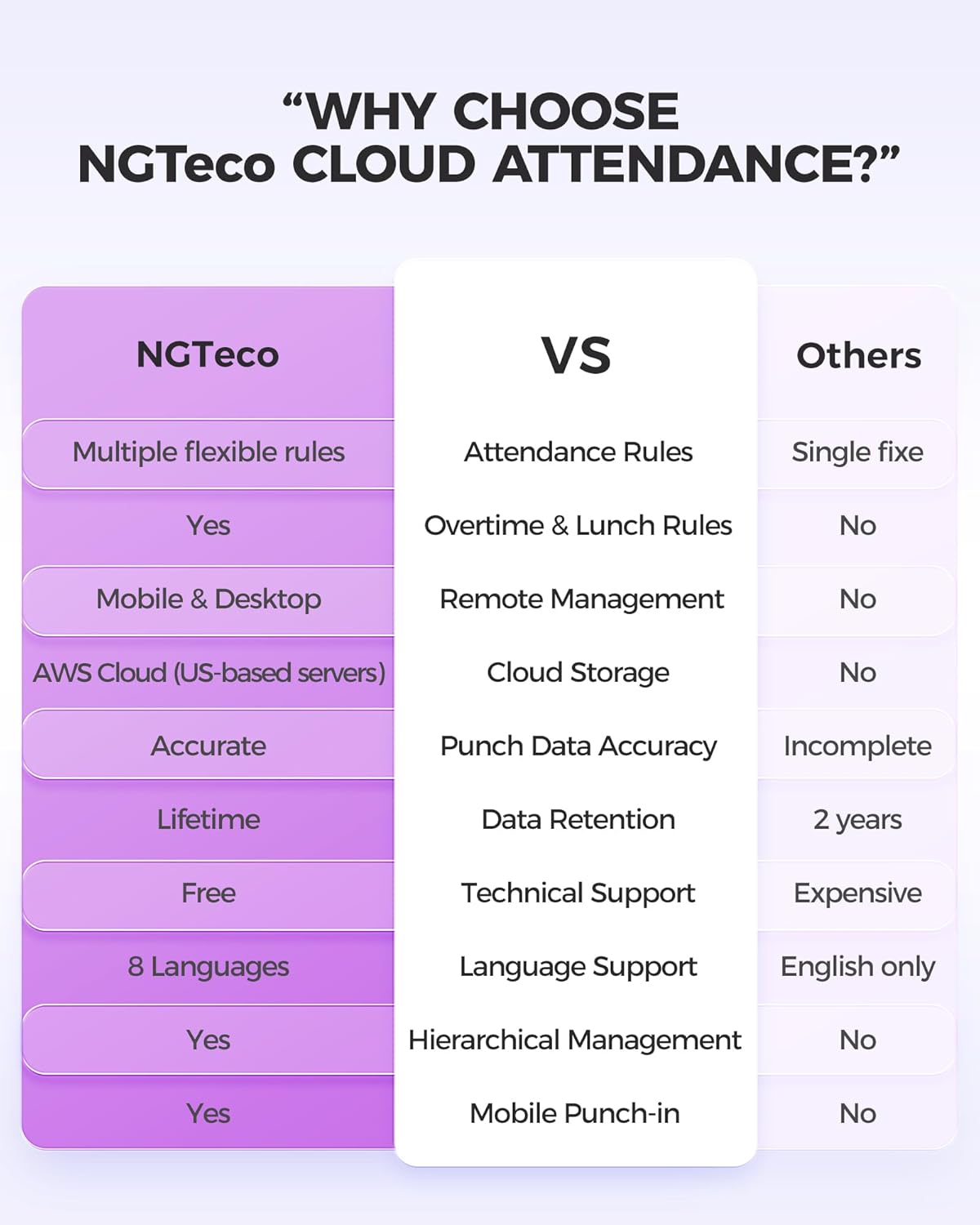
Figure 8: Why Choose NGTeco Cloud Attendance?
This comparison highlights the comprehensive benefits of the NGTeco Cloud Attendance system, including flexible rules, robust cloud storage, and extensive support.
7. Specifications
| Attribute | Detail |
|---|---|
| Brand | NGTeco |
| Model Number | TC4 |
| Color | White |
| Display Type | Digital |
| Special Feature | Cloud-Based, Fingerprint |
| Product Dimensions | 3.3"W x 3.3"H |
| Item Weight | 0.704 ounces |
| Power Source | Corded Electric |
| Material | Premium ABS Plastic |
| Mounting Type | Wall Mount & Tabletop |
| Batteries Required | 1 Nonstandard Battery (not included) |
| UPC | 798610261675 |
8. Maintenance
To ensure optimal performance and longevity of your NGTeco TC4 Time Clock, follow these maintenance guidelines:
- Cleaning: Use a soft, dry cloth to clean the device's exterior. For the fingerprint scanner, gently wipe with a microfiber cloth. Avoid using abrasive cleaners, solvents, or strong chemicals.
- Environment: Operate the device in a clean, dry environment. Avoid exposure to extreme temperatures, direct sunlight, high humidity, or dusty conditions.
- Power Supply: Always use the original power adapter provided with the device. Do not use damaged cables or adapters.
- Software Updates: Regularly check for and install software updates for the NGTeco Office app and device firmware to ensure compatibility and access to the latest features and security enhancements.
9. Troubleshooting
If you encounter issues with your NGTeco TC4, refer to the common problems and solutions below:
- Device Not Powering On:
- Ensure the power adapter is securely plugged into both the device and a working power outlet.
- Verify the power outlet is functional by testing it with another device.
- Cannot Connect to WiFi:
- Confirm your WiFi network is 2.4G. The device does not support 5G networks.
- Check that the WiFi password entered in the app is correct.
- Ensure the device is within range of your WiFi router.
- Restart your WiFi router and the TC4 device.
- Fingerprint Scan Failure:
- Ensure your finger is clean and dry.
- Place your finger flat on the scanner, covering the entire surface.
- Try re-registering your fingerprint in the NGTeco Office app.
- Ensure the fingerprint scanner is clean and free of debris.
- Data Synchronization Issues:
- Verify the device has a stable internet connection.
- Check the app for any error messages or notifications regarding synchronization.
- Ensure the app is updated to the latest version.
For issues not covered here, please contact NGTeco customer support.
10. Warranty & Support
Your NGTeco TC4 Time Clock comes with a 1-year warranty from the date of purchase. This warranty covers defects in materials and workmanship under normal use.
NGTeco provides free lifetime U.S.-based technical support for the TC4. Our support team is available to assist you with any questions or issues you may encounter.
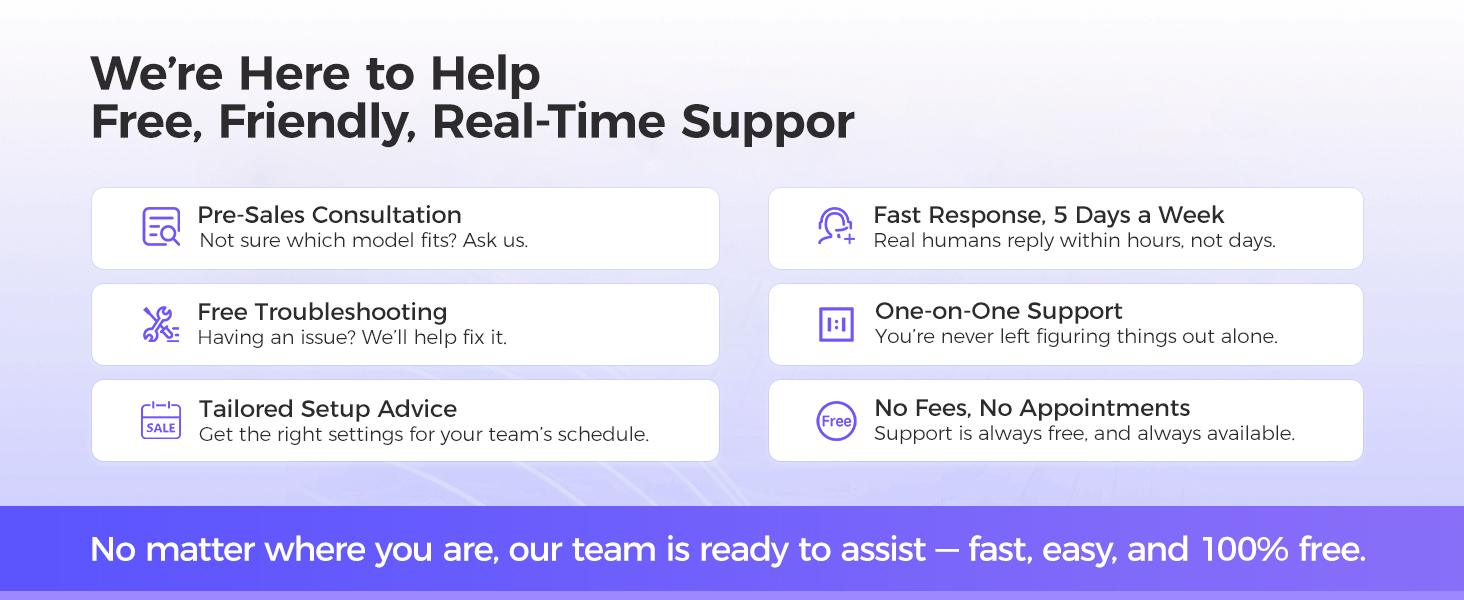
Figure 9: NGTeco Customer Support.
NGTeco offers comprehensive and free customer support, including pre-sales consultation, troubleshooting, and personalized setup advice, available five days a week.
Contact Information:
- Refer to the After-sales Card included in your package for specific contact details.
- Visit the official NGTeco website for support resources and contact options.


