
Divoom D-Ditoo5M
Divoom Ditoo 5M Portable Karaoke Speaker User Manual
Model: D-Ditoo5M
1. Introduction
Thank you for purchasing the Divoom Ditoo 5M Portable Karaoke Speaker. This all-in-one sound system combines a portable speaker with a wireless microphone, FM radio, Bluetooth, MicroSD, and USB playback capabilities. It is designed for versatile use in various environments, including home, travel, and parties. Please read this manual carefully to ensure proper operation and to maximize your product experience.
Video: Overview of the Divoom Ditoo 5M Portable Karaoke Speaker's features and usage scenarios.
2. What's in the Box
Verify that all components are present in the package:
- Divoom Ditoo 5M Portable Karaoke Speaker
- Wireless Microphone
- USB-C Cable
- User Manual (this document)

Image: The Divoom Ditoo 5M speaker, wireless microphone, USB-C cable, and user manual as included components.
3. Product Overview
The Divoom Ditoo 5M features a retro computer design with a pixel art display and tactile mechanical keys. It includes a built-in speaker and a wireless microphone for karaoke functions.
Key Features:
- 15W Powerful Sound: Equipped with 19-core 48mm speakers and dual passive membranes for immersive audio.
- Built-in Lossless Microphone: For clear vocal input during karaoke or recording.
- Pixel Art Display: Customizable display for pixel art, animations, and text.
- Multi-mode Audio Playback: Supports Bluetooth 5.0, FM Radio, USB, and MicroSD card.
- Additional Functions: Clock & Alarm, Sunset Sleep Aid, Sound Factory, Scoreboard & Timer, Pixel Mini Games.
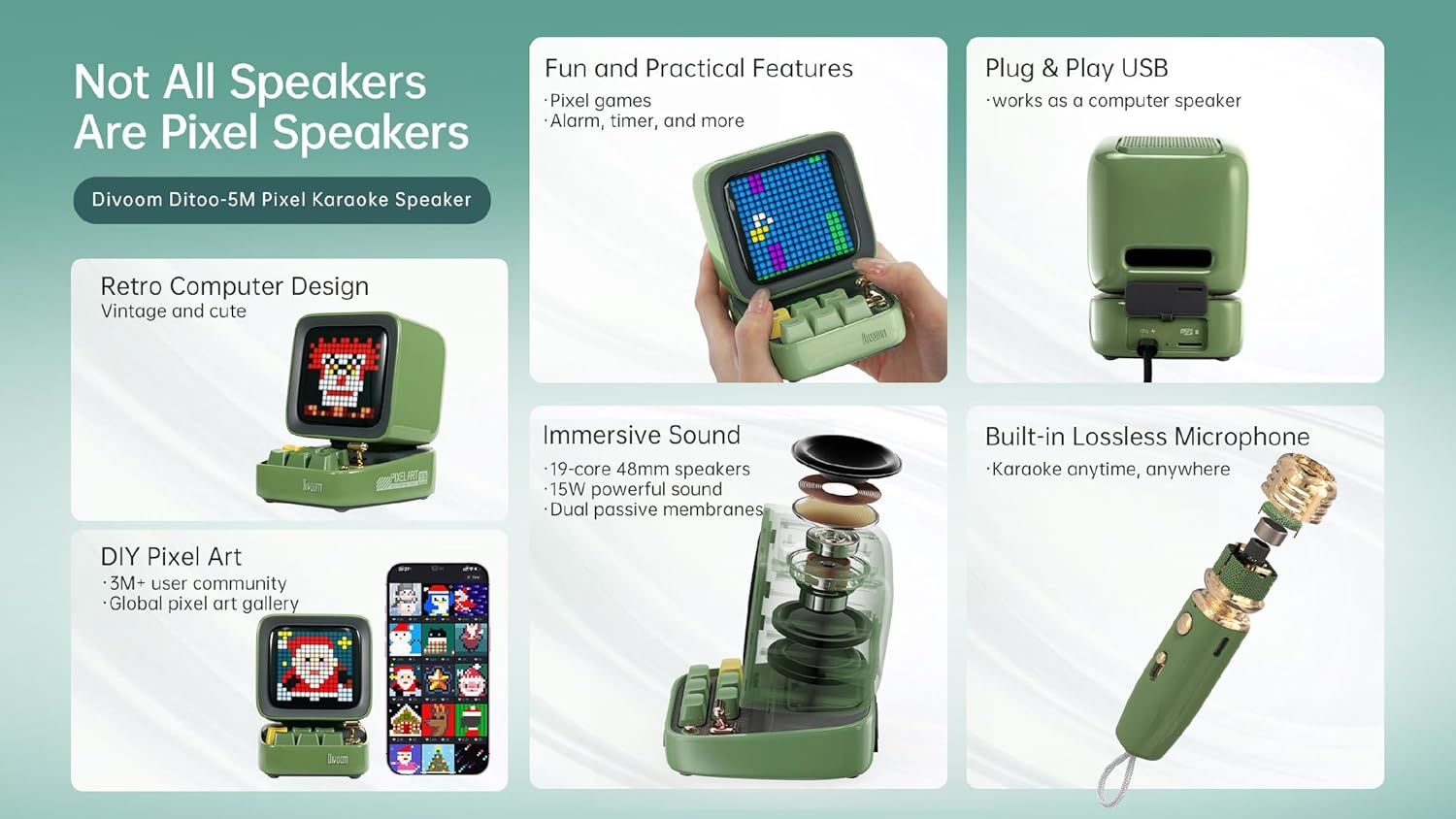
Image: Detailed view of the Divoom Ditoo 5M speaker's internal sound components and the built-in microphone structure.
Craftsmanship Details:
- Piano Lacquer Finish: Provides a sleek and premium texture.
- Battery Indicator Light: For clear visibility of battery life.
- Silicone Base: Ensures stable placement on surfaces.

Image: Close-up views highlighting the piano lacquer finish, battery indicator, and silicone base of the Divoom Ditoo 5M speaker.
4. Setup
4.1 Charging the Device
Before first use, fully charge the Divoom Ditoo 5M speaker and the wireless microphone using the provided USB-C cable. Connect the USB-C cable to the charging port on the device and a compatible USB power adapter (not included).
4.2 Powering On/Off
Press and hold the power button on the speaker to turn it on or off. The pixel display will illuminate upon powering on.
5. Operating Instructions
5.1 Bluetooth Connection
- Ensure the speaker is powered on.
- Activate Bluetooth on your smartphone, tablet, or other compatible device.
- Search for "Divoom Ditoo 5M" in the list of available Bluetooth devices.
- Select the device to pair. A confirmation sound will indicate a successful connection.
5.2 FM Radio Operation
- Switch the speaker to FM radio mode (refer to the device's controls for mode selection).
- Use the navigation buttons to scan for available radio stations.
- Adjust the volume using the dedicated controls.
5.3 MicroSD & USB Playback
- Insert a MicroSD card into the TF card slot or a USB drive into the USB port.
- The speaker will automatically detect and begin playing audio files from the storage device.
- Use the speaker's controls to navigate tracks and adjust volume.
5.4 Karaoke Function with Wireless Microphone
The Ditoo 5M offers an integrated karaoke experience with its wireless microphone.
- Ensure both the speaker and wireless microphone are charged and powered on.
- The microphone should automatically pair with the speaker.
- Select a karaoke mode (e.g., Singer, Studio, Pop Song, Child, Robot, Host, Original) using the speaker's controls or the Divoom app.
- Adjust the microphone volume to your preference.

Image: The Divoom Ditoo 5M speaker and microphone, illustrating the available karaoke modes and microphone volume adjustment.
5.5 Pixel Art Creation
Customize the speaker's display with your own pixel art, animations, or text using the dedicated Divoom mobile application.
- Download and install the Divoom app on your smartphone.
- Connect the speaker to the app via Bluetooth.
- Access the pixel art creation tools within the app to design and display custom visuals.

Image: A user interacting with the Divoom app to create and display pixel art on the Ditoo 5M speaker.
5.6 Pixel Mini Games
The Ditoo 5M includes 15 engaging mini-games for entertainment.
- Navigate to the games section on the speaker's interface or through the Divoom app.
- Select a game (e.g., Pixel Bee, Starfighter, Gomoku, Magic 8-Ball, Dice, Snake, Flying Bird, Frogger, Pixel Racer, Bouncing Ball).
- Use the speaker's keys for game controls.

Image: The Divoom Ditoo 5M speaker showcasing its pixel mini-games feature.
5.7 PC Speaker Functionality
The Ditoo 5M can function as a PC speaker and its microphone can be used for recording.
- Connect the speaker to your PC using an OTG USB cable (not included).
- Select the Ditoo 5M as the audio output device in your computer's sound settings.
- The integrated microphone can also be selected as an input device for communication or recording.

Image: The Divoom Ditoo 5M speaker connected to a computer, demonstrating its use as a PC speaker.
5.8 Additional Features
- Clock & Alarm: Set alarms and display time.
- Sunset Sleep Aid: Features soothing nature and animal sounds to assist with sleep.
- Sound Factory: Includes 23 instruments and 96 sound effects for an immersive audio experience.
- Scoreboard & Timer: Practical tools for various activities.

Image: The Divoom Ditoo 5M speaker demonstrating its additional features including clock, sleep aid, sound factory, and scoreboard.
6. Maintenance
- Cleaning: Use a soft, dry cloth to clean the speaker and microphone. Do not use abrasive cleaners or solvents.
- Storage: Store the device in a cool, dry place away from direct sunlight and extreme temperatures.
- Battery Care: To prolong battery life, avoid fully discharging the battery frequently. Charge the device regularly, even if not in use for extended periods.
7. Troubleshooting
| Problem | Possible Solution |
|---|---|
| Device does not power on. | Ensure the device is fully charged. Connect to a power source using the USB-C cable. |
| Cannot connect via Bluetooth. | Ensure Bluetooth is enabled on your device and the speaker is in pairing mode. Move closer to the speaker. Try restarting both devices. |
| Microphone not working. | Ensure the microphone is charged and powered on. Check if it's paired with the speaker. Adjust microphone volume. |
| No sound from speaker. | Check volume levels on both the speaker and the connected device. Ensure the correct input source is selected. |
8. Specifications
- Brand: Divoom
- Model: D-Ditoo5M
- Connectivity: Bluetooth 5.0, USB Port, MicroSD(TF) Card Slot, FM Radio, Wireless Microphone Link
- Power Source: Built-in Rechargeable Lithium-Ion Battery
- Speaker Output: 15W
- Compatible Devices: Smartphone, Tablet, USB devices
- Media Type: Micro SD, USB
- Included Components: Speaker, Wireless Microphone, USB-C Cable, User Manual
- Special Features: All-in-one karaoke system with FM radio and multiple playback options
9. Warranty and Support
For warranty information and technical support, please refer to the official Divoom website or contact your local distributor. Keep your purchase receipt for warranty claims.
Online Support: Visit www.divoom.com for FAQs, product registration, and contact information.
Related documentsD-Ditoo5M


Ask a question about this manual
Ask about setup, troubleshooting, compatibility, parts, safety, or missing instructions. Manuals+ will review the question and use this page’s manual context to help answer it.