1. Introduction
The BOSGAME M4 Plus Mini PC is a compact and powerful computing solution designed for both professional and gaming applications. Featuring the AMD Ryzen 9 7940HS processor and integrated Radeon 780M graphics, it offers high performance in a small form factor. This manual provides essential information for setting up, operating, maintaining, and troubleshooting your device.

Image 1.1: The BOSGAME M4 Plus Mini PC, showcasing its compact design and various ports.
Key Features:
- Processor: AMD Ryzen 9 7940HS (up to 5.2 GHz Turbo Boost)
- Graphics: Integrated Radeon 780M Graphics
- Memory: 32GB DDR5 5600MHz (Dual channel, expandable to 64GB)
- Storage: 1TB M.2 2280 NVMe PCIe 4.0 SSD (expandable to 4TB)
- Connectivity: Wi-Fi 6E, Dual 2.5GbE LAN, Bluetooth 5.2
- Ports: Dual USB-C 4.0 (40Gbps, 8K display support), HDMI, DisplayPort, USB 2.0, USB 3.0
- Display Support: Up to Dual 8K or Quad 4K displays
- Operating System: Supports Linux and Ubuntu
- Cooling: VC Efficient Heat Dissipation System
2. What's in the Box
Please verify that all items listed below are included in your package:
- 1 × Bosgame M4 Plus mini PC
- 1 × HDMI Cable
- 1 × Power Adapter
- 1 × VESA Mount & Screws
- 1 × User Manual

Image 2.1: Contents of the BOSGAME M4 Plus Mini PC package, including the mini PC, power adapter, VESA mount, HDMI cable, and user manual.
3. Setup Guide
3.1 Initial Connection
- Connect the power adapter to the DC-in port on the mini PC and then to a power outlet.
- Connect your monitor(s) to the mini PC using the HDMI, DisplayPort, or USB-C 4.0 ports.
- Connect your keyboard and mouse to the available USB ports.
- For wired network access, connect an Ethernet cable to one of the 2.5GbE LAN ports.
3.2 VESA Mount Installation
The BOSGAME M4 Plus Mini PC can be mounted to the back of a VESA-compatible monitor using the included VESA mount and screws.
- Fix the VESA bracket onto the mini PC using the provided screws.
- Attach the bracket with the mini PC to the VESA mounting holes on the back of your display using the remaining screws.
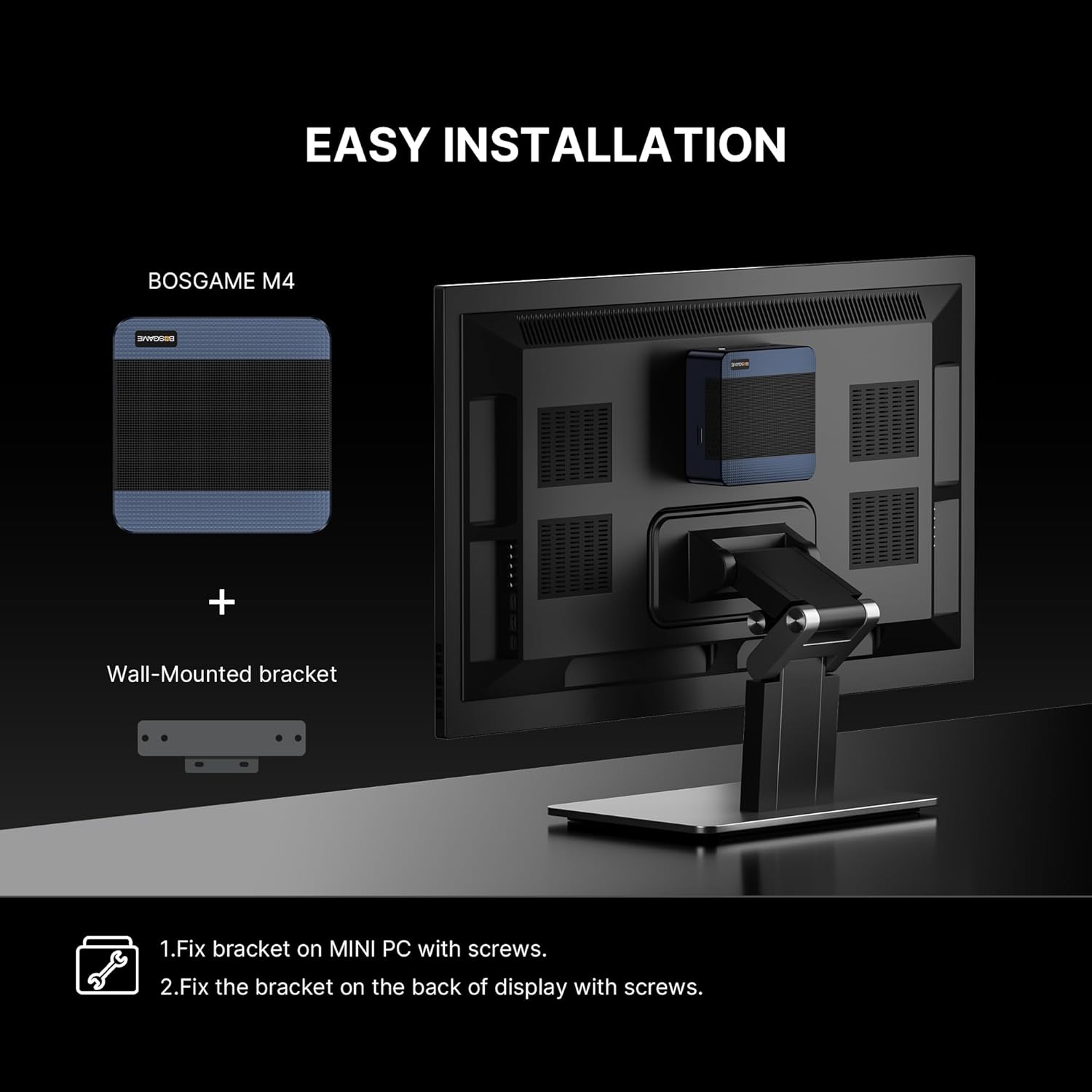
Image 3.1: Diagram illustrating the two-step process for VESA mounting the BOSGAME M4 Plus Mini PC to a monitor.
4. Operating Instructions
4.1 Powering On/Off
- To Power On: Press the power button located on the front of the mini PC. The power indicator light will illuminate.
- To Power Off: From the operating system, select 'Shut Down'. Alternatively, press and hold the power button for 5-7 seconds to force a shutdown (use only when necessary).
4.2 Connecting Peripherals
The M4 Plus offers a variety of ports for connecting external devices:
- USB-C 4.0 Ports: Use these for high-speed data transfer (up to 40Gbps), power delivery (PD 3.0), and connecting 8K displays.
- USB 3.0/2.0 Ports: For connecting standard USB devices like external hard drives, flash drives, and other peripherals.
- HDMI/DisplayPort: For connecting additional monitors.
- 2.5GbE LAN Ports: For high-speed wired network connections.
- Audio Jack: For connecting headphones or external speakers.

Image 4.1: Rear view of the BOSGAME M4 Plus Mini PC, highlighting its comprehensive array of input/output ports including LAN, HDMI, DisplayPort, and USB.
4.3 Display Configuration
The M4 Plus supports multiple display outputs, allowing for a versatile workspace:
- Connect up to two 8K displays or four 4K displays simultaneously.
- Adjust display settings (resolution, orientation, multiple display modes) through your operating system's display settings.

Image 4.2: The BOSGAME M4 Plus Mini PC connected to four monitors, demonstrating its quad-screen display capability for enhanced productivity and entertainment.
5. Technical Specifications
| Feature | Specification |
|---|---|
| Processor | AMD Ryzen 9 7940HS (8 Cores/16 Threads, Max. Boost Clock 5.2 GHz) |
| Graphics | AMD Radeon 780M (Integrated) |
| RAM | 32GB DDR5 5600MHz (Dual Channel, 2 x SODIMM slots, expandable to 64GB) |
| Storage | 1TB M.2 2280 NVMe PCIe 4.0 SSD (expandable to 4TB) |
| Operating System Support | Linux, Ubuntu |
| Wireless Connectivity | Wi-Fi 6E AX210, Bluetooth 5.2 |
| Wired Network | Dual 2.5GbE RJ45 LAN Ports |
| USB Ports | 2 x USB-C 4.0 (40Gbps, PD 3.0, 8K@60Hz), 2 x USB 3.0, 2 x USB 2.0 |
| Video Output | 1 x HDMI 2.0 (4K@60Hz), 1 x DisplayPort (4K@60Hz), 2 x USB-C 4.0 (8K@60Hz) |
| Audio Output | 1 x 3.5mm Audio Jack |
| Dimensions (L x W x H) | 129 x 128 x 44 mm |
| Device Net Weight | 556g |
| Cooling System | VC Efficient Heat Dissipation |
| Noise Level | Approx. 36dB (under typical operation) |

Image 5.1: Detailed specifications of the AMD Ryzen 9 7940HS processor, including core count, threads, boost clock, and TDP.
6. Maintenance
6.1 General Care
- Keep the mini PC in a clean, dry environment away from direct sunlight, excessive heat, or moisture.
- Avoid placing heavy objects on top of the device.
- Ensure proper ventilation by not blocking the air vents.
6.2 Cleaning
- Use a soft, dry cloth to wipe the exterior of the mini PC.
- For stubborn stains, slightly dampen the cloth with water or a mild, non-abrasive cleaner.
- Do not spray cleaning liquids directly onto the device.
- Periodically use compressed air to clear dust from the ventilation grilles to maintain optimal cooling performance.

Image 6.1: An exploded view diagram illustrating the components of the VC Efficient Heat Dissipation system, including the cooling fan, VC liquid cooling, and heat conduits.
7. Troubleshooting
This section addresses common issues you might encounter with your BOSGAME M4 Plus Mini PC.
7.1 No Power
- Ensure the power adapter is securely connected to both the mini PC and a working power outlet.
- Verify the power outlet is functional by plugging in another device.
- Check the power adapter for any visible damage.
7.2 No Display Output
- Confirm that the monitor is powered on and set to the correct input source (HDMI, DisplayPort, USB-C).
- Check the display cables for secure connections at both ends.
- Try a different display cable or monitor if available.
- If using multiple displays, try connecting only one display at a time to isolate the issue.
7.3 Wi-Fi/Bluetooth Connectivity Issues
- Ensure Wi-Fi and Bluetooth are enabled in your operating system settings.
- Restart your router/modem.
- Move the mini PC closer to the wireless router or Bluetooth device to improve signal strength.
- Update wireless and Bluetooth drivers if necessary.
7.4 System Performance Issues / Overheating
- Ensure the mini PC's ventilation openings are not obstructed.
- Close unnecessary applications running in the background.
- Check for and install any available operating system updates.
- Clean dust from the vents as described in the Maintenance section.

Image 7.1: Graphs showing CPU temperature changes over 14 hours and noise data for various software applications, demonstrating the system's thermal and acoustic performance.
8. Warranty and Support
8.1 Limited Warranty
The BOSGAME M4 Plus Mini PC comes with a 1-year limited warranty covering design and workmanship defects from the date of purchase. This warranty does not cover damage caused by misuse, accident, unauthorized modification, or natural disasters.
8.2 Customer Support
For technical assistance, warranty claims, or any other inquiries, please contact BOSGAME customer support. Refer to the contact information provided on the BOSGAME official website or the packaging for the most up-to-date support channels.
BOSGAME is committed to providing professional after-sales support to ensure your satisfaction.


