
1. Product Overview
The KENRONE KR-PL4349 is a biometric fingerprint padlock designed for quick and secure unlocking. It features a durable zinc alloy body, IP66 waterproof rating, and a long-lasting rechargeable battery. This padlock can store multiple fingerprints and includes an emergency key for alternative access.

Image 1.1: KENRONE KR-PL4349 Fingerprint Padlock.
Key Features:
- Biometric Fingerprint Recognition: Unlock in approximately 0.5 seconds.
- Emergency Key: Provides an alternative unlocking method.
- Durable Construction: Made from zinc alloy with an IP66 waterproof rating.
- Rechargeable Battery: Offers up to 12 months of standby time on a single charge.
- Multiple User Support: Stores up to 2 administrator fingerprints and 48 user fingerprints.
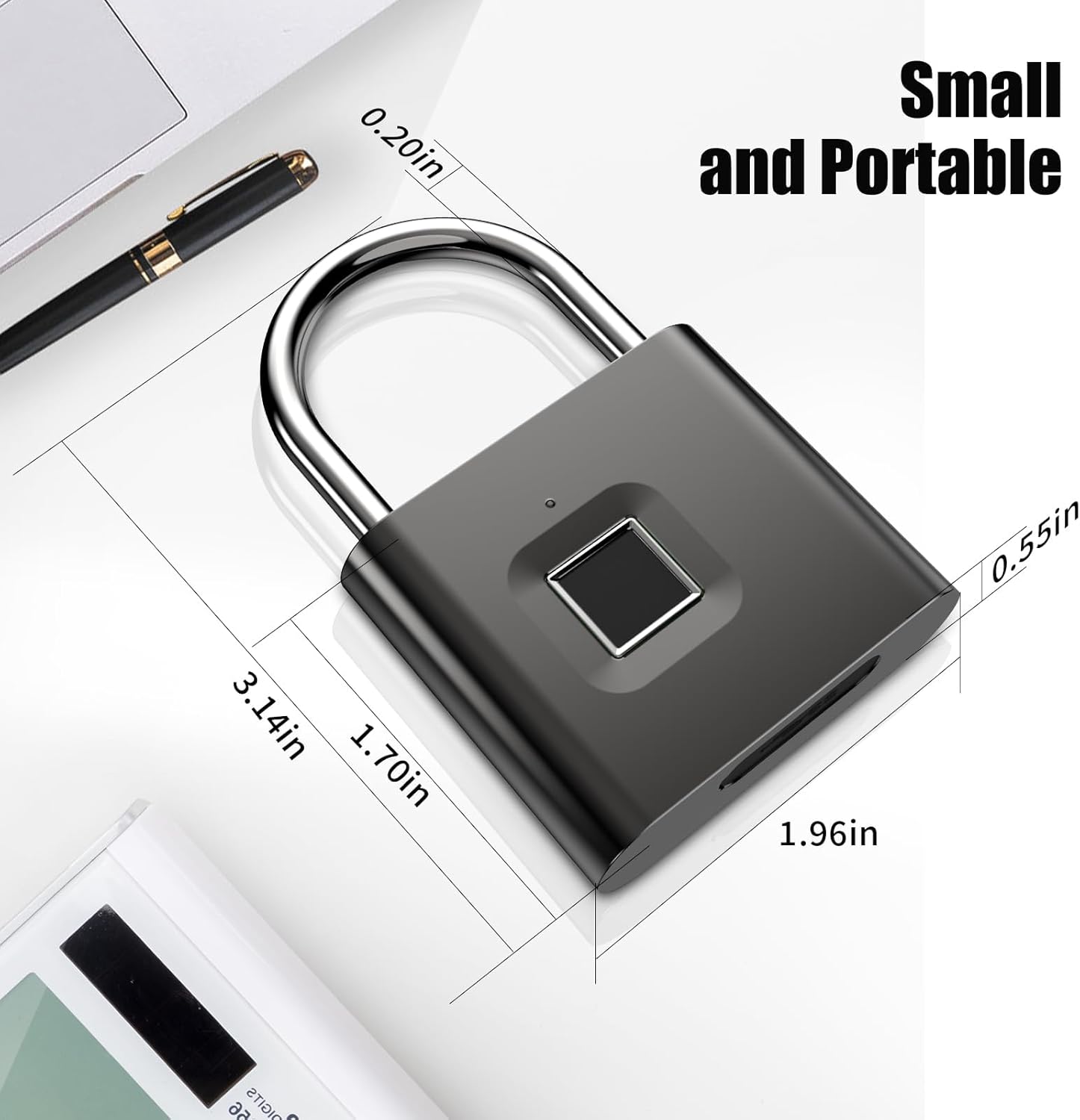
Image 1.2: Dimensions of the padlock, measuring 1.96 x 0.55 x 3.14 inches.

Image 1.3: The padlock is IP66 waterproof, suitable for outdoor use.
2. Setup Instructions
2.1 Initial Charging
Before first use, fully charge the padlock using the provided USB cable. Connect the USB cable to the charging port located at the bottom of the padlock and to a standard USB power source. A full charge typically takes 1-2 hours.

Image 2.1: The padlock features a USB charging port for convenient power replenishment.
2.2 Registering Administrator Fingerprints
The first two fingerprints registered will automatically be set as administrator fingerprints. Administrators have the authority to add or delete other user fingerprints.
- Unlock the Padlock: If locked, press your finger on the sensor to unlock it.
- Enter Registration Mode: With the padlock unlocked, press and hold your finger on the fingerprint sensor for 3 seconds until the blue light comes on.
- Scan Fingerprint: Lift and press your finger on the sensor 6 times. Each successful scan will be indicated by a green light. After the 6th successful scan, the green light will remain on, indicating successful registration.
- Repeat for Second Administrator (Optional): To register a second administrator, repeat steps 1-3 with a different finger.
Video 2.1: This video demonstrates the process of setting up an administrator fingerprint on the padlock.
2.3 Registering User Fingerprints
After registering administrator fingerprints, you can add up to 48 additional user fingerprints. User fingerprints require administrator consent for registration.
- Initiate User Registration: Long press the administrator's fingerprint for 3 seconds until the blue light turns on.
- Administrator Consent: After the blue light turns on, the administrator must press their finger on the sensor again to confirm.
- Scan User Fingerprint: The user should then press their finger on the sensor 6 times. Each successful scan will be indicated by a green light. After the 6th successful scan, the green light will remain on, indicating successful registration.
- Repeat for Additional Users: Repeat steps 1-3 for each new user fingerprint.
3. Operating Instructions
3.1 Unlocking with Fingerprint
To unlock the padlock, simply place a registered finger on the fingerprint sensor. The padlock will unlock within approximately 0.5 seconds if the fingerprint is recognized.

Image 3.1: The padlock provides convenient and fast fingerprint unlocking.
3.2 Emergency Key Unlocking
In situations where fingerprint unlocking is not possible (e.g., finger injury, damaged sensor, dead battery), the emergency key can be used. The emergency key itself does not contain a battery; ensure the padlock has sufficient charge for the emergency key to function.

Image 3.2: Instructions for using the electronic emergency key for unlocking or clearing fingerprints.
4. Maintenance
4.1 Battery and Charging
The padlock is equipped with a 300mAh lithium battery. When the battery voltage is ≤3.5V, the red light will flash 3 times after unlocking to indicate a low power state. Charge the padlock promptly using the USB cable. A full charge supports approximately 10,000 unlocking operations.
Video 4.1: This video highlights the smart fingerprint unlocking and USB charging features of the padlock.
4.2 Deleting Fingerprints
Deleting fingerprints requires administrator consent.
- Enter Deletion Mode: Press and hold an administrator fingerprint. Do not release when the blue light is on. Continue holding until the red light comes on after approximately 10 seconds.
- Confirm Deletion: Release the administrator fingerprint. Then, press the user fingerprint to be deleted once. A green light will turn on, indicating that the user fingerprint has been successfully deleted.

Image 4.1: Step-by-step guide on how to delete registered fingerprints.
5. Troubleshooting
5.1 Fingerprint Not Recognized
- Ensure your finger is clean and dry.
- Try repositioning your finger on the sensor.
- If multiple attempts fail, try using a different registered finger.
- If the issue persists, consider re-registering your fingerprint.
5.2 Padlock Not Responding
- Check the battery level. If the red light flashes, the battery is low and requires charging.
- Connect the padlock to a power source using the USB cable.
- If the padlock is completely unresponsive, use the emergency key for access.
5.3 Emergency Key Not Working
- Ensure the padlock has some charge, as the emergency key relies on the padlock's internal power.
- Verify the emergency key is inserted correctly.
6. Specifications
| Brand | KENRONE |
| Model Number | KR-PL4349 |
| Lock Type | Biometric Fingerprint |
| Special Feature | Fingerprint, Rechargeable |
| Material | Zinc Alloy |
| Item Dimensions (L x W x H) | 1.96 x 0.55 x 3.14 inches |
| Item Weight | 120 Grams |
| Waterproof Rating | IP66 |
| Battery Capacity | 300mAh |
| Fingerprint Capacity | 2 Admin, 48 User |
7. Warranty and Support
The KENRONE KR-PL4349 Fingerprint Padlock comes with a manufacturer warranty. For specific warranty details or technical support, please refer to the contact information provided with your purchase or visit the official KENRONE website. Use with confidence.