
Introduction
Thank you for choosing the Philips 65PUH7700 65-inch 4K Tunerless Smart TV. This manual provides essential information for setting up, operating, and maintaining your new television. Please read these instructions carefully before using the product to ensure safe and optimal performance. This TV is designed for streaming content and does not include built-in tuners for terrestrial, BS, or 110°S broadcasts. An external tuner is required for viewing traditional broadcast television.
Important Safety Information
- Always ensure the TV is placed on a stable, level surface to prevent tipping.
- Do not block ventilation openings. Ensure adequate space around the TV for proper airflow.
- Keep the TV away from heat sources, direct sunlight, and moisture.
- Use only the power cord and accessories supplied by Philips.
- Unplug the TV during lightning storms or when unused for long periods.
- Refer all servicing to qualified service personnel.
What's in the Box
Before proceeding with the setup, please verify that all the following items are included in your package:
- Philips 65PUH7700 65-inch 4K Tunerless Smart TV
- Remote Control
- TV Stand (2 pieces)
- Stand Screws (M5 x 4)
- Power Cable
- User Manual / Quick Start Guide
- Warranty Card
Setup Guide
1. Unboxing the TV
For safety, it is recommended that two people handle the unboxing and setup of the TV. Place the outer box vertically on a flat surface. After cutting the tape, remove the locks at the bottom of the box. For some TV sizes, there are no locks, and you can open the box by simply peeling off the tape. Carefully lift the outer box vertically or lift the TV out to remove it. Ensure the TV remains upright to prevent damage.
Video: This video demonstrates the unboxing process and how to attach the stand to your Philips TV. It shows two individuals carefully removing the TV from its packaging and securing the stand components.
2. Attaching the TV Stand
Before attaching the stand, prepare a Phillips head screwdriver. Take out the base stands and confirm that the model number is correct (e.g., 65F-L for left, 65F-R for right). Align the holes on the stand with the corresponding holes on the bottom of the TV. Insert the provided M5 screws and tighten them securely. Repeat the process for the other stand. Once both stands are attached, carefully raise the TV and ensure the stands are firmly fixed.
The power cord is located on the back of the TV. If wall-mounting is required, please consult a professional installer.
3. Initial Setup and Connectivity
Once the TV is powered on, it will proceed to the loading screen. Follow the on-screen instructions to pair your remote control. Press the "HOME" and "BACK" buttons simultaneously for 3 seconds to enter pairing mode. The lamp on the top left of the remote will flash, indicating pairing is in progress. Once paired, select "Skip" using the center button on the remote to proceed.
Video: This video guides you through the initial setup process of your Philips TV, including remote control pairing, language selection, and connecting to Wi-Fi.
Language Selection
Select your preferred language from the list. The TV supports Japanese and other languages.
TV Mode Selection
Choose "Home Mode" for efficient energy use in a home environment. "Retail Mode" is optimized for in-store demonstrations.
Wi-Fi Connection
Select your Wi-Fi network from the available list and enter the password to connect. Please note that Wi-Fi connection may require several attempts initially; this is not a malfunction.
Google Account Login/Registration
Log in with your existing Google account or create a new one. This is necessary to access Google TV features and apps.
Google Services and App Selection
Confirm the Google Terms of Service and Privacy Policy. You will then be prompted to select services and apps to install. The TV will automatically install your chosen applications. Note that some apps may not be available in all regions or may require separate subscriptions.
You can also choose to enable search optimization for multiple apps, add the TV to Google Home, and select a room for its location.
Operating Your TV
Remote Control Functions
The included voice-activated remote control features direct access buttons for popular streaming services such as ABEMA, YouTube, Netflix, and Hulu. Use the Google Assistant button for voice search to quickly find movies, shows, or apps.

Image: A close-up of the Philips TV remote control, highlighting the direct access buttons for streaming services and the Google Assistant voice search function.
Google TV Features
Google TV organizes all your movies, shows, and content from various subscriptions on one home screen. It offers personalized recommendations based on your viewing habits and allows for multiple user profiles, ensuring a customized experience for each family member.

Image: The Philips TV screen showing the Google TV interface with a selection of streaming applications like Netflix, YouTube, and Prime Video.
Casting from Smartphone
With built-in Chromecast, you can easily cast content from your iPhone or Android smartphone to the TV. Share photos, videos, and even play mobile games on the large screen.

Image: A visual representation of a smartphone screen being mirrored onto the Philips TV, demonstrating the Chromecast feature.
Picture Modes
The TV offers various picture modes to optimize your viewing experience based on the content and environment:
- Standard Mode: Default setting, providing a balanced viewing experience for most content.
- Game Mode: Optimizes responsiveness and minimizes input lag for a smooth gaming experience.
- Eco Mode: Energy-saving mode, environmentally friendly.
- Movie Mode: Best for movies and dramas in dark environments.
- Dynamic Mode: Vivid and vibrant images, ideal for bright viewing environments.
- Sports Mode: Reduces motion blur for clear sports viewing.
- Personal Mode: Customize settings to your preference.

Image: A collage showing different picture modes available on the Philips TV, each optimized for specific content types or viewing conditions.
Sound Features
Experience immersive audio with Dolby Atmos sound, providing powerful three-dimensional sound that draws you into movies and games. The TV also supports Dolby Vision for enhanced visual quality.

Image: A family enjoying a movie on the Philips TV, illustrating the immersive experience provided by Dolby Vision and Dolby Atmos sound.
Gaming Features
- ALLM (Auto Low Latency Mode): Automatically switches to game mode, minimizing input lag for a smooth gaming experience.
- MEMC (Motion Estimation, Motion Compensation): Renders fast-moving scenes smoothly, ensuring clear images for sports and action movies without blur.
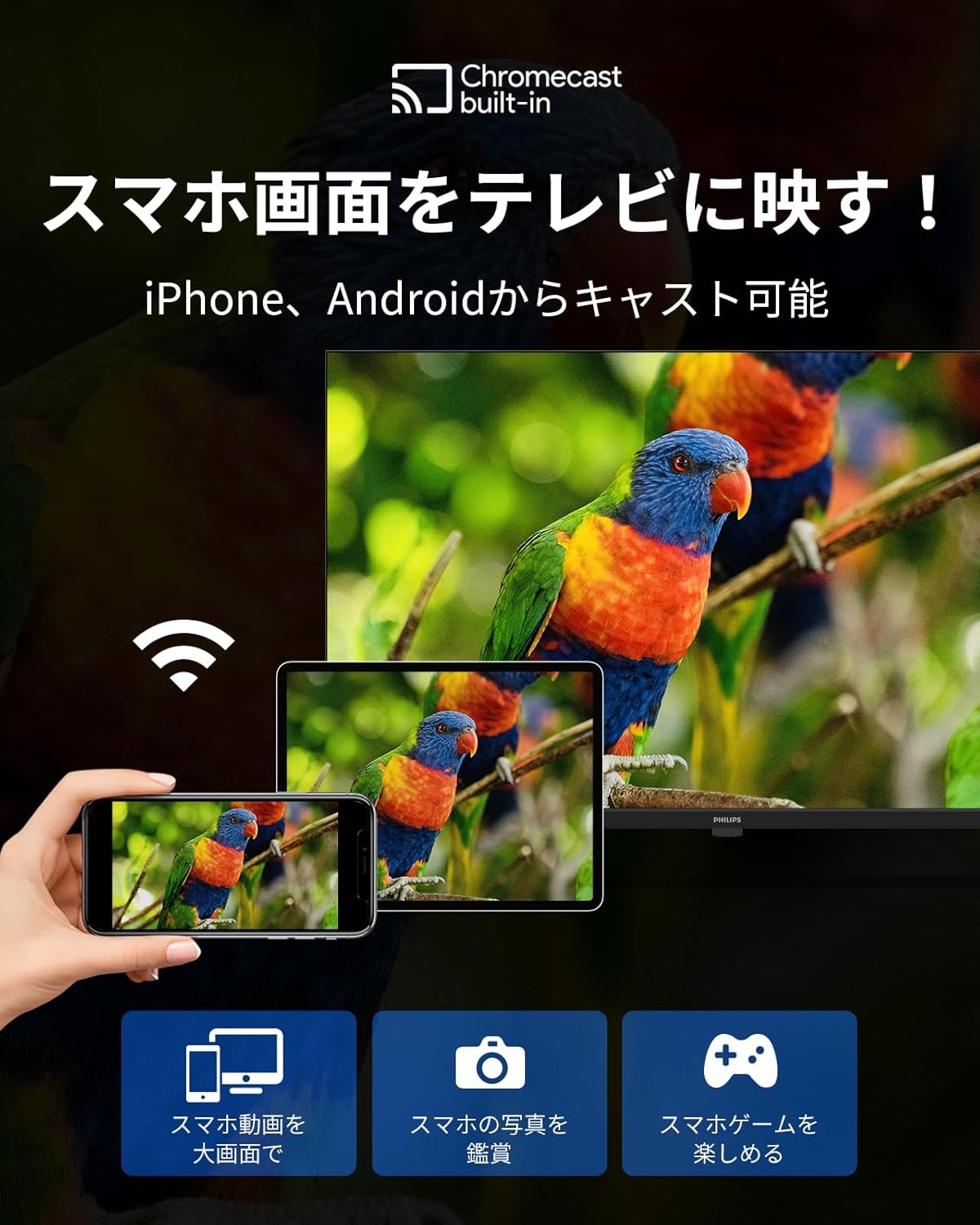
Image: A split image demonstrating the difference in motion clarity and responsiveness with and without ALLM and MEMC technologies during gaming on the Philips TV.
Blue Light Cut Technology
Philips' "Blue Light Care Technology" cuts harmful blue light by 90%, providing a gentle viewing experience even at night. This technology balances eye protection with high picture quality, allowing for comfortable long-term viewing.

Image: A diagram illustrating how Philips' blue light cut technology works to reduce harmful blue light emissions, showing a comparison of a regular TV and a Philips SoftBlue TV.
Connectivity
The Philips 65PUH7700 offers diverse and high-speed connectivity options to seamlessly connect to your favorite devices:
- HDMI Ports (x3): Connect game consoles, soundbars, and other HDMI-enabled devices. Signal switching response time is approximately 2 seconds.
- USB Ports (x2): For media playback or connecting external storage.
- Bluetooth: Connect headphones, speakers, and other Bluetooth devices wirelessly for private listening or enhanced audio.
- Wi-Fi: For internet access and streaming services.
- LAN (RJ45): For a stable wired internet connection.
- Audio/Video Inputs (RCA): For connecting older devices.
- Optical Out: For high-quality digital audio output to sound systems.
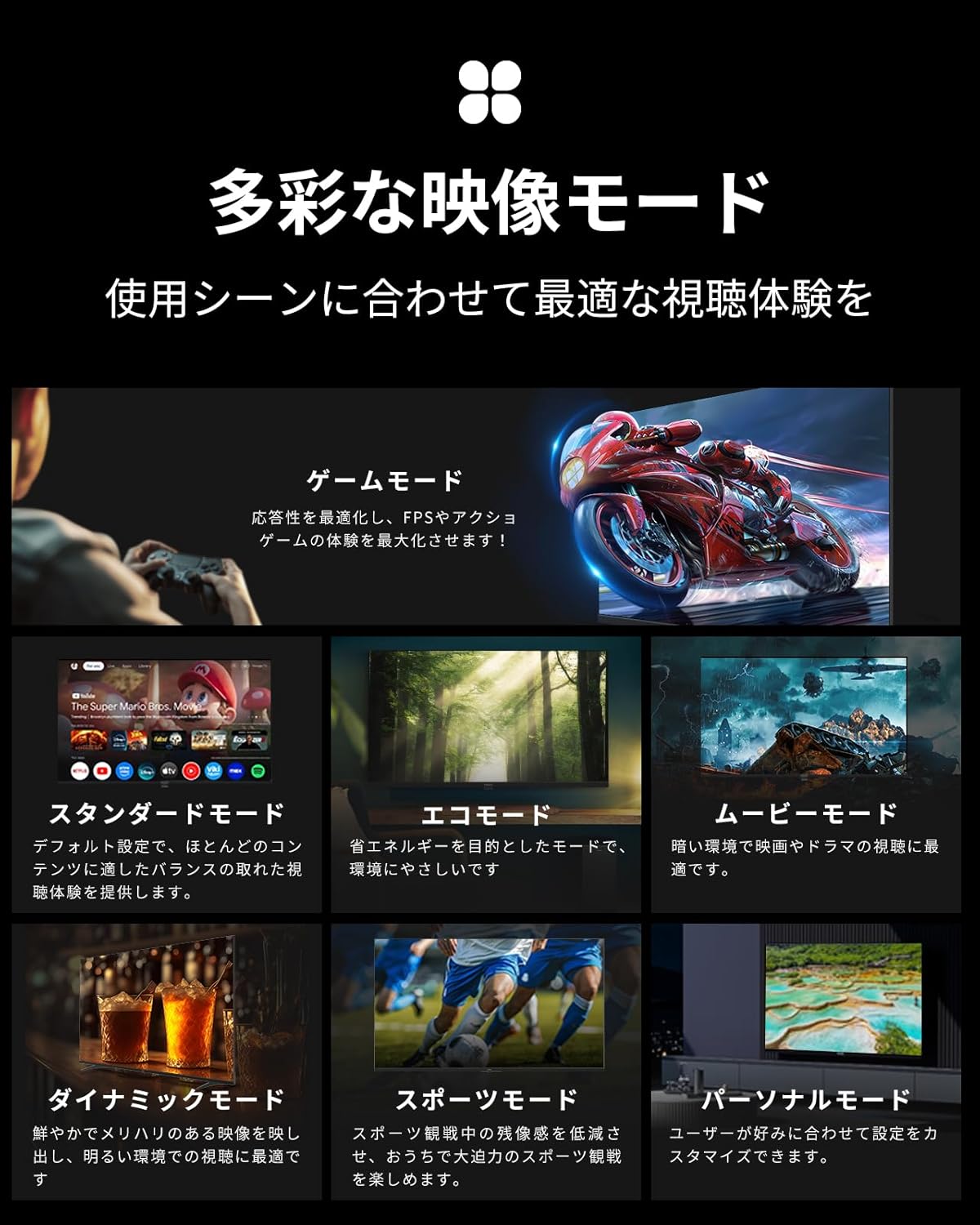
Image: A detailed view of the back panel of the Philips TV, illustrating the location and types of various connectivity ports including HDMI, USB, LAN, and audio outputs.
Maintenance
To ensure the longevity and optimal performance of your Philips TV, follow these maintenance guidelines:
- Screen Cleaning: Gently wipe the screen with a soft, lint-free cloth. For stubborn marks, slightly dampen the cloth with water or a screen-specific cleaning solution. Avoid harsh chemicals or abrasive materials.
- Cabinet Cleaning: Use a soft, dry cloth to clean the TV cabinet. Do not use liquid cleaners directly on the TV.
- Ventilation: Regularly check that the ventilation slots on the back of the TV are not obstructed by dust or debris.
- Power Cord: Inspect the power cord periodically for any signs of damage. If damaged, contact customer support for a replacement.
Troubleshooting
If you encounter any issues with your Philips TV, refer to the following common troubleshooting steps:
| Problem | Possible Solution |
|---|---|
| No Power | Ensure the power cord is securely plugged into both the TV and a working electrical outlet. Check if the power outlet is functioning. |
| No Picture/Sound | Verify that the correct input source is selected. Check all cable connections (HDMI, etc.). Restart the TV. |
| Remote Control Not Working | Check the batteries and replace them if necessary. Ensure there are no obstructions between the remote and the TV. Re-pair the remote control if needed (refer to Initial Setup). |
| Wi-Fi Connection Issues | Ensure your Wi-Fi router is on and working. Re-enter the Wi-Fi password. Try restarting both the TV and the router. |
| App Not Loading/Crashing | Check your internet connection. Try restarting the app or reinstalling it. Ensure the TV's system software is up to date (Settings > System > Device Information > System Update). |
Frequently Asked Questions (FAQ)
- Q1: Do I need an internet connection to use Google TV?
A1: Yes, you need an internet connection. Please restart the TV after connecting to the internet. - Q2: Do all devices need to be on the same wireless network for Chromecast?
A2: Yes, all devices need to be on the same wireless network. Please restart the TV after connecting to the internet. - Q3: How do I use the Chromecast feature?
A3: Android users can scan a QR code or search for a notification using the Google Home app. iOS users can download the Video & TV Cast app or Airscreen app to use Chromecast. - Q4: How many languages does OK Google support?
A4: OK Google supports over 40 languages. Log in to your Google account and reset the language for the voice assistant.
Specifications
| Feature | Specification |
|---|---|
| Screen Size | 65 inches |
| Display Type | VA LCD |
| Tuner Type | Tunerless |
| HDMI Ports | 3 |
| Total USB Ports | 2 |
| Supported Media | Game console, Speaker, Smartphone, Headphones |
| Brand | PHILIPS |
| Included Accessories | Stand, Remote Control, Warranty Card, Power Cable |
| Manufacturer Model Number | PUH7700 |
| Release Year | 2025 |
| Network Connectivity | Bluetooth, HDMI, USB, Wi-Fi |
| Wall Mount Compatible | Table Mount (VESA compatible, consult professional for wall mount) |
| Aspect Ratio | 16:9 |
| Refresh Rate | 60 Hz (DLG 120 Hz) |
| Wireless Standard | Bluetooth |
| Viewing Angle | 178 degrees |
| Speaker Features | Dolby Vision/Atmos |
| Product Dimensions (D x W x H) | 8.9 x 144.5 x 83.3 cm (without stand) |
| Product Features | Chromecast, Game Mode |
| Output Channels | 5.1ch |
| Battery Use | No |
| Product Weight | 109 kg |
Warranty and Support
All Philips products sold are genuine. This product comes with a 365-day warranty period from the date of purchase. We offer free product exchange for defects that occur during normal use (excluding malfunctions caused by customer's intent or negligence).
Important Note: If the product arrives damaged or scratched during delivery, please contact us immediately for a free exchange. Our customer support is available Monday to Friday, 10:00-12:00 and 13:00-17:00 (excluding Saturdays, Sundays, holidays, summer holidays, and year-end/New Year holidays).


