
Introduction
This manual provides comprehensive instructions for setting up, operating, maintaining, and troubleshooting your Keychron K3 QMK Ultra-Slim Wireless Mechanical Keyboard Version 3. Please read this guide thoroughly to ensure optimal performance and longevity of your device.

Image: The Keychron K3 Version 3 keyboard, showcasing its compact 75% layout and ultra-slim design.
Product Overview
The Keychron K3 QMK Version 3 is a low-profile wireless mechanical keyboard featuring a 75% layout. It is equipped with QMK firmware and enhanced acoustic foams for a superior typing experience. This keyboard supports both Bluetooth 5.2 and wired USB-C connections, offering versatility for various computing environments.
Key Features:
- QMK Firmware: Allows for extensive customization of key remapping, macros, and shortcuts via the Keychron Launcher web app.
- Dual Mode Connectivity: Supports stable Broadcom Bluetooth 5.2 for wireless connection to up to three devices and a reliable wired USB-C connection.
- Ultra-Slim Design: Utilizes innovative Keychron Low-Profile 2.0 Mechanical Switches, making it significantly thinner than conventional mechanical keyboards.
- High Performance: Features an ultra-low-power ARM architecture MCU with 256K Flash, providing a 1000 Hz polling rate in wired mode and 125 Hz in wireless mode.
- Hot-Swappable Switches: Enables easy replacement of low-profile Keychron or Gateron mechanical switches without soldering. Note: Not compatible with low-profile optical switches.

Image: Side profile comparison illustrating the ultra-slim body of the Keychron K3 Version 3 (23mm) compared to a standard keyboard (K2 Max 41.54mm).

Image: An exploded diagram showing the internal components of the Keychron K3 Version 3, including keycaps, switches, aluminum plate, foams, PCB, and battery.
Setup
1. Initial Charging
Before first use, connect the keyboard to a power source using the provided USB-C cable to ensure it is fully charged. The charging indicator light will show the charging status.
2. Switching Operating System Layout
The K3 Version 3 is compatible with both Mac and Windows operating systems. Locate the OS toggle switch on the side of the keyboard and slide it to the appropriate position (Win/Android or Mac/iOS) for your device.
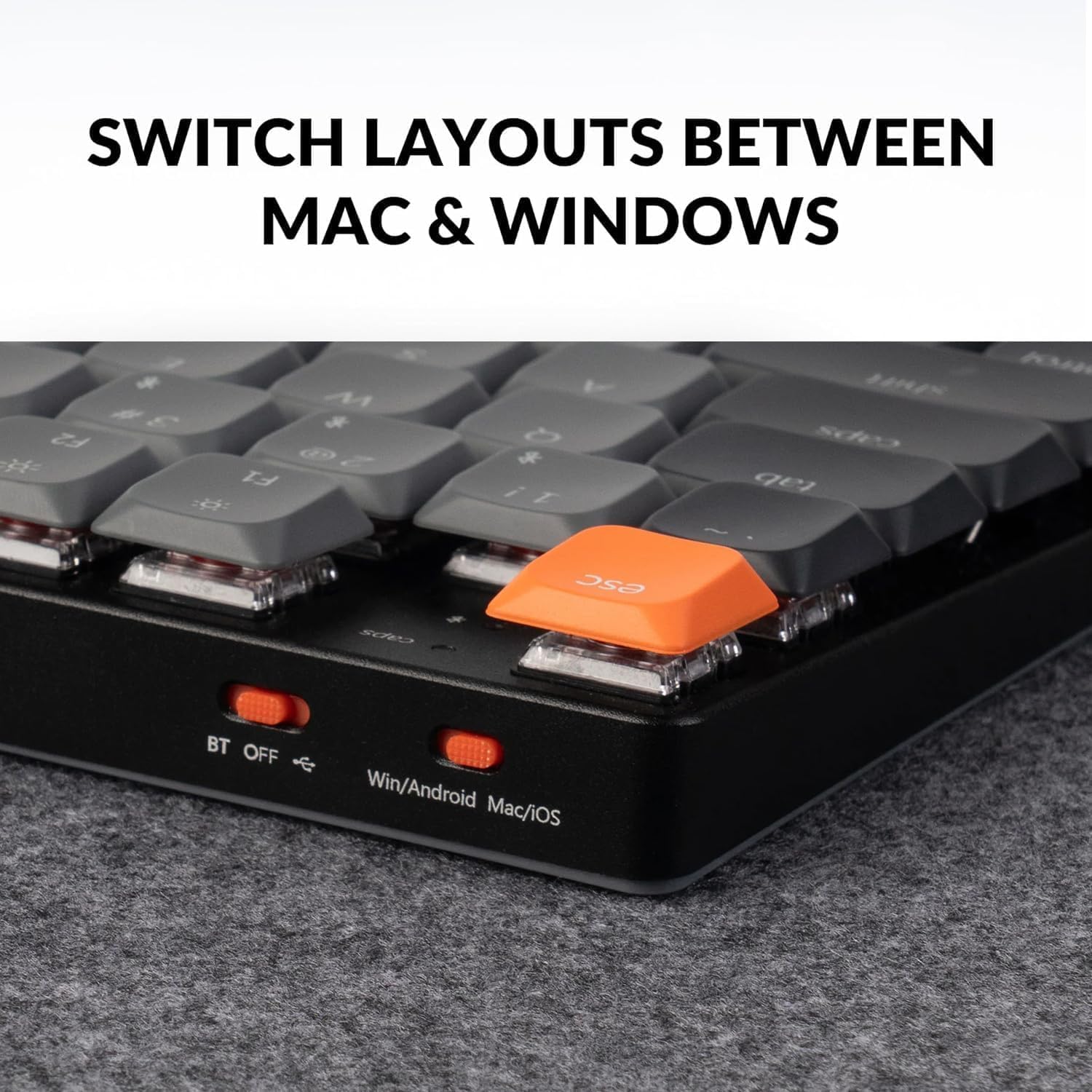
Image: A close-up of the keyboard's side, showing the toggle switch for selecting between Mac/iOS and Windows/Android layouts.
3. Wired Connection
To use the keyboard in wired mode, ensure the connectivity toggle switch is set to 'Cable' or 'BT OFF'. Connect the USB-C cable from the keyboard to your computer's USB port.
4. Bluetooth Connection
The K3 Version 3 can connect wirelessly to up to three devices. Follow these steps:
- Slide the connectivity toggle switch to 'BT' (Bluetooth).
- Press and hold the 'Fn' key and one of the Bluetooth keys (BT1, BT2, or BT3) for 3 seconds until the key starts flashing rapidly. This indicates the keyboard is in pairing mode.
- On your device (laptop, phone, tablet), go to Bluetooth settings and search for 'Keychron K3 V3'.
- Select the keyboard to pair. Once connected, the flashing light will become solid.
- To switch between paired devices, simply press 'Fn' + the corresponding Bluetooth key (BT1, BT2, or BT3).

Image: The Keychron K3 Version 3 keyboard on a desk with a laptop and tablet, illustrating its dual wireless (Bluetooth 5.2) and wired (USB-C) connectivity options.
Operating Instructions
1. Key Remapping and Customization (QMK & Launcher)
The K3 Version 3 features QMK firmware, allowing for extensive customization. Use the Keychron Launcher web app to remap keys, create macros, and set shortcuts. This web-based tool provides a graphical interface for easy configuration.

Image: A screenshot of the Keychron Launcher web app interface, showing options for key remapping, lighting, macros, and firmware updates for the K3 Version 3.
2. Backlight Control
The keyboard features an RGB backlight. Use the dedicated backlight keys or combinations with the 'Fn' key to cycle through different lighting effects, adjust brightness, and change colors. Refer to the quick start guide for specific key combinations.

Image: The Keychron K3 Version 3 keyboard illuminated with its North-Facing RGB backlight, showcasing the vibrant lighting effects.
3. Hot-Swapping Switches
The K3 Version 3 supports hot-swappable mechanical switches. To replace a switch:
- Gently pull the keycap off using a keycap puller.
- Use the provided switch puller to carefully remove the switch from the PCB.
- Align the pins of the new low-profile Keychron or Gateron mechanical switch with the holes on the PCB.
- Press the new switch firmly into place until it clicks. Ensure it is seated correctly.
- Replace the keycap.
Caution: Only use compatible low-profile mechanical switches. Attempting to install incompatible switches may damage the keyboard.

Image: A diagram illustrating the hot-swappable mechanism of the Keychron K3 Version 3, showing how the switch and stabilizers are integrated.
Maintenance
1. Cleaning the Keyboard
To clean your keyboard, first disconnect it from all power sources. Use a soft, lint-free cloth slightly dampened with water or a mild cleaning solution. For deeper cleaning, remove keycaps and use compressed air to clear debris from beneath the switches. Avoid excessive moisture.

Image: A close-up view of the LSA shine-through ABS keycaps on the Keychron K3 Version 3, highlighting their texture and design.
2. Battery Care
The keyboard is powered by a rechargeable Lithium Polymer battery. To prolong battery life:
- Avoid fully discharging the battery frequently.
- Store the keyboard in a cool, dry place if not used for extended periods.
- Use the provided USB-C cable for charging.
Troubleshooting
1. Connection Issues
- Bluetooth Disconnection: Ensure the keyboard is charged. Re-pair the keyboard with your device. Try resetting the Bluetooth connection on both the keyboard and your device.
- Wired Connection Not Detected: Check the USB-C cable and port for damage. Ensure the connectivity toggle switch is set to 'Cable' or 'BT OFF'. Try a different USB port or cable.
2. Key Functionality Problems
- Keys Not Responding: Check if the keyboard is properly connected (wired or Bluetooth). If hot-swappable, ensure the switch is fully seated. Try replacing the switch if it's faulty.
- Incorrect Key Output: Verify the OS toggle switch is set to the correct operating system. If using QMK customization, check your keymap in the Keychron Launcher.
3. Firmware Updates
Periodically check the official Keychron website for firmware updates. Firmware updates can resolve bugs and improve performance. Follow the instructions provided on the Keychron website carefully when performing an update.
Specifications
| Feature | Detail |
|---|---|
| Model Number | K3X-H3 |
| Connectivity | Bluetooth 5.2, USB-C Wired |
| Layout | 75% |
| Switches | Low-Profile Mechanical (Banana Switch) |
| Hot-Swappable | Yes (Gateron/Keychron low-profile mechanical switches only) |
| Backlight | RGB |
| Battery | 1 Lithium Polymer (included) |
| Polling Rate (Wired) | 1000 Hz |
| Polling Rate (Wireless) | 125 Hz |
| Compatible OS | Mac, Windows |
| Item Weight | 1.1 pounds |
| Package Dimensions | 12.1 x 4.6 x 0.9 inches |
Product Video
Video: An overview of the Keychron K3 Version 3 keyboard's features and design.
Warranty and Support
For warranty information, technical support, and additional resources, please visit the official Keychron website. You can find FAQs, driver downloads, and contact information for customer service there.
Official Keychron Website: www.keychron.com


