
AlgoLaser Pixi-Black-5W
AlgoLaser Pixi 5W Smart Laser Engraver Machine Instruction Manual
Model: Pixi-Black-5W | Brand: AlgoLaser
1. Safety Information
WARNING: Laser radiation can cause eye and skin damage. Always follow safety precautions.
- Always wear protective laser safety goggles while operating the engraver.
- Ensure your workspace is well-ventilated to dissipate smoke and fumes.
- Never leave the machine unattended during operation.
- Keep children and pets away from the operating machine.
- The AlgoLaser Pixi is a Class 1 laser system when the protective lid is closed. The auto-pause safety door stops the laser if the lid is lifted.
- Do not override safety features.
- Use the password-protected lock screen for added security.
For detailed safety guidelines, refer to the full safety manual provided with your product.
2. Package Contents
Verify that all items are present in your package:
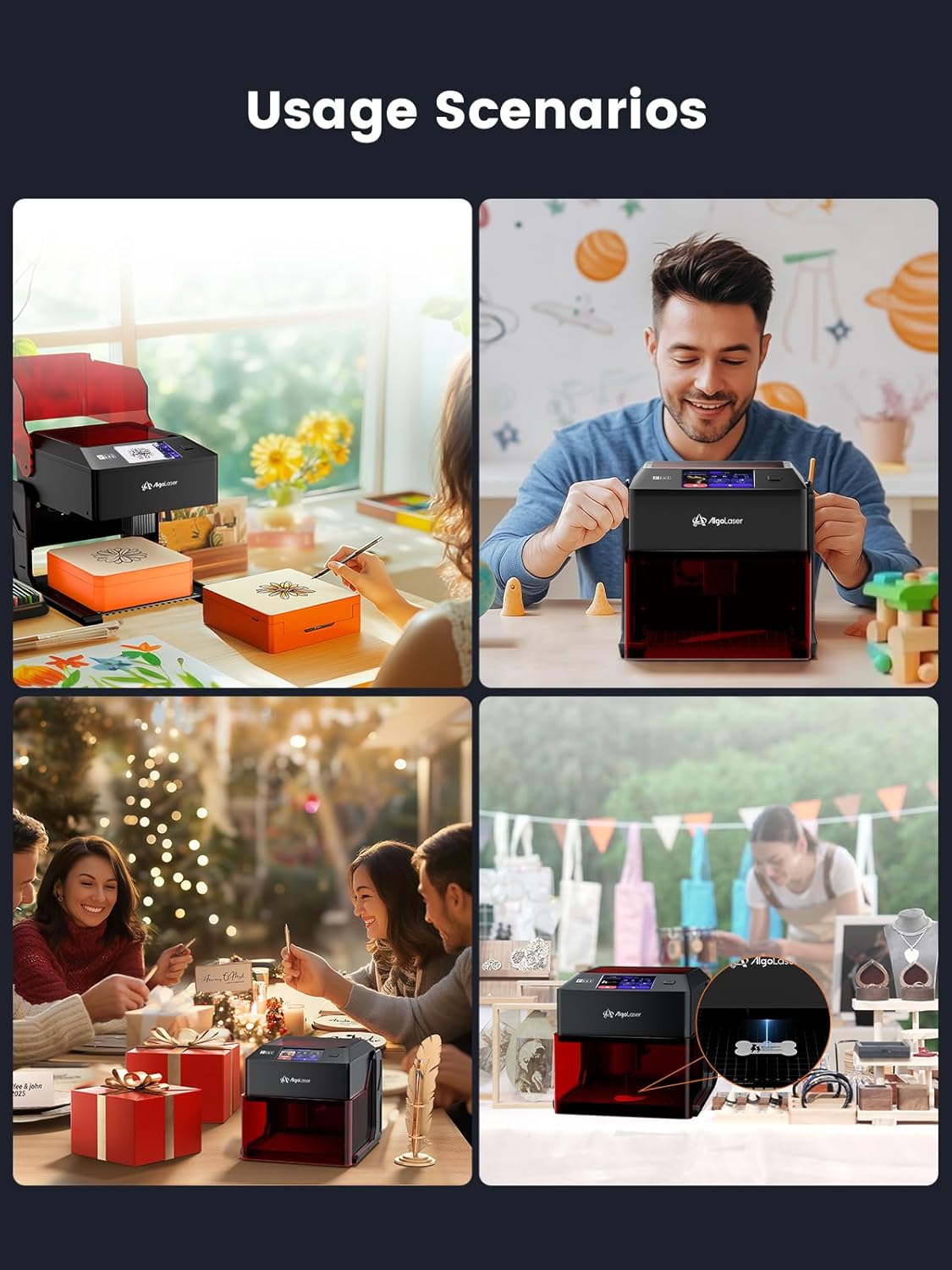
Image: All components included in the AlgoLaser Pixi 5W package.
- AlgoLaser Pixi 5W Engraver Machine
- Power Adapter
- Type-C Cable
- Type-C to Type-A Adapter
- Focal Gauge
- Dual-Tip Stylus (random color)
- Allen Key
- Brush
- Flange Interface
- Smoke Pipe
- Material Kit (for testing)
3. Setup
3.1 Unboxing and Initial Placement
The AlgoLaser Pixi comes pre-assembled. Carefully remove the machine and all accessories from the packaging.
Video: Unboxing and initial setup of the AlgoLaser Pixi. This video demonstrates removing the machine from its packaging and preparing it for use.
3.2 Power Connection
Connect the power adapter to the DC 24V port on the rear of the machine. Plug the adapter into a suitable power outlet. Turn on the power switch located next to the DC 24V port.
3.3 Focal Length Adjustment
Accurate focal length is crucial for precise engraving. Use the included focal gauge to set the correct distance between the laser module and the material.
- Place the material to be engraved on the working platform.
- Open the protective lid of the machine.
- Place the focal gauge on top of the material, directly under the laser module.
- Adjust the laser module's height using the thumbscrew until it gently rests on the focal gauge.
- Remove the focal gauge and close the protective lid.
Video: Demonstration of how to use the lift function and adjust the focal length for engraving different material thicknesses.
3.4 Connecting to Wi-Fi and AlgoLaser App
The AlgoLaser Pixi can be controlled via its touchscreen or the AlgoLaser mobile app.
- On the Pixi's touchscreen, navigate to "Settings" and then "WLAN".
- Turn on the Wi-Fi switch and select your network from the list. Enter the password if prompted.
- Note the IP address displayed on the screen once connected.
- Open the AlgoLaser app on your smartphone or tablet.
- Search for the Pixi machine or manually enter the IP address to connect.
- Confirm the machine parameters in the app, including the correct laser module (5W for this model).
Video: Step-by-step guide on how to connect the AlgoLaser Pixi to the AlgoLaser mobile application via Wi-Fi.
4. Operating Instructions
4.1 Basic Engraving Process (3-Step Operation)
The AlgoLaser Pixi simplifies engraving into three main steps:
- Select/Download an Image: Choose a design from the built-in image library, upload your own via USB-C/Wi-Fi, or use AlgoSketch/AlgoType directly on the touchscreen.
- Set Parameters: Select the material type (e.g., wood, leather, acrylic) and adjust quality, power, and speed settings. The AlgoOS system provides preloaded templates for various materials.
- Tap "Start": Initiate the engraving process. The machine will automatically begin once the protective lid is securely closed.

Image: Visual representation of the simplified 3-step engraving process on the AlgoLaser Pixi touchscreen.
4.2 Using AlgoSketch and AlgoType
Unleash your creativity with these integrated features:
- AlgoSketch: Use the stylus to draw or write directly on the 3.5" touchscreen. Your sketches are instantly converted into engravable designs.
- AlgoType: Input custom text using the on-screen keyboard. Adjust font size and style for personalized engravings.

Image: A user demonstrating the AlgoSketch feature by drawing on the AlgoLaser Pixi's touchscreen.
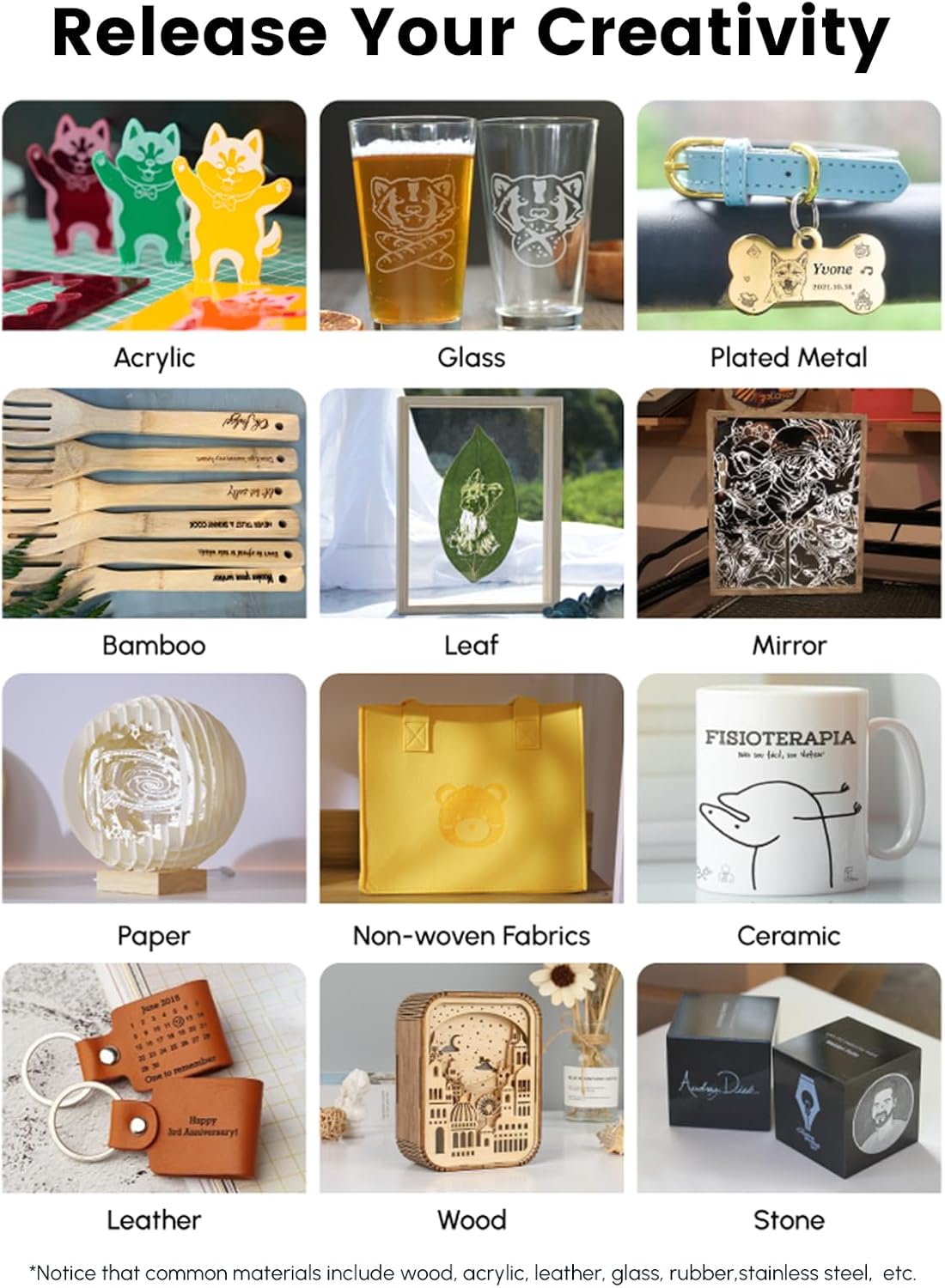
Image: A user inputting custom text using the AlgoType feature on the AlgoLaser Pixi's touchscreen.
4.3 Reverse Engraving
Achieve high-contrast results on materials like acrylic, glass, wood, and leather by inverting the image colors before engraving. This feature is accessible through the touchscreen interface.
Video: Demonstration of the Pixi's reverse engraving feature, showing how to invert images for unique results on various materials.
4.4 Material Compatibility
The AlgoLaser Pixi supports engraving and cutting on over 300 types of materials, including:
- Wood (Basswood, Birch, Walnut, etc.)
- Leather
- Acrylic
- Paper & Cardboard
- Glass
- Ceramic
- Bamboo
- Coated Metal (for engraving)
- Stone
- Non-woven Fabrics
- Leaves
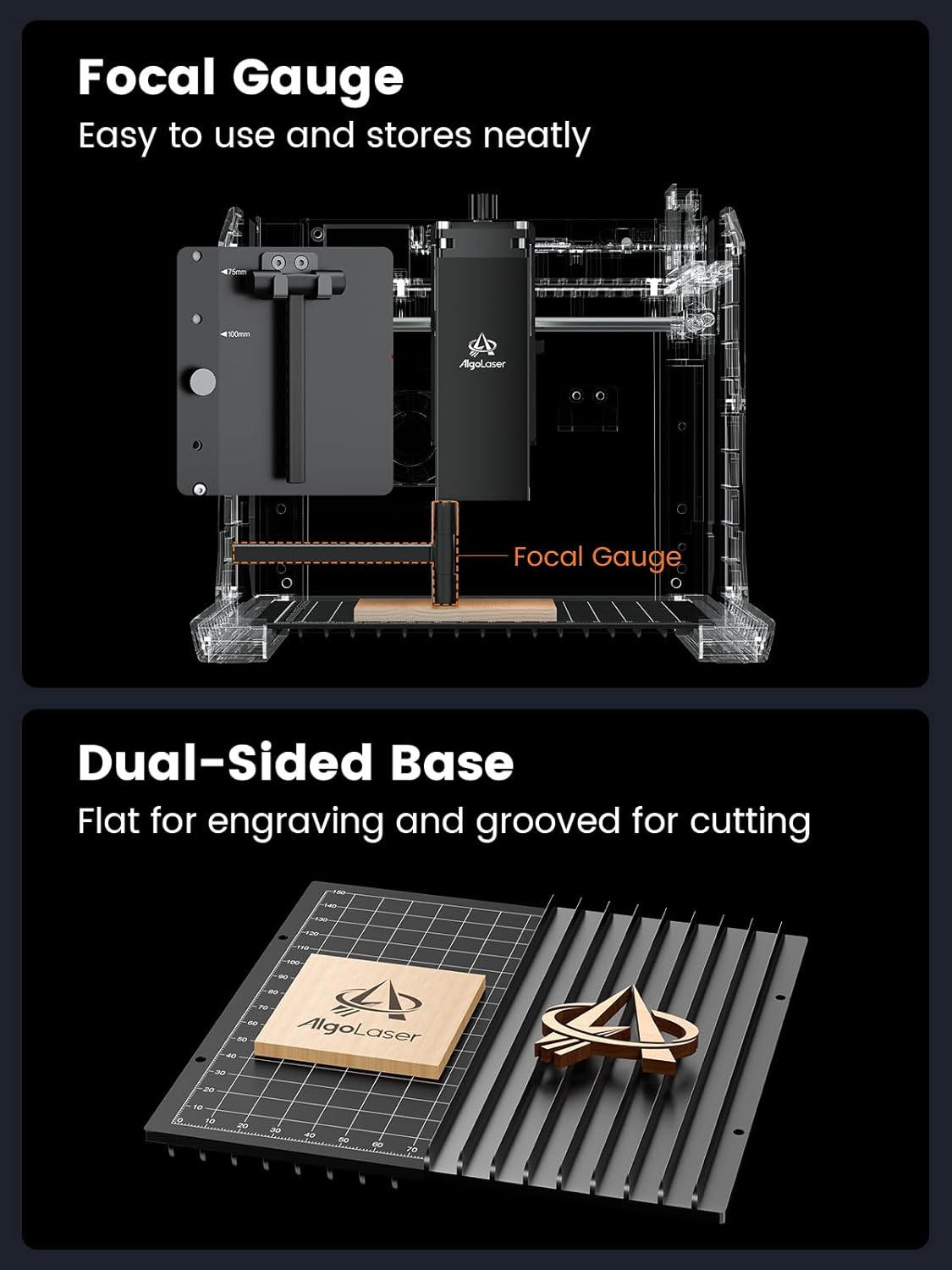
Image: A collage showcasing different materials successfully engraved by the AlgoLaser Pixi, including wood, leather, acrylic, and metal.
4.5 Dual-Sided Base
The working platform features a dual-sided base for optimized performance:
- Flat Side: Ideal for general engraving tasks, providing a stable surface.
- Grooved Side: Designed for cutting operations, allowing for better airflow and smoke dissipation, which helps achieve cleaner cuts and prevents material scorching.
Video: Instructions on how to use the dual-sided base of the AlgoLaser Pixi for both engraving and cutting applications.
5. Maintenance
Regular maintenance ensures optimal performance and longevity of your AlgoLaser Pixi.
- Cleaning the Lens: Periodically clean the laser lens with a soft, lint-free cloth and lens cleaning solution to prevent residue buildup from affecting laser performance.
- Cleaning the Working Platform: Use the provided brush to remove debris and dust from the working platform after each use.
- Smoke Pipe: Ensure the smoke pipe is clear of obstructions and properly connected for effective ventilation.
- Firmware Updates: Check for and install firmware updates via the AlgoOS system or AlgoLaser app to ensure you have the latest features and improvements.
6. Troubleshooting
Common issues and their solutions:
| Problem | Possible Cause | Solution |
|---|---|---|
| Laser not firing | Protective lid open, power off, loose connection, password lock. | Ensure lid is closed, power is on, connections are secure. Check lock screen. |
| Poor engraving quality | Incorrect focal length, wrong material settings, dirty lens. | Adjust focal length, verify material settings (power/speed), clean laser lens. |
| Machine not connecting to app | Incorrect Wi-Fi password, wrong IP address, network issue. | Re-enter Wi-Fi password, confirm IP address, check network stability. |
| Excessive smoke/odor | Inadequate ventilation, material type. | Ensure smoke pipe is properly installed and vented. Work in a well-ventilated area. |
For further assistance, refer to the detailed troubleshooting section in the full user manual or contact customer support.
7. Specifications
- Product Dimensions: 10.5 x 8.5 x 7.7 inches
- Item Weight: 4.4 pounds
- Laser Power: 5W (also available in 3W and 10W variants)
- Operating System: AlgoOS
- Connectivity: USB-C, WiFi
- Touchscreen: 3.5 inches
- Safety: Class 1 Laser System, Auto-pause safety door, Password-protected lock screen, Real-time fault alerts.
- Working Area: 100x100mm (approx. 3.9x3.9 inches)
8. Warranty and Support
The AlgoLaser Pixi 5W Smart Laser Engraver Machine is backed by a 1-year warranty.
For setup assistance, technical support, or warranty claims, please contact AlgoLaser customer support. You can typically reach them via:
- Amazon messaging service (for purchases made on Amazon)
- Official AlgoLaser website or email support (refer to product packaging or official website for contact details).
Please have your product model number (Pixi-Black-5W) and purchase date ready when contacting support.
Related documentsPixi-Black-5W


Ask a question about this manual
Ask about setup, troubleshooting, compatibility, parts, safety, or missing instructions. Manuals+ will review the question and use this page’s manual context to help answer it.