
Roinvou Roinvou-A7942A3662H1MI2
Roinvou Android Car Radio User Manual
Model: Roinvou-A7942A3662H1MI2
1. Introduction
Thank you for choosing the Roinvou Android Car Radio. This manual provides detailed instructions for the installation, operation, and maintenance of your new car multimedia system. Please read this manual thoroughly before using the product to ensure proper functionality and safety.
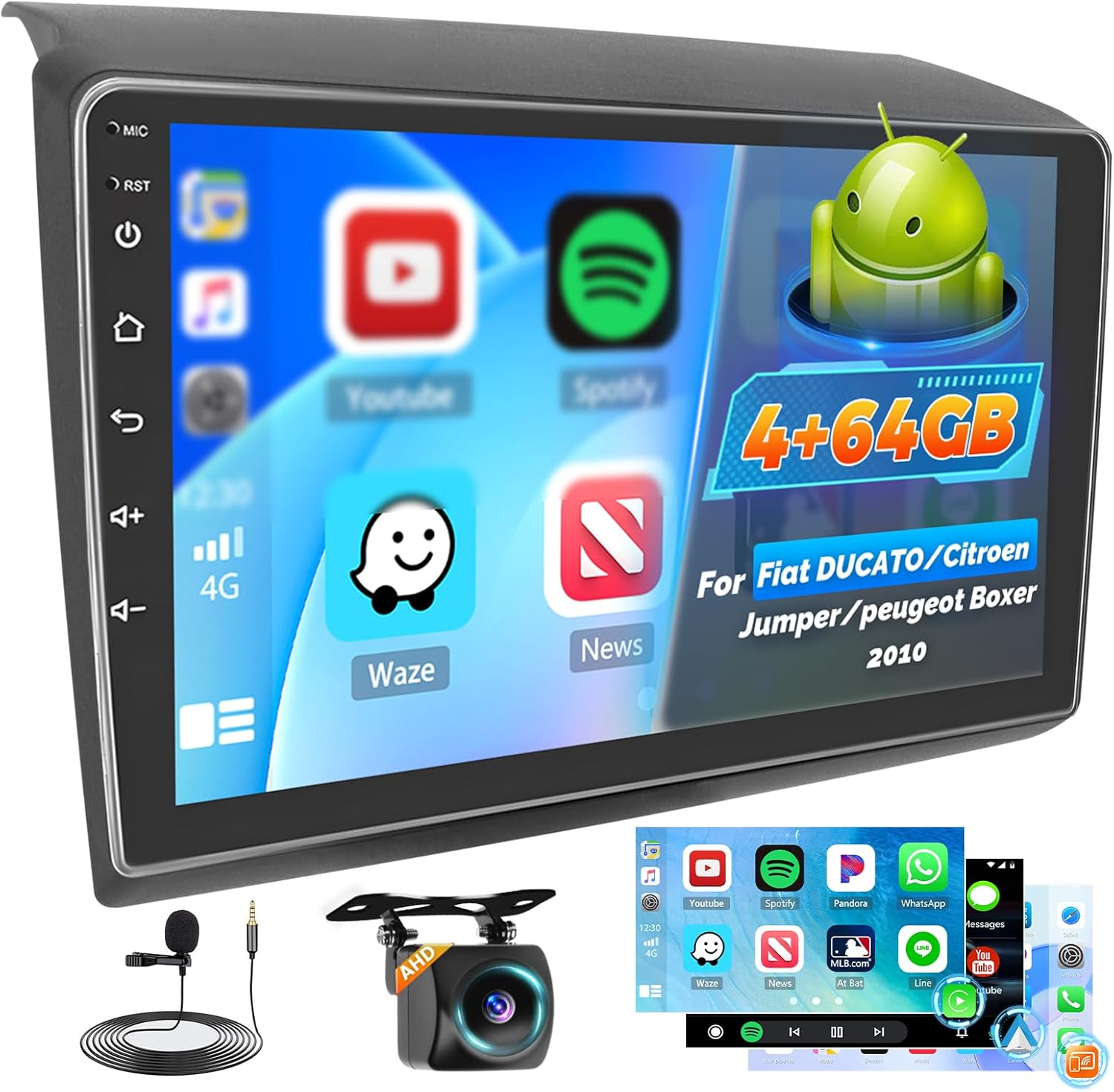
Image: The Roinvou Android Car Radio display unit, an external microphone, a backup camera, and a visual representation of smartphone mirroring.
2. Vehicle Compatibility
This Roinvou Android Car Radio is specifically designed for the following vehicle models and years:
- Fiat Ducato (2011-2022)
- Citroen Jumper (2011-2022)
- Peugeot Boxer (2011-2022)
Important: Please confirm your original car's center console matches the compatible configurations shown in Figure A below before purchase. If your car's center console is as shown in Figure B, this product is not compatible.

Image: A visual guide illustrating compatible (Figure A, with green checkmarks) and incompatible (Figure B, with red crosses) car dashboard center console designs for installation.
For any questions regarding compatibility, please provide photos of your car's dashboard to our customer support team before purchasing.
3. What's in the Box
The package includes the following components:
- Roinvou Android Car Radio (9-inch display)
- Double Power Cable
- CANBUS Decoder
- Radio Antenna
- USB Adapter Cable
- RCA Cable
- Rear Camera Input Cable
- GPS Antenna
- Double USB Cable
- AHD Rear Camera
- External Microphone
- Installation Tool

Image: A diagram showing the dimensions of the 9-inch car radio and a visual list of all included accessories such as cables, antennas, camera, and installation tools.
4. Setup and Installation
4.1 Wiring Port Overview
Familiarize yourself with the wiring ports on the back of the head unit and the corresponding cables.

Image: A detailed diagram illustrating the various wiring ports on the back of the car radio unit, including connections for power, RCA, USB, camera input, radio antenna, and GPS antenna.
4.2 Reversing Camera Wiring
Proper connection of the reversing camera is essential for its functionality. Even if the reverse camera is not being used, the reverse input cable must be plugged in to avoid affecting Bluetooth and WiFi signal reception.
- Red Cable ①: Connects to the positive terminal of the car's reverse light cable.
- Black Cable ②: Connects to the negative terminal of the car's reverse light cable.
- There is no need to connect the other two red extension cables ③ and ④.

Image: A wiring diagram detailing the connections for the reversing camera, including power and ground, and showing the integration with the car radio and CANBUS system.
4.3 CANBUS Decoder and Steering Wheel Control (SWC)
The CANBUS decoder enables communication between the car radio and your vehicle's systems, including steering wheel controls.

Image: Instructions for connecting the CANBUS decoder and configuring steering wheel controls, differentiating between systems with and without a CANBUS decoder.
Without CANBUS Decoder: Connect the plugs or the steering wheel control wires (Key1/Key2) in the power cable to the corresponding port or wire of your original car. Then, go to "Steering Wheel Key" manual match in the settings to activate the button function.
With CANBUS Decoder: Connect the CANBUS before powering on the machine. Then, follow this path: Apps > Settings > Factory Settings (8888/8317) > Vehicle > Automotive type to make SWC work properly. First, select the brand of the CANBUS decoder, then select the matching model and year according to the actual situation.
5. Operating Instructions
5.1 Wireless CarPlay, Android Auto, and MirrorLink
Connect your smartphone wirelessly to access navigation, communication, music, and video functions directly on the car radio display.
- Wireless CarPlay & Android Auto: Connect your phone without a USB cable for seamless integration.
- MirrorLink: Project your smartphone screen onto the car radio via Wi-Fi (for iOS) or USB/Wi-Fi (for Android).

Image: A visual representation of wireless CarPlay and Android Auto connectivity, showing a smartphone wirelessly linked to the car radio display.
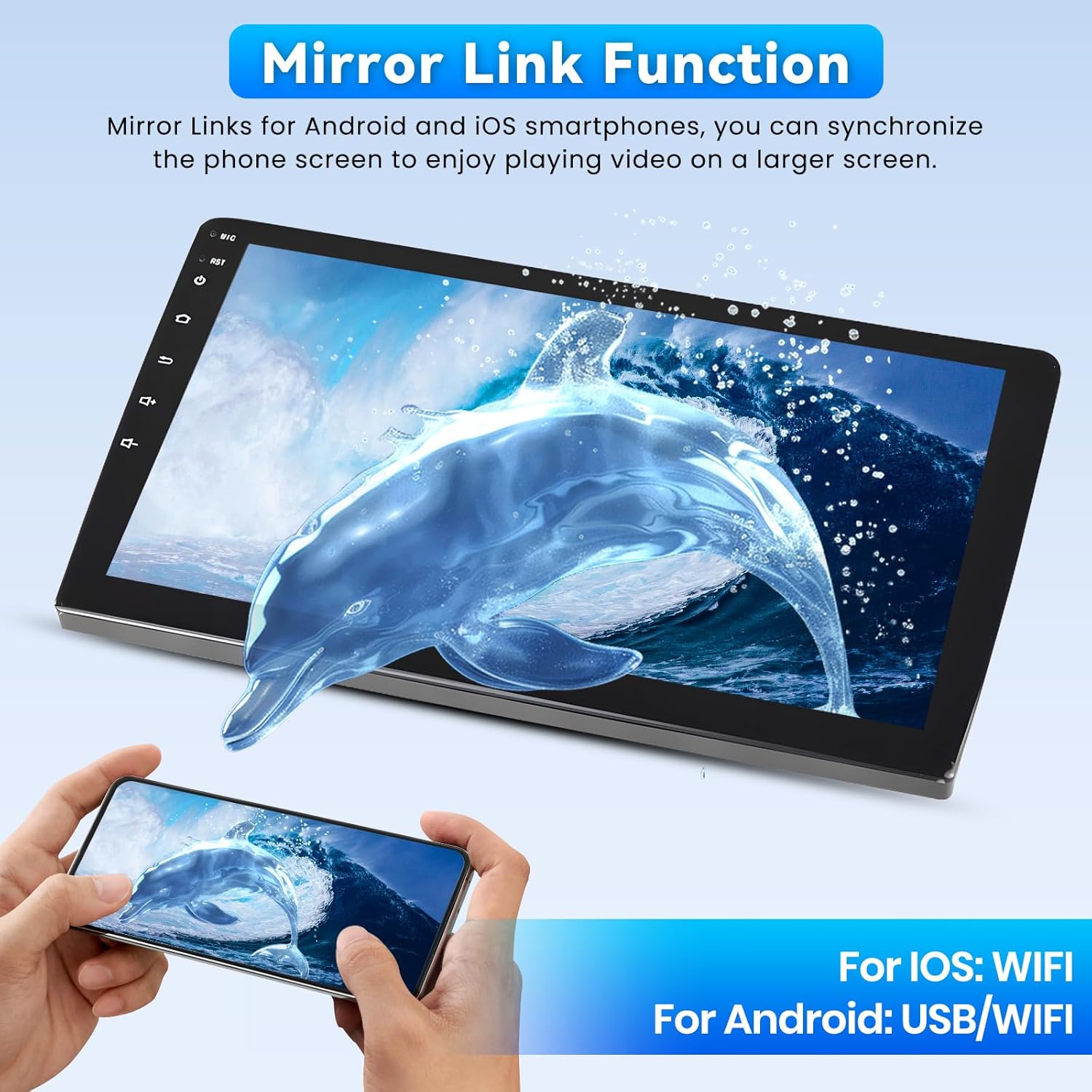
Image: The Mirror Link function in action, showing a smartphone screen mirrored onto the larger car radio display, with a dolphin image as an example.
5.2 Wi-Fi and GPS Navigation
Connect to Wi-Fi to access online maps, streaming services, and download applications. The built-in GPS supports both online and offline navigation.

Image: A graphic illustrating GPS navigation capabilities and Wi-Fi connectivity, showing various popular app icons like Instagram, Facebook, TikTok, and YouTube, indicating online functionality.
5.3 Bluetooth Connectivity
The integrated Bluetooth ensures hands-free calling and smooth music playback without interference.

Image: A depiction of Bluetooth 5.1 functionality, showing a driver making a hands-free call and the car radio interface for call management and music playback.
5.4 FM/RDS Radio
Enjoy clear radio signals and display station information, song titles, and traffic updates directly on the screen with FM/RDS reception.

Image: The FM/RDS radio interface on the car radio screen, displaying radio frequencies, station names, and a visual equalizer for audio output.
5.5 32-Band Equalizer (32EQ)
Precisely adjust audio frequencies to optimize sound according to your preferences, from powerful bass to clear highs.

Image: The 32-band equalizer settings screen, allowing users to fine-tune audio frequencies for a personalized sound experience, along with a visual representation of sound distribution within the car.
5.6 Split Screen Mode
Utilize the split-screen mode to run two applications simultaneously, enhancing multitasking capabilities.

Image: A demonstration of the car radio's multi-tasking capabilities, showing a three-panel homepage display and the split-screen function running two applications concurrently.
6. Specifications
| Feature | Description |
|---|---|
| Brand | Roinvou |
| Screen Size | 9 Inches (23 cm) |
| Display Technology | QLED Touch Screen |
| Resolution | 1280*720P HD |
| Operating System | Android |
| RAM | 4 GB |
| Internal Storage | 64 GB |
| Connectivity | Bluetooth, USB, WiFi, FM RDS |
| Special Features | CarPlay, Android Auto, Mirror Link, 32EQ, GPS, SWC, Touch Screen |
| Compatible Devices | Smartphone |
| Audio Output Mode | APE/FLAC/WAV/MP3/WMA |
| Rear Camera | AHD, 170° Wide Angle, IP68 Waterproof, HD Night Vision |

Image: A visual representation of the QLED screen highlighting its 1280x720P HD resolution and touch capabilities.

Image: A composite image showing the steering wheel control interface and the view from the AHD backup camera, demonstrating its wide-angle and night vision capabilities.
7. Troubleshooting
This section provides solutions to common issues you might encounter.
7.1 No Power / Unit Does Not Turn On
- Check all power cable connections to ensure they are securely plugged in.
- Verify the vehicle's fuse related to the car radio.
- Ensure the car battery has sufficient charge.
7.2 No Sound
- Check speaker wire connections.
- Ensure the volume is not muted or set to minimum.
- Verify audio settings in the 32EQ to ensure no frequency bands are set too low.
7.3 GPS Signal Loss / Inaccurate Positioning
- Ensure the GPS antenna is properly installed and has a clear view of the sky.
- Check for any obstructions that might block the GPS signal.
- Update GPS maps if necessary.
7.4 Bluetooth Connection Issues
- Ensure Bluetooth is enabled on both the car radio and your smartphone.
- Delete previous pairings and try to re-pair the devices.
- Move the phone closer to the car radio to ensure signal strength.
7.5 Steering Wheel Controls Not Working
- Verify CANBUS decoder connection and configuration (refer to Section 4.3).
- If no CANBUS, ensure Key1/Key2 wires are correctly connected and mapped in settings.
8. Warranty and Support
Roinvou is committed to providing high-quality products and excellent customer service.
8.1 Manufacturer's Warranty
This product comes with a 24-month manufacturer's warranty from the date of purchase. This warranty covers defects in materials and workmanship under normal use.
8.2 Customer Support
We offer lifetime online assistance for inquiries and aim to respond within 24 hours. Our dedicated after-sales team is available to assist you with any installation or usage issues.

Image: A graphic indicating 24-hour customer service availability, with an email address for support inquiries.
For support, please contact us via the seller's contact information on the purchase platform or directly at: roinvouservices@163.com
Related Documents - Roinvou-A7942A3662H1MI2
 |
Manuel d'Installation Interface 20528 - Intermed Distribution Manuel d'installation détaillé pour l'interface 20528 d'Intermed Distribution, conçue pour conserver les commandes au volant et les fonctionnalités du téléphone sur les véhicules Fiat Ducato (Série 8) et Citroën Jumper sans autoradio d'origine. |
 |
Fiamma F80s Ducato Installation Kit Instructions Comprehensive installation guide for the Fiamma F80s Ducato awning kit, detailing parts, assembly steps, and safety precautions for Fiat Ducato, Citroën Jumper, and Peugeot Boxer vehicles. |
 |
Deluxe DJ Ducato H3 Installation and Usage Instructions Installation and usage manual for the Fiamma Deluxe DJ Ducato H3 ladder, compatible with Fiat Ducato, Citroën Jumper, Peugeot Boxer, and Transit vehicles (2006-2011). |
 |
Fiamma Deluxe DJ Ducato H3 Installation and Usage Instructions Installation and usage guide for the Fiamma Deluxe DJ Ducato H3 ladder, compatible with Fiat Ducato, Citroën Jumper, Peugeot Boxer, and Transit vehicles manufactured after 2006. |
 |
Fiamma Deluxe DJ Ducato Installation and Usage Instructions Installation and usage guide for the Fiamma Deluxe DJ Ducato ladder, compatible with Fiat Ducato, Citroën Jumper, Peugeot Boxer, and Transit vans (2006-2011). |
 |
ZENEC ZE-RCE3701-MK2-S Rear View Camera Installation Guide for Fiat Ducato Comprehensive installation manual for the ZENEC ZE-RCE3701-MK2-S rear view camera, designed for Fiat Ducato III vehicles and compatible models. Features include technical specifications, key features, and detailed step-by-step installation instructions with visual descriptions. |
Ask a question about this manual
Ask about setup, troubleshooting, compatibility, parts, safety, or missing instructions. Manuals+ will review the question and use this page’s manual context to help answer it.