
Introduction
This manual provides detailed instructions for the Guiheng 7-Color Backlit Ultra-Slim Transparent Bluetooth Keyboard with an integrated touchpad and mouse. Please read this manual carefully before using the product to ensure proper operation and to maximize its lifespan. This device is designed for seamless wireless connectivity across various operating systems.

Image: The Guiheng 7-Color Backlit Bluetooth Keyboard with integrated touchpad, showcasing its RGB lighting and Bluetooth 5.1 connectivity, compatible with Android, Windows, and iOS devices.
Product Features
- 7-Color LED Backlight: Enjoy a customizable typing experience with seven distinct LED backlight colors. The keyboard features a scissor key structure for comfortable input.

Image: The Guiheng keyboard displaying its seven-color RGB backlight, highlighting the customizable lighting options.
- Integrated Touchpad and Mouse: Navigate your device efficiently without needing an external mouse.
- Ultra-Slim and Portable Design: Its compact and lightweight form factor makes it easy to carry and store.

Image: The Guiheng keyboard being placed into a bag, demonstrating its compact design for easy storage and portability.
- Rechargeable Battery: Equipped with a built-in polymeric lithium battery and a charging indicator for convenience and extended use.
- Automatic Sleep Mode: The keyboard enters sleep mode after 10 minutes of inactivity to conserve battery power.
- Wide Compatibility: Compatible with iOS (Apple iPad, iPhone), Android (Samsung tablets, smartphones), and Windows (Computers, Desktops, PCs, Laptops, Surface tablets).
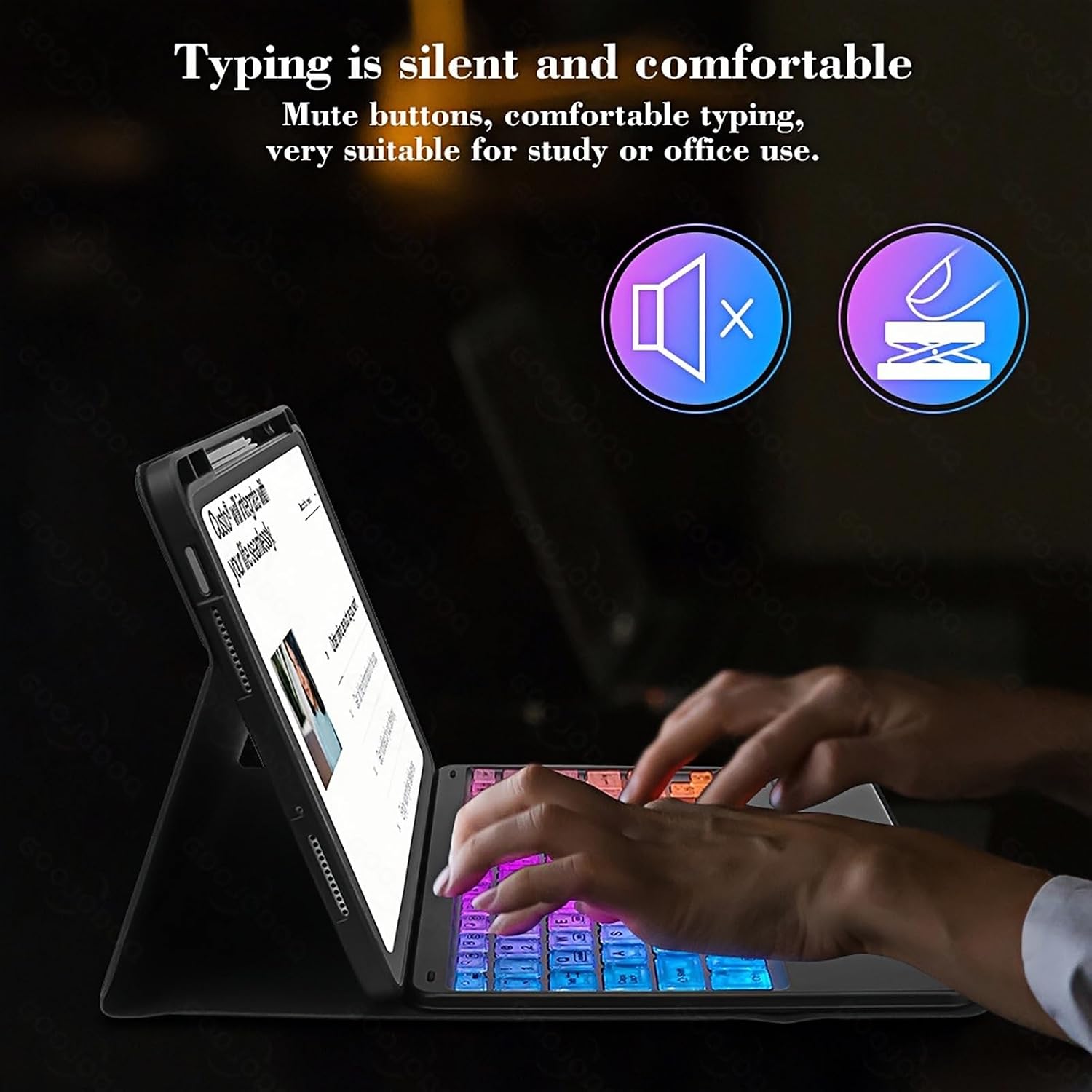
Image: Hands typing on the Guiheng keyboard, illustrating its mute buttons and comfortable typing experience suitable for study or office use.
Setup and Pairing Instructions
Before using the keyboard, it must be paired with your device. Once successfully paired, re-connection is typically automatic.
- Power On: Locate the power switch on the keyboard and slide it to the "ON" position.
- Activate Pairing Mode: Press the "Connect" button for 3 seconds. The blue Bluetooth indicator light will begin to blink, indicating the keyboard is in pairing mode.
- Enable Bluetooth on Your Device: On your tablet, smartphone, or computer, go to the Bluetooth settings.
- Find and Connect: In the list of available Bluetooth devices, locate "Bluetooth Keyboard" (or a similar name) and select it. The connection is password-free.
- Confirmation: Once connected, the blue Bluetooth indicator light on the keyboard will stop blinking and turn off.

Image: The Guiheng keyboard displayed alongside various compatible devices, including iPads, iPhones, and Android tablets, highlighting its broad compatibility.
Operating Instructions
Hotkeys and Indicator Lights
- Function Keys (FN + Function Keys): Utilize the FN key in combination with the top row function keys for various shortcuts (e.g., media control, volume, screen brightness). Refer to the key legends for specific functions.
- Power LED: When the keyboard is turned on, this light flashes for 1-2 seconds and then turns off automatically.
- Charging LED: This light flashes while the keyboard is charging and turns off once the battery is fully charged.
- Bluetooth (BT) LED: This light flashes when the keyboard is in pairing mode and goes out after a successful connection.
Touchpad Operation
The integrated touchpad supports various gestures for navigation:
- Single Finger Tap: Functions as a left-click.
- Two Finger Tap: Functions as a right-click.
- Two Finger Scroll: Drag two fingers up or down to scroll content.
- Pinch to Zoom: Use two fingers to pinch in or out to zoom.
- Three Finger Swipe: May activate system-specific gestures (e.g., task view on Windows, app switching on iOS/Android).

Image: Illustrations demonstrating common touchpad gestures on the Guiheng keyboard, including single-finger tap, two-finger scroll, and three-finger swipe, alongside an optional external mouse.
Charging Instructions
To ensure optimal battery performance and longevity, follow these charging guidelines:
- Initial Charge: For the first use, charge the keyboard for at least 6 hours.
- Subsequent Charges: When the battery is low, charge for a minimum of 2 hours.
- Low Battery Indicator: A flashing red indicator light signifies a low battery. Please charge the keyboard promptly.
- Charging Connection: Connect the charging cable securely to the keyboard's charging port and a compatible USB power source (e.g., computer USB port, USB wall adapter). Use a 5V/1A charger. Avoid using fast chargers.
Compatibility
The Guiheng Bluetooth Keyboard is designed for broad compatibility with various operating systems and devices:
- iOS Devices: Apple iPad, iPhone.
- Android Devices: Samsung tablets, Android smartphones.
- Windows Devices: Computers, Desktops, PCs, Laptops, Microsoft Surface tablets.
Ensure your device has Bluetooth capability enabled for connection.
Maintenance
- Cleaning: Use a soft, dry, lint-free cloth to clean the keyboard surface. For stubborn dirt, slightly dampen the cloth with water or a mild cleaning solution. Avoid harsh chemicals or abrasive materials.
- Storage: Store the keyboard in a cool, dry place away from direct sunlight and extreme temperatures. When traveling, consider using a protective case to prevent damage due to its delicate construction.
- Battery Care: To maintain battery health, avoid fully discharging the battery frequently. If storing for an extended period, charge the keyboard to about 50% capacity.
- Liquid Exposure: Avoid exposing the keyboard to liquids. In case of accidental spills, immediately power off the keyboard and allow it to dry completely before attempting to use it again.
Troubleshooting
| Problem | Solution |
|---|---|
| Keyboard does not connect via Bluetooth. |
|
| Keys are not responding or typing incorrectly. |
|
| Touchpad is not working. |
|
| Backlight is not working or changing colors. |
|
Specifications
| Feature | Detail |
|---|---|
| Brand | Guiheng |
| Model Number | B0F9XSKDCS |
| Connectivity Technology | Bluetooth (Wireless) |
| Special Features | 7-Color Backlit, Built-in Touchpad, Ergonomic, Rechargeable |
| Compatible Devices | Laptop, Tablet, Smartphone (iOS, Android, Windows) |
| Keyboard Description | Multimedia |
| Item Weight | 0.43 Kilograms |
| Package Dimensions | 36.7 x 21 x 1.7 cm |
| UPC | 731262719002 |
Warranty and Support
For warranty information and technical support, please refer to the documentation provided with your purchase or contact Guiheng customer service directly. Keep your purchase receipt as proof of purchase for any warranty claims.
For further assistance, visit the official Guiheng website or contact their support channels.