1. Product Overview
The XTRONS QDB8060CI is an advanced 8.8-inch Android 14 car stereo GPS multimedia player designed specifically for select BMW vehicles. This unit integrates seamlessly into your vehicle's dashboard, enhancing your driving experience with modern connectivity and entertainment features while retaining original vehicle functionalities.
1.1 Compatibility
- BMW 3 Series: E90, E91, E92, E93 (2009-2012 models)
- BMW 5 Series: E60, E61, M5 (2005-2008 models)
- Note: Compatible only with vehicles equipped with the original CIC system.
1.2 Key Features
- 8.8-inch HD IPS Display
- Android 14 Operating System
- Octa-core Processor
- 4GB RAM, 64GB ROM
- Dual Wi-Fi and Integrated 4G SIM Slot (SIM not included)
- Bluetooth 5.0
- Built-in Wireless Apple CarPlay and Android Auto
- Supports Original iDrive Controls and Steering Wheel Controls
- Retains Original Vehicle Information and CD Functionality
- Multilingual Menu Support

Figure 1.1: Front view of the XTRONS QDB8060CI unit, highlighting its Android operating system, Octa-core processor, 4GB RAM, 64GB ROM, IPS display technology, and 4G connectivity.

Figure 1.2: Overview of the XTRONS QDB8060CI, emphasizing its Octa Core processor, 4GB RAM, 64GB storage, 4G LTE support, 8.8-inch display, and wireless Apple CarPlay and Android Auto capabilities.
2. Setup and Installation
Installation of the XTRONS QDB8060CI unit requires technical knowledge and experience with car electronics. It is highly recommended to have the unit installed by a qualified professional to ensure proper functionality and to avoid damage to your vehicle or the device.
2.1 Pre-Installation Check
- Verify your BMW model and year are within the compatible range (3 Series E90/E91/E92/E93 2009-2012, 5 Series E60/E61/M5 2005-2008).
- Confirm your vehicle has the original CIC system. This unit is not compatible with CCC systems.
- Ensure all included components, such as the car stereo unit and wiring harness, are present.
2.2 Installation Steps (General Guidance)
- Disconnect Battery: Always disconnect the vehicle's battery before beginning any electrical work.
- Remove Original Display: Carefully remove the existing car display and trim panels as per your vehicle's service manual.
- Connect Wiring: Connect the provided wiring harness to the vehicle's existing connectors. Ensure all connections are secure. The unit is designed to retain original vehicle information and CD functionality.
- Mount New Unit: Securely mount the XTRONS QDB8060CI unit into the dashboard.
- Reconnect Battery: Reconnect the vehicle's battery and test the unit's functionality.
For detailed, vehicle-specific installation instructions, please consult a professional installer or refer to specific guides for your BMW model.

Figure 2.1: The XTRONS QDB8060CI unit seamlessly integrated into a BMW dashboard, displaying navigation, Bluetooth, and music options.
3. Operating Instructions
The XTRONS QDB8060CI features an intuitive Android 14 interface, controllable via its 8.8-inch touchscreen, original iDrive controller, and steering wheel buttons.
3.1 Basic Navigation
- Touchscreen: Tap, swipe, and pinch to navigate menus and applications.
- iDrive Controller: Use your vehicle's original iDrive controller to navigate through menus and select options.
- Steering Wheel Controls: Utilize your vehicle's steering wheel controls for volume adjustment, track skipping, and answering calls.
3.2 Navigation System (GPS)
The unit comes with an integrated GPS module, supporting satellite map types. Access the navigation application from the main menu to plan routes and receive turn-by-turn directions.
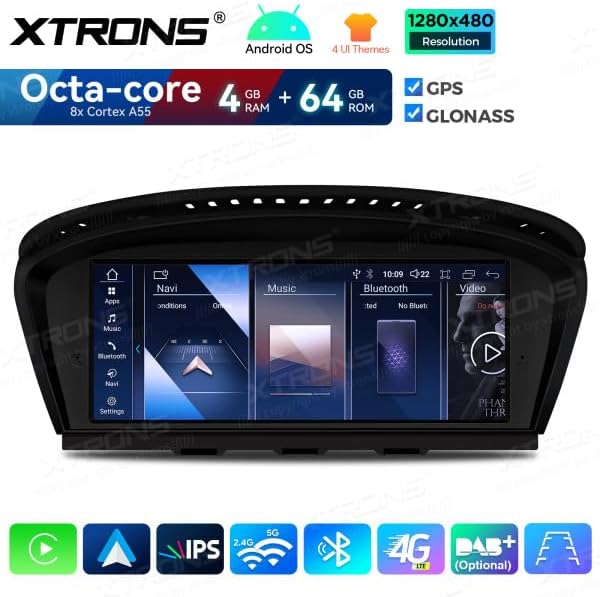
Figure 3.1: The main interface of the XTRONS QDB8060CI, showing quick access icons for Navigation, Bluetooth, and Music.
3.3 Connectivity
- Wi-Fi: Connect to a Wi-Fi hotspot for internet access, app downloads, and online services. Go to Settings > Network & Internet > Wi-Fi.
- 4G: Insert a 4G SIM card into the dedicated slot for mobile data connectivity. (SIM card not included).
- Bluetooth 5.0: Pair your smartphone for hands-free calling, audio streaming, and contact synchronization. Go to Settings > Connected devices > Bluetooth.
- USB: Two USB inputs support external storage devices up to 64GB for media playback.
3.4 Smartphone Integration
- Apple CarPlay (Wireless): Connect your iPhone wirelessly to access navigation, music, messages, and more directly on the unit's display.
- Android Auto (Wireless): Connect your Android phone wirelessly for seamless integration of Google Maps, Spotify, and other compatible apps.
- Mirror Screen: Mirror your smartphone's screen content directly onto the unit's display.

Figure 3.2: The Apple CarPlay interface displayed on the XTRONS QDB8060CI, showing common iPhone applications like Phone, Music, Maps, and Messages.

Figure 3.3: The Android Auto interface on the XTRONS QDB8060CI, featuring Google Maps, Calendar, and other Android applications.
3.5 Multimedia Playback
The unit supports various audio and video formats. Access music and video players from the main menu or through connected USB devices. Ensure safe driving practices by avoiding video playback while the vehicle is in motion.
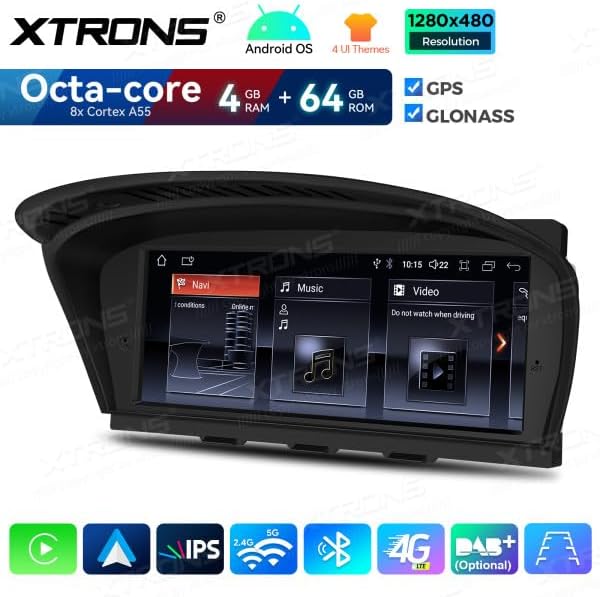
Figure 3.4: An angled view of the XTRONS QDB8060CI interface, showing options for Navigation, Music, and Video playback.
4. Maintenance
Proper maintenance ensures the longevity and optimal performance of your XTRONS QDB8060CI unit.
- Screen Cleaning: Use a soft, lint-free cloth to gently wipe the screen. For stubborn smudges, slightly dampen the cloth with a screen cleaner solution. Avoid harsh chemicals or abrasive materials.
- Temperature: Avoid exposing the unit to extreme temperatures, both hot and cold, for extended periods.
- Software Updates: Periodically check for available software updates from XTRONS to ensure the system runs efficiently and has the latest features.
- General Care: Keep the unit free from dust and debris. Ensure all connections remain secure.
5. Troubleshooting
If you encounter issues with your XTRONS QDB8060CI unit, please refer to the following general troubleshooting tips. For more complex problems, contact XTRONS customer support.
- Unit Not Powering On: Check all power connections and ensure the vehicle's battery is properly connected and charged. Verify the fuse for the car stereo.
- No Sound: Check volume settings on the unit and your vehicle. Ensure all audio cables are correctly connected. Verify that the correct audio source is selected.
- GPS Signal Issues: Ensure the GPS antenna is properly installed and has a clear view of the sky. Move the vehicle to an open area if signal is weak.
- Bluetooth Connectivity Problems: Ensure Bluetooth is enabled on both the unit and your smartphone. Delete previous pairings and attempt to re-pair the devices.
- Touchscreen Unresponsive: Try restarting the unit. If the issue persists, a factory reset might be necessary (note: this will erase all user data).
6. Specifications
Detailed technical specifications for the XTRONS QDB8060CI unit.
| Feature | Specification |
|---|---|
| Brand | XTRONS |
| Model Number | QDB8060CI |
| Screen Size | 8.8 Inches |
| Screen Resolution | 1280x480 |
| Operating System | Android 14 |
| Processor | Octa-core (8x Cortex A55) |
| RAM | 4GB |
| ROM (Internal Storage) | 64GB |
| Connectivity | Wi-Fi, Bluetooth 5.0, 4G, USB |
| Special Features | Android Auto, Apple CarPlay, GPS, IPS Display |
| Compatible Devices | Smartphone |
| Control Method | Touch, iDrive, Steering Wheel Controls |
| Color | Black |
| Included Components | Autoradio, Wiring Harness |

Figure 6.1: Dimensions of the XTRONS QDB8060CI unit, showing approximate measurements for width (274mm), height (103mm), and depth (27mm).
7. Warranty and Support
For warranty information and customer support, please refer to the official XTRONS website or contact your point of purchase.
- Spare Parts Availability: Information regarding spare parts availability is currently not provided.
- Software Updates Guarantee: Information regarding guaranteed software update duration is currently not provided.
It is recommended to keep your purchase receipt as proof of purchase for any warranty claims.


