
Roinvou Roinvou-A7456A3796A4MI2
Contents
Roinvou 2+64G Android Car Radio for FIAT Bravo 2008-2013 User Manual
Model: Roinvou-A7456A3796A4MI2
1. Introduction
This manual provides detailed instructions for the installation, operation, and maintenance of your Roinvou 9-inch Android Car Radio, designed specifically for FIAT Bravo models from 2008 to 2013. Please read this manual thoroughly before using the product to ensure proper function and safety.

Image 1.1: Overview of the Roinvou Android Car Radio's key features including Wi-Fi, GPS, Steering Wheel Control, Android, CarPlay, Android Auto, FM/RDS, EQ, and Mirror Link.
2. Product Overview
2.1 Key Features
- Compatibility: Designed for FIAT Bravo 2008-2013 models.
- Display: 9-inch Full HD 1080P capacitive touch screen with high resolution and optimized transparency.
- Operating System: Updated Android system with 2GB RAM and 64GB internal storage.
- User Interface: Supports 26 different UI desktop themes.
- Split Screen: Allows simultaneous use of two applications.
- Smartphone Integration: Supports wired and wireless CarPlay, Android Auto, and Mirror Link (USB or Wi-Fi for Android, Wi-Fi for iOS).
- Navigation: Integrated GPS function supporting online and offline navigation.
- Connectivity: Wi-Fi, Bluetooth for hands-free calls and music streaming.
- Radio: FM/RDS reception for optimized audio quality, channel broadcasting, weather forecasts, and real-time traffic conditions.
- Audio Customization: Customizable equalizer with various sound presets (classic, pop, rock, jazz).
- Vehicle Integration: Steering Wheel Control (SWC) support for safer driving.
- Rear Camera: Includes AHD rear camera with ultra-wide viewing angle, waterproof design, and HD night vision.
2.2 Package Contents
The following components are included in your package:
- Roinvou Android Car Radio for FIAT Bravo 2008-2013
- Power Cable
- CANBUS Decoder
- RCA Cable
- Rear Camera Input Cable
- GPS Antenna
- Dual USB Cable
- AHD Rear Camera
- External Microphone
- Installation Accessories and Tool

Image 2.1: The Roinvou Android Car Radio unit along with the included rear camera, microphone, and connectivity options.

Image 2.2: Detailed package contents and the dimensions of the 9-inch head unit (220mm x 143mm x 233mm).
3. Setup and Installation
Proper installation is crucial for the optimal performance of your Roinvou car radio. It is recommended that installation be performed by a qualified professional.
3.1 Pre-Installation Check
Before beginning installation, ensure your vehicle is compatible (FIAT Bravo 2008-2013) and that all components listed in Section 2.2 are present.

Image 3.1: The Roinvou Android Car Radio unit installed in a Fiat Bravo dashboard, showing the integrated display.

Image 3.2: Comparison of the car dashboard before and after the installation of the Roinvou Android Car Radio, showing the integrated look.
3.3 Wiring Connections
Refer to the wiring diagram below for connecting the power, RCA, USB, camera input, and GPS antenna cables.

Image 3.3: Diagram illustrating the connection points for the power cable, RCA cable, USB cable, camera input, and GPS antenna on the rear of the head unit.
3.4 Reversing Camera and CANBUS Wiring
Follow these specific instructions for connecting the reversing camera and CANBUS decoder:
- Reversing Camera Wiring:
- Red Cable (1): Connects to the positive terminal of the car's reverse light cable.
- Black Cable (2): Connects to the negative terminal of the car's reverse light cable.
- Note: The reverse input cable must be plugged in even if the reverse camera is not being used. Otherwise, it may affect Bluetooth and Wi-Fi signal reception.

Image 3.4: Detailed wiring diagram for the reversing camera and CANBUS connection, highlighting the red and black cable connections for the reverse light.
3.5 CANBUS Decoder Configuration
The CANBUS decoder enables communication between the car radio and your vehicle's systems, including steering wheel controls.
- Without CANBUS Decoder:
Connect the plugs or steering wheel control wires (Key1/Key2) in the power cable to the corresponding port or wire of your original car. Then, navigate to Settings > Car Settings > General (Enter SWC setting interface) and perform a manual match to activate the button functions.
- With CANBUS Decoder:
Connect the CANBUS before powering on the machine. Then, navigate to Settings > Car Settings > Factory (000000) > CarType Setting to ensure SWC works properly. First, select the brand of the CANBUS decoder, then select the matching model and year according to your vehicle's actual situation.
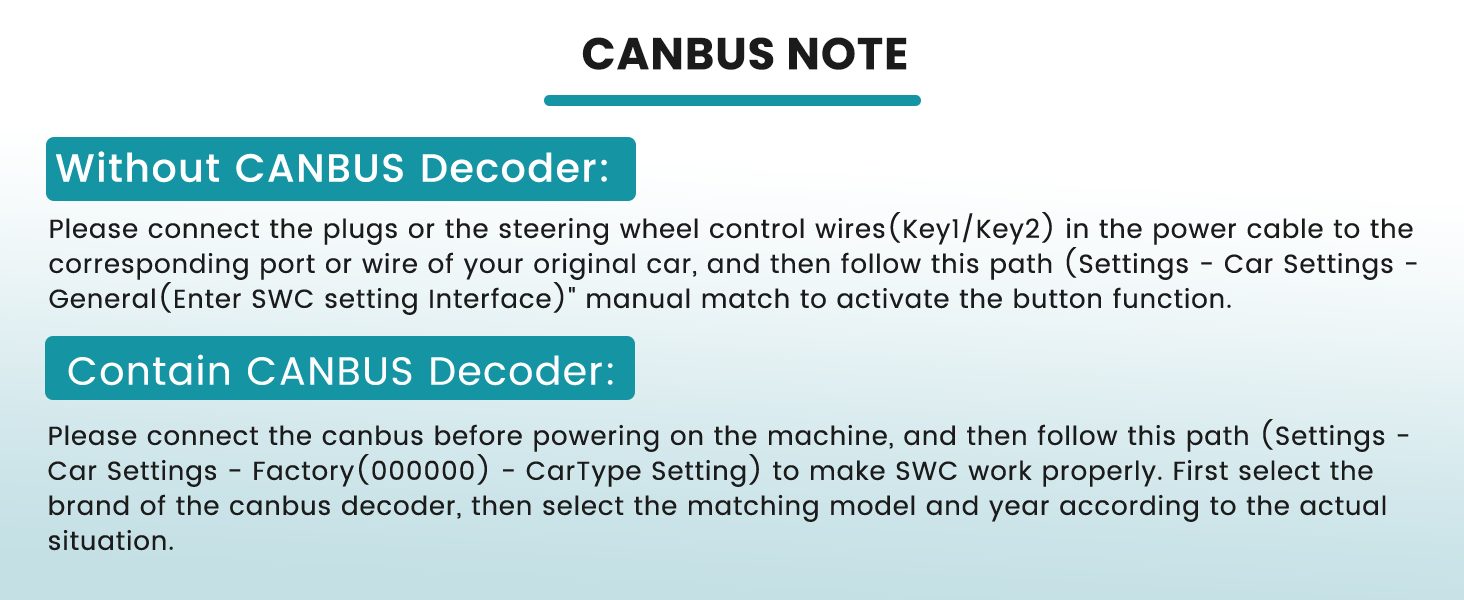
Image 3.5: Instructions for configuring the CANBUS decoder, detailing steps for both with and without a decoder for steering wheel control functionality.
4. Operating Instructions
4.1 CarPlay & Android Auto & Mirror Link
The car radio supports both wired and wireless connections for Apple CarPlay and Android Auto, as well as Mirror Link functionality.
- CarPlay & Android Auto: Once connected, you can make calls, listen to music, and navigate directly from the car radio's screen.
- Mirror Link:
- Android phones connect via USB or Wi-Fi.
- iOS phones connect via Wi-Fi.
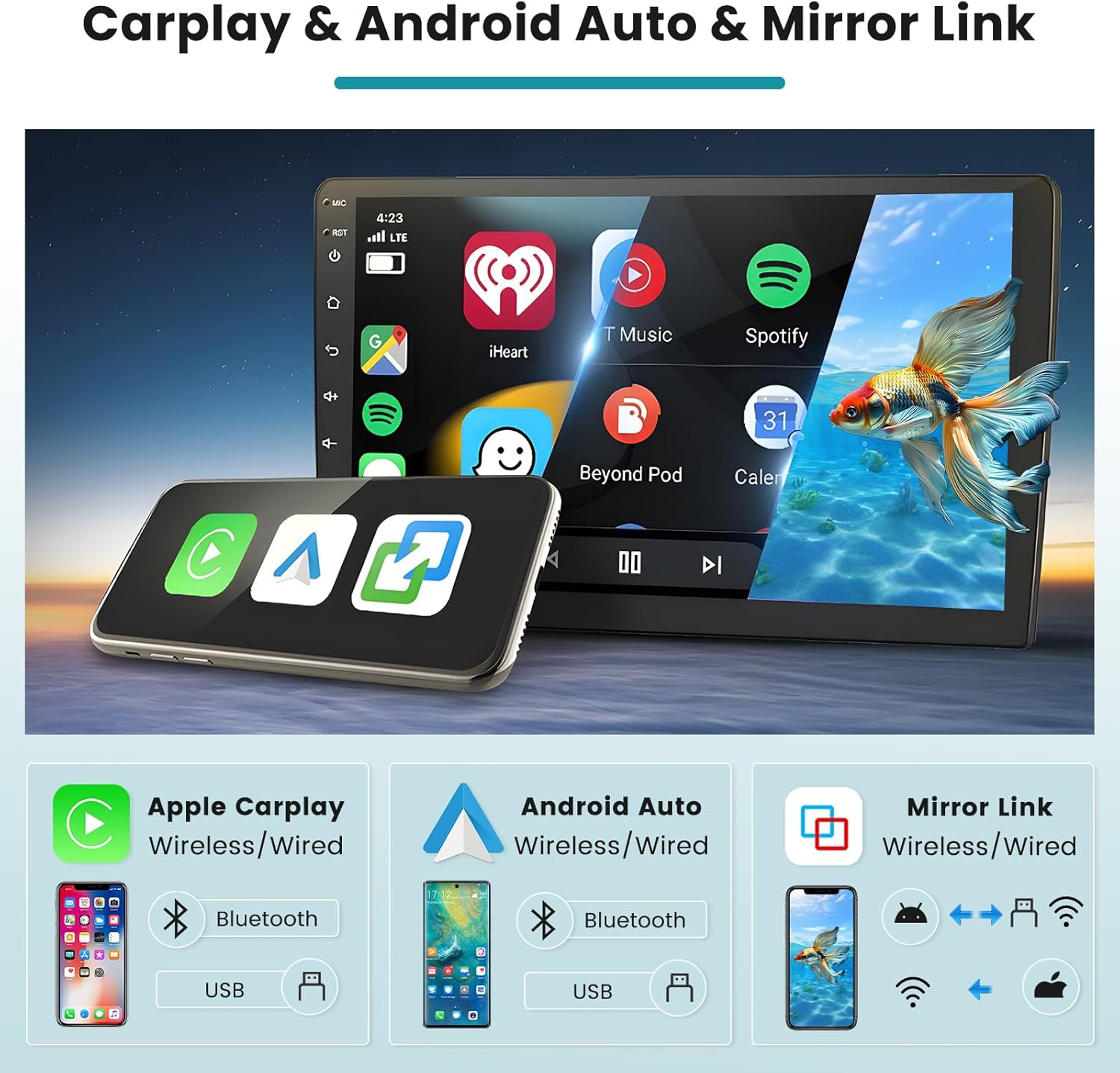
Image 4.1: Visual representation of Apple CarPlay, Android Auto, and Mirror Link connectivity options, showing both wireless and wired methods.
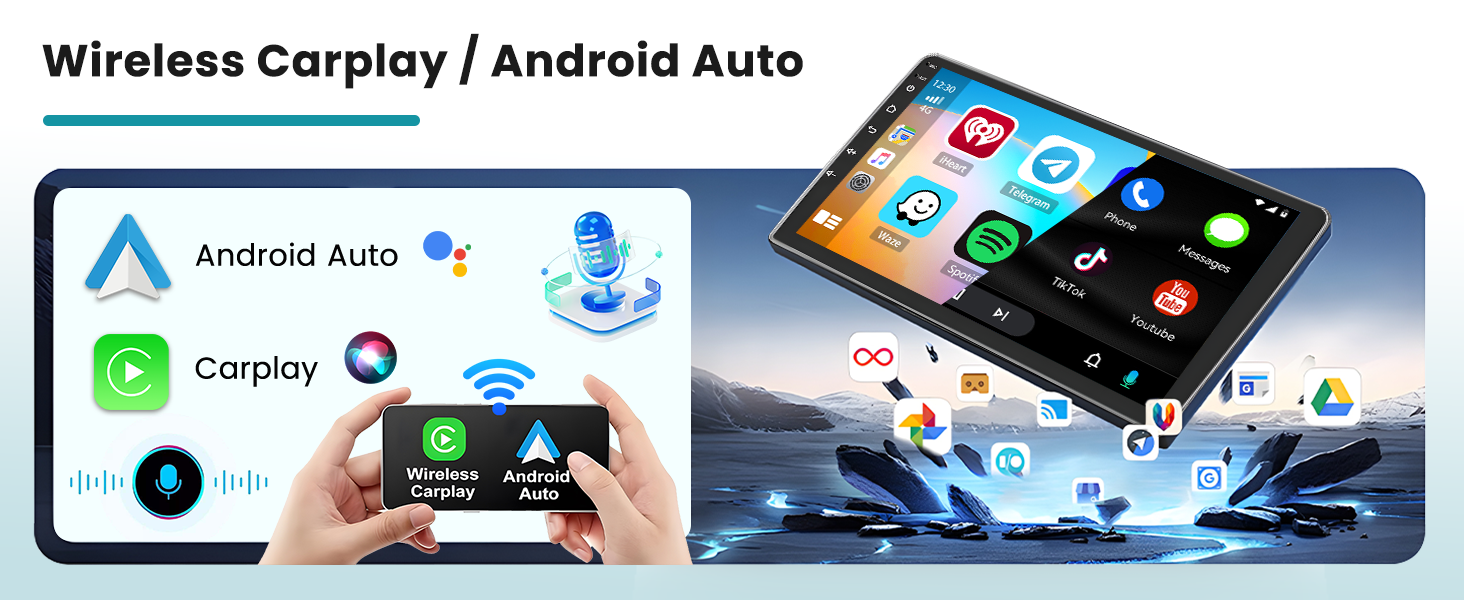
Image 4.2: Demonstration of wireless CarPlay and Android Auto functionality, allowing seamless smartphone integration.
4.2 GPS Navigation & Wi-Fi Connection
The unit features integrated GPS for navigation and Wi-Fi for online services.
- GPS: Supports both online and offline navigation. You can download offline maps or use online maps when connected to Wi-Fi.
- Wi-Fi: Connect to a Wi-Fi network to access online maps, download applications, or stream music and videos.

Image 4.3: Display showing GPS navigation in action and the Wi-Fi connection icon, indicating access to online services.
4.3 Bluetooth & FM/RDS Radio
Enjoy hands-free communication and high-quality radio reception.
- Bluetooth: Connect your smartphone for hands-free calling and audio streaming. Song titles and artist names are displayed on the screen.
- FM/RDS: Provides clear radio reception with optimized audio quality. RDS (Radio Data System) displays station information, program types, and can provide traffic announcements.
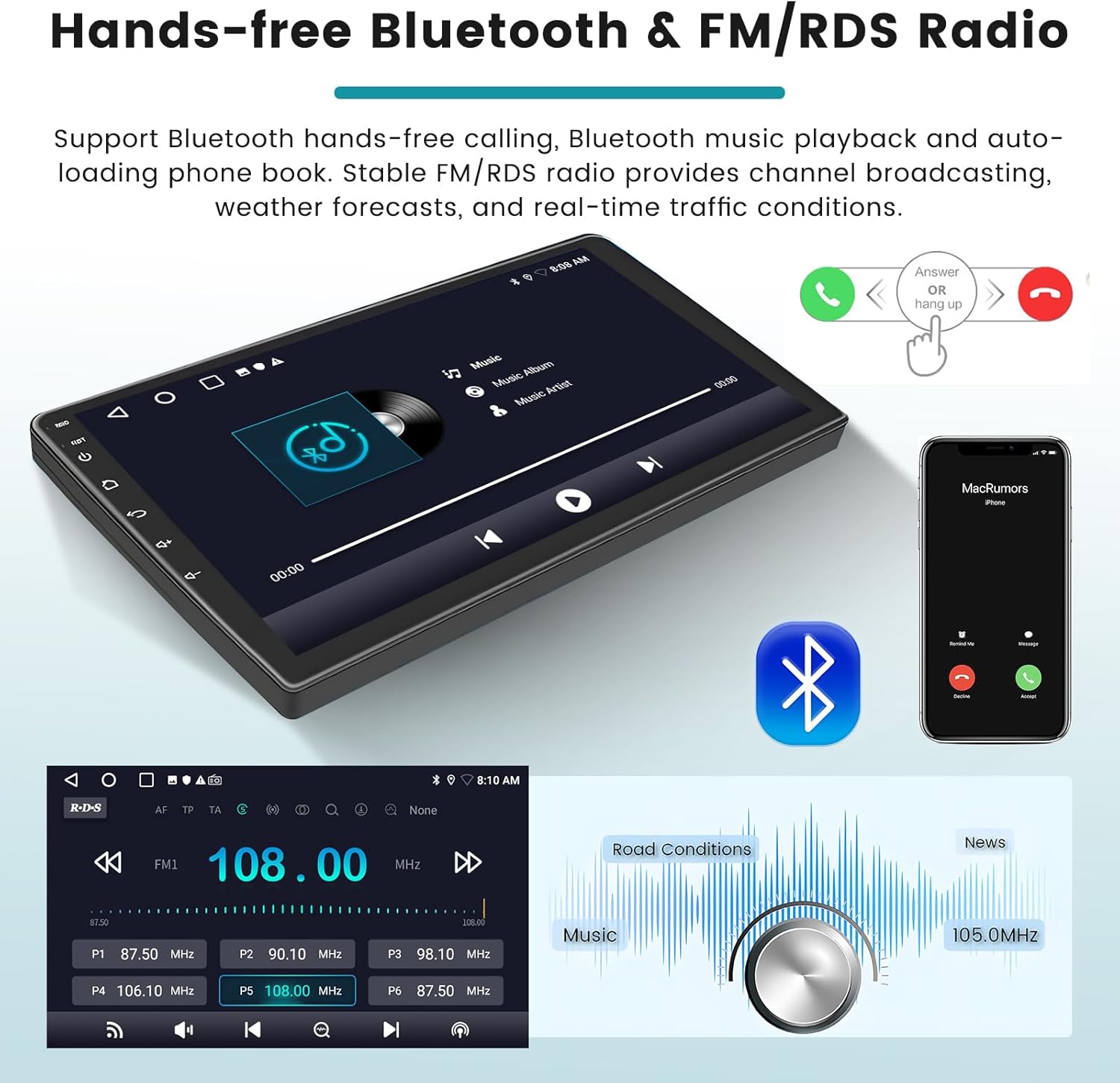
Image 4.4: Screenshots demonstrating Bluetooth hands-free calling functionality and the FM/RDS radio interface with station information.
4.4 Steering Wheel Control (SWC) & Rear View Camera
Enhance driving safety and convenience with these integrated features.
- Steering Wheel Control: Activate SWC in the settings to control the radio functions directly from your steering wheel, reducing distractions.
- Rear View Camera: The included AHD rear camera provides an ultra-wide viewing angle, waterproof design, and HD night vision. When reversing, the camera feed automatically displays on the radio screen.

Image 4.5: Visuals showing the on-screen controls for the car radio, the steering wheel controls, and the display of the AHD rear view camera with guidelines.
4.5 EQ Settings & UI Themes
Personalize your audio experience and interface appearance.
- EQ Settings: Customize your audio output with the built-in equalizer. Choose from various sound frames like classic, pop, rock, or jazz, and adjust settings to your preference.
- UI Themes: Select from 26 different desktop themes to personalize the look and feel of your car radio's interface.
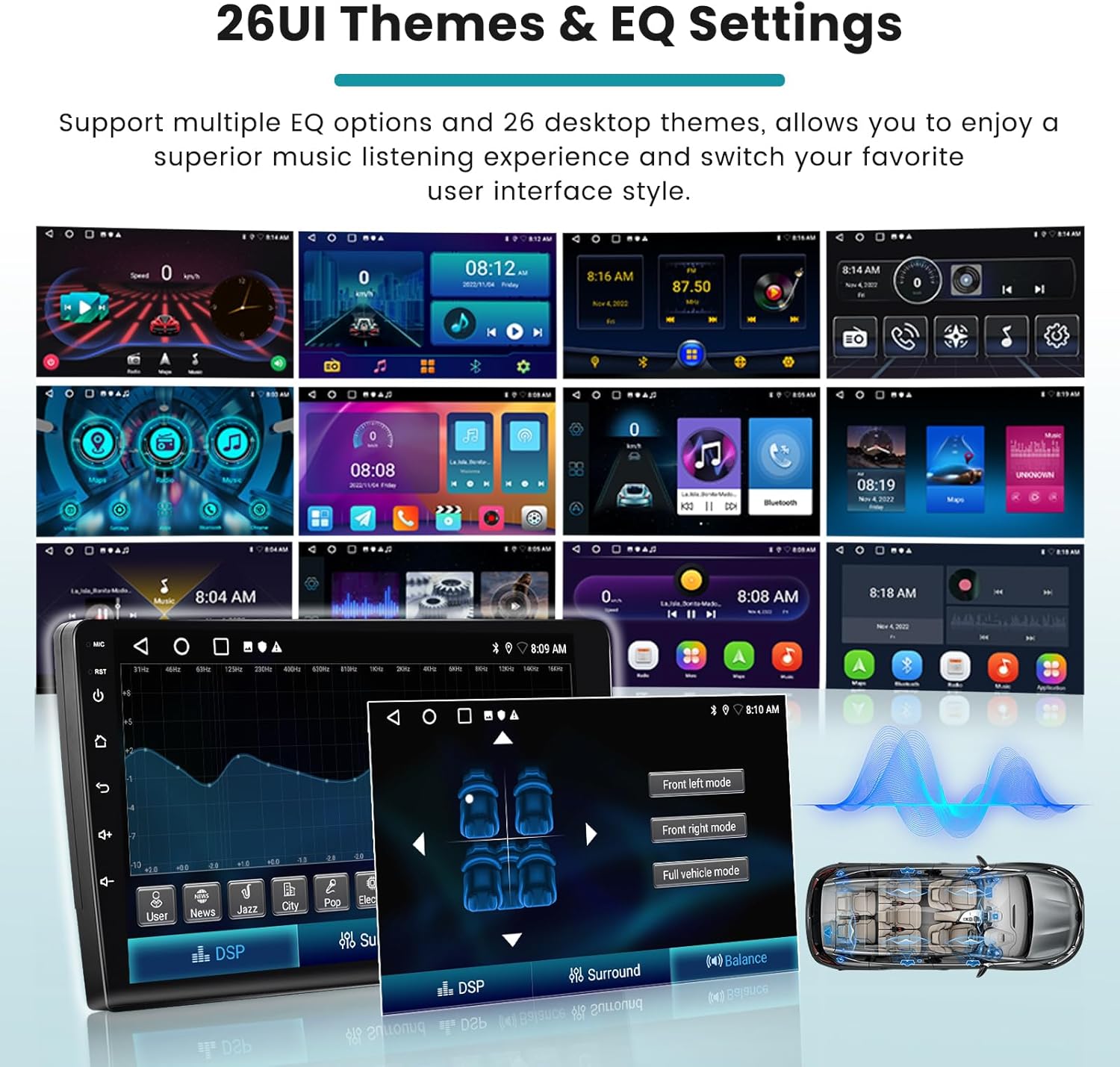
Image 4.6: Examples of different user interface themes and the graphical equalizer settings available on the Roinvou car radio.
5. Maintenance
To ensure the longevity and optimal performance of your Roinvou car radio, follow these general maintenance guidelines:
- Cleaning: Use a soft, dry cloth to clean the screen and exterior. Avoid abrasive cleaners or solvents that could damage the surface.
- Temperature: Operate the unit within recommended temperature ranges. Extreme temperatures can affect performance and lifespan.
- Software Updates: Periodically check for available software updates from Roinvou to ensure you have the latest features and bug fixes.
- Cable Connections: Ensure all cables are securely connected. Loose connections can lead to intermittent issues.
6. Troubleshooting
If you encounter issues with your Roinvou car radio, refer to the following common troubleshooting steps:
- No Power:
- Check all power cable connections.
- Verify the vehicle's fuse for the radio.
- Ensure the car's ignition is on.
- No Sound:
- Check speaker wire connections.
- Verify volume settings and ensure the unit is not muted.
- Check EQ settings for any unusual configurations.
- GPS Signal Loss:
- Ensure the GPS antenna is properly installed and has a clear view of the sky.
- Check Wi-Fi connection for online maps.
- Bluetooth Connectivity Issues:
- Ensure Bluetooth is enabled on both the car radio and your smartphone.
- Delete previous pairings and try re-pairing the devices.
- Ensure the reverse input cable is connected, as it can affect Bluetooth signal reception if disconnected.
- Steering Wheel Controls Not Working:
- Review the CANBUS decoder configuration steps in Section 3.5.
- Ensure the CANBUS decoder is correctly connected.
- Perform a manual SWC learning process in the settings if necessary.
- Rear Camera Not Displaying:
- Check the rear camera input cable connection.
- Ensure the camera's power and ground wires are correctly connected to the reverse light circuit.
If problems persist, please contact Roinvou customer support for assistance.
7. Specifications
| Feature | Detail |
|---|---|
| Brand | Roinvou |
| Model Number | Roinvou-A7456A3796A4MI2 |
| Compatible Vehicles | FIAT Bravo 2008-2013 |
| Display Size | 9 inches |
| Display Type | Capacitive Touch Screen, Full HD 1080P |
| RAM | 2GB |
| Internal Storage | 64GB |
| Operating System | Android |
| Connectivity | Bluetooth, USB, Wi-Fi, FM RDS |
| Special Features | CarPlay, Android Auto, Mirror Link, EQ, GPS, SWC, 26 UI Themes |
| Tuner Technology | FM RDS (No AM DAB/DAB+) |
| Audio Output Mode | APE/FLAC/WAV/MP3/WMA |
| Surround Configuration | 4 |
| Wattage | 45 watts |
| Item Weight | 1.35 Kilograms |
| Package Dimensions | 26 x 16 x 7 cm |
8. Warranty and Support
Roinvou is committed to providing quality products and customer satisfaction. For any questions regarding your product before or after purchase, please contact our support team.
- Product Suitability: If you have questions about product compatibility with your car, send photos of your car's dashboard to our support team for assistance.
- Quality Assurance: Roinvou continuously strives for better product quality to ensure customer satisfaction.
- After-Sales Support: A dedicated support team is available to assist with installation and usage issues. Effective communication will help resolve any problems.
For direct support, you can contact the seller "wenheyou" via Amazon or use the provided email address:
Email: roinvouservices@163.com

Image 8.1: Information on how to contact customer support, including steps to reach the seller on Amazon and a direct email address.
Documents and downloads
Ask a question about this manual
Ask about setup, troubleshooting, compatibility, parts, safety, or missing instructions. Manuals+ will review the question and use this page’s manual context to help answer it.