
1. Important Safety Information
Please read all safety instructions carefully before using the projector. Keep this manual for future reference.
- Power Supply: Use only the provided power adapter. Ensure the power outlet voltage matches the projector's requirements.
- Ventilation: Do not block the ventilation openings. Ensure adequate space around the projector for proper airflow to prevent overheating.
- Lens Care: Avoid looking directly into the projector lens when the lamp is on, as the bright light can cause eye strain or damage.
- Placement: Place the projector on a stable, level surface. Avoid placing it in direct sunlight, near heat sources, or in environments with high humidity or dust.
- Cleaning: Disconnect the power before cleaning. Use a soft, dry cloth for the exterior. For the lens, use a lens cleaning cloth and solution.
- Repairs: Do not attempt to repair the projector yourself. Refer all servicing to qualified personnel.
2. Product Overview
The XIDU PhilScene S31 is a portable projector designed for versatile entertainment and presentation. It features a durable metal housing, native 1080P resolution with 4K support, 2000 ANSI lumens brightness, and advanced connectivity options including WiFi 6 and Bluetooth 5.3.
2.1 Package Contents
Verify that all items are present in your package:
- XIDU PhilScene S31 Projector (Native 1080P)
- Remote Control
- AV Cable
- Power Cord
- User Manual
2.2 Projector Components

Image 2.2.1: Front view of the XIDU PhilScene S31 projector, showcasing its sleek design and the projection of a football game.
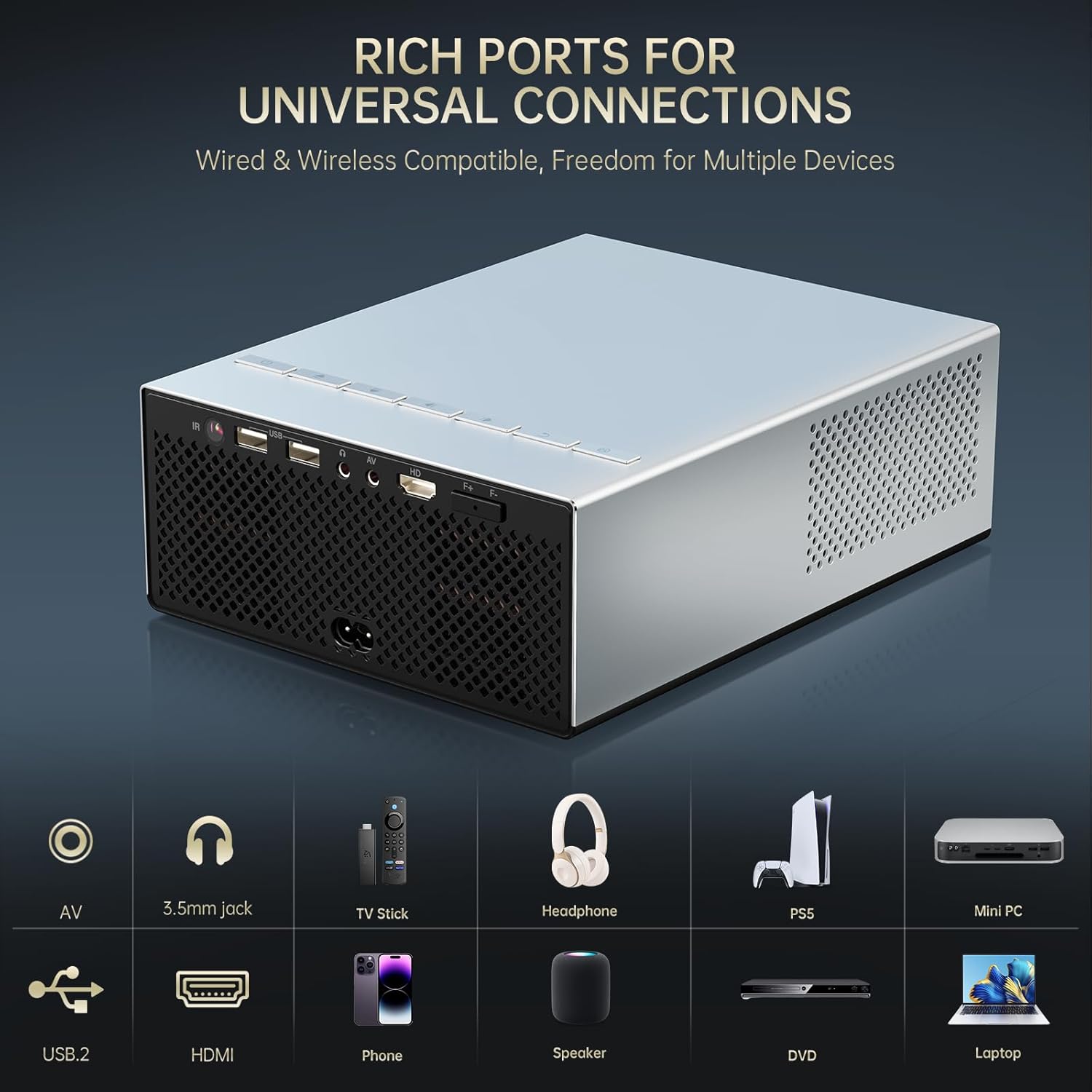
Image 2.2.2: Rear and side view of the XIDU PhilScene S31 projector, highlighting its comprehensive array of input and output ports including AV, 3.5mm jack, USB, and HDMI.
The projector features a recessed lens for protection, ventilation grilles on the sides, and various input/output ports for connectivity. The top panel includes basic control buttons, and a remote control is provided for full functionality.
3. Setup
3.1 Placement
Choose a suitable location for your projector. The projection distance affects the screen size. Refer to the table below for recommended distances:

Image 3.1.1: A visual guide illustrating the relationship between projection distance and screen size for the XIDU PhilScene S31 projector, ranging from 40 inches at 3.28 feet to 300 inches at 26.24 feet.
| Screen Size (inches) | Projection Distance (feet) |
|---|---|
| 40" | 3.28 ft |
| 80" | 6.56 ft |
| 150" | 9.84 ft |
| 300" | 26.24 ft |
Ensure the projector is stable and the projection path is clear of obstructions.
3.2 Power Connection
- Connect the power cord to the projector's power input port.
- Plug the other end of the power cord into a suitable electrical outlet.
- Press the power button on the projector or remote control to turn it on.
3.3 Focus and Keystone Correction
The PhilScene S31 features intelligent screen adaptive technology for quick setup.
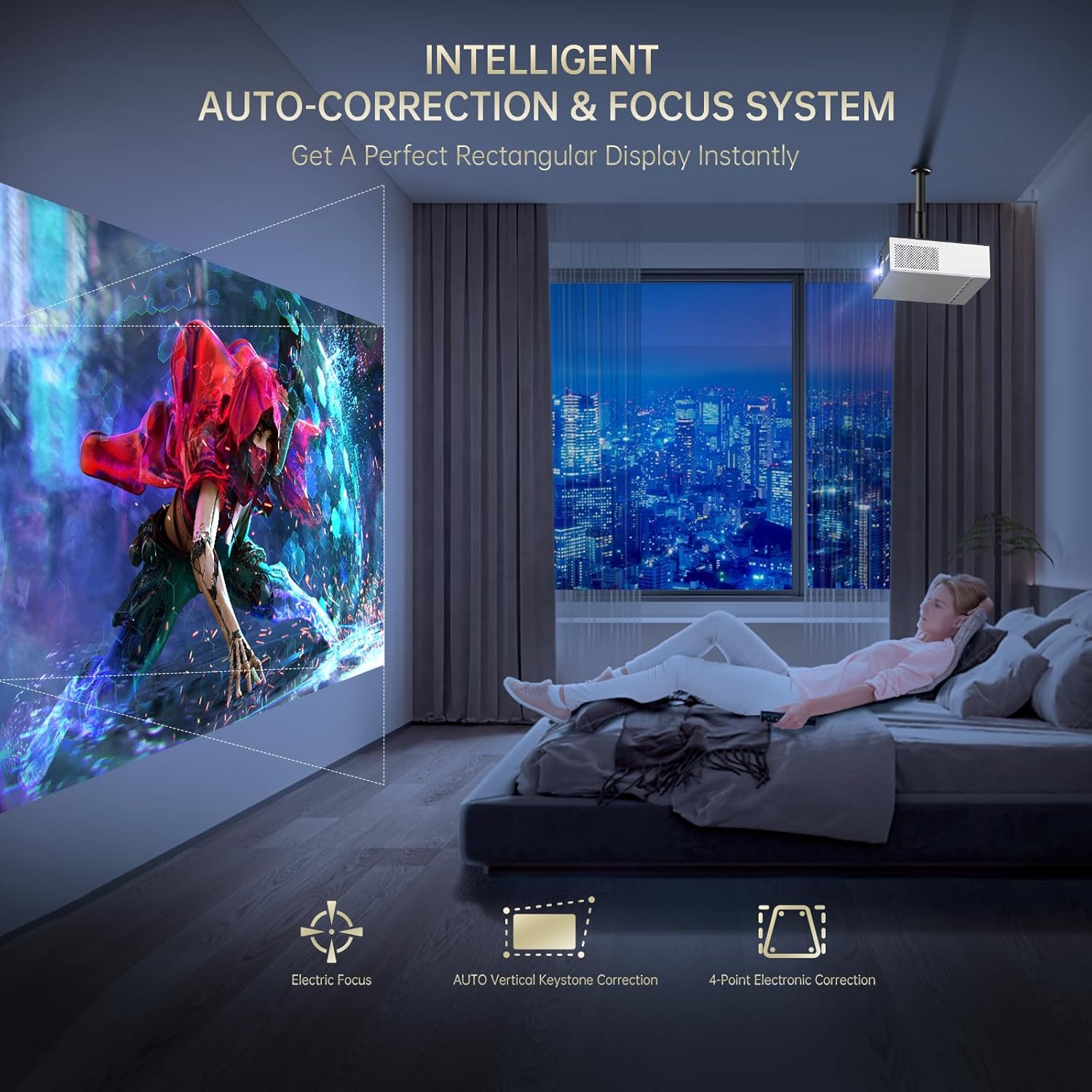
Image 3.3.1: Diagram illustrating the intelligent auto-correction and focus system of the XIDU PhilScene S31, including electric focus, auto vertical keystone correction, and 4-point electronic correction, ensuring a perfect rectangular display.
- Electric Focus: The projector automatically adjusts focus. You can also fine-tune it using the remote control's focus buttons (F+ / F-).
- Auto Vertical Keystone Correction: The projector automatically corrects vertical distortion to ensure a rectangular image.
- 4-Point Electronic Correction: For more precise adjustments, navigate to the settings menu to manually adjust each corner of the projection.
3.4 Connecting Devices
The projector supports various wired and wireless connections.
- HDMI: Connect devices like laptops, gaming consoles (PS5), TV sticks, or Blu-ray players using an HDMI cable.
- USB: Insert a USB drive to play media files directly.
- AV: Use the provided AV cable to connect older devices.
- 3.5mm Audio Jack: Connect external headphones or speakers via the audio output port.
4. Operating Instructions
4.1 Basic Navigation
Use the remote control to navigate the projector's interface. The directional buttons allow you to move through menus, and the "OK" button confirms selections. The "Back" button returns to the previous screen.
4.2 Source Selection
After connecting a device, press the "Source" button on the remote control to select the appropriate input (e.g., HDMI 1, USB, AV, Screen Mirroring).
4.3 Wireless Casting (Screen Mirroring)
The projector supports seamless screen mirroring via WiFi 6 for Android, iOS, and Windows devices.
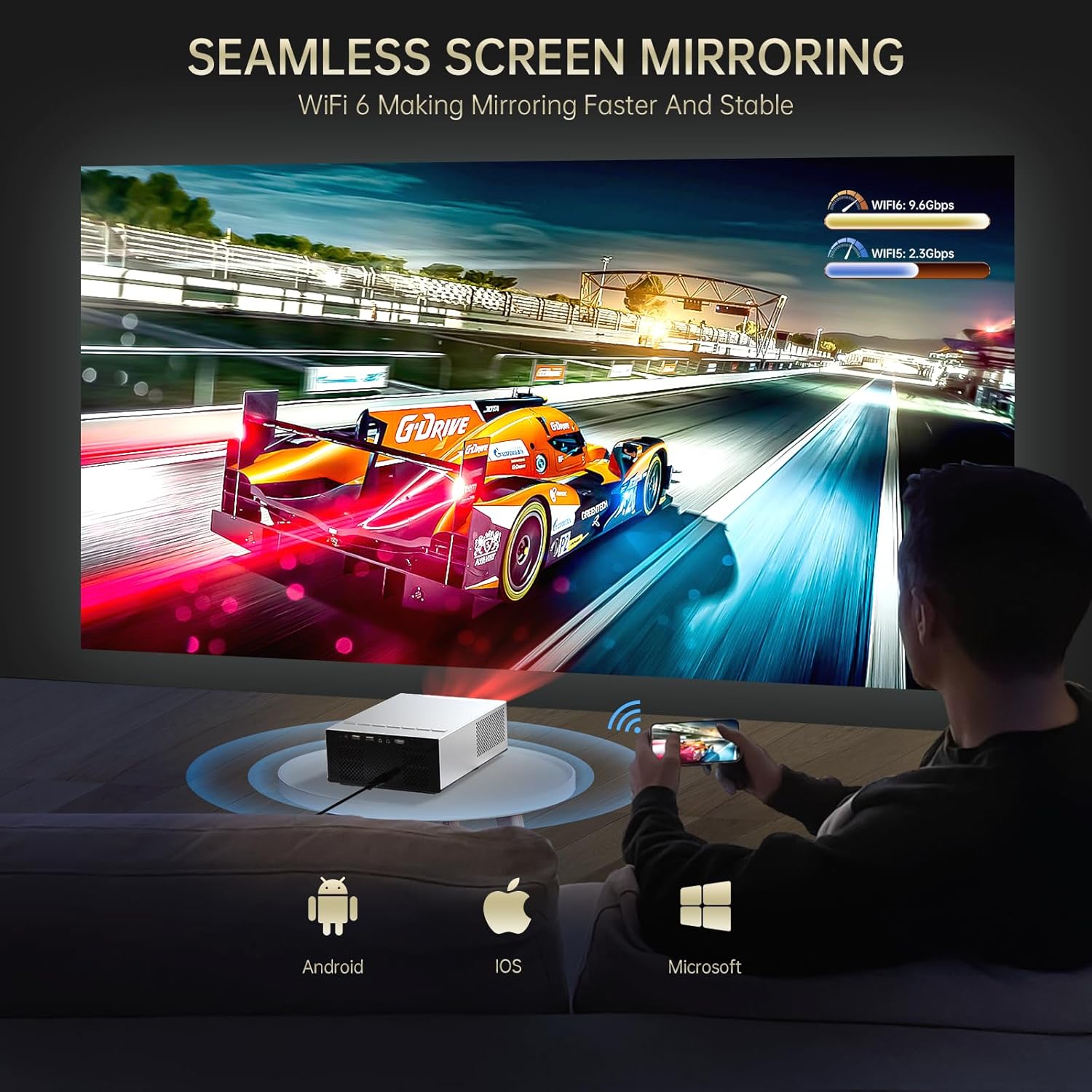
Image 4.3.1: An illustration of the XIDU PhilScene S31 projector performing seamless screen mirroring from Android, iOS, and Microsoft devices using WiFi 6, showing faster and more stable connectivity.
Important Note on HDCP:
Due to High-bandwidth Digital Content Protection (HDCP) agreements, screen mirroring may not function (no image or sound) when attempting to mirror content from certain applications such as Amazon Prime Video, Hulu, Netflix, and others. For these applications, it is recommended to use a TV Stick, Roku, or Chromecast device inserted directly into the projector's HDMI port.
4.4 Bluetooth Audio Connection
Connect external Bluetooth speakers or headphones for an enhanced audio experience.

Image 4.4.1: A scene depicting the XIDU PhilScene S31 projector providing versatile audio output, including built-in dual-chamber Hi-Fi sound, Bluetooth 5.3, and a 3.5mm wired output, shown in an outdoor camping setting.
- Ensure your Bluetooth device is in pairing mode.
- On the projector, navigate to the Bluetooth settings menu.
- Select your device from the list of available devices to pair.
The projector also features dual 8W Hi-Fi speakers for integrated sound.
5. Maintenance
5.1 Cleaning the Lens
Use a professional lens cleaning cloth and lens cleaning solution. Avoid touching the lens directly with your fingers.
5.2 Cleaning Ventilation Ports
Regularly check and clean the ventilation ports to ensure proper heat dissipation. Use a soft brush or compressed air to remove dust accumulation. Do not block these ports during operation.
5.3 Storage
When not in use for extended periods, store the projector in a cool, dry, and dust-free environment. Use the original packaging or a protective case to prevent damage.
6. Troubleshooting
If you encounter issues with your XIDU PhilScene S31 projector, refer to the following common problems and solutions:
- No Image / Blurry Image:
- Ensure the power cable is securely connected and the projector is turned on.
- Check the input source selection.
- Adjust the electric focus using the remote control (F+ / F-).
- Verify keystone correction settings.
- Ensure the lens is clean and free from obstructions.
- No Sound:
- Check the volume level on both the projector and the connected source device.
- Ensure external speakers or headphones are properly connected or paired via Bluetooth.
- If using HDMI, ensure the audio output is correctly configured on the source device.
- Wireless Casting Issues:
- Ensure both the projector and your device are connected to the same Wi-Fi network.
- Restart both the projector and your casting device.
- Remember the HDCP limitation for certain streaming apps (refer to Section 4.3). Use a TV stick for these services.
- Overheating / Automatic Shutdown:
- Ensure all ventilation ports are clear and not blocked.
- Operate the projector in a well-ventilated area.
- Allow the projector to cool down before restarting if it has shut down automatically.
If the problem persists, please contact XIDU customer service for further assistance.
7. Specifications

Image 7.1.1: A visual representation of the XIDU PhilScene S31's display capabilities, emphasizing 4K support, native 1080P resolution, 2000 ANSI lumens, HDR10, 25000:1 contrast, and 98% NTSC color mastery.
| Feature | Description |
|---|---|
| Model Number | PhilScene S31 |
| Display Resolution | Native 1920 x 1080 (Full HD), 4K Support |
| Brightness | 2000 ANSI Lumens |
| Connectivity | Wi-Fi 6, Bluetooth 5.3, HDMI, USB, 3.5mm Jack, AV |
| Special Features | Electric Focus, Auto Vertical Keystone Correction, 4-Point Electronic Correction, Built-In Speaker, Wireless Casting, Metal Housing, 0 Refraction Technology |
| Audio | Dual 8W Hi-Fi Speakers |
| Item Weight | 4.11 pounds |
| Product Dimensions | 8.9 x 8.4 x 4.5 inches |
| Recommended Uses | Business, Education, Gaming, Home Cinema |
8. Warranty and Support
The XIDU PhilScene S31 Portable Projector comes with comprehensive support to ensure your satisfaction.
- Warranty: A 2-year warranty covers manufacturing defects and ensures reliable operation.
- Technical Support: Lifetime technical support is available for any operational or technical queries you may have.
- Customer Service: Our dedicated customer service team is available 24/7 to assist you.
For warranty claims or technical assistance, please refer to the contact information provided on the XIDU official website or your purchase documentation.