
1. Introduction
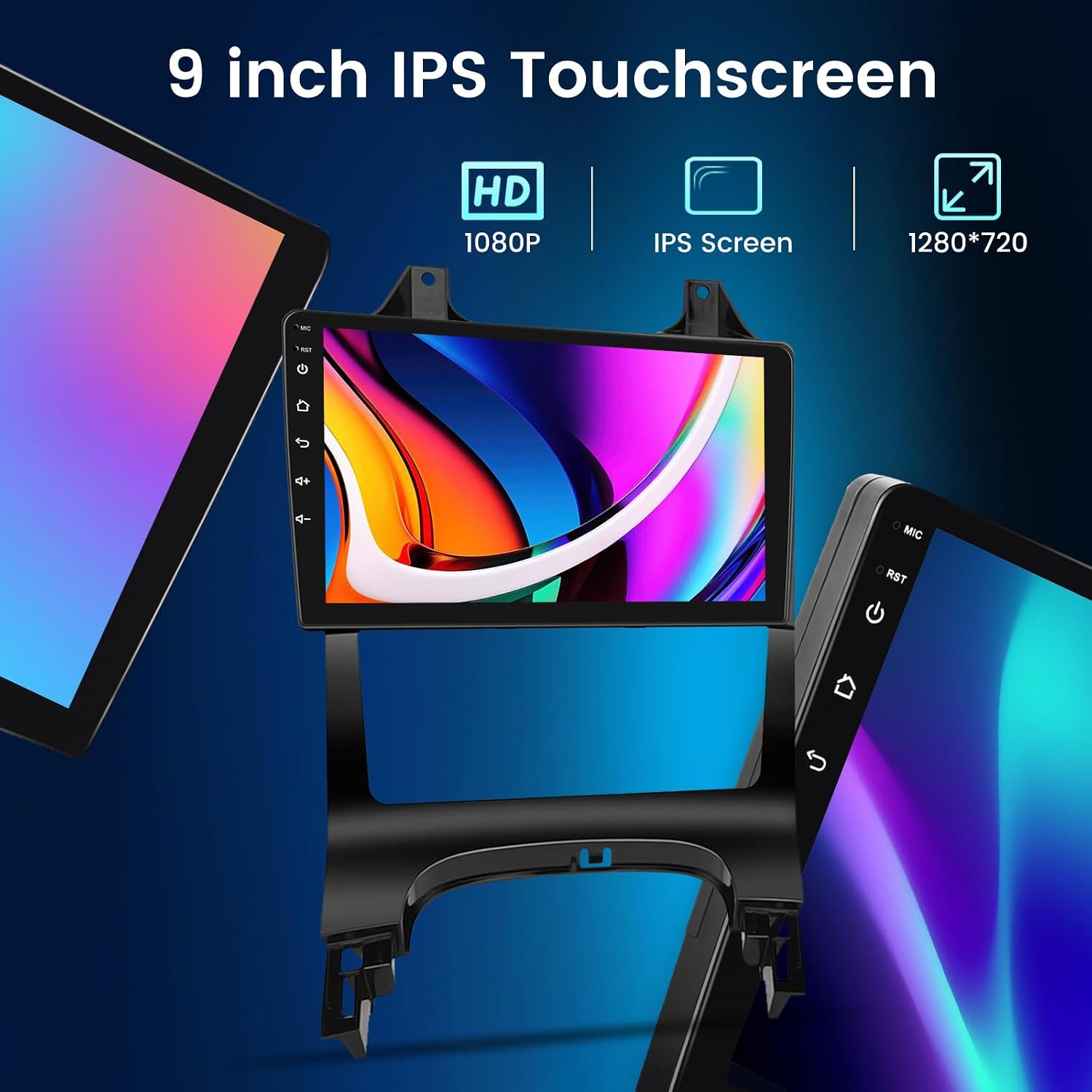
This manual provides detailed instructions for the installation, operation, and maintenance of your NHOPEEW 4+64G Android Car Radio. This unit is specifically designed for Peugeot 3008 models manufactured between 2009 and 2015, ensuring a perfect fit and seamless integration with your vehicle's dashboard. Featuring a 9-inch IPS touchscreen, wireless CarPlay, Android Auto, GPS navigation, Wi-Fi connectivity, and a 32-band DSP, this car radio enhances your driving experience with advanced multimedia and smart features.
2. Safety Information
- Read all instructions carefully before installation and use.
- Installation should be performed by a qualified professional to avoid damage to the unit or vehicle.
- Do not operate the device in a way that distracts you from driving. Always prioritize road safety.
- Ensure all wiring is correctly connected to prevent short circuits or electrical hazards.
- Keep the unit away from water and excessive heat.
- Do not attempt to disassemble or modify the unit. This will void the warranty.
3. Package Contents
Verify that all items listed below are included in your package:
- NHOPEEW 9-inch Android Car Stereo Unit
- Power Cable
- RCA Cable
- USB Cable (x2)
- Camera Input Cable
- Radio Antenna
- GPS Antenna
- Backup Camera
- External Microphone
- Canbus Decoder
- Mounting Bracket
- Installation Tool
- User Manual

4. Setup and Installation
4.1 Pre-Installation Checks
- Confirm vehicle compatibility: This unit is for Peugeot 3008 (2009-2015).
- Disconnect the vehicle's battery before starting any electrical work.
- Ensure you have all necessary tools for dashboard removal and wiring.
4.2 Dashboard Disassembly and Frame Installation
Carefully remove the original car radio and dashboard trim. The NHOPEEW unit comes with specific frames designed for your Peugeot 3008 to ensure a flush and integrated look.


4.3 Wiring Connections
Connect the provided power cable, RCA cables, USB cables, camera input, radio antenna, and GPS antenna to their respective ports on the car radio and vehicle harness. The Canbus decoder ensures proper communication between the car radio and your vehicle's systems, including steering wheel controls.
- Power Cable: Connect to the vehicle's power harness.
- RCA Cables: For external amplifiers or audio output.
- USB Cables: For USB devices, phone charging, or wired CarPlay/Android Auto.
- Camera Input: Connect the included backup camera.
- Antennas: Connect the radio antenna and GPS antenna for optimal signal reception.
- Microphone: Plug in the external microphone for improved call quality and voice commands.
4.4 Post-Installation
Once all connections are secure, reassemble the dashboard trim. Reconnect the vehicle's battery and power on the unit for initial testing.
5. Operating Instructions
5.1 Power On/Off and Basic Navigation
The unit powers on automatically with the vehicle's ignition. To navigate the interface, use the 9-inch IPS capacitive touchscreen. Swipe, tap, and pinch gestures are supported.
5.2 Wireless CarPlay and Android Auto
The unit supports both wireless and wired CarPlay/Android Auto. This allows for seamless integration with your smartphone, providing access to navigation, music, calls, and messages directly on the car radio display.
- For Wireless Connection: Ensure your phone's Bluetooth and Wi-Fi are enabled. Pair your phone with the car radio via Bluetooth. Follow the on-screen prompts to initiate CarPlay or Android Auto.
- For Wired Connection: Connect your phone to one of the USB ports using a high-quality USB cable. The system should automatically detect and launch CarPlay or Android Auto.

5.3 GPS Navigation and Wi-Fi Connectivity
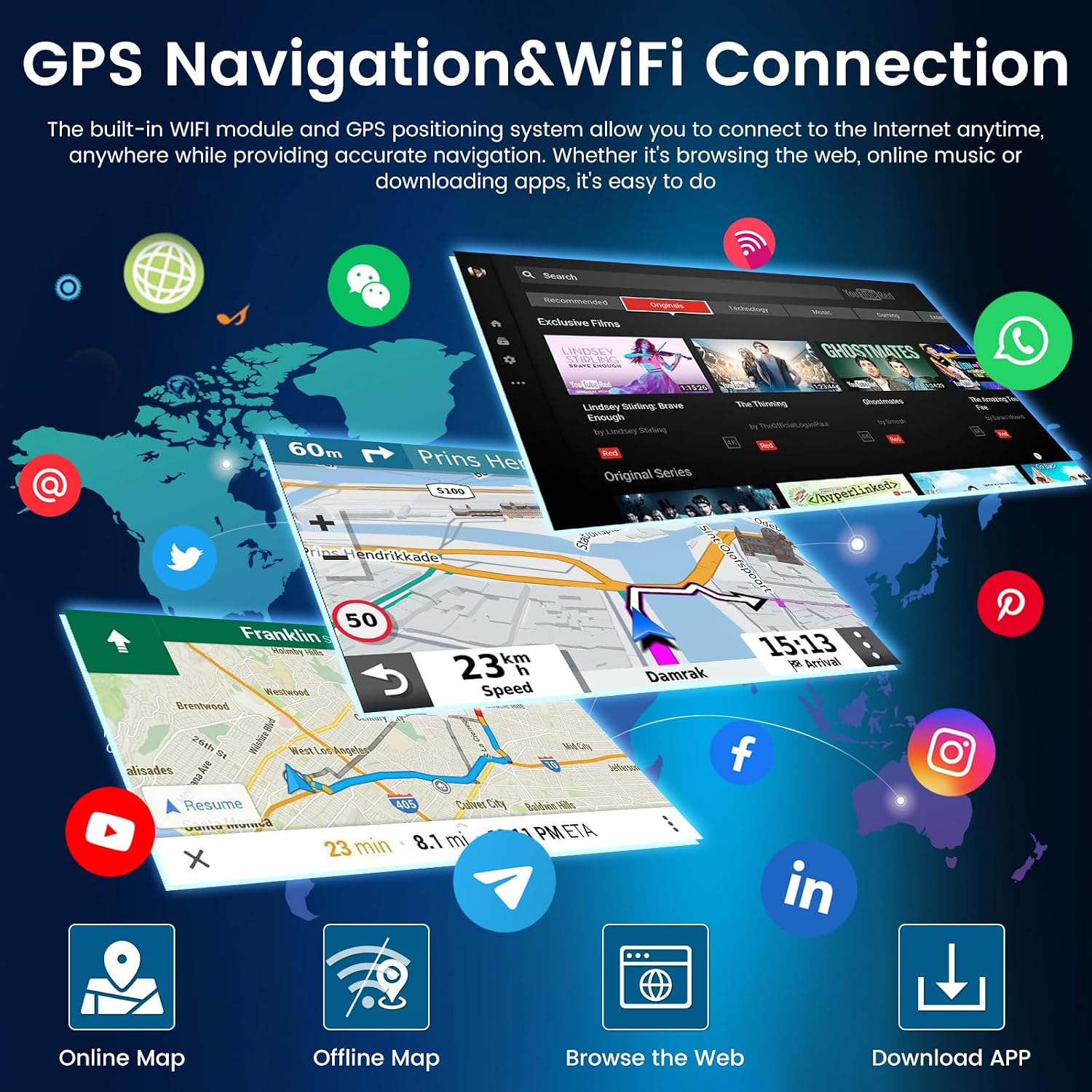
The built-in GPS module supports various navigation applications, including Waze and offline maps. Connect to Wi-Fi via a mobile hotspot or a local Wi-Fi network to access online maps, real-time traffic, and other internet-dependent features.
- GPS: Open your preferred navigation app from the main menu. Ensure the GPS antenna is properly installed for accurate positioning.
- Wi-Fi: Go to Settings > Network & Internet > Wi-Fi. Select your desired network and enter the password.

5.4 Audio Settings (32EQ DSP)
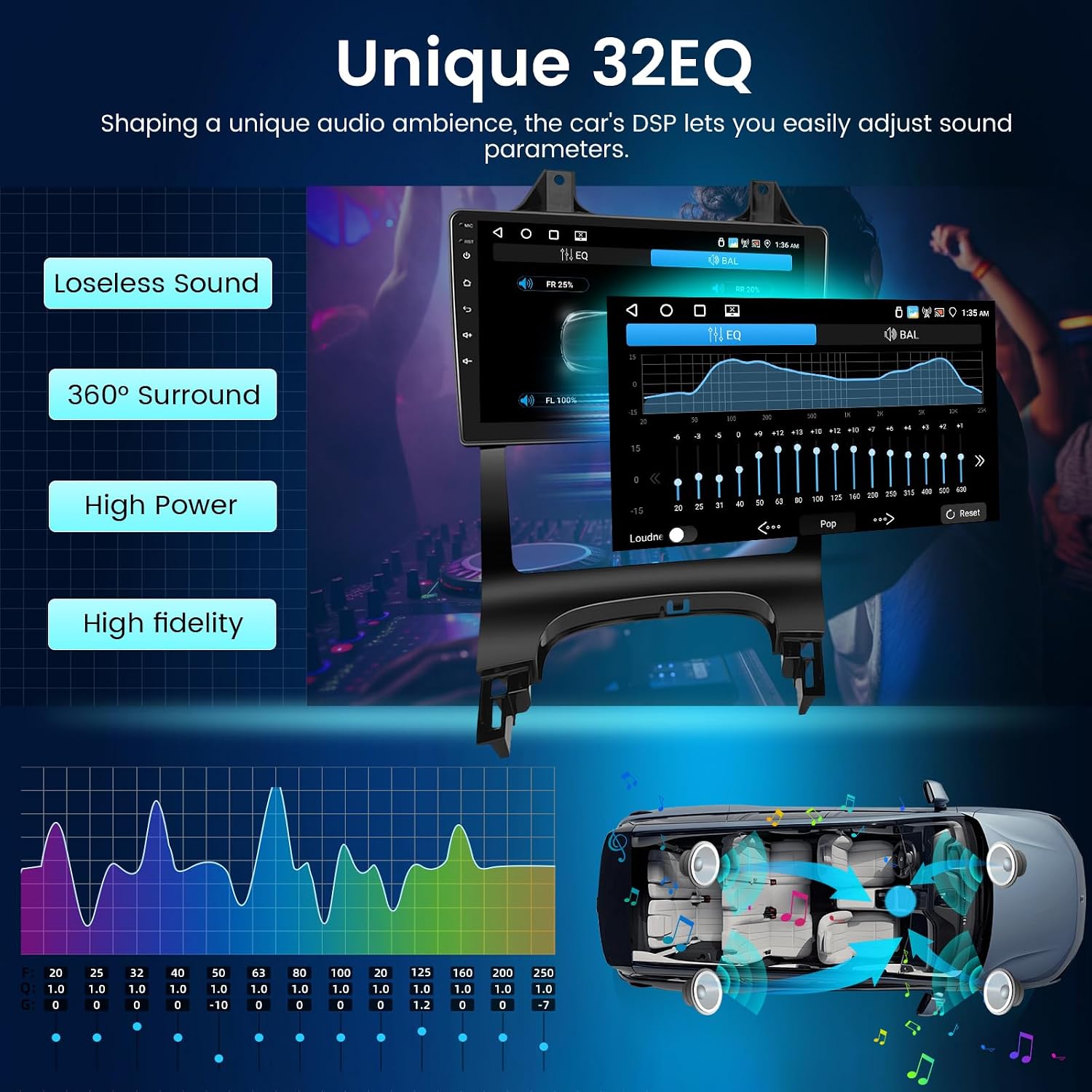
The integrated 32-band Digital Sound Processor (DSP) allows for precise audio customization. Access the EQ settings from the audio menu to adjust frequency bands, balance, fader, and other sound parameters to achieve your desired audio experience.
5.5 Steering Wheel Control (SWC)
The unit supports your vehicle's original steering wheel controls. After installation, you may need to configure the SWC settings in the system menu to map the buttons to the desired functions (e.g., volume up/down, track skip, mode change).
5.6 Split Screen Function
The split-screen feature allows you to run two applications simultaneously on the 9-inch display. For example, you can have navigation on one side and music playback on the other. To activate, long-press the recent apps button or drag an app to one side of the screen.
5.7 Boot Logo Setting
You can customize the boot-up logo to match your vehicle's brand or a personal image. Access this setting in the system configuration menu. Refer to the on-screen instructions for uploading and selecting a custom boot logo.
6. Maintenance
- Cleaning: Use a soft, dry cloth to clean the screen and unit. For stubborn smudges, a slightly damp cloth with a mild, non-abrasive cleaner can be used. Avoid harsh chemicals.
- Software Updates: Periodically check for software updates via the system settings. Updates can improve performance, add new features, and fix bugs. Ensure a stable internet connection during updates.
- Temperature: Avoid exposing the unit to extreme temperatures for prolonged periods.
7. Troubleshooting
If you encounter issues with your NHOPEEW car radio, refer to the following troubleshooting guide:
| Problem | Possible Cause | Solution |
|---|---|---|
| Unit does not power on / Screen is black | Loose power connection, blown fuse, vehicle battery issue. | Check power cable connections. Inspect vehicle fuses. Ensure vehicle battery is charged and properly connected. If the issue persists, consult a professional. |
| No sound | Volume too low, incorrect audio source, loose speaker wires, amplifier issue. | Increase volume. Select correct audio source. Check speaker wire connections. If using an external amplifier, ensure it is powered and connected correctly. |
| GPS not working or inaccurate | GPS antenna not connected, poor signal, outdated maps. | Ensure GPS antenna is securely connected and placed in an unobstructed location (e.g., dashboard). Move to an open area for better signal. Update navigation app or maps. |
| CarPlay/Android Auto not connecting | Bluetooth/Wi-Fi off on phone, incorrect pairing, faulty USB cable, phone software issue. | Ensure phone's Bluetooth and Wi-Fi are on. Re-pair Bluetooth. Try a different USB cable. Restart phone and car radio. Check phone's OS for updates. |
| Steering Wheel Controls not working | SWC wiring incorrect, not configured in settings, Canbus issue. | Verify SWC wiring. Go to system settings and configure/map the steering wheel buttons. Ensure Canbus decoder is correctly installed. |
| Backup camera not displaying | Camera input cable loose, camera faulty, reverse trigger wire not connected. | Check camera input cable connection. Ensure the reverse trigger wire is correctly connected to the vehicle's reverse light circuit. Test camera functionality if possible. |
8. Specifications
| Feature | Specification |
|---|---|
| Model Number | 4+64G |
| Compatible Vehicles | Peugeot 3008 (2009-2015) |
| Screen Size | 9 Inches |
| Display Type | IPS Capacitive Touchscreen |
| Resolution | 1280 x 720p |
| Memory (RAM) | 4 GB |
| Storage (ROM) | 64 GB |
| Operating System | Android |
| Connectivity | Wi-Fi, Bluetooth |
| Navigation System | Built-in GPS (supports Waze, offline maps) |
| Special Features | Wireless CarPlay, Android Auto, Mirror Link, 32-band DSP, Split Screen, Steering Wheel Control (SWC) |
| Included Components | Car stereo, backup camera, microphone, wiring harness |
| Mounting Type | Dashboard Mount |
| Dimensions (Package) | 38 x 23.5 x 9.5 cm |
| Weight (Package) | 1.4 kilograms |
| Batteries Included | No |
9. Warranty and Support
Your NHOPEEW car radio comes with a standard manufacturer's warranty. Please refer to the warranty card included in your package for specific terms and conditions, including the warranty period and coverage details. For technical support, troubleshooting assistance beyond this manual, or warranty claims, please contact NHOPEEW customer service through the retailer where you purchased the product or visit the official NHOPEEW website for contact information.


