1. Introduction
The Hendari MFi Certified Air Tracker Tag F11 is a Bluetooth item tracker designed to help you locate your personal belongings using the Apple Find My network. This device is MFi certified, ensuring seamless integration and secure communication with your Apple devices. It is compatible exclusively with iOS, iPadOS, and macOS devices.
Package Contents
- 4 × Hendari Air Tracker Tags
- 1 × Triangular Pry Tool (for battery replacement)
- 1 × User Manual

Image 1.1: Contents of the Hendari Air Tracker Tag 4-pack, including the tags, pry tool, and lanyards.

Image 1.2: Diagram illustrating the compact dimensions of the Air Tracker Tag and the included accessories.
2. Important Safety Information
- Battery Safety: The device uses a CR2032 coin cell battery. Keep batteries out of reach of children. If swallowed, seek immediate medical attention.
- Water Resistance: The Air Tracker Tag is water-resistant, not waterproof. Avoid submersion in water or exposure to high-pressure water jets.
- Operating Temperature: Operate the device within recommended temperature ranges to ensure optimal performance and battery life.
- Disposal: Dispose of the device and batteries according to local regulations. Do not dispose of in household waste.
3. Setup Guide
To set up your Hendari Air Tracker Tag, follow these steps:
- Prepare Your iOS Device: Ensure your iPhone, iPad, or Mac has Bluetooth and Location Services enabled.
- Open Find My App: Launch the native Apple Find My app on your device.
- Add New Item: In the Find My app, navigate to the 'Items' tab. Tap the '+' icon, then select 'Add Other Item'.
- Activate Tracker: Press and hold the button on your Air Tracker Tag for approximately 3 seconds until you hear a tone. The device will appear on your screen.
- Connect: Tap 'Connect' on your device's screen when the Air Tracker Tag is detected.
- Name Your Item: Follow the on-screen prompts to name your item and assign an emoji for easy identification.
- Register: Confirm the registration. Your Air Tracker Tag is now paired and ready to use.

Image 3.1: Step-by-step guide for pairing the Air Tracker Tag with the Apple Find My app.

Image 3.2: The Find My app showing a connected Air Tracker Tag, ready for tracking.
4. Operating Instructions
The Hendari Air Tracker Tag offers several features to help you keep track of your belongings.
4.1 Nearby Tracking (Play Sound)
When your item is within Bluetooth range, you can make the Air Tracker Tag emit a loud sound to help you locate it quickly.
- Open the Find My app.
- Select the desired Air Tracker Tag from your 'Items' list.
- Tap 'Play Sound'. The tag will emit a sound between 80-100dB.

Image 4.1: Using the 'Play Sound' feature to locate nearby items, such as keys.
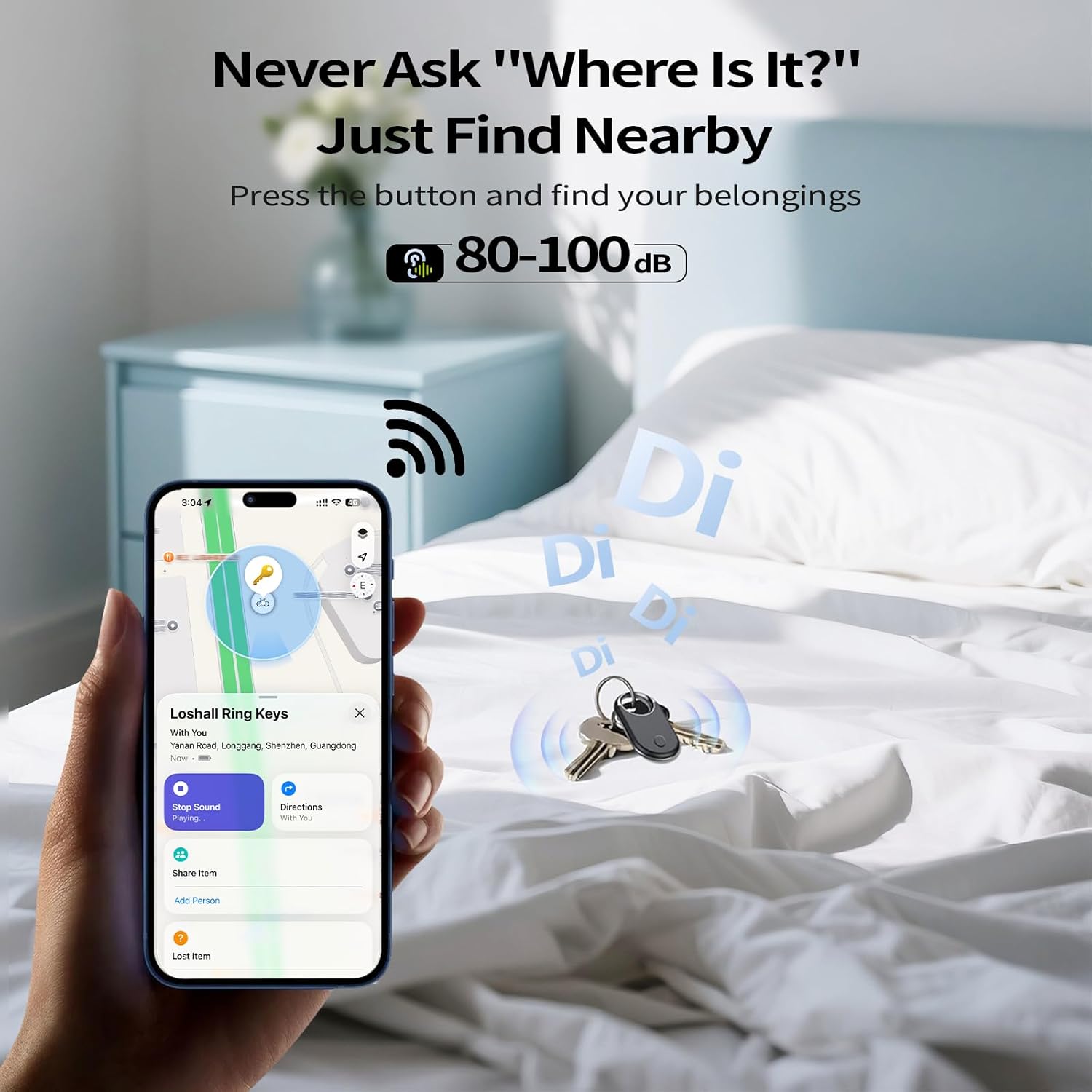
Image 4.2: The Find My app interface demonstrating the sound alert for nearby tracking.
4.2 Global Tracking (View on Map)
Even when your item is out of Bluetooth range, the Apple Find My network can help you locate it. Millions of Apple devices worldwide securely relay the location of nearby Find My-enabled items, allowing you to see your item's last known location on a map.
- Open the Find My app.
- Select the desired Air Tracker Tag from your 'Items' list.
- View its location on the map. You can also get directions to its last known location.

Image 4.3: Locating items anywhere using the Find My map, whether indoors or outdoors.

Image 4.4: Tracking items over long distances using the global Find My network.
4.3 Forget Prevention (Notify When Left Behind)
Receive instant notifications if you leave your Air Tracker Tag behind. You can customize safe zones to prevent false alerts.
- In the Find My app, select your Air Tracker Tag.
- Under 'Notifications', enable 'Notify When Left Behind'.
- You can add 'New Location' to specify places where you do not want to be notified (e.g., your home or office).

Image 4.5: Example of a 'Left Behind' notification received on an iPhone.

Image 4.6: Customizing geofence settings for 'Notify When Left Behind' alerts.
4.4 Lost Mode
If your item is lost, activate 'Lost Mode' to display a custom message and contact information to anyone who finds it.
- In the Find My app, select your Air Tracker Tag.
- Scroll down and enable 'Lost Mode'.
- Follow the prompts to enter your phone number or email address and a custom message.
- If someone finds your item and scans it with an NFC-enabled smartphone, they will see your contact details.

Image 4.7: Activating Lost Mode to provide contact information for a found item.

Image 4.8: The Find My app showing the details displayed when an item in Lost Mode is found.
4.5 Family & Team Sharing
You can share access to your Air Tracker Tag with up to 5 trusted users (requires iOS 17, iPadOS 17, or macOS 14 or later).
- In the Find My app, select your Air Tracker Tag.
- Tap 'Share This Item' and then 'Add Person'.
- Select contacts from your address book or enter their Apple ID.
- Once accepted, all participants can view the item's real-time location.

Image 4.9: Visual representation of sharing an Air Tracker Tag's location with multiple users.

Image 4.10: Steps for sharing your Air Tracker Tag with family and friends.
4.6 Privacy and Anti-Tracking
The Hendari Air Tracker Tag is designed with privacy in mind. Location data is end-to-end encrypted, ensuring that only you can view your item's location. The Find My network is anonymous, and no personal data is stored or shared.
Additionally, your Apple device will notify you if an unknown Air Tracker Tag is detected moving with you over time, helping to prevent unwanted tracking.

Image 4.11: Illustration of the MFi certification and built-in privacy protection.

Image 4.12: An example of an anti-tracking notification on an iPhone.
5. Maintenance
5.1 Battery Replacement
The Air Tracker Tag uses a replaceable CR2032 coin cell battery, which typically lasts over one year. You can check the battery level in the Find My app.
- Locate the small notch on the side of the Air Tracker Tag.
- Use the included triangular pry tool (or a similar thin, non-metallic object) to carefully open the casing at the notch.
- Remove the old CR2032 battery.
- Insert a new CR2032 battery with the positive (+) side facing up.
- Align the two halves of the casing and press firmly until it clicks securely into place.

Image 5.1: Instructions for replacing the CR2032 battery using the pry tool.

Image 5.2: The Air Tracker Tag with its replaceable CR2032 battery.
5.2 Low Battery Alert
When the battery level is low, you will receive a notification on your paired Apple device, and a low battery icon will appear next to the tag in the Find My app. Replace the battery promptly to ensure continuous tracking.

Image 5.3: Notification and visual indicator for a low battery in the Find My app.
5.3 Cleaning
To clean your Air Tracker Tag, wipe it with a soft, dry, or slightly damp cloth. Avoid using harsh chemicals or abrasive materials, as these can damage the device.
6. Troubleshooting
- Tracker not connecting to Find My app:
Ensure Bluetooth and Location Services are enabled on your iOS device. Make sure the tracker's battery is not depleted. Try restarting your iOS device and the tracker (by removing and reinserting the battery). - Sound alert is not loud enough or not working:
Check if the tracker is obstructed or covered by other items. Ensure the battery is not low. The sound level is between 80-100dB, which may vary based on environment. - Inaccurate location or delayed updates:
Location accuracy depends on the density of Apple devices in the vicinity. In areas with fewer Apple devices, updates may be less frequent or less precise. Ensure your iOS device has a stable internet connection. - 'Notify When Left Behind' alerts are not working:
Verify that the feature is enabled in the Find My app for the specific tag. Check if the location you are leaving is added as a 'Notify Me, Except At' safe zone. - Cannot share the tag with others:
Ensure all users have iOS 17, iPadOS 17, or macOS 14 or later installed. Verify that the recipient's Apple ID is correct.
7. Specifications
| Feature | Specification |
|---|---|
| Model | F11 |
| Dimensions (L x W x Th) | 2.17 x 1.15 x 0.26 inches (55.1 x 29.3 x 6.6 mm) |
| Weight | 2.06 ounces |
| Battery Type | CR2032 Coin Cell (replaceable) |
| Battery Life | Approximately 12 months |
| Connectivity | Bluetooth 5.3 |
| Bluetooth Range | Up to 55-60 meters (180-196 feet) |
| Sound Level | 80-100dB |
| Compatibility | iOS, iPadOS, macOS (Apple Find My network only) |
| Material | ABS, Phosphor Bronze, Stainless Steel 430, Zinc Alloy |

Image 7.1: Side profile of the Air Tracker Tag, showing its compact design.

Image 7.2: Rear view of the Air Tracker Tag, displaying model and certification information.
8. Warranty and Support
8.1 Warranty Information
The Hendari Air Tracker Tag F11 comes with a 2-year warranty from the date of purchase, covering manufacturing defects. This warranty does not cover damage caused by misuse, accidents, unauthorized modifications, or normal wear and tear.
8.2 Customer Support
For technical assistance, warranty claims, or any questions regarding your Hendari Air Tracker Tag, please contact our customer support team. We aim to provide a 24-hour customer service response.
You can find contact information on the official Hendari website or through your purchase platform.


