
1. Introduction
The Meross Smart Sprinkler Timer MST100 is designed to automate your garden irrigation system, offering intelligent control and water-saving features. This device requires a Meross Smart Hub (MSH450 or MSH400) for operation and can be managed via the Meross app, as well as integrated with smart home platforms like Apple Home, Amazon Alexa, and Google Home.

Figure 1: Meross Smart Sprinkler Timer MST100 with its companion mobile application interface.
2. Setup Guide
2.1 Unboxing Contents
Before beginning installation, ensure all components are present:
- Meross Smart Sprinkler Timer MST100
- User Manual
- PTFE Tape
- Meross Smart Hub (MSH450 or MSH400, included only in kit versions)

Figure 2: The Meross Smart Sprinkler Timer MST100 and its packaging, highlighting the need for a hub.
2.2 Smart Hub Placement and Connection
The Smart Hub is essential for the timer's functionality. Choose a location for the Hub that:
- Receives a strong 2.4GHz Wi-Fi signal.
- Is relatively close to the planned installation site of the sprinkler timer.
- Minimizes physical obstructions between the Hub and the timer for optimal signal strength.
Connect the Smart Hub to a power outlet. The LED indicator on the Hub will flash amber and green slowly, indicating it's ready for pairing.

Figure 3: Illustration of recommended Smart Hub placement to ensure adequate Wi-Fi signal to the sprinkler timer.
2.3 Meross App Installation and Hub Pairing
- Download the Meross app from the Apple App Store or Google Play Store.
- Ensure your smartphone is connected to a 2.4GHz Wi-Fi network.
- Open the Meross app, tap the "+" icon in the top right corner.
- Select "Smart Hub" from the device list and choose your specific Hub model (MSH400 or MSH450).
- Follow the on-screen instructions to pair the Hub with the app. This typically involves scanning a QR code or confirming the flashing LED.
- If using an iPhone for setup, the device will automatically be added to the Apple Home app as well.

Figure 4: Step-by-step guide within the Meross app for connecting the Smart Hub.
2.4 Battery Installation in Sprinkler Timer
The MST100 timer requires 4 x 1.5V AA alkaline batteries (not included). Due to the waterproof design, the battery compartment may be tight. Use a flat-head screwdriver to gently pry it open if necessary.
- Locate the battery compartment on the back of the timer.
- Carefully open the compartment.
- Insert four AA alkaline batteries, ensuring correct polarity.
- Close the battery compartment securely to maintain its waterproof seal.
2.5 Sprinkler Timer Pairing with Smart Hub
Once batteries are installed and the Hub is set up:
- In the Meross app, tap the "+" icon again and select "Smart Sprinkler Timer".
- Follow the app's instructions. You will need to press the button on the sprinkler timer twice quickly to enter pairing mode. The LED on the timer will blink rapidly.
- Press the button on the Smart Hub twice quickly. The Hub's LED will flash.
- Wait a few seconds for the LEDs on both devices to stop flashing, indicating successful pairing.

Figure 5: Visual guide for pairing the Smart Sprinkler Timer with the Smart Hub via the Meross app.
2.6 Physical Installation to Faucet
The MST100 timer is designed to fit a 3/4-inch outdoor faucet with a 3/4-inch male hose thread outlet. Use the provided PTFE tape for a secure, watertight seal.
- Wrap the PTFE tape around the threads of your outdoor faucet.
- Screw the Meross Smart Sprinkler Timer onto the faucet, ensuring a tight fit.
- Connect your garden hose or irrigation system to the outlet of the sprinkler timer.
- Turn on your outdoor faucet. The timer is now ready for use.

Figure 6: The Meross MST100 timer securely attached to an outdoor water faucet.
3. Operating Instructions
3.1 Automatic Watering Schedules
Create customized watering plans through the Meross app. These plans can operate even without an internet connection once configured.
- Set specific days, times, and durations for watering.
- Options include "every 3 days," "odd days at sunset," or weekly cycles.

Figure 7: Examples of flexible watering schedules configurable within the Meross app.
3.2 Manual Irrigation
For immediate watering, the timer offers both physical and app-based manual control:
- Physical Button: Press the button on the timer to start or stop watering manually.
- Meross App: Use the app to initiate manual watering. The default automatic shut-off is 15 minutes, which can be adjusted in the app.

Figure 8: Manual control of the sprinkler timer using the physical button.
3.3 Voice Control Integration
The Meross MST100 is compatible with popular voice assistants for hands-free operation:
- Amazon Alexa: "Alexa, turn on the sprinkler."
- Apple Siri: "Hey Siri, open the sprinkler timer."
- Google Assistant: "Hey Google, open the sprinkler timer."
To link with Alexa or Google Assistant, navigate to the "User" page in the Meross app and follow the integration instructions.
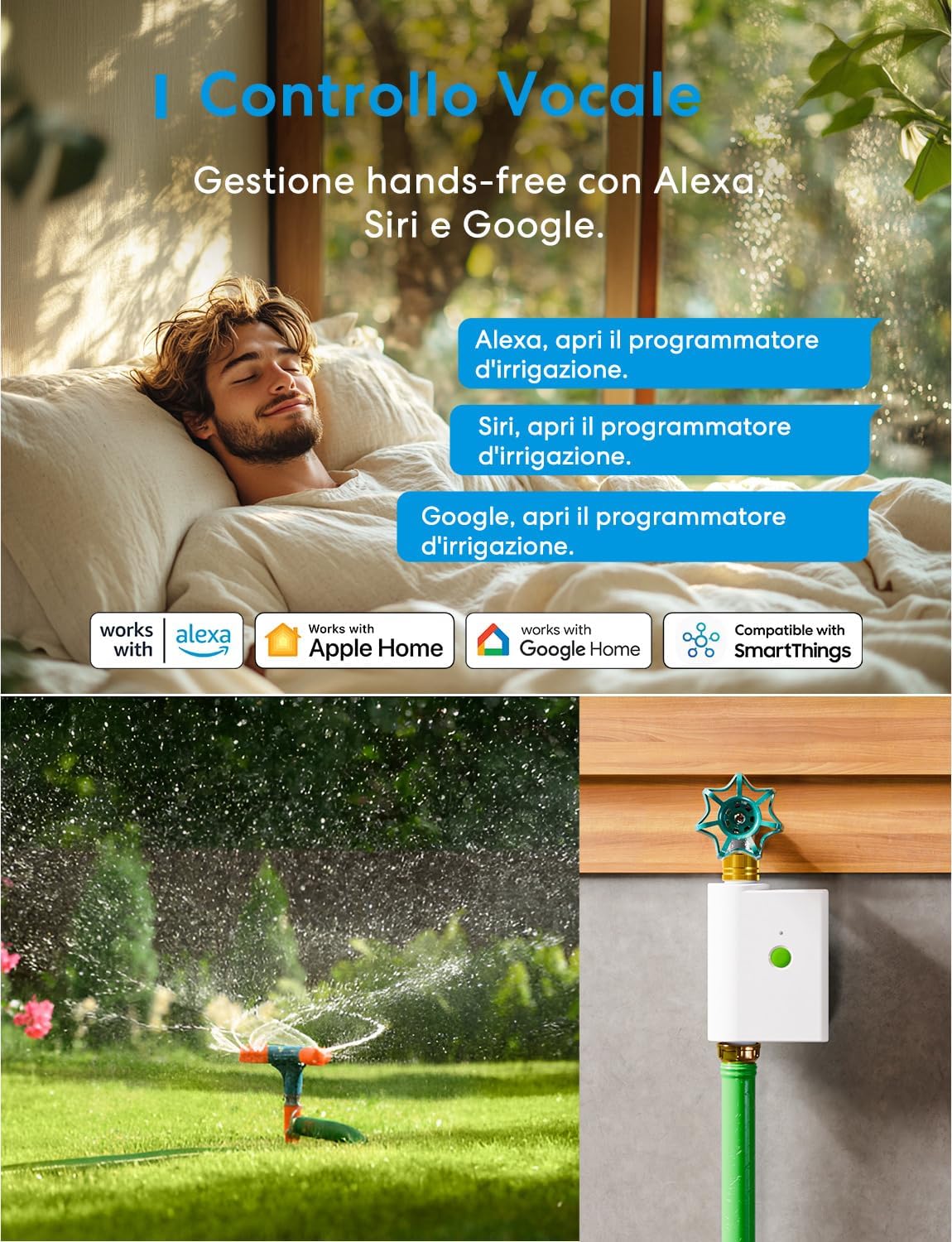
Figure 9: Voice control functionality with Amazon Alexa, Apple Home, and Google Home.
4. Key Features
4.1 Robust Brass Construction
The timer features durable brass connectors (inlet/outlet) that are resistant to corrosion and rust. This design ensures long-term durability and minimizes the risk of leaks, even under high water pressure.


Figure 10: Detailed view of the robust brass inlet and outlet connectors.
4.2 Smart Weather Adaptation (Rain Delay)
Through integration with local weather data (via the Meross app), the timer automatically pauses scheduled irrigation cycles before, during, or after rainfall. This intelligent feature prevents overwatering and conserves water, potentially reducing water waste by at least 30%.

Figure 11: The Meross app displaying smart weather adaptation, pausing irrigation based on local precipitation forecasts.
4.3 Precise Water Consumption Monitoring
The Meross app provides detailed insights into your daily, weekly, or monthly water usage. This monitoring helps optimize irrigation plans, leading to significant water and cost savings.

Figure 12: Screenshot of the Meross app showing detailed water consumption data and potential savings.
4.4 Wide Compatibility
The Meross Smart Sprinkler Timer is versatile and can be used with various outdoor watering setups, including:
- Sprinklers
- Drip irrigation systems
- Pool filling systems
- General garden irrigation

Figure 13: The MST100's compatibility with various irrigation methods, including sprinklers, drip systems, and pool applications.
5. Maintenance
5.1 Cleaning
Regularly inspect the timer for dirt or debris, especially around the inlet and outlet connections. Clean with a soft, damp cloth. Do not use harsh chemicals or abrasive cleaners.
5.2 Battery Replacement
Replace the 4 x AA alkaline batteries when the low battery indicator appears in the Meross app or on the device. Ensure the battery compartment is sealed tightly after replacement to maintain waterproofing.
5.3 Winterization
Before freezing temperatures, disconnect the timer from the faucet and store it indoors in a dry, frost-free location. Remove batteries if storing for an extended period.
6. Troubleshooting
6.1 Timer Not Connecting to Hub
- Ensure the Smart Hub is powered on and connected to a 2.4GHz Wi-Fi network.
- Verify the Hub's firmware is updated to version 9.1.17 or higher (for MSH450).
- Check that the timer has fresh batteries installed correctly.
- Bring the timer closer to the Hub during the pairing process.
- Perform the pairing steps again as described in Section 2.5.
6.2 No Water Flow
- Ensure the outdoor faucet is fully open.
- Check for any blockages in the timer's inlet filter or the connected hose/sprinkler.
- Verify that the timer has sufficient battery power.
- Confirm that a watering schedule is active or manual watering is initiated.
6.3 Inaccurate Water Consumption Data
- Ensure the timer is securely installed and there are no leaks at the connections.
- Verify that the timer's settings in the Meross app are correct.
6.4 Apple Home Automation Not Working
Note that automated irrigation functions are currently not supported directly on Apple Home. You can set up automatic schedules within the Meross app. Apple Home can still be used for manual control and status checks.
7. Specifications
| Model Number | MST100 |
| Dimensions (Product) | 9.9 x 5.6 x 15.2 cm (3.9 x 2.2 x 6 inches) |
| Weight | 620 grams (1.37 lbs) |
| Power Source | 4 x 1.5V AA Alkaline Batteries |
| Connectivity | Requires Meross Smart Hub (MSH450/MSH400) |
| Wi-Fi Standard (Hub) | 2.4GHz Wi-Fi |
| Water Inlet/Outlet | 3/4 inch brass threads |
| Operating Temperature | (Not specified in provided data, general outdoor use implied) |
| Compatibility | Meross App, Apple Home, Amazon Alexa, Google Home |
8. Warranty and Support
For warranty information, technical support, or further assistance, please refer to the official Meross website or contact Meross customer support directly. Details can typically be found in the product packaging or on the Meross brand store page.
Visit the Meross Store for more products and information.


