
1. Product Overview
The AINAVIGO 10.2-inch Car Stereo Radio is an advanced infotainment system designed to enhance your driving experience. It features a high-definition touchscreen, Android 13 operating system, wireless CarPlay and Android Auto compatibility, FM/AM radio, GPS navigation, and support for an HD backup camera.
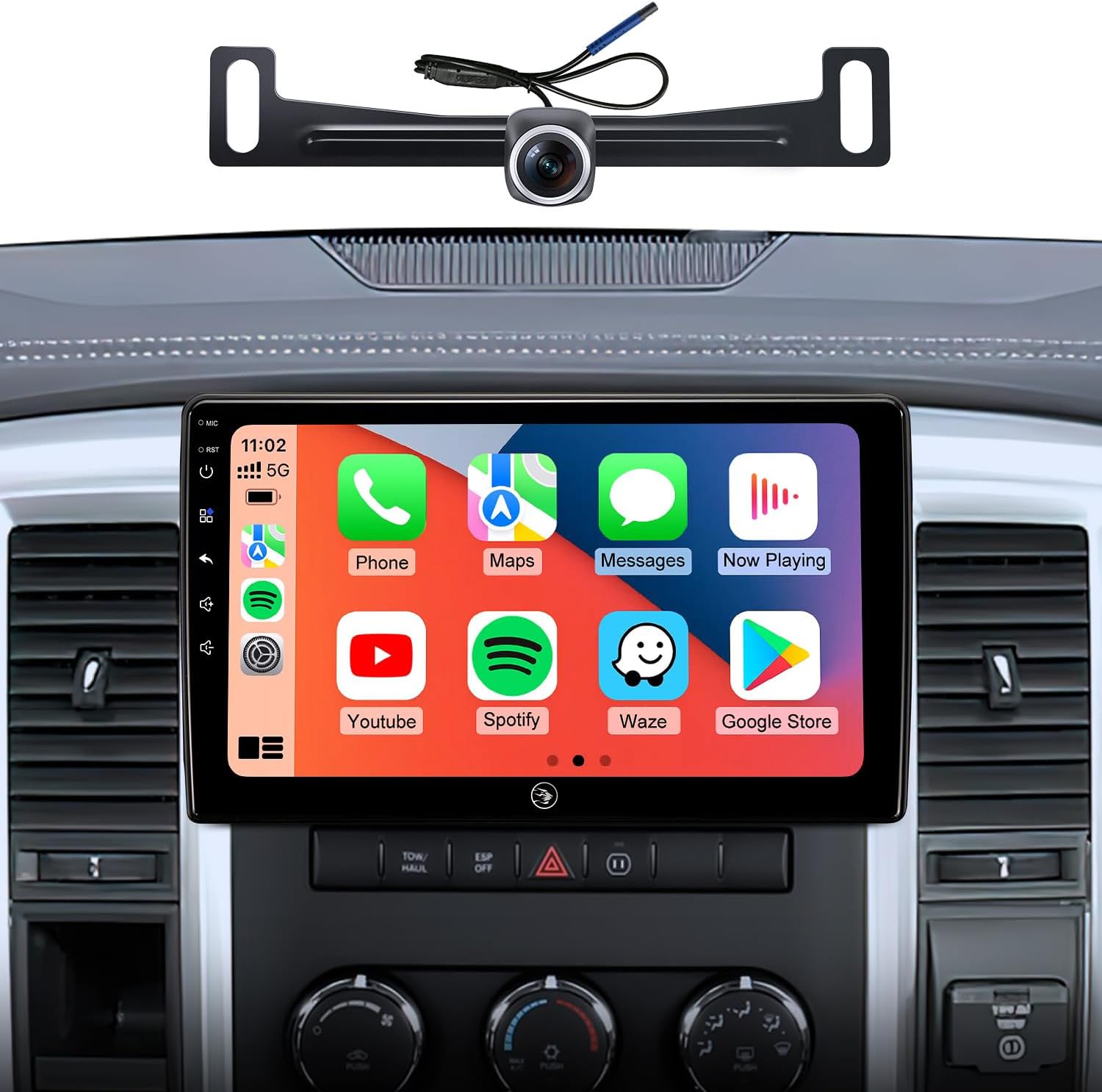
Image: AINAVIGO 10.2-inch Car Stereo Radio with CarPlay interface shown in a Dodge Ram dashboard.
2. Setup and Installation
2.1. Vehicle Compatibility
This car stereo is specifically designed for Dodge Ram 1500, 2500, and 3500 models manufactured between 2009 and 2012, provided the vehicle has manual AC controls. Ensure your vehicle meets these compatibility requirements for proper fit and function.
2.2. What's in the Box
- Touchscreen host
- Touchscreen radio install kit
- HD reversing camera
- External Microphone (1)
- USB Cables (2)
- Complete set of special harness
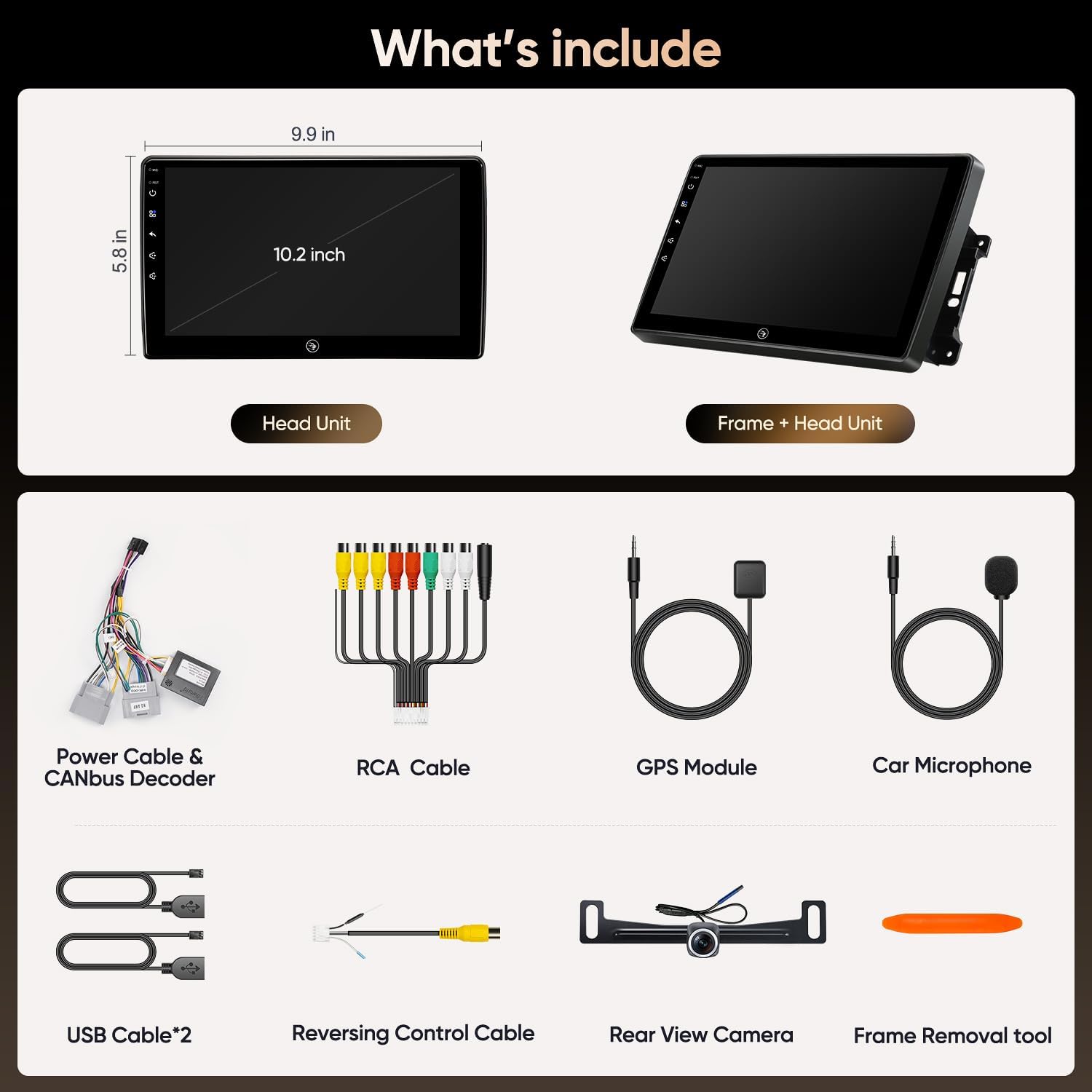
Image: All components included in the AINAVIGO 10.2-inch Car Stereo Radio package.
2.3. Initial Power-On
After successful installation, turn on your vehicle's ignition. The car stereo should power on automatically. Follow any on-screen prompts for initial setup, such as language selection and time zone.
3. Operating Instructions
3.1. Touchscreen Navigation
The unit features a 10.2-inch 1280x720 IPS HD touchscreen. Navigate through menus and applications by tapping, swiping, and pinching. The interface is designed for intuitive use.

Image: Detailed view of the 10.2-inch HD IPS touchscreen.
3.2. Wireless CarPlay & Android Auto
Connect your smartphone wirelessly for seamless integration of CarPlay or Android Auto. This allows access to navigation, music, calls, and messages directly from the car stereo's display using voice commands or touch.
Video: Demonstrates the process of setting up and connecting Wireless CarPlay and Android Auto to the car stereo.
3.3. Bluetooth 5.0 Connection
Enable Bluetooth on your smartphone and search for the car stereo's Bluetooth name (e.g., "Car BT"). Pair the devices to enable hands-free calling, music streaming, and phonebook synchronization.
Video: Provides instructions on how to set up and connect Bluetooth on the car stereo.
3.4. Wi-Fi Connection
Access the Wi-Fi settings on the car stereo to connect to a local Wi-Fi network or a mobile hotspot. This enables high-speed internet access for online navigation, app downloads, and streaming services.
3.5. GPS Navigation
The unit includes built-in GPS navigation. Connect to a network for real-time traffic updates or download offline maps for uninterrupted guidance. Compatible with various navigation apps.

Image: GPS Navigation interface on the car stereo.
3.6. FM/AM Radio
Tune into your favorite FM and AM radio stations. The radio interface allows for easy station scanning and saving presets.

Image: FM Radio interface on the car stereo.
3.7. AHD 1080P Backup Camera
The included 170° viewing angle AHD waterproof backup camera provides clear rear visibility. When shifting into reverse, the unit automatically displays the camera feed on the monitor screen, assisting in safe parking and maneuvering.

Image: View from the AHD 1080P Backup Camera displayed on the car stereo screen.
3.8. Split-Screen Mode
Utilize the innovative split-screen mode to run two applications simultaneously. For example, you can listen to music while navigating or make a phone call while browsing the web, enhancing productivity and convenience.
3.9. Steering Wheel Control Programming
The unit supports steering wheel controls. To program these controls, navigate to Car Settings > Factory Settings (password: 000000) > Touch Learning or SWC Type > Learning Type. Follow the on-screen prompts to assign functions to your steering wheel buttons.
Video: Demonstrates how to program the side keys and steering wheel controls on the car radio.
3.10. Screen Calibration
If the touchscreen responsiveness is not optimal, you may need to calibrate it. Access the calibration settings (often found within Factory Settings or Display settings) and follow the on-screen instructions, typically involving tapping specific points on the screen.
Video: Illustrates the process of calibrating the car stereo's screen for improved touch accuracy.
4. Maintenance
To ensure the longevity and optimal performance of your AINAVIGO car stereo, regularly clean the touchscreen with a soft, lint-free cloth. Avoid using harsh chemicals or abrasive materials. Keep the unit free from dust and moisture. Ensure all connections are secure.
5. Troubleshooting
For common issues and solutions, refer to the essential troubleshooting guide provided by AINAVIGO. This resource covers a wide range of potential problems and steps to resolve them.
Video: An essential troubleshooting guide covering common issues and their fixes for the car stereo.
6. Specifications
| Feature | Specification |
|---|---|
| Item Weight | 4.27 pounds |
| Package Dimensions | 13.74 x 9.61 x 5.28 inches |
| Item Model Number | Fit manual AC only (2RAM+32ROM) |
| Display Size | 10.2 Inches |
| Warranty | 1 Year Manufacturer |
| Voice Command | Touchscreen |
| Model Name | AG10 |
| Vehicle Service Type | Truck |
| Special Feature | Android Intelligent System, Bluetooth, Touchscreen, Wireless Apple CarPlay & Android Auto |
| Connectivity Technology | Bluetooth, USB, Wi-Fi |
| Map Type | North America |
| Audio Output Mode | Stereo |
| Mounting Type | Dashboard Mount |
7. Warranty
The AINAVIGO 10.2-inch Car Stereo Radio comes with a 1-Year Manufacturer Warranty. Please retain your proof of purchase for warranty claims.
8. Support
For technical assistance, installation questions, or any other inquiries, please contact AINAVIGO customer support. Our team is available to provide prompt support.
- Hotline: +1833 863 6989
- Working Hours (PST): 2:00 PM - 10:30 PM
- Working Hours (PDT): 3:00 PM - 11:30 PM
- Email: Info@ainavigo.com

Image: AINAVIGO Customer Support contact information.