1. Introduction
This manual provides detailed instructions for the setup, operation, and maintenance of your OuuOee Mini PC F10 N5095. This compact and versatile mini computer features a 10.1-inch HD touchscreen, an Intel Celeron N5095 processor, 8GB RAM, and 128GB ROM, making it suitable for various applications from home use to industrial control. Please read this manual thoroughly before using the device to ensure optimal performance and longevity.
2. Package Contents
Verify that all items listed below are present in your package. If any items are missing or damaged, please contact customer support.
- OuuOee Mini PC F10 N5095 (Rugged Tablet)
- Power Adapter (DC 12V/3A)
- User Manual

Image: Contents of the OuuOee Mini PC F10 N5095 package, including the mini PC, power adapter, and user manual.
3. Product Overview
3.1 Device Features
- Display: 10.1-inch HD Touchscreen (1280x800 resolution)
- Processor: Intel Celeron N5095 (Quad-core, 2.0 GHz base, up to 2.7 GHz burst)
- Graphics: Intel UHD Graphics
- Memory: 8GB LPDDR4 RAM
- Storage: 128GB eMMC ROM
- Operating System: Pre-installed Windows 11 Pro (supports Linux, Ubuntu)
- Connectivity: WiFi 5.0 (2.4G & 5.0G), Bluetooth 5.0, Gigabit Ethernet (RJ45)
- Battery: 5000mAh 7.6V
- Design: Fanless for silent operation

Image: Visual summary of the OuuOee Mini PC F10 N5095's key features, including processor, memory, storage, display, and connectivity.

Image: Detailed view of the Intel Celeron N5095 processor, highlighting its 4 cores, 4 threads, 2.9GHz burst frequency, Intel UHD Graphics, 10nm lithography, 4MB L3 cache, and 15W MAX-TDP.

Image: Exploded view illustrating the fanless design components of the OuuOee Mini PC F10 N5095, showing the 10.1-inch touchscreen, built-in battery, motherboard, built-in cooling board, and aluminum alloy housing.
3.2 Ports and Interfaces
The OuuOee Mini PC F10 N5095 is equipped with a variety of ports for extensive connectivity.
- USB 3.0 Ports: 4 ports for connecting peripherals like keyboards, mice, and external storage.
- HDMI 2.0 Ports: 2 ports supporting 4K video output for connecting external displays.
- RS232 Ports: 2 ports for serial communication with industrial equipment or specialized peripherals.
- Type-C Port (Full Function): Supports 4K video output, data transfer, and Power Delivery (PD) charging.
- Ethernet Port: 1 Gigabit RJ45 port for wired network connection.
- TF Card Slot: For expandable storage (up to 512GB).
- DC 12V Power Input: For connecting the power adapter.
- Earphone Jack: 3.5mm audio output.
- Lock Slot: For security cable.

Image: Diagram illustrating the multi-interface design of the OuuOee Mini PC F10 N5095, showing various ports and their potential connections to devices like printers, projectors, monitors, and surveillance cameras.
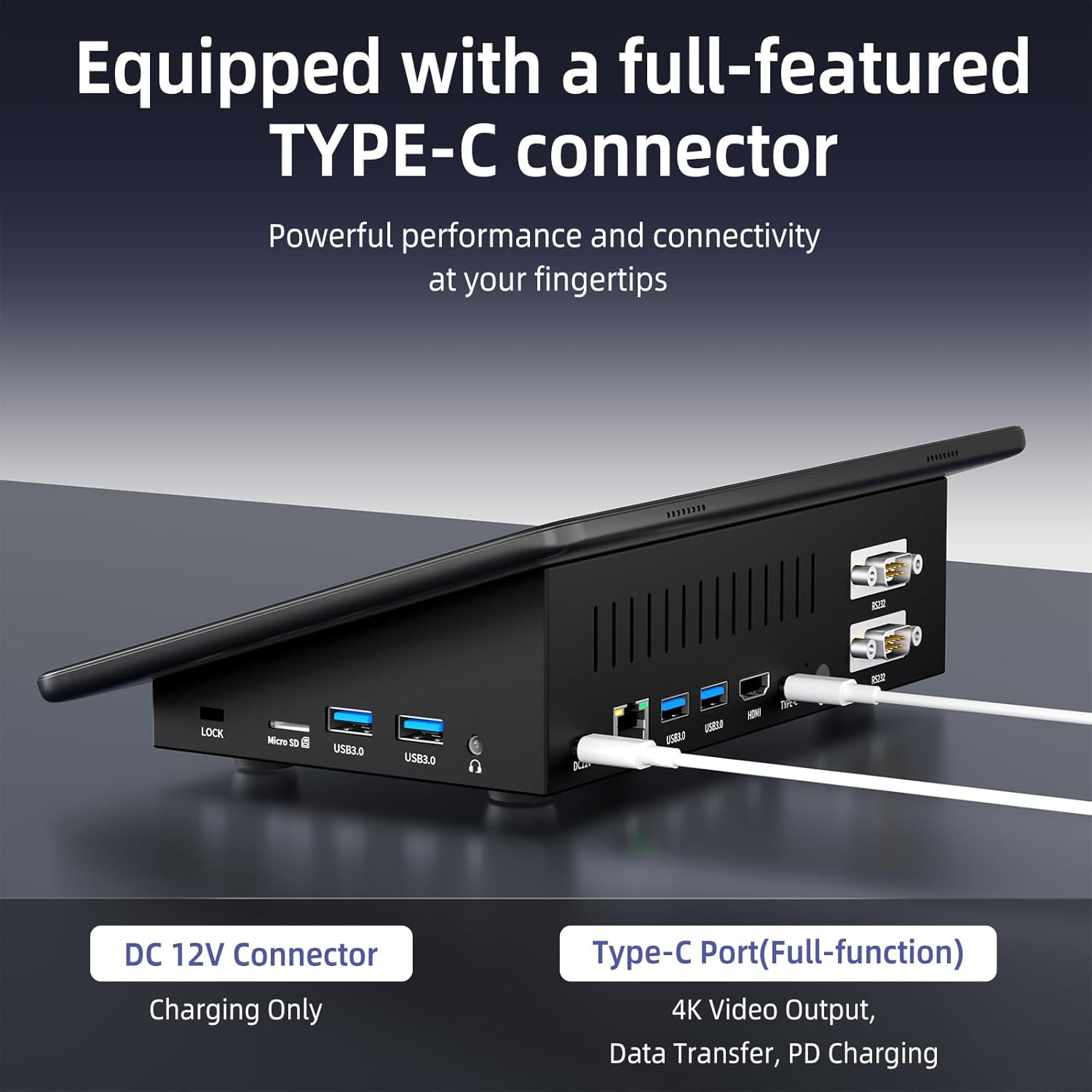
Image: Close-up view of the OuuOee Mini PC F10 N5095's side, highlighting the full-featured Type-C connector and DC 12V charging port.
4. Setup Guide
4.1 Initial Power-On
- Connect the provided DC 12V/3A power adapter to the DC 12V input port on the mini PC.
- Plug the power adapter into a wall outlet.
- Press the power button located on the device to turn it on. The device will boot into the pre-installed Windows 11 Pro operating system.
4.2 Connecting Peripherals
- External Display: Connect a monitor or TV to one of the HDMI 2.0 ports or the full-function Type-C port using a compatible cable. The device supports dual 4K output.
- Keyboard and Mouse: Connect USB keyboards and mice to the USB 3.0 ports. Wireless peripherals can be connected via Bluetooth 5.0.
- Network: For a wired connection, plug an Ethernet cable into the RJ45 Gigabit Ethernet port. For wireless, the device will prompt you to connect to a Wi-Fi network during initial Windows setup or via the network settings.
- Serial Devices: Use the RS232 ports for connecting compatible serial devices.

Image: The OuuOee Mini PC F10 N5095 connected to an external monitor, demonstrating its use as a desktop computer.
5. Operating Instructions
5.1 Using the Touchscreen
The 10.1-inch HD touchscreen allows for direct interaction with the operating system. You can navigate, select, and input using touch gestures similar to a tablet.
- Tap: Equivalent to a mouse click.
- Tap and Hold: Equivalent to a right-click.
- Swipe: For scrolling or navigating through content.
- Pinch-to-Zoom: For zooming in or out on images and web pages.
5.2 Multi-Display Setup
The Mini PC supports dual 4K output via its HDMI 2.0 ports and the full-function Type-C port, allowing for extended desktop or mirrored display configurations.
- Connect your external monitors to the available HDMI and/or Type-C ports.
- Once connected, Windows will automatically detect the displays.
- To configure display settings (extend, duplicate, resolution), right-click on the desktop and select "Display settings."

Image: The OuuOee Mini PC F10 N5095 demonstrating a three-screen display setup, utilizing HDMI 2.0 and RS232 connections for an enhanced visual experience.

Image: The OuuOee Mini PC F10 N5095 connected to two external monitors, showcasing its RS-232 and HDMI 2.0 capabilities for expanding content and supporting 4K video playback.

Image: The OuuOee Mini PC F10 N5095 connected to two external monitors, illustrating its support for dual 4K output via HDMI 2.0 and Type-C 3.1 (full function) ports.
5.3 Network Connectivity
- Wi-Fi: Access Wi-Fi settings through the Windows taskbar icon or "Settings > Network & Internet > Wi-Fi" to connect to available wireless networks. The device supports dual-band WiFi 5.0 (2.4GHz and 5.0GHz).
- Ethernet: For a stable wired connection, ensure an Ethernet cable is securely connected to the RJ45 port and your router/modem.
- Bluetooth: Enable Bluetooth in "Settings > Devices > Bluetooth & other devices" to pair with Bluetooth peripherals like headphones or speakers.

Image: The OuuOee Mini PC F10 N5095 with an Ethernet cable connected, emphasizing its 1-port 1.0G Ethernet, RJ45 Gigabit network capability for high-speed internet.
5.4 Auto-Boot Feature
The OuuOee Mini PC F10 N5095 supports an auto-boot feature, allowing it to power on automatically when power is supplied. This is useful for embedded applications or situations where manual power-on is not feasible. This setting can typically be configured in the BIOS/UEFI settings. Consult the system's BIOS documentation for specific instructions on enabling or disabling this feature.
5.5 Operating System Flexibility
While pre-installed with Windows 11 Pro, the device also supports other operating systems such as Linux and Ubuntu, offering flexibility for developers and users with specific software requirements.

Image: The OuuOee Mini PC F10 N5095 displaying Windows 11 Pro, Linux, and Ubuntu interfaces, illustrating its compatibility with multiple operating systems.
6. Maintenance
6.1 Cleaning
- Exterior: Use a soft, damp cloth to wipe the exterior of the device. Avoid abrasive cleaners or solvents.
- Screen: For the touchscreen, use a microfiber cloth specifically designed for electronics screens. Do not spray cleaning solutions directly onto the screen.
- Ports: Ensure ports are free of dust and debris. Use compressed air if necessary, holding the can upright to prevent liquid propellant from entering the device.
6.2 Software Updates
Regularly update your operating system and drivers to ensure optimal performance, security, and compatibility.
- Windows Updates: Go to "Settings > Windows Update" to check for and install the latest updates.
- Driver Updates: While Windows typically handles driver updates, you may occasionally need to check the manufacturer's website for specific driver updates for components like graphics or network adapters.
6.3 Storage Management
To maintain system responsiveness, periodically manage your storage.
- Disk Cleanup: Use the built-in Disk Cleanup tool in Windows to remove temporary files and other unnecessary data.
- Uninstall Programs: Remove unused applications to free up space.
- External Storage: Utilize the TF card slot or external USB drives for additional storage if the internal 128GB eMMC is insufficient.
7. Troubleshooting
7.1 No Power
- Ensure the power adapter is securely connected to both the device and a working power outlet.
- Verify the power outlet is functional by testing it with another device.
- Check the power adapter for any visible damage.
7.2 No Display on External Monitor
- Confirm the HDMI or Type-C cable is securely connected to both the mini PC and the monitor.
- Ensure the monitor is powered on and set to the correct input source (e.g., HDMI 1, HDMI 2, Type-C).
- Try connecting to a different port on the mini PC or using a different cable.
- In Windows, press Windows key + P to cycle through display modes (Duplicate, Extend, Second screen only).
7.3 Wi-Fi Connectivity Issues
- Check if Wi-Fi is enabled in Windows settings.
- Restart your router and the mini PC.
- Ensure you are within range of your Wi-Fi network and have entered the correct password.
- Try connecting to a different Wi-Fi network if available, or use a wired Ethernet connection to diagnose.
7.4 Device is Slow or Unresponsive
- Close unnecessary applications running in the background.
- Check Task Manager (Ctrl+Shift+Esc) for processes consuming high CPU, memory, or disk resources.
- Ensure the operating system is up to date.
- Perform a disk cleanup and check for sufficient free storage space.
- Restart the device.
8. Specifications
| Feature | Specification |
|---|---|
| Brand | OuuOee |
| Model Name | F10 |
| Operating System | Windows 11 Professional (Supports Linux, Ubuntu) |
| Processor | Intel Celeron N5095 (2.0 GHz base, up to 2.7 GHz burst) |
| Graphics | Intel UHD Graphics |
| RAM | 8GB LPDDR4 |
| Storage | 128GB eMMC (Expandable via TF card up to 512GB) |
| Screen Size | 10.1 Inches |
| Max Screen Resolution | 1280 x 800 |
| Wireless Connectivity | WiFi 5.0 (2.4G & 5.0G), Bluetooth 5.0 |
| Wired Connectivity | 1x RJ45 Gigabit Ethernet |
| Ports | 4x USB 3.0, 2x HDMI 2.0, 2x RS232, 1x Type-C (Full Function), 1x TF Card Slot, 1x DC 12V, 1x Earphone Jack |
| Battery | 5000mAh 7.6V |
| Item Weight | 1.76 pounds |
| Product Dimensions | 11 x 10 x 7 inches |
9. Warranty and Support
For warranty information and technical support, please refer to the documentation included with your purchase or contact OuuOee customer service through the retailer where the product was purchased. Keep your proof of purchase for warranty claims.
For further assistance, you may visit the official OuuOee store page: OuuOee Store.


