
1. Product Overview
The Ajblg Air Tracker Tag is a compact Bluetooth item finder designed to help you locate your belongings using the Apple Find My network. It is compatible exclusively with iOS devices and features a long-lasting replaceable battery and IP67 water resistance.
- Find Nearby: Locate items within a 60-meter (200ft) Bluetooth range using the Find My app or Siri. The built-in speaker emits a loud sound (80-100 dB) to guide you.
- Find Far Away: Utilize the global Apple Find My network to locate items outside Bluetooth range. The network anonymously and securely relays location information.
- Left-Behind Remind & Lost Mode: Receive instant notifications on your iOS device if you leave an item behind. Activate Lost Mode to allow others to find your contact information if they discover your tag.
- Durable Design: IP67 waterproof rating ensures durability against splashes and brief submersion.
- Replaceable Battery: Powered by a CR2032 coin cell battery with an approximate 2-year lifespan. Notifications prompt battery replacement.
- Compact and Lightweight: Measures 3.45 cm (1.35 inches) in length and width, 0.95 cm (0.37 inches) in thickness, weighing only 10g, making it suitable for various items like keys, bags, and wallets.
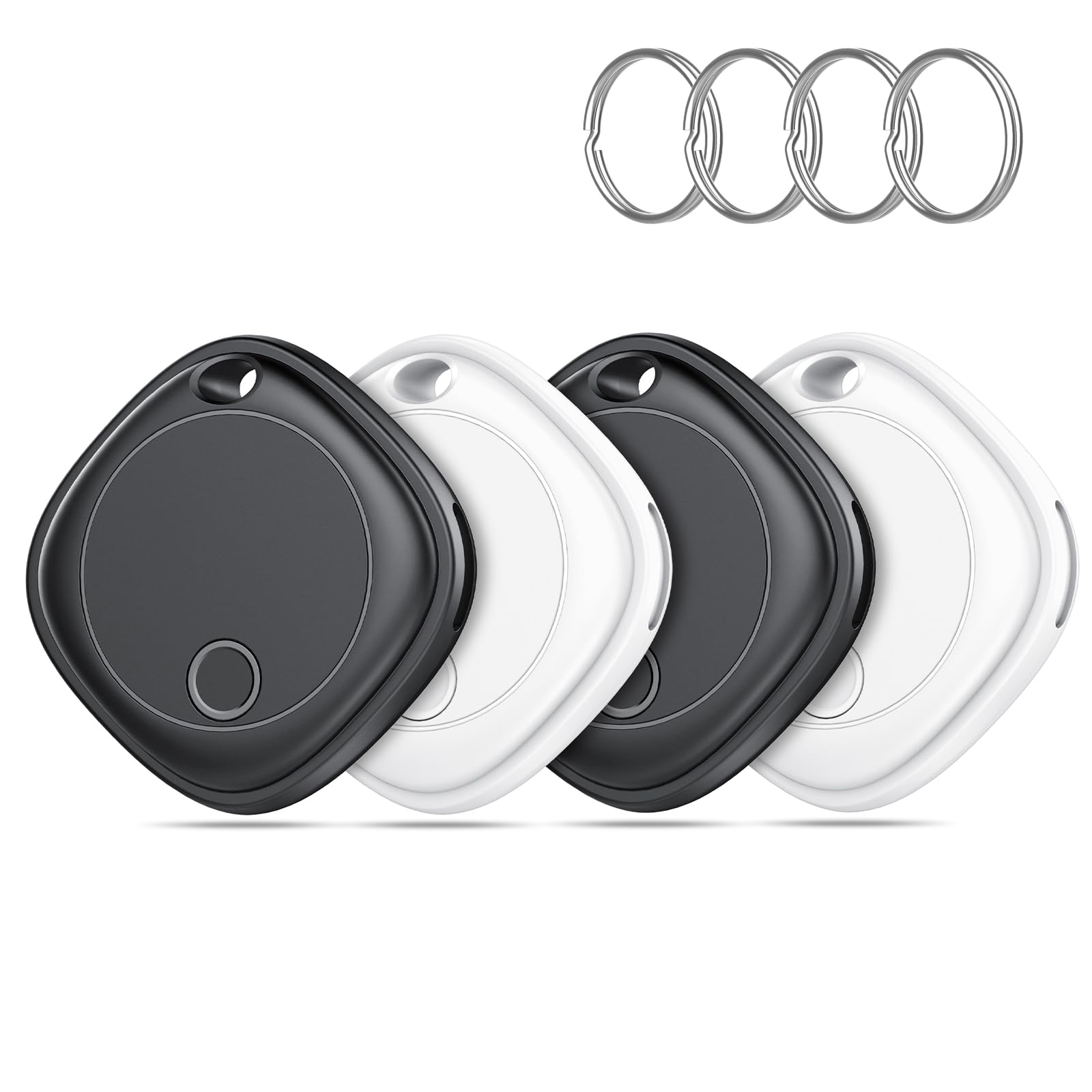
Image 1.1: Front view of the Ajblg Air Tracker Tag.
2. Setup and Pairing
Follow these steps to pair your Ajblg Air Tracker Tag with your iOS device:
- Ensure Bluetooth and Location Services are enabled on your iOS device.
- Open the Find My app on your iPhone, iPad, or Mac.
- Navigate to the Items tab.
- Tap Add Item, then select Other Supported Items.
- Press the button on your Ajblg Air Tracker Tag once. You will hear a tone.
- On your iOS device, tap Connect when the tracker appears in the Find My app.
- Follow the on-screen prompts to name your item and assign an emoji.
- Your Ajblg Air Tracker Tag is now paired and ready for use.

Image 2.1: Visual guide for the simple pairing process with the Find My app.
3. Operating Instructions
3.1 Locating Items Nearby
When your Ajblg Air Tracker Tag is within Bluetooth range (up to 60 meters or 200 feet), you can use the Find My app to pinpoint its location.
- Open the Find My app and select the Items tab.
- Tap on your Ajblg Air Tracker Tag from the list.
- Tap Play Sound to make the tracker emit a loud beep, helping you locate it by sound.
- Alternatively, ask Siri, "Hey Siri, find my [item name]."

Image 3.1: Using the 'Play Sound' feature in the Find My app to locate your item.
3.2 Locating Items Far Away (Find My Network)
If your item is outside the Bluetooth range of your device, the Apple Find My network can help. This network consists of millions of iOS devices that securely and anonymously detect nearby Find My-enabled items and relay their location to you.
- Open the Find My app and select the Items tab.
- Tap on your Ajblg Air Tracker Tag.
- The map will display the last known location of your item.
- Tap Directions to get navigation to the item's location.

Image 3.2: Worldwide tracking using the Find My network to view your item's location on a map.
3.3 Left-Behind Reminders and Lost Mode
To prevent losing items, enable Left-Behind Reminders. If an item with an Ajblg Air Tracker Tag is separated from your iOS device, you will receive an immediate notification.
- In the Find My app, select your Ajblg Air Tracker Tag.
- Under Notifications, enable Notify When Left Behind.
- You can also set specific locations where you don't want to be notified (e.g., your home).
If an item is lost, activate Lost Mode:
- In the Find My app, select your Ajblg Air Tracker Tag.
- Scroll down and tap Enable under Lost Mode.
- Follow the prompts to enter a phone number or email address where you can be contacted.
- You can also write a custom message that will be displayed to anyone who finds your tag and scans it.

Image 3.3: Example of a 'Left-Behind Remind' notification on an iPhone.

Image 3.4: Activating Anti-Lost Mode to display owner information for a found item.
3.4 Sharing Your Tracker
You can share the location of your Ajblg Air Tracker Tag with up to 5 other Apple devices, allowing family and friends to help track shared items.
- In the Find My app, select your Ajblg Air Tracker Tag.
- Tap Share This Item and follow the instructions to invite others.
- Ensure all devices are updated to iOS 17 or later for optimal sharing functionality.

Image 3.5: Sharing your tracker's location with family and friends.
4. Maintenance
4.1 Battery Replacement
The Ajblg Air Tracker Tag uses a replaceable CR2032 coin cell battery. You will receive a notification on your iOS device when the battery level is low and requires replacement. The battery typically lasts for approximately 2 years.
- Step 1: Remove the Cover. Gently press and twist the back cover of the tracker counter-clockwise to unlock and remove it.
- Step 2: Take Out the Old Battery. Carefully remove the old CR2032 battery from its compartment.
- Step 3: Insert New Battery. Place a new CR2032 battery into the compartment with the positive (+) side facing up.
- Step 4: Replace the Cover. Align the back cover and twist it clockwise until it clicks securely into place.

Image 4.1: Guide for simple battery replacement.
4.2 Cleaning
Wipe the tracker with a soft, dry, or slightly damp cloth. Avoid using harsh chemicals or abrasive materials.
5. Troubleshooting
- Tracker Not Pairing:
- Ensure Bluetooth and Location Services are enabled on your iOS device.
- Make sure your iOS device is updated to the latest version.
- Press and hold the button on the tracker until you hear a third beep, then release and press it again to ensure it's in pairing mode.
- Try restarting your iOS device.
- Ensure the tracker's battery is not depleted.
- Frequent Disconnections / Inaccurate Location:
- Ensure your iOS device has a stable internet connection (Wi-Fi or cellular data) for accurate location updates via the Find My network.
- Verify that the tracker's battery is not low.
- Physical obstructions or extreme distances can affect Bluetooth signal strength.
- Ensure the Find My app has permission to access your location.
- Speaker Sound is Low or Not Working:
- Check if the tracker is obstructed by other items.
- Ensure the battery is not low, as low power can affect speaker volume.
- If the issue persists, try re-pairing the device.
- Left-Behind Reminders Not Working:
- Verify that "Notify When Left Behind" is enabled for the specific tracker in the Find My app.
- Check your iOS device's notification settings for the Find My app to ensure alerts are allowed.
- Ensure your iOS device's Bluetooth is active.
6. Specifications
| Feature | Detail |
|---|---|
| Model Number | BF16-US3-2B2W |
| Dimensions (L x W x T) | 3.45 cm x 3.45 cm x 0.95 cm (1.35 x 1.35 x 0.37 inches) |
| Item Weight | 10 g (0.35 oz) (Note: Package weight is 2.39 ounces) |
| Connectivity | Bluetooth |
| Compatibility | iOS devices only (requires iOS 14.5 or later for Find My network features) |
| Battery Type | CR2032 Coin Cell (replaceable) |
| Battery Life | Approximately 2 years |
| Water Resistance | IP67 (Dust and Water Resistant) |
| Speaker Volume | 80-100 dB |
| Bluetooth Range | Up to 60 meters (200 feet) |
| Material | Plastic |

Image 6.1: Key features and specifications of the Ajblg Air Tracker Tag.
7. Warranty and Support
7.1 Warranty Information
Specific warranty details for the Ajblg Air Tracker Tags are not provided in the available product data. Please refer to the product packaging or contact the seller directly for warranty terms and conditions.
7.2 Customer Support
For further assistance, technical support, or inquiries, please contact Ajblg customer service through the retailer where the product was purchased or visit the official Ajblg brand store on Amazon: Ajblg Store.