
1. Introduction
The Heymell Voyage 202 is a compact 2.1 channel Bluetooth sound bar designed to enhance audio for smart TVs (22"-43"), computers, and PCs. It features 60W RMS power (120W peak power) and includes a built-in 3-inch woofer for improved bass response. The sound bar offers multiple connectivity options and sound modes to optimize your listening experience for various content types.

Image 1.1: The Heymell Voyage 202 Sound Bar and its remote control.
2. What's in the Box
Please check the package contents to ensure all items are present:
- Heymell Voyage 202 Sound Bar
- Remote Control (requires 2 AAA batteries, not included)
- 1.5m HDMI Cable
- 1.5m Optical Cable
- 1.5m Aux Stereo Cable (3.5mm Audio Cable)
- Wall Mount Assembly Kit
- Power Adapter

Image 2.1: Visual representation of the sound bar dimensions and included accessories.
3. Setup
3.1 Physical Placement
The Heymell Voyage 202 sound bar can be placed on a tabletop or mounted on a wall. Ensure the sound bar is positioned centrally below your TV or monitor for optimal audio dispersion. The recommended TV size for this sound bar is between 22 and 43 inches.

Image 3.1: The sound bar positioned with different TV sizes, illustrating its compact design.
3.2 Connecting the Sound Bar
The sound bar supports multiple connection types. Choose the method that best suits your device.

Image 3.2: Rear view of the sound bar displaying Bluetooth, HDMI ARC, Optical, AUX, and USB connection ports.
3.2.1 HDMI ARC Connection
- Connect one end of the HDMI cable to the HDMI ARC port on your TV.
- Connect the other end of the HDMI cable to the HDMI ARC port on the sound bar.
- On your TV settings, ensure "HDMI CEC" is enabled.
- Set your TV's audio output format to "PCM" or "Stereo" or "Auto". Some TVs may require setting "HDMI Input Audio Format" to "PCM".
Note: The HDMI cable must be connected to the dedicated HDMI ARC port on your TV, not a standard HDMI port.
3.2.2 Optical Connection
- Connect one end of the optical cable to the optical output port on your TV.
- Connect the other end of the optical cable to the OPTICAL port on the sound bar. Ensure the cable is inserted firmly and in the correct direction.
- Set your TV's audio output format to "PCM" or "Stereo" or "Auto".
3.2.3 AUX Connection
- Connect one end of the 3.5mm Aux cable to the audio output (headphone jack) on your TV, computer, or other device.
- Connect the other end of the Aux cable to the AUX port on the sound bar.
3.2.4 Bluetooth Pairing
- Power on the sound bar.
- Press the 'BT' button on the remote control or the 'Mode' button on the sound bar until the 'BT' indicator lights up.
- On your device (phone, tablet, computer), enable Bluetooth and search for available devices.
- Select "Voyage 202" from the list to pair. Once connected, the 'BT' indicator will remain steady.
4. Operating Instructions
4.1 Power On/Off
Press the power button on the sound bar or the remote control to turn the unit on or off.
4.2 Input Selection
Press the 'Mode' button on the sound bar or the remote control to cycle through available input sources: Bluetooth (BT), HDMI ARC, Optical (OPT), and AUX.
4.3 Volume Control
Use the '+' and '-' buttons on the sound bar or the remote control to adjust the volume.
4.4 Sound Modes and Dialogue Enhancer
The sound bar features 4 pre-set equalizer (EQ) modes and a three-level dialogue enhancer to optimize audio for different content.
- EQ Modes: Press the 'MUSIC', 'MOVIE', 'NEWS', or 'GAME' buttons on the remote control to select the desired sound profile.
- Dialogue Enhancer: Press the 'DIALOGUE ENHANCER' button on the remote control to cycle through 'LOW', 'MID', and 'HIGH' settings, increasing voice clarity.
- Bass Adjustment: Use the 'BASS+' and 'BASS-' buttons on the remote control for manual bass level adjustment.
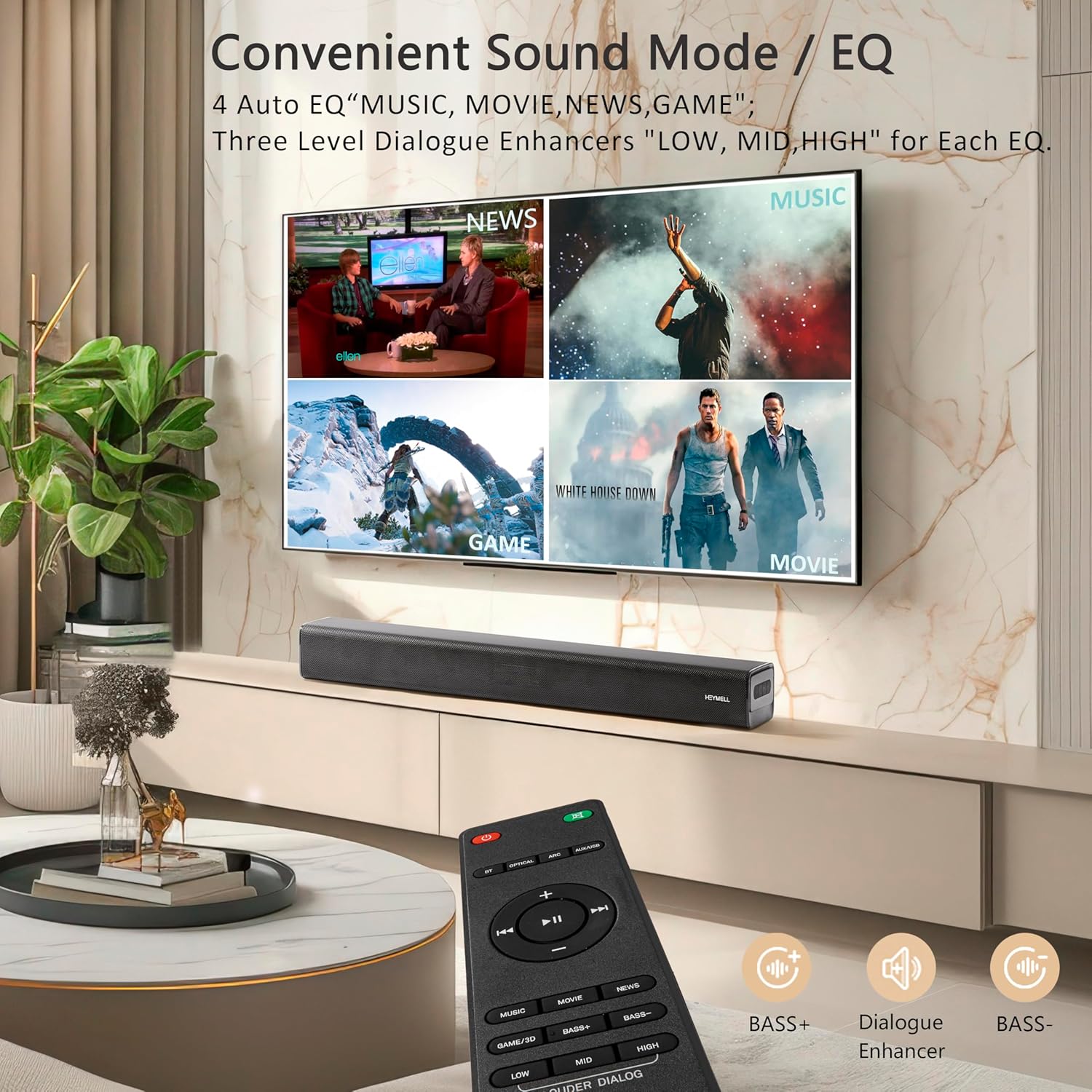
Image 4.1: The remote control highlighting buttons for sound modes, dialogue enhancer, and bass adjustment.

Image 4.2: Illustration of the sound bar's various sound modes and dialogue enhancer settings.
5. Maintenance
To ensure the longevity and optimal performance of your Heymell Voyage 202 sound bar, follow these maintenance guidelines:
- Cleaning: Use a soft, dry cloth to clean the surface of the sound bar. Do not use liquid cleaners or abrasive materials, as they may damage the finish.
- Ventilation: Ensure the sound bar has adequate ventilation. Do not block any vents or place it in an enclosed space that could restrict airflow.
- Environment: Avoid exposing the sound bar to extreme temperatures, humidity, direct sunlight, or dusty environments.
- Power: Disconnect the power cable from the wall outlet if the sound bar will not be used for an extended period.
6. Troubleshooting
If you encounter issues with your sound bar, refer to the following common problems and solutions:
6.1 No Sound from the Sound Bar
- TV Audio Output Settings: For any connection type, ensure your TV's audio output format is set to 'PCM', 'Stereo', or 'Auto'. The sound bar does not support Dolby audio.
- Optical Connection: Verify that the optical cable is securely and correctly inserted into both the TV and the sound bar.
- HDMI ARC Connection:
- Confirm that "HDMI CEC" is enabled in your TV settings.
- Ensure the HDMI cable is connected to the TV's dedicated HDMI ARC port, not a standard HDMI port.
- Some TVs may require setting "HDMI Input Audio Format" to "PCM".
- Input Source: Make sure the sound bar's input source matches your connection type (e.g., OPT for optical, HDMI for HDMI ARC).
- Volume: Check that the volume on both the sound bar and your TV/device is not muted or set too low.
6.2 Remote Control Not Working
- Battery Installation: Check the battery installation direction. Ensure the '+' and '-' terminals are correctly aligned.
- Battery Cover: Confirm the battery cover is firmly closed.
- Battery Power: Replace the batteries with new AAA batteries. Even new batteries can lose power if stored for extended periods.
- Line of Sight: Ensure there are no obstructions between the remote control and the sound bar's sensor.
7. Specifications
| Feature | Specification |
|---|---|
| Model Name | Voyage 202 |
| Brand | Heymell |
| Speaker Type | Soundbar |
| Audio Output Mode | Stereo (2.1 Channel with built-in woofer) |
| Peak Power | 120 Watts |
| RMS Power | 60 Watts |
| Woofer Diameter | 3 Inches |
| Frequency Range | 20Hz - 20KHz |
| Connectivity Technology | Bluetooth 5.3, HDMI ARC, Optical, Auxiliary (3.5mm), USB |
| Dolby Support | No |
| AC Input | 100-240V AC, 50/60 Hz |
| Product Dimensions (L x W x H) | 586mm x 108mm x 70mm (23.1" x 4.25" x 2.76") |
| Item Weight | 5.7 Pounds |
| Material | Metal, Plastic |
| Mounting Type | Tabletop Mount, Wall Mount |
| Recommended Uses | For Televisions, For Computers, For Gaming Consoles |
8. Warranty and Support
8.1 Warranty Information
For detailed warranty information, please refer to the product packaging or the official Heymell website. Keep your purchase receipt for warranty claims.
8.2 Customer Support
If you require further assistance with setup, operation, or troubleshooting, please contact Heymell customer support. Professional support is available to help with specific TV brands and models or any other product-related inquiries.