
ROVE R2-4K DUAL PRO
ROVE R2-4K Dual PRO Dash Cam User Manual
Model: R2-4K DUAL PRO
Introduction
This manual provides detailed instructions for the installation, operation, and maintenance of your ROVE R2-4K Dual PRO Dash Cam. Please read this manual thoroughly before using the device to ensure proper functionality and to maximize your user experience. The ROVE R2-4K Dual PRO is a high-performance dual dash camera system designed to record both front and rear views of your vehicle in 4K and 2K resolution, respectively, utilizing advanced Sony STARVIS 2 sensors for superior image clarity.

Image: The ROVE R2-4K Dual PRO Dash Cam, showcasing its main unit, rear camera, included 128GB microSD card, CPL filter, and a smartphone displaying the companion app interface.
Package Contents
Verify that all items listed below are included in your package:
- ROVE R2-4K DUAL PRO Dash Cam (Front Unit)
- Rear Camera
- ROVE PRO 128GB microSD Card
- ROVE Ultimate CPL Filter
- Windshield Suction Mount
- Spare 3M Sticky Mount
- 6.5M Type-C Rear Camera Cable
- 12FT Type-C Power Cable
- DUAL USB Fast Car Charger
- Car Wiring Tool
- 5x Cable Clips
- 1x Front + 1x Rear Electrostatic Films
- 2x Wet Cleaning Pads
- 2x Spare Sticky Tapes
- Dash Cam Window/Bumper Sticker
- Microfiber Lens Cleaning Cloth
- User Manual
- Quick Start Guide
- Registration Card
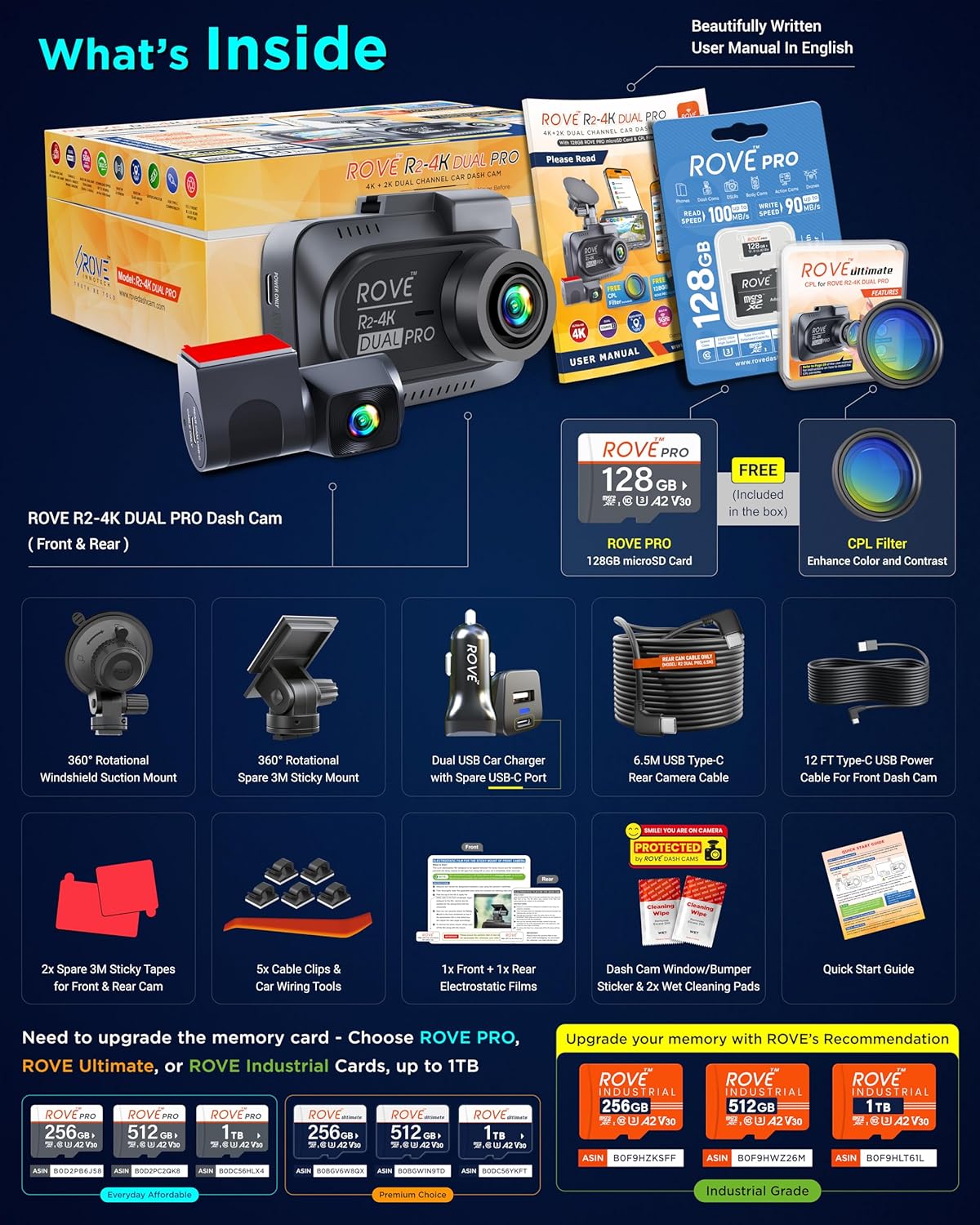
Image: A visual representation of all items included in the ROVE R2-4K Dual PRO Dash Cam package, including the main unit, rear camera, cables, mounts, and accessories.
Setup and Installation
1. Prepare the MicroSD Card
Insert the included ROVE PRO 128GB microSD card into the dash cam's microSD card slot. Ensure the card is inserted correctly. It is recommended to format the microSD card within the dash cam settings upon first use and periodically thereafter to maintain optimal performance.
2. Mount the Front Camera
Clean the windshield area where you intend to mount the dash cam. Apply one of the electrostatic films to the chosen spot on the windshield. Attach either the windshield suction mount or the spare 3M sticky mount to the dash cam, then secure it to the electrostatic film on the windshield. Adjust the camera angle by loosening the screw on the mount, positioning the camera, and then tightening the screw to lock it in place. The camera can rotate 360 degrees for flexible recording direction.
Image: Step-by-step guide illustrating the installation process of the front and rear dash cameras, cable routing, and power connection within a vehicle.
3. Install the Rear Camera
Clean the rear windshield area. Apply the second electrostatic film. Attach the rear camera to the electrostatic film. Connect the 6.5M Type-C Rear Camera Cable to the rear camera and route it discreetly along the headliner and vehicle panels to the front dash cam. Plug the other end into the designated port on the front dash cam.
4. Power Connection
Connect the 12FT Type-C Power Cable to the front dash cam. Plug the DUAL USB Fast Car Charger into your vehicle's cigarette lighter socket. Connect the power cable to the car charger. For 24-hour parking monitor functionality, a ROVE Ultimate USB Type-C Hardwire Kit (sold separately) is required.
5. Attach CPL Filter (Optional)
The included ROVE Ultimate CPL filter can be screwed onto the front lens of the dash cam to reduce glare and reflections from the windshield, improving video clarity.
Operating Instructions
Automatic Recording
Once powered on, the dash cam will automatically begin recording. Videos are saved in segments (e.g., 1, 3, 5, or 10 minutes) due to the seamless loop recording feature. When the microSD card is full, the oldest unlocked files will be overwritten by new recordings.

Image: A visual representation of the loop recording function, where older video files are automatically replaced by new ones when the memory card reaches its capacity.
Emergency Video Lock (G-Sensor)
The built-in 3-axis G-Sensor detects sudden impacts or rapid acceleration/deceleration. When triggered, it automatically locks the current video segment, preventing it from being overwritten by loop recording. These locked files are stored in a separate folder for security. You can also manually lock a recording by pressing the emergency lock button during recording.

Image: A graphic depicting a collision and a padlock symbol, illustrating how the 3-Axis G-Sensor automatically locks important video evidence during an incident.
24-Hour Parking Monitor
With the optional hardwire kit, the dash cam can monitor your vehicle for 24 hours. It offers three intelligent parking mode options:
- 1FPS Time-Lapse Recording: Records continuously at a low frame rate, condensing long periods into short videos.
- Motion Detection: Records when motion is detected around the vehicle.
- Collision Detection: Records when an impact is detected.
When triggered, the dash cam records a 1-minute event video and stores it in a locked folder. A voice alert will notify you upon starting your vehicle if an event occurred.

Image: A visual explanation of the 24-hour parking mode, detailing its auto-trigger functions for collision, vicious scratch, and theft detection when the car's engine is off.
Built-in Quad-Mode GPS
The integrated GPS module supports GPS, BEIDOU, GALILEO, and GLONASS satellite systems. It records your precise route, location, and speed, embedding this data directly into the video files. Live speed and compass information are displayed on the dash cam screen. Use the free ROVE Dash Cam GPS Player software on your PC/Mac to review your trips with a full GPS overlay.

Image: A laptop screen displaying the ROVE Dash Cam GPS Player, which allows users to review recordings, GPS logs, and G-Sensor data with a map overlay.
Dual Band WiFi 6 and ROVE Dash Cam App
The dash cam features dual-band WiFi 6 (5GHz and 2.4GHz) for fast wireless connectivity. Download the ROVE Dash Cam App on your iPhone or Android smartphone. The app allows you to:
- View live footage.
- Adjust camera settings.
- Download recorded videos at speeds up to 30MB/s.
- Share videos directly to social media.
- Perform Over-The-Air (OTA) firmware updates.

Image: A smartphone connected to the dash cam via WiFi 6, demonstrating fast video transfer speeds and the user interface of the ROVE Dash Cam App for managing recordings.
Voice Guidance
The dash cam provides important voice alerts and feedback. For example, it will remind you if it is not recording and will announce when parking mode has been activated.

Image: The dash cam display showing a "Parking mode got activated" message, accompanied by a speech bubble indicating the device's voice guidance feature.
Screen Saver
The screen saver feature activates after 1 minute of inactivity, minimizing distractions while driving. It displays essential driving details such as date, time, live speed, compass, and recording status.
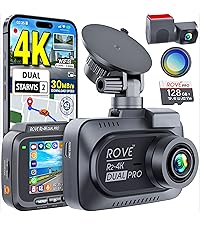
Image: The dash cam's screen saver displaying current date, time, live speed, and compass direction, designed to reduce driver distraction.
Dual Video IQ Mode
The dash cam offers two video IQ modes to optimize recording based on your needs:
- Clarity Priority (Default): Optimized for sharp license plate details and contrast, ideal for proving fault in incidents.
- Color Priority: Optimized for vibrant, well-lit footage, suitable for scenic drives.

Image: The dash cam interface for selecting Dual Video IQ Mode, offering "Clarity Priority" for sharp details like license plates and "Color Priority" for brighter, more vivid video.
Maintenance
MicroSD Card Management
Regularly format your microSD card (at least once a month) through the dash cam's settings to ensure optimal performance and prevent data corruption. Use only high-endurance microSD cards from reputable brands, such as ROVE PRO, ROVE Ultimate, or ROVE Industrial cards, to support continuous 4K recording. The dash cam supports up to 1TB microSD cards.

Image: A display of various ROVE microSD card options (PRO, Ultimate, Industrial) and their capacities, highlighting the dash cam's support for up to 1TB storage.
Cleaning the Device
Use the provided microfiber lens cleaning cloth to gently wipe the camera lenses. For the dash cam body and screen, use the wet cleaning pads or a soft, dry cloth. Avoid using harsh chemicals or abrasive materials that could damage the device.
Troubleshooting
| Problem | Possible Cause / Solution |
|---|---|
| Dash cam does not power on. |
|
| Recording stops unexpectedly. |
|
| Video quality is poor or blurry. |
|
| WiFi connection issues or slow download speeds. |
|
| Parking mode not working. |
|
Specifications
| Feature | Detail |
|---|---|
| Model Name | R2-4K DUAL PRO |
| Front Camera Resolution | True 4K (3840x2160P) @30fps |
| Rear Camera Resolution | 2K (2560x1440P) @30fps |
| Front Sensor | Sony STARVIS 2 IMX678 (8MP) |
| Rear Sensor | Sony STARVIS 2 IMX675 (5MP) |
| Lens Aperture | Front: F1.7, Rear: F1.55 |
| Field of View | Front: 150°, Rear: 140° |
| Display | 3" IPS Screen |
| Connectivity | Dual Band WiFi 6 (5GHz & 2.4GHz), USB |
| GPS | Built-in Quad-Mode (GPS, BEIDOU, GALILEO, GLONASS) |
| Storage Support | Up to 1TB microSD card (128GB ROVE PRO included) |
| Special Features | HDR, Super Night Vision, Supercapacitor, Seamless Loop Recording, G-Sensor, Emergency Video Lock, 24HR Parking Monitor (requires hardwire kit), Voice Guidance, Screen Saver, Dual Video IQ Mode, ROVE App (iOS & Android), OTA Firmware Updates |
| Dimensions | 1.65 x 3.66 x 2.52 inches |
| Item Weight | 5.8 ounces |
Warranty Information
ROVE products are designed for reliability and performance. For specific warranty details regarding your R2-4K Dual PRO Dash Cam, please refer to the warranty card included in your package or visit the official ROVE website. Keep your proof of purchase for warranty claims.
Customer Support
For technical assistance, troubleshooting, or any questions regarding your ROVE R2-4K Dual PRO Dash Cam, please contact ROVE customer support. You can find contact information on the registration card included in your package or through the ROVE Dash Cam App. Firmware updates and app updates are provided free of charge to enhance your product's functionality and user experience.
ROVE Dash Cam App: Available on the App Store (iOS) and Google Play Store (Android).
ROVE Dash Cam GPS Player: Free software available for PC and Mac to review GPS data with video recordings.
Related documentsR2-4K DUAL PRO


Ask a question about this manual
Ask about setup, troubleshooting, compatibility, parts, safety, or missing instructions. Manuals+ will review the question and use this page’s manual context to help answer it.