
1. Introduction
This document serves as a comprehensive user manual for the ORICO D35M2 12-in-1 Docking Station and the included Y20M 128GB M.2 2280 SATA SSD. It provides essential information regarding product features, setup procedures, operational guidelines, maintenance tips, and troubleshooting steps to ensure optimal performance and longevity of your device.

Figure 1: ORICO D35M2 12-in-1 Docking Station and Y20M 128GB M.2 2280 SATA SSD Bundle.
2. Product Overview
The ORICO D35M2 bundle offers an integrated solution for expanding storage and connectivity. It includes a high-performance M.2 SATA SSD and a versatile docking station.
2.1 Y20M 128GB M.2 2280 SATA SSD
- Capacity: 128GB
- Form Factor: M.2 2280
- Interface: SATA 3.0 (B+M Key)
- Performance: Up to 500MB/s read, 450MB/s write speeds.
- Compatibility: Designed for SATA-compatible M.2 slots in laptops and desktops. Note: PCIe NVMe is NOT supported.

Figure 2: ORICO Y20M M.2 SATA SSD highlighting B+M Key and SATA compatibility. PCIe NVMe is not supported.
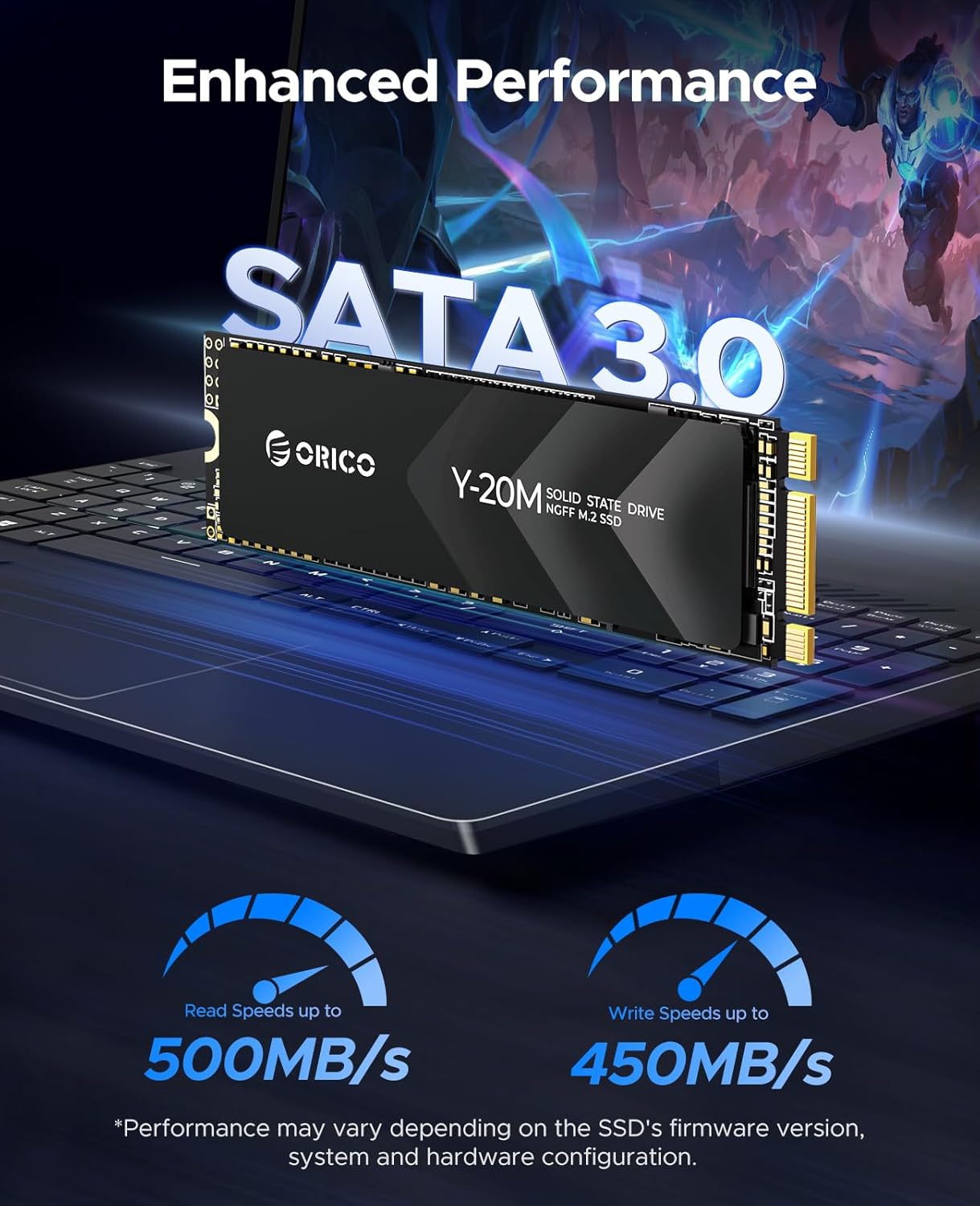
Figure 3: Performance specifications for the ORICO Y20M M.2 SATA SSD, showing read speeds up to 500MB/s and write speeds up to 450MB/s.

Figure 4: Reliability features of the ORICO Y20M M.2 SATA SSD, including NCQ, Trim, PLP, BBM, and S.M.A.R.T technology.
2.2 D35M2 12-in-1 Docking Station
The docking station expands your device's capabilities with multiple ports and dual storage slots.
- Connectivity: 3x USB-A (10Gbps), 2x USB-C (10Gbps), 1x HDMI (4K@60Hz), 1x RJ45 Gigabit Ethernet, 1x SD/TF Card Reader (100MB/s).
- Power Delivery: 100W PD fast charging.
- Storage Expansion: Dual SSD slots supporting M.2 NVMe/SATA and 2.5/3.5” SATA SSD/HDD (up to 26TB total, drives not included).
- Cooling: Built-in heatsinks and turbo fan for thermal management.

Figure 5: Front and rear view of the ORICO D35M2 Docking Station, illustrating all 12 ports and the internal drive bay.
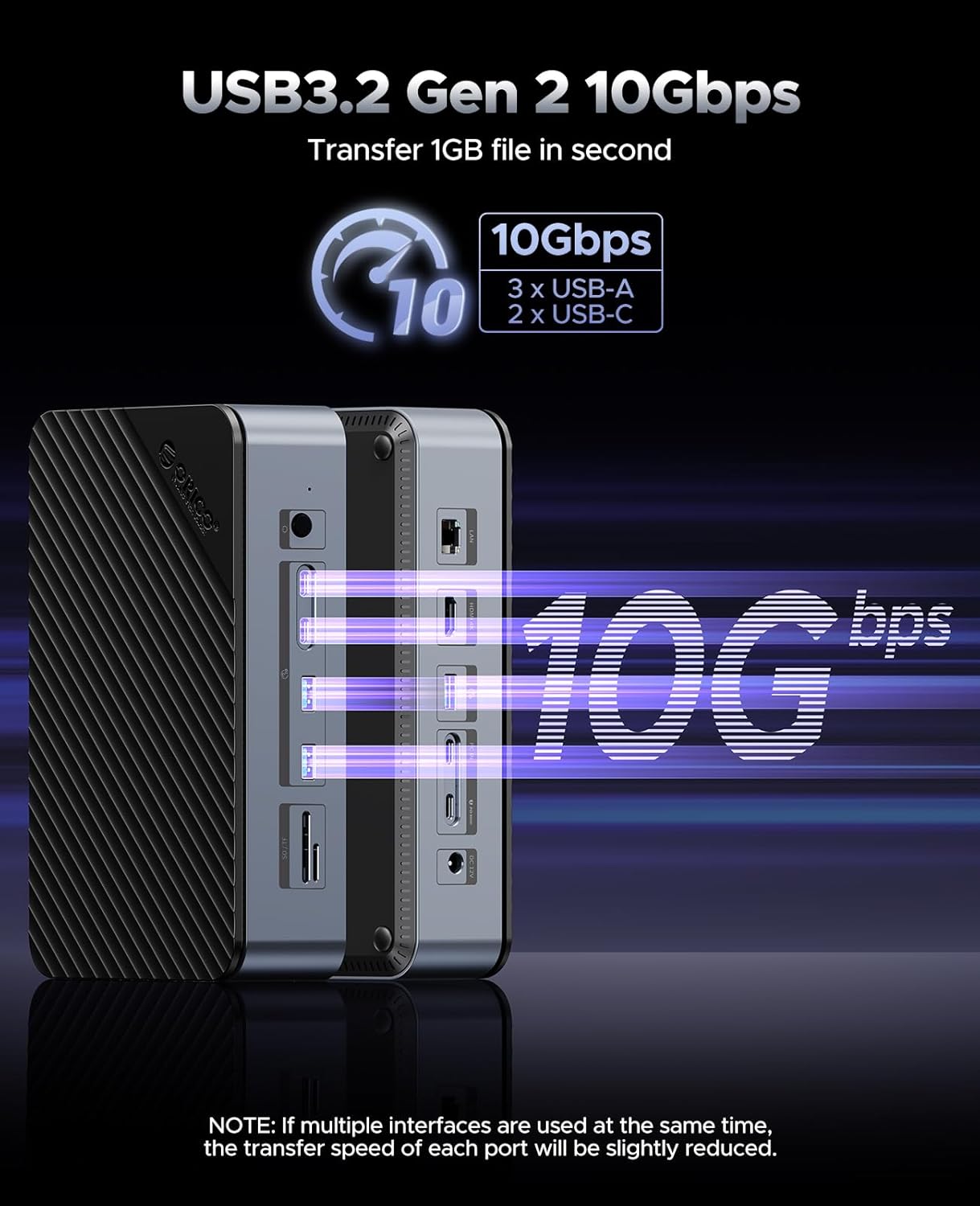
Figure 6: Detail of the USB3.2 Gen 2 10Gbps ports on the ORICO D35M2 Docking Station, including three USB-A and two USB-C ports.
3. Setup Guide
3.1 Installing the Y20M M.2 SATA SSD
- Identify Compatible Slot: Ensure your laptop or desktop motherboard has an M.2 slot that supports SATA SSDs (B+M Key). PCIe NVMe slots are not compatible.
- Insert SSD: Gently insert the Y20M M.2 SSD into the M.2 slot at a 30-degree angle.
- Secure SSD: Press down the SSD and secure it with the provided screw.
- Initialize and Format: After installation, power on your computer. Access Disk Management (Windows) or Disk Utility (macOS) to initialize and format the new SSD before use.

Figure 7: The ORICO Y20M M.2 SATA SSD is compatible with both desktop and laptop systems, provided the M.2 slot supports SATA/NGFF/AHCI.
3.2 Connecting the D35M2 Docking Station
- Power Connection: Connect the included 12V DC power adapter to the docking station and then to a power outlet.
- Host Connection: Connect the docking station to your computer using the provided USB-C to USB-C cable. Ensure your computer's USB-C port supports DisplayPort Alternate Mode (Alt Mode) for video output and Power Delivery for charging.
- External Drive Installation (Optional):
- M.2 SSD: Open the M.2 enclosure bay. Insert your M.2 NVMe or SATA SSD (2230, 2242, 2260, 2280 form factors supported) and secure it.
- 2.5/3.5" SATA Drive: Open the 2.5/3.5" drive bay. Insert your SATA SSD or HDD. Close the bay.
- Peripheral Connections: Connect your monitor(s) to the HDMI port, Ethernet cable to the RJ45 port, and other USB devices (keyboard, mouse, external drives) to the available USB-A and USB-C ports. Insert SD/TF cards as needed.

Figure 8: Illustration of the dual storage expansion capabilities of the ORICO D35M2 Docking Station, supporting M.2 NVMe/SATA SSDs and 2.5/3.5 inch SATA SSD/HDDs.
4. Operating Instructions
4.1 Powering On/Off
The docking station powers on automatically when connected to a powered host device. For the 2.5/3.5" hard drive enclosure, there is a dedicated power button to control its operation independently.
4.2 Using USB Ports
Connect your USB devices to the available USB-A or USB-C ports. The 10Gbps ports provide high-speed data transfer for external drives, flash drives, and other peripherals. Note that simultaneous use of multiple high-bandwidth devices may slightly reduce individual port speeds.
4.3 Display Output
Connect an HDMI cable from the docking station's HDMI port to your monitor. Ensure your computer's USB-C port supports DisplayPort Alt Mode for video output. The docking station supports up to 4K@60Hz resolution.
4.4 Network Connection
Connect an Ethernet cable to the RJ45 port for a stable Gigabit wired network connection.
4.5 Power Delivery (PD)
The USB-C PD port supports up to 100W power delivery to charge your connected laptop or other compatible devices. Ensure your laptop's power adapter is connected to the docking station's PD input port if you wish to charge your laptop through the dock.
4.6 SD/TF Card Reader
Insert SD or TF (MicroSD) cards into the respective slots for data transfer. Both slots can be used simultaneously.
5. Maintenance
- Cleaning: Use a soft, dry cloth to clean the exterior of the docking station and SSD. Avoid liquid cleaners.
- Ventilation: Ensure the docking station's ventilation openings are not obstructed to allow proper airflow for the built-in fan and heatsinks. The fan activates when the internal temperature exceeds 50°C to maintain optimal operating conditions.
- Firmware Updates: Periodically check the ORICO official website for any available firmware updates for the docking station or SSD to ensure continued compatibility and performance.
- Safe Removal: Always safely eject external drives and the docking station from your operating system before disconnecting to prevent data corruption.

Figure 9: Internal view of the ORICO D35M2 Docking Station, showing the M.2 heatsink and turbo fan for efficient cooling.
6. Troubleshooting
- No Display Output:
- Ensure your computer's USB-C port supports DisplayPort Alt Mode.
- Verify the HDMI cable is securely connected to both the docking station and the monitor.
- Try a different HDMI cable or monitor.
- External Drive Not Detected:
- Ensure the drive is properly seated in its slot.
- For 2.5/3.5" drives, ensure the dedicated power button on the docking station is pressed.
- Check Disk Management (Windows) or Disk Utility (macOS) to see if the drive needs initialization or formatting.
- Confirm the M.2 SSD is SATA (B+M Key) and not NVMe if installed in the Y20M SSD or the docking station's M.2 SATA slot.
- Ensure the DC power supply is connected to the docking station for stable operation, especially with multiple drives.
- Slow Data Transfer Speeds:
- Ensure you are using USB 3.0/3.2 compatible cables and devices.
- Avoid using multiple high-bandwidth devices simultaneously on the same USB hub.
- Check your computer's USB port specifications; some older ports may not support 10Gbps.
- Laptop Not Charging:
- Ensure your laptop supports USB-C Power Delivery.
- Verify your laptop's original power adapter is connected to the docking station's PD input port.
- Check the power output requirements of your laptop; the dock supports up to 100W.
7. Specifications
| Feature | Specification |
|---|---|
| Product Name | ORICO D35M2 12-in-1 Docking Station and Y20M 128GB M.2 2280 SATA SSD Bundle |
| Brand | ORICO |
| Model (Docking Station) | D35M2 |
| Model (SSD) | Y20M (128GB M.2 2280 SATA) |
| SSD Read Speed | Up to 500MB/s |
| SSD Write Speed | Up to 450MB/s |
| USB Ports | 3x USB-A 10Gbps, 2x USB-C 10Gbps |
| Video Output | 1x HDMI 4K@60Hz |
| Ethernet | 1x RJ45 Gigabit Ethernet |
| Card Reader | SD/TF (100MB/s, simultaneous use) |
| Power Delivery | 100W PD (Input) |
| Storage Bays | 1x M.2 (NVMe/SATA), 1x 2.5/3.5" SATA (SSD/HDD) |
| Max Storage Capacity | Up to 26TB (drives not included) |
| Cooling | Built-in Heatsinks, Turbo Fan |
| Power Supply | 12V DC Adapter |
8. Warranty and Support
ORICO products typically come with a standard manufacturer's warranty. For specific warranty terms and conditions, please refer to the warranty card included with your product or visit the official ORICO website. For technical support, product inquiries, or warranty claims, please contact ORICO customer service through their official channels.
ORICO Official Website: www.orico.com.cn
Amazon Store: ORICO Direct US Store