
Introduction
Welcome to the user manual for your new Samsung 75-inch QLED 4K Smart TV, Model 75Q7F3. This television is designed to provide an immersive viewing experience with its Quantum Dot display, advanced Q4 AI Processor, and a suite of smart features. This manual will guide you through the setup, operation, maintenance, and troubleshooting of your TV to ensure optimal performance and enjoyment.
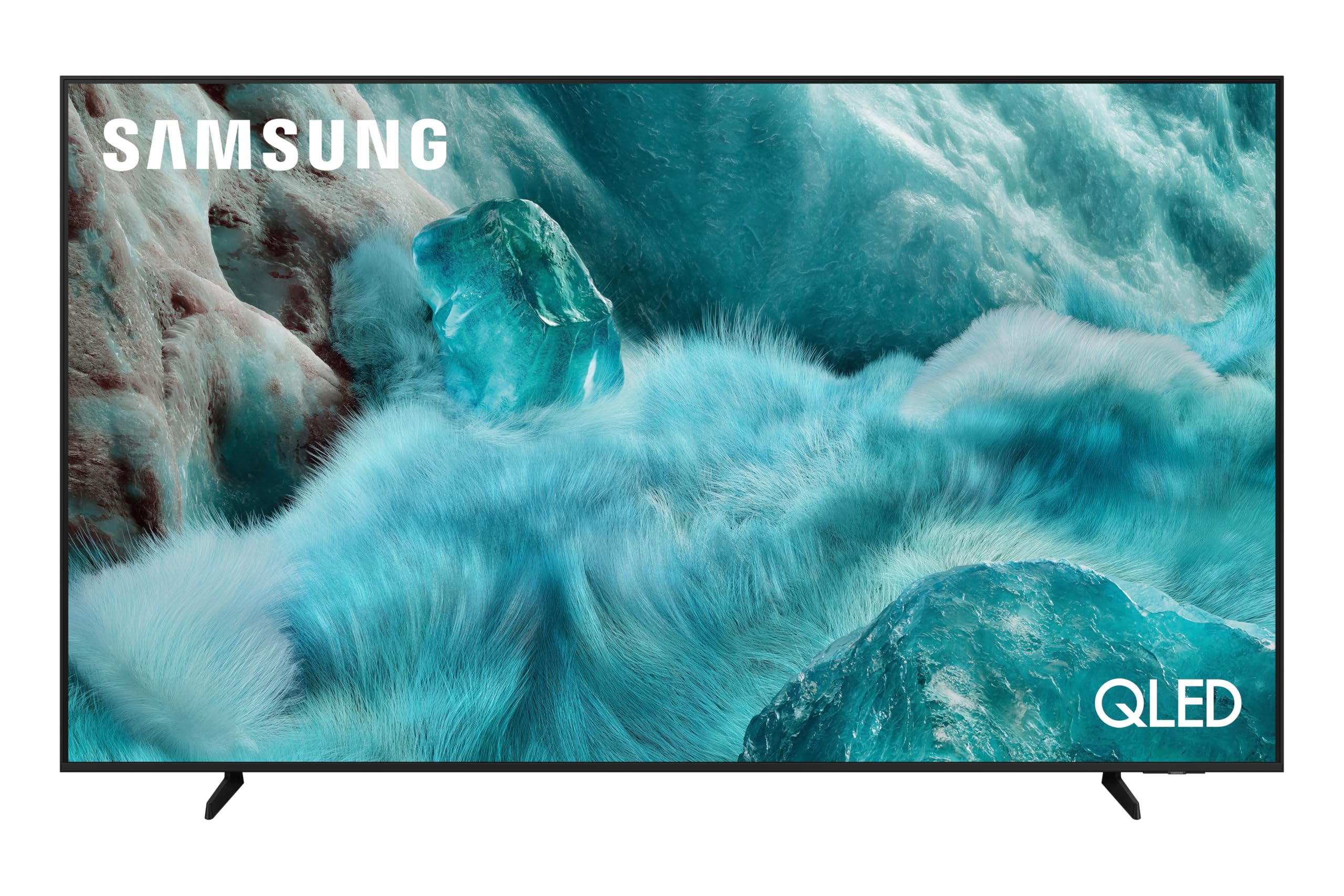
Image: Front view of the Samsung 75-inch QLED 4K Smart TV, showcasing its slim bezel and vibrant display.
Setup
1. Unpacking and Safety
Carefully remove the TV from its packaging. It is recommended to have two people for this process due to the size and weight of the 75-inch screen. Ensure all accessories are present: Remote Control, Smart TV (main unit), power cable, and stand components.
Safety Warning: Do not place the TV on an unstable cart, stand, tripod, bracket, table, or mount. Serious personal injury or damage to the TV may occur.
2. Stand Installation or Wall Mounting
If using the included stand, follow the instructions provided in the separate stand assembly guide. For wall mounting, ensure you use a VESA-compatible wall mount (400 x 400 mm) and consult a professional installer if unsure.

Image: Diagram illustrating the dimensions of the Samsung 75-inch QLED TV, including width, height, and depth.
3. Connecting External Devices
Connect your power cable to the TV and a wall outlet. Use HDMI cables for high-definition devices like Blu-ray players, game consoles, or set-top boxes. This TV features 3 HDMI ports. USB devices can be connected to the 2 USB ports. For internet access, connect via Wi-Fi or an Ethernet cable.

Image: Rear view of the Samsung 75-inch QLED TV, highlighting the various input and output ports for connectivity.
4. Initial Power-On and Basic Settings
Once connected, power on your TV. Follow the on-screen prompts to select your language, country, and connect to your Wi-Fi network. The TV will guide you through channel scanning and initial Smart Hub setup.
Operating the TV
1. Remote Control Usage
Your Samsung Smart TV comes with a streamlined remote control. Use the directional pad to navigate menus and the central button to select. Dedicated buttons provide quick access to Smart Hub, volume, and channel controls.
2. Smart Features and AI Enhancements
The Samsung 75Q7F3 is equipped with the Q4 AI Processor (AI 4K Gen1) which optimizes both picture and sound quality in real-time. The Quantum Dot display technology ensures a rich and precise color palette for realistic images.

Image: A detailed view of the Samsung Q4 AI Processor chip, illustrating the core technology behind the TV's intelligent performance.
AI Upscaling
Experience enhanced detail with AI Upscaling, which intelligently analyzes and upgrades lower-resolution content to near 4K quality.
AI Sound Controller Pro
The AI Sound Controller Pro automatically adjusts sound levels based on content and ambient noise, ensuring clear dialogue and balanced audio.
AI Companion (Voice Assistant)
Utilize the integrated Bixby voice assistant for hands-free control. Ask questions, search for content, or control smart home devices. The 'Click to Search' feature allows you to quickly find information about on-screen content.

Image: The Samsung TV interface displaying a voice assistant interaction, demonstrating how Bixby can respond to queries and provide information.
Generative Wallpaper
Personalize your TV's idle screen with unique generative wallpapers that adapt to your mood or environment.
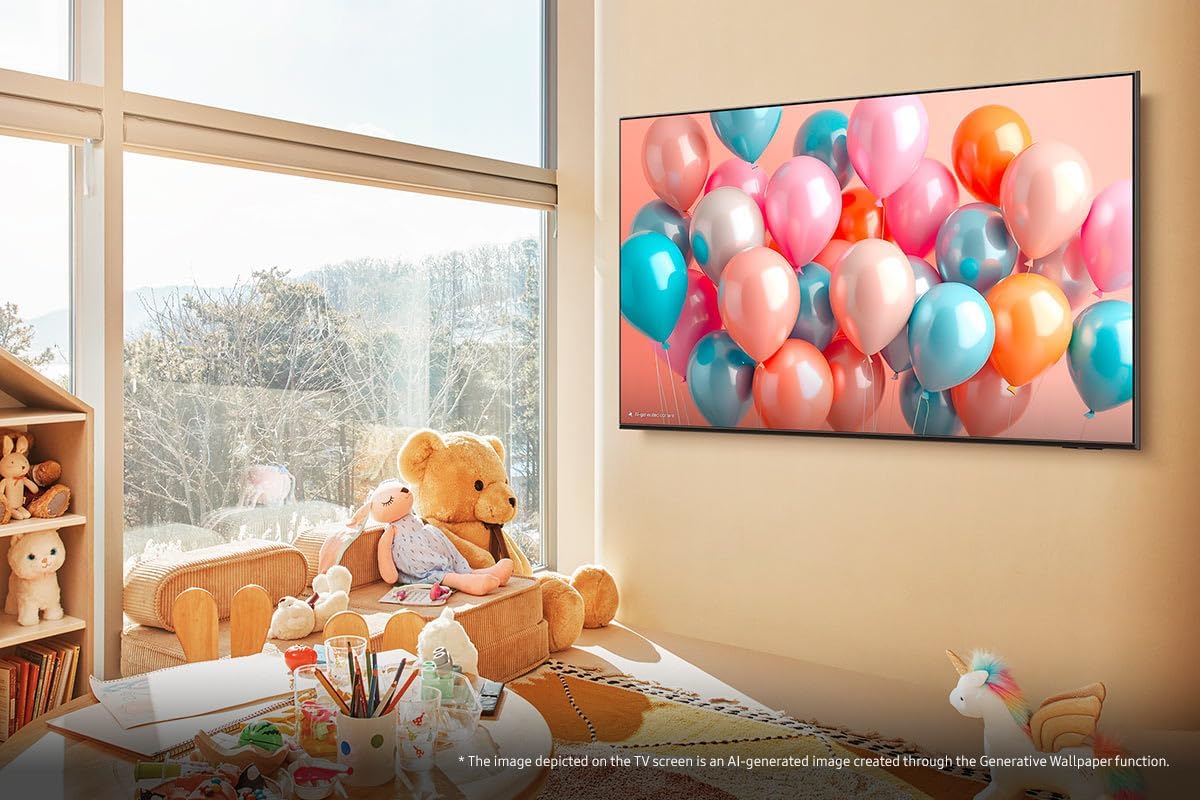
Image: A Samsung TV displaying a vibrant generative wallpaper featuring colorful balloons, illustrating the personalization feature.
3. Gaming Hub
The Gaming Hub centralizes your gaming platforms and titles, offering quick access to cloud gaming services without the need for a console. Enjoy hundreds of games with minimal latency.

Image: The Samsung Gaming Hub interface, displaying a selection of popular game titles and integrated cloud gaming services like Xbox and GeForce Now.
4. Audio Technologies
The TV features Q-Symphony, which synchronizes the TV's speakers with a compatible Samsung soundbar for a more immersive audio experience. OTS Lite (Object Tracking Sound Lite) creates dynamic sound that follows the action on screen.

Image: A visual representation of Q-Symphony technology, showing sound waves emanating from both the TV and a connected soundbar for synchronized audio.
Maintenance
1. Cleaning the TV
To clean the screen, gently wipe it with a soft, lint-free cloth. For the TV frame and stand, use a soft, dry cloth. Avoid using harsh chemicals, abrasive materials, or direct spraying of liquids onto the screen.
2. Software Updates
Ensure your TV's software is up to date for optimal performance and security. You can check for updates via the TV's settings menu (Settings > Support > Software Update). Automatic updates can also be enabled.
3. Power Saving Tips
- Adjust brightness to a comfortable level.
- Enable the 'Eco Solution' settings in the menu to automatically adjust brightness based on ambient light.
- Turn off the TV when not in use.
Troubleshooting
If you encounter issues with your TV, refer to the following common solutions before contacting support.
| Problem | Possible Solution |
|---|---|
| No Power | Check if the power cable is securely connected to the TV and the wall outlet. Ensure the outlet is functional. |
| No Picture / Distorted Picture | Verify the correct input source is selected. Check HDMI/other cables for secure connection. Try restarting connected devices. |
| No Sound / Low Sound | Check volume levels on both the TV and any connected audio devices. Ensure mute is not activated. Verify audio cable connections. |
| Network Connection Issues | Restart your router and modem. Reconnect the TV to the Wi-Fi network via the settings menu. Ensure the Wi-Fi password is correct. |
| Remote Control Not Working | Replace the batteries. Ensure there are no obstructions between the remote and the TV. |
Factory Reset
If problems persist, performing a factory reset may resolve the issue. Navigate to Settings > General > Reset. Note that this will erase all personalized settings and data.
Specifications
| Feature | Detail |
|---|---|
| Model Name | 75Q7F3 (TQ75Q7F3AUXXC) |
| Screen Size | 75 Inches |
| Display Technology | QLED |
| Resolution | 4K (3840 x 2160) |
| Refresh Rate | 60 Hz |
| Processor | Q4 AI Processor (AI 4K Gen1) |
| HDR Support | HDR10 |
| Connectivity | Wi-Fi, Bluetooth, 3x HDMI, 2x USB |
| Audio | Q-Symphony, OTS Lite, AI Sound Controller Pro |
| Smart Features | Smart Hub, Gaming Hub, Bixby Voice Assistant, Click to Search, Generative Wallpaper |
| Security | Knox Security |
| VESA Mount Standard | 400 x 400 mm |
| Included Components | Smart TV, Remote Control |
Warranty and Support
Warranty Information
Your Samsung 75-inch QLED 4K Smart TV (Model 75Q7F3) is covered by a 2-year manufacturer's warranty. Please retain your proof of purchase for warranty claims. The warranty covers defects in materials and workmanship under normal use.
Customer Support
For further assistance, technical support, or warranty service, please visit the official Samsung support website or contact their customer service hotline. You can find detailed contact information on the Samsung website or in the documentation included with your TV.

Image: The Knox Security logo displayed on a digital screen, representing the robust security features integrated into your Samsung TV.


