Introduction
The Plugable USB 3.0 Transfer Cable (Model USB3-TRAN) facilitates high-speed data transfer between two Windows personal computers. This cable is designed for migrating files and folders when upgrading to a new PC or for regular synchronization between existing Windows systems. It includes the Bravura Easy Computer Sync software to manage the transfer process.
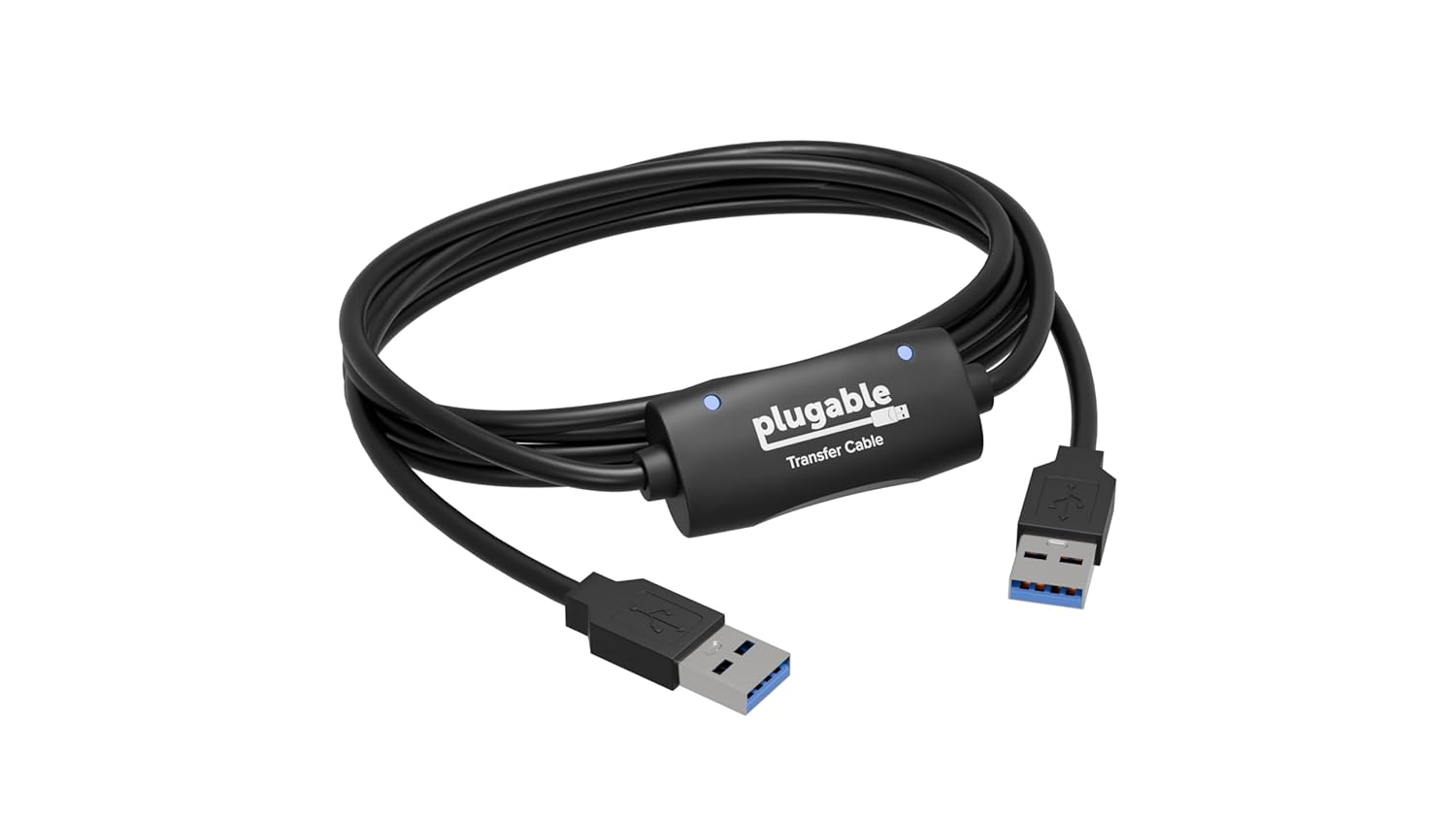
Image: The Plugable USB 3.0 Transfer Cable, a black cable with a central transfer module and blue-tipped USB 3.0 Type-A connectors on both ends.
Compatibility
This transfer cable is compatible with the following Windows operating systems:
- Windows 11
- Windows 10
- Windows 8.1
- Windows 8
- Windows 7
- Windows Vista
- Windows XP
Both 32-bit and 64-bit Windows versions are supported. This cable is not compatible with Windows S Mode, Windows Server editions, macOS, Linux, or ChromeOS.

Image: A diagram illustrating various PC configurations (desktop to desktop, desktop to laptop, laptop to laptop) connected by the transfer cable, with a note indicating "Only works with Windows".
Setup Instructions
- Install Bravura Easy Computer Sync Software: Before connecting the cable, install the Bravura Easy Computer Sync software on both computers involved in the transfer. This software includes the necessary drivers for the cable. For Windows XP and Vista systems, driver installation is part of the software setup. Windows 7, 8.1, 10, and 11 should install drivers automatically upon cable connection after the software is installed.
The software requires a 16-character alphanumeric Product Key. This key is typically found on a tag attached to the transfer cable itself. If purchased before December 1, 2017, it may have been sent via email. If you cannot locate your Product Key, contact Plugable support with your Amazon order number.

Image: A close-up of the Plugable USB 3.0 Transfer Cable showing a white tag with a "Product Key" printed on it, indicating its location on the cable.
- Connect the Cable: Once the software is installed on both PCs, connect one end of the Plugable USB 3.0 Transfer Cable to an available USB port on the source computer and the other end to an available USB port on the destination computer. For optimal speed, use USB 3.0 ports on both computers if available. The cable will also function in USB 2.0 ports at USB 2.0 speeds.

Image: The Plugable USB 3.0 Transfer Cable connected between two open laptops, demonstrating the physical connection for data transfer.
- Launch Software: After connecting the cable, launch the Bravura Easy Computer Sync software on both computers. Both PCs must be fully functional, powered on, and have attached displays for the transfer to proceed.
Operating Instructions
The Bravura Easy Computer Sync software provides options for transferring files and folders. Follow the on-screen prompts within the software to initiate and manage your data transfer.
- File and Folder Transfer: The software allows you to select specific files and folders for transfer. You can drag and drop items between the two connected computers.
- Custom Syncing: Utilize the custom sync feature to synchronize files and folders between the two Windows computers. This is useful for keeping specific directories updated.
- Program Transfer: Note that this cable and software do not transfer programs or applications. Programs must be reinstalled from their original installation media or downloaded files.
The transfer speed will depend on the speed of your computers' USB ports (USB 3.0 offers up to 3x faster speeds than USB 2.0) and the amount of data being transferred. Transfers can range from minutes to hours.
Maintenance
The Plugable USB 3.0 Transfer Cable requires minimal maintenance. To ensure longevity and proper function:
- Store the cable in a cool, dry place away from direct sunlight and extreme temperatures.
- Avoid sharp bends or kinks in the cable, which can damage internal wires.
- When disconnecting, always grasp the connector head, not the cable itself, to prevent strain on the connection points.
- Keep the USB connectors clean and free of dust or debris.
Troubleshooting
If you encounter issues during setup or operation, refer to the following common solutions:
- "Waiting for Connection" Indefinitely:
- Restart both computers after installing the software.
- Try running the Bravura Easy Computer Sync software as an Administrator (right-click the application icon and select "Run as administrator").
- Temporarily disable any antivirus, firewall, or security software on both systems, as these can block the connection. Remember to re-enable them after the transfer.
- Ensure only one transfer software is open on each system. Sometimes Windows may automatically launch "Windows Easy Transfer" when the cable is plugged in; close any conflicting programs.
- Verify that the drivers for the transfer cable are successfully installed on both PCs. Windows 7, 8.1, 10, and 11 typically install drivers automatically. XP and Vista require drivers included with the Bravura software.
- Connection Issues / Dropping Connection:
- Try connecting the cable to a different USB port on one or both computers. On older PCs, using a port on the rear of the computer can sometimes resolve issues.
- Product Key Not Found or Invalid:
- The Product Key is a 16-character alphanumeric code located on a tag tied to the cable.
- If purchased before 12/01/2017, check your email for the Product Key.
- If the cable was purchased used or from a third-party seller not directly from Plugable on Amazon, a Product Key may not be available. Contact Plugable support with your Amazon order number for assistance.
- Old Computer Not Functioning Properly:
- Both computers must be in full working order to install and run the Bravura Easy Computer Sync software. This cable cannot be used to recover data from a non-functional PC.
Specifications
| Feature | Detail |
|---|---|
| Model Number | USB3-TRAN |
| Connector Type | USB 3.0 Type-A (both ends) |
| Cable Type | USB |
| Special Feature | Data Transfer |
| Compatible Devices | Windows XP, Vista, 7, 8.x, 10, 11 |
| Product Dimensions | 8 x 1.5 x 6.3 inches; 3.2 ounces |
| Manufacturer | Plugable |
Warranty and Support
Plugable products are backed by a 2-year warranty and North American lifetime support. For technical assistance, warranty claims, or to inquire about your Product Key, please visit the official Plugable support website or contact their customer service directly. You may need your Amazon order number for support inquiries.
For more information and support, visit: plugable.com/products/usb3-tran


