
1. Introduction
This manual provides detailed instructions for the installation, operation, and maintenance of your KUOWEIHUD H1 GPS Head-Up Display. Please read this manual thoroughly before using the product to ensure proper function and safety. The H1 HUD enhances your driving experience by projecting essential vehicle information directly into your line of sight, promoting safer driving by minimizing distractions.
2. Product Overview
2.1 Key Features
- Strong Signal Reception: Utilizes dual-mode chip technology (GPS+BDS) with a 10 Hz refresh rate for rapid and accurate signal acquisition, supporting up to 32 satellite signals for stable speed data in various environments.
- Automatic Brightness Adjustment: Integrated intelligent light sensors automatically adjust screen brightness to external light conditions, ensuring clear visibility day or night.
- Universal Compatibility: Designed for easy installation in all vehicles with a USB port, including cars, motorcycles, and trucks.
- Speeding Alert Function: Provides audible alerts or flashing warnings when a preset speed limit is exceeded, aiding in speed management and safety.
- Clear Display: Displays speed in MPH by default (max 115 mph) with a large font design and metal shading technology to reduce reflections, ensuring readability for all users.
2.2 What's in the Box
- H1-Green HUD Unit
- Micro USB Cable
- Non-slip Mat
- English Manual
- Reflective Film

Image: The KUOWEIHUD H1 GPS Head-Up Display unit, showing its compact design and green digital display.

Image: All components included in the KUOWEIHUD H1 package: the HUD unit, Micro USB cable, non-slip mat, English manual, and reflective film.
3. Setup and Installation
The KUOWEIHUD H1 is designed for non-destructive, plug-and-play installation. Follow these steps to set up your device:
- Connect Power: Plug the USB cable into your car's USB port or a cigarette lighter interface with a USB adapter.
- Route Cable: Carefully insert the wire into the A-pillar seal or along the dashboard edges to conceal it.
- Position HUD: Connect the USB side to the HUD unit and place the unit on your dashboard in a position that allows for a clear projection on your windshield without obstructing your view. Use the provided non-slip mat to secure the device.
- Apply Reflective Film (Optional): If the display is not clear due to windshield tint or curvature, apply the reflective film to the windshield where the HUD projects. Ensure the film is clean and free of bubbles for optimal clarity.

Image: Visual guide for the three-step installation process: connecting the USB cable to a power source, routing the cable along the A-pillar, and connecting it to the HUD unit.
Important Note: The performance of this product can be affected by the car environment. If your car glass has a metal explosion-proof film, it may interfere with signal reception. Consider this when choosing the installation location.
4. Operating Instructions
Once installed and powered on, the KUOWEIHUD H1 will automatically begin searching for GPS signals. The display will show your current speed and other relevant information.
4.1 Display Elements

Image: Labeled diagram illustrating the various display elements and controls of the H1 HUD unit.
- Setting Icon: Appears when settings are being adjusted.
- Sensor: Automatically adjusts display brightness based on external light.
- Speedometer: Displays current driving speed.
- Unit Symbol: Indicates MPH (miles per hour) or KM/H (kilometers per hour).
- GPS Signal: Flashing indicates searching for signal; steady indicates a stable signal.
- Compass: Shows the current driving direction (N, S, E, W).
- Buzzer: Indicates speeding reminder alarm.
- On/Off: Power switch for the device.
4.2 Automatic Brightness Adjustment
The HUD features intelligent light sensors that automatically adapt the screen brightness to ambient light conditions. This ensures optimal visibility whether driving in bright daylight, cloudy conditions, or at night, without requiring manual adjustment.

Image: Demonstrates the HUD's automatic brightness adjustment feature, showing clear visibility across various lighting conditions from strong sunlight to night.
5. System Settings
To access and adjust settings, follow these steps:
- Enter Settings: With the HUD powered on, long press the [OK] button (usually the scroll wheel/button on the side) to enter the Setting Interface.
- Navigate Settings: Scroll the Left/Right button to choose between the five function settings: F-1 (Buzzer ON/OFF), F-2 (Speed Alarm Limit), F-3 (Brightness), F-4 (Speed Error), and F-5 (Speed Unit).
- Confirm Selection: Short press the [OK] button to confirm your selected function setting.
- Adjust Value: Scroll the Left/Right button to adjust the value for the selected setting.
- F-1 Buzzer ON/OFF: "1" for Buzzer ON, "2" for Buzzer OFF.
- F-2 Speed Alarm Limit: Adjust the number to your preferred speed alarm limit (Default is 120 KM/H).
- F-3 Brightness: Adjust brightness from 0-5 (0 is automatic, 1 is darkest, 5 is brightest).
- F-4 Speed Error: Adjust the displayed speed to match your vehicle's speedometer. For example, if your car shows 100 and the HUD shows 103, adjust the HUD value to 97.
- F-5 Speed Unit: Adjust the speed unit to KM/H or MPH.
- Save Settings: Short press the [OK] button to save your changes. Release your hand and wait for 5 seconds; the device will return to the main interface.
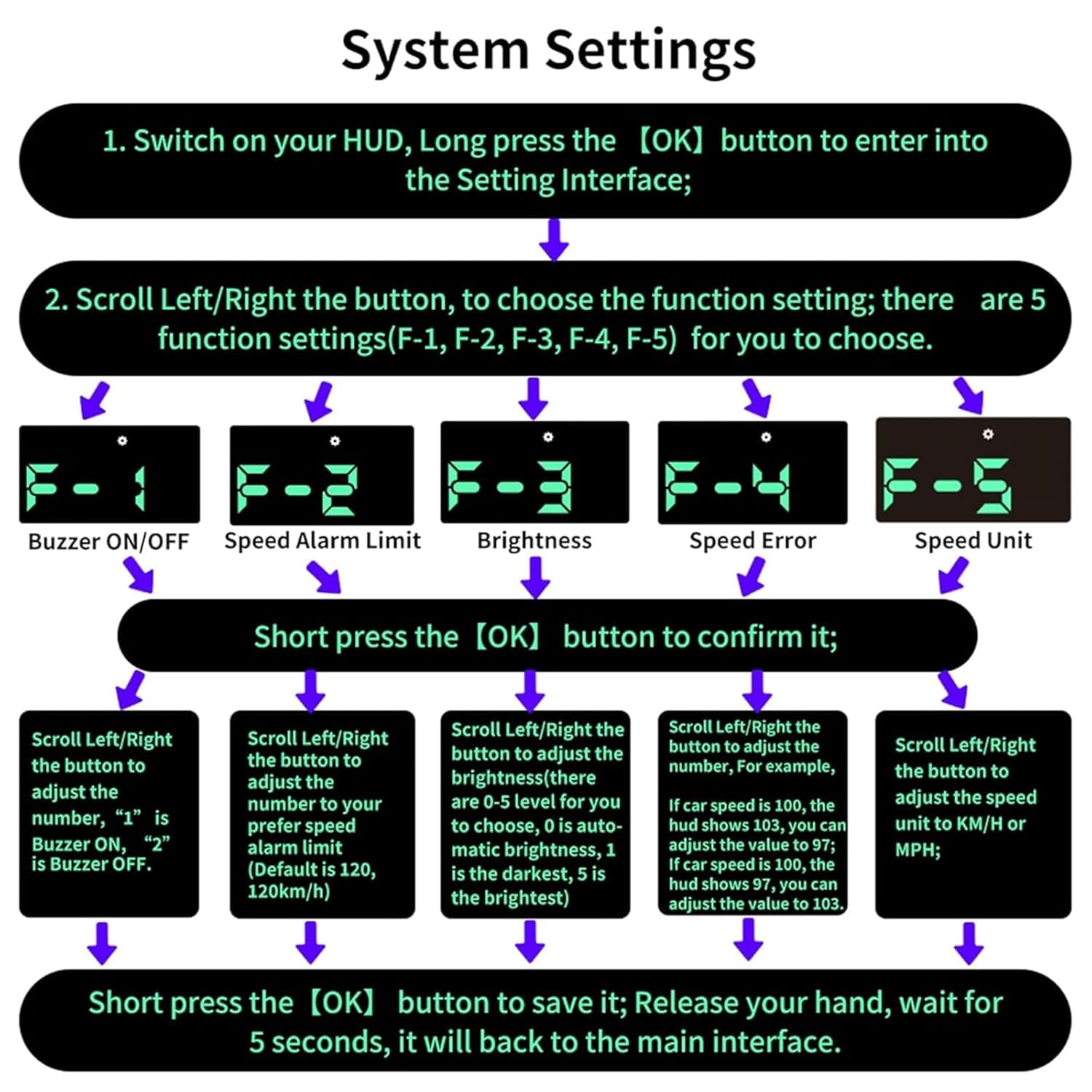
Image: A flowchart illustrating how to navigate and adjust the system settings on the HUD, including buzzer, speed alarm, brightness, speed error, and speed unit.
6. Troubleshooting
6.1 Common Issues and Solutions
- No Display/Power: Ensure the USB cable is securely connected to both the HUD unit and a functional USB power source in your vehicle. Check the vehicle's USB port for power.
- No Speed Reading/GPS Signal Flashing:
- Ensure the vehicle is in an open environment, away from tunnels, underground garages, or dense urban areas that may obstruct satellite signals.
- Wait for the device to acquire a stable GPS signal (GPS signal icon will stop flashing). This may take a few minutes upon first use or after a long period of inactivity.
- If your car's windshield has a metal explosion-proof film, it might interfere with GPS reception. Consider repositioning the HUD or using the reflective film.
- Inaccurate Speed Reading:
- GPS-based speed tracking devices may have a slight margin of error (0.6-1.8 mph). This is normal.
- Use the "Speed Error" setting (F-4) to calibrate the HUD's speed display to match your vehicle's speedometer more closely.
- Display Not Clear/Reflective:
- Ensure the HUD is placed on a flat, stable surface.
- Adjust the angle of the HUD.
- Apply the provided reflective film to the windshield for enhanced clarity, especially in bright conditions.
- Speeding Alert Not Working: Check the "Buzzer ON/OFF" setting (F-1) to ensure the buzzer is enabled. Verify the "Speed Alarm Limit" setting (F-2) is configured correctly.
If you encounter issues not covered here, please refer to the contact information in the Support section.
7. Specifications
| Feature | Detail |
|---|---|
| Product Dimensions | 3.4 x 1.6 x 0.4 inches |
| Item Weight | 1.6 ounces (0.1 Pounds) |
| Model Number | H1 |
| Brand | KUOWEIHUD |
| Material | Acrylonitrile Butadiene Styrene (ABS) |
| Power Supply | USB (5-25V) |
| Signal Type | GPS+BDS Dual-Mode |
| Refresh Rate | 10 Hz |
| Display Unit | MPH (default), KM/H selectable |
| Max Display Speed | 115 mph |
| UPC | 768771768962 |
8. Warranty and Support
For warranty information or technical support, please contact KUOWEIHUD customer service through the retailer where the product was purchased or visit the official KUOWEIHUD website. Please have your product model number (H1) and purchase details ready when contacting support.
We are committed to providing solutions and will respond to inquiries within 24 hours.