Introduction
The Uxsjakjsd T22 Smart Translator is a versatile device designed for real-time language translation. Featuring a 5.5-inch display, it supports 142 languages for online translation and offers robust offline translation capabilities. Its 5-megapixel camera enables photo translation, making it an indispensable tool for travel, business, and communication across language barriers.

Image: Front view of the Uxsjakjsd T22 Smart Translator, displaying its user interface with time and translation application icons.

Image: The T22 Smart Translator highlighting its AI translation capabilities, showing both the front display and the rear camera design.
Product Features
- Extensive Language Support: Translate 142 languages for global communication.
- Offline Translation: Built-in offline translation engine for use without internet. Supports Simplified Chinese, Taiwanese, English (USA), Japanese, Korean, German, Spanish, Russian, French, Thai, Arabic, Italian, Portuguese, Dutch, Hindi, Indonesian, Vietnamese.
- Photo Translation: Supports 57 languages for mutual translation using the 5-megapixel rear HD camera.
- Dialogue Translation: Online real-time transcription and translation of dialogue content, supporting reverse partitioning for face-to-face communication.
- Intelligent Recording: Supports recording and translation of recorded content. Offline recording and transcribing supported for Simplified Chinese, Traditional Chinese, Taiwanese, English (American), English (British), Japanese, Korean, German, Spanish, Russian, French, Thai, Arabic, Portuguese, Vietnamese, Italian, Dutch, and Hindi.

Image: An infographic detailing the core features of the T22 Translator, including connectivity, camera, audio, display, and battery specifications.
Specifications
| Attribute | Detail |
|---|---|
| Product Model | T22 |
| Camera | 5 million pixels |
| Networking Mode | Offline / WiFi (2.4G/5G support) |
| Resolution | 768x1280 |
| Battery Capacity | 3.7V/2300mA |
| Running Memory | 1G |
| Storage Capacity | 16G |
| Colour | Metal Grey |
| Product Dimensions | 18 x 15 x 6 cm |
| Item Weight | 210 g |
Setup
1. Charging the Device
Before first use, fully charge the T22 Smart Translator. Connect the provided charging cable to the device's charging port and plug the other end into a compatible USB power adapter (not included) or a computer's USB port. The charging indicator will show the charging status.
2. Powering On/Off
- To Power On: Press and hold the power button located on the side of the device until the screen illuminates.
- To Power Off: Press and hold the power button until a power-off menu appears on the screen. Select "Power Off" to shut down the device.
3. Network Connection (WiFi)
For online translation features, connect the device to a WiFi network:
- From the home screen, navigate to "Settings".
- Select "Wi-Fi" and turn it on.
- Choose your desired network from the list of available networks.
- Enter the Wi-Fi password if prompted and tap "Connect".
Operating Instructions
1. Online Translation (142 Languages)
This mode requires an active internet connection via Wi-Fi. It provides the broadest language support.
- Ensure the device is connected to Wi-Fi.
- From the home screen, select the "Online Translation" icon.
- Choose the source and target languages.
- Press and hold the microphone button corresponding to your language and speak clearly. Release the button to hear the translation.

Image: A comprehensive list of the 142 languages supported for online translation by the T22 device.

Image: A visual representation of the global reach of the T22 translator, supporting interpretation across 142 languages worldwide.
2. Offline Translation
The device has a built-in offline translation engine for use without an internet connection. This is ideal for areas with limited connectivity.
- Supported Offline Languages: Simplified Chinese, Taiwanese, English (USA), Japanese, Korean, German, Spanish, Russian, French, Thai, Arabic, Italian, Portuguese, Dutch, Hindi, Indonesian, Vietnamese.
- To use, select "Offline Translation" from the home screen and choose the pre-downloaded language pairs.
3. Photo Translation
Translate text from images using the device's camera.
- Select the "Photo Translation" icon from the home screen.
- Point the camera at the text you wish to translate (e.g., signs, menus, documents).
- Tap the capture button. The device will process the image and display the translated text.

Image: Demonstrations of the photo translation feature applied to various real-world scenarios like street signs, books, and menus.

Image: Details on the 5-megapixel camera and a partial list of the 57 languages available for photo translation.
4. Dialogue Translation
Facilitates real-time, face-to-face conversations by transcribing and translating spoken dialogue.
- Select the "Dialogue Translation" icon.
- Each participant speaks into the device, and the translation is displayed and spoken aloud. The device supports reverse partitioning for clear communication.
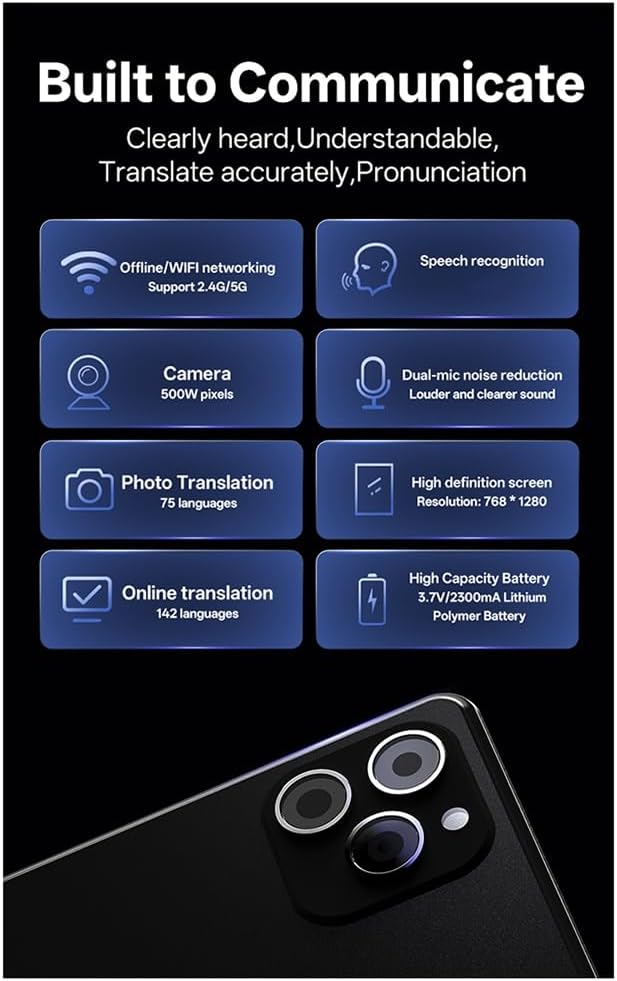
Image: The T22 translator's screen displaying the interface for conversation translation, emphasizing its large screen resolution.
5. Intelligent Recording
Record audio and have it transcribed and translated.
- Select the "Recording" or "Intelligent Recording" icon.
- Start recording. Once finished, the device can transcribe the audio and translate it into a selected language.
- Offline recording and transcribing are supported for specific languages (refer to Product Features).
Maintenance
- Cleaning: Use a soft, dry cloth to clean the device. Do not use liquid cleaners or aerosols.
- Storage: Store the device in a cool, dry place away from direct sunlight and extreme temperatures.
- Battery Care: To prolong battery life, avoid fully discharging the battery frequently. Charge the device regularly, even if not in use for extended periods.
- Avoid Impacts: Protect the device from drops and impacts, which can damage internal components or the screen.
Troubleshooting
- Device Not Powering On:
Ensure the device is fully charged. Connect it to a charger for at least 30 minutes before attempting to power on again.
- No Sound from Speaker:
Check the volume settings. Ensure the device is not muted. If using headphones, disconnect them to check the internal speaker.
- Translation Inaccurate or Not Working:
For online translation, verify your Wi-Fi connection is stable. For all modes, ensure you are speaking clearly and at a moderate pace. Check that the correct source and target languages are selected. For photo translation, ensure good lighting and clear text.
- Device Freezes or Responds Slowly:
Try restarting the device by holding the power button until it powers off, then power it back on. If the issue persists, consider performing a factory reset (refer to settings menu, note this will erase user data).
- Wi-Fi Connection Issues:
Ensure the Wi-Fi password is correct. Try restarting your Wi-Fi router. Move closer to the Wi-Fi access point to improve signal strength.
Warranty and Support
For warranty information and technical support, please refer to the documentation provided with your purchase or contact Uxsjakjsd customer service. Keep your proof of purchase for warranty claims.
Manufacturer: Uxsjakjsd
Model Number: 500835163