
1. Introduction
This manual provides detailed instructions for the installation, operation, and maintenance of your IIWEY Q5 4K+4K Dual Dash Cam. Please read this manual thoroughly before using the device to ensure proper functionality and to maximize your user experience. Keep this manual for future reference.
2. Product Overview and Package Contents
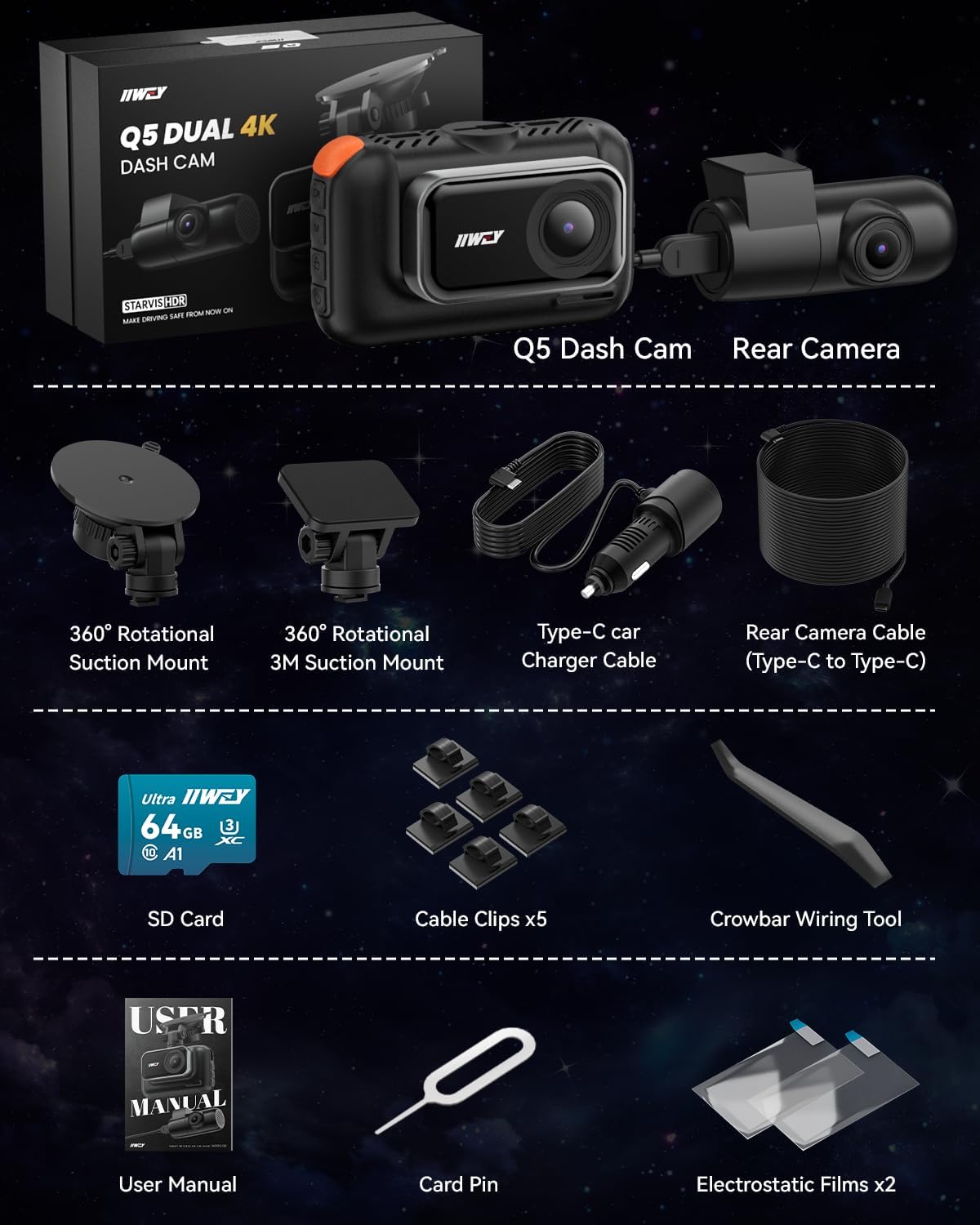
The IIWEY Q5 is a dual-channel dash camera system designed to record both front and rear views of your vehicle in 4K resolution. It features 5G Wi-Fi connectivity, STARVIS sensors for enhanced night vision, HDR technology, 24-hour parking monitoring (with optional hardwire kit), G-sensor for incident detection, and loop recording.
Package Contents:
- 1x 4K Front Camera (Main Unit)
- 1x 4K Rear Camera
- 1x Car Charger with Cable
- 1x Rear Camera Cable (5.5 Meters, Type-C to Type-C)
- 1x 64GB Micro SD Card
- 1x 360° Rotational Suction Mount
- 1x 360° Rotational 3M Suction Mount
- 5x Cable Clips
- 1x Crowbar Wiring Tool
- 2x Electrostatic Films
- 1x Card Pin
- 1x User Manual
3. Setup and Installation
3.1 Preparing for Installation
- Insert SD Card: Locate the SD card slot on the main camera unit. Insert the provided 64GB Micro SD card until it clicks into place. Ensure the card is inserted correctly.
- Clean Windshield: Choose a suitable location on your windshield, preferably behind the rearview mirror, to avoid obstructing your view. Clean the area thoroughly.
3.2 Mounting the Front Camera
- Attach the suction mount to the front camera unit.
- Press the suction cup firmly against the cleaned windshield and lock it in place.
- Adjust the camera angle to ensure a clear view of the road ahead. The bracket angle is adjustable.
3.3 Installing the Rear Camera
- Identify a suitable location for the rear camera inside your vehicle, typically on the rear window. The rear camera is designed for interior installation.
- Use the provided 3M adhesive mount to secure the rear camera.
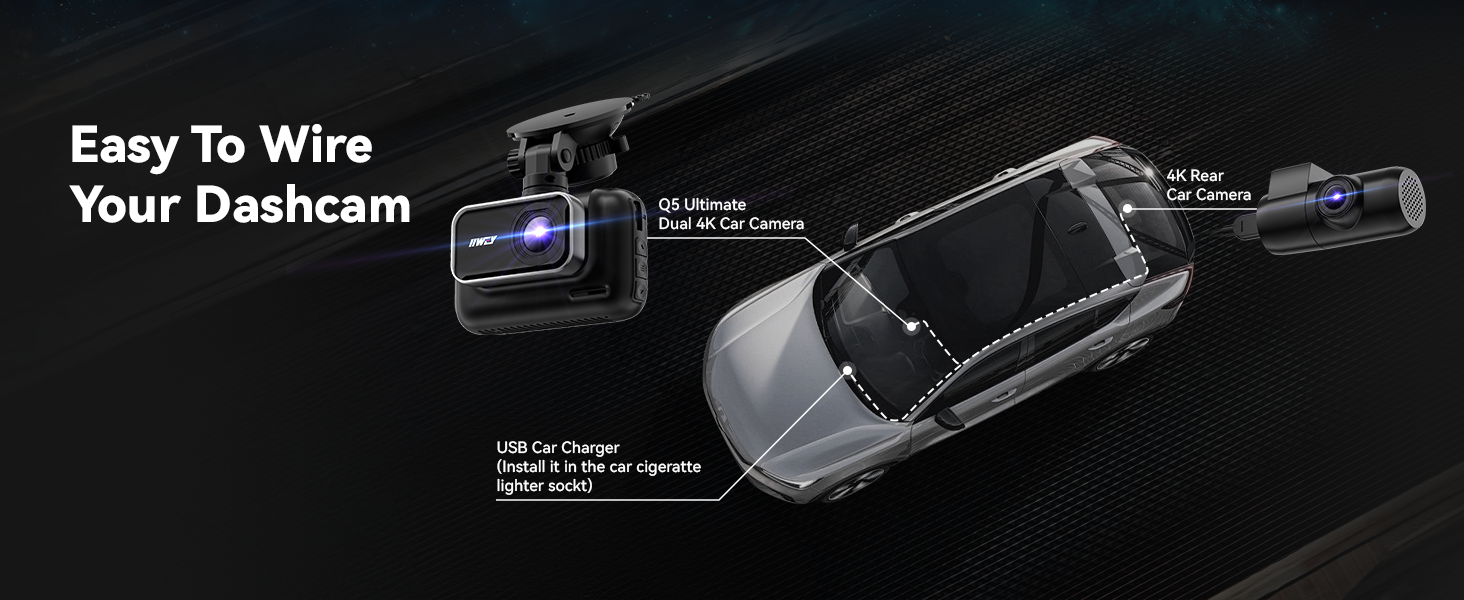
- Connect the rear camera to the main front camera unit using the 5.5-meter Type-C cable. Route the cable discreetly along the vehicle's headliner and pillars using the crowbar wiring tool and cable clips.
3.4 Power Connection
- Connect the car charger cable to the main front camera unit.
- Plug the car charger into your vehicle's 12V power outlet (cigarette lighter socket).
- Route the power cable neatly to avoid interference with driving controls.

4. Operating Instructions
4.1 Automatic Recording
Once powered on, the dash cam will automatically start recording. Recording will stop when the vehicle's ignition is turned off and power is disconnected.
4.2 Dual 4K Recording and STARVIS HDR Night Vision
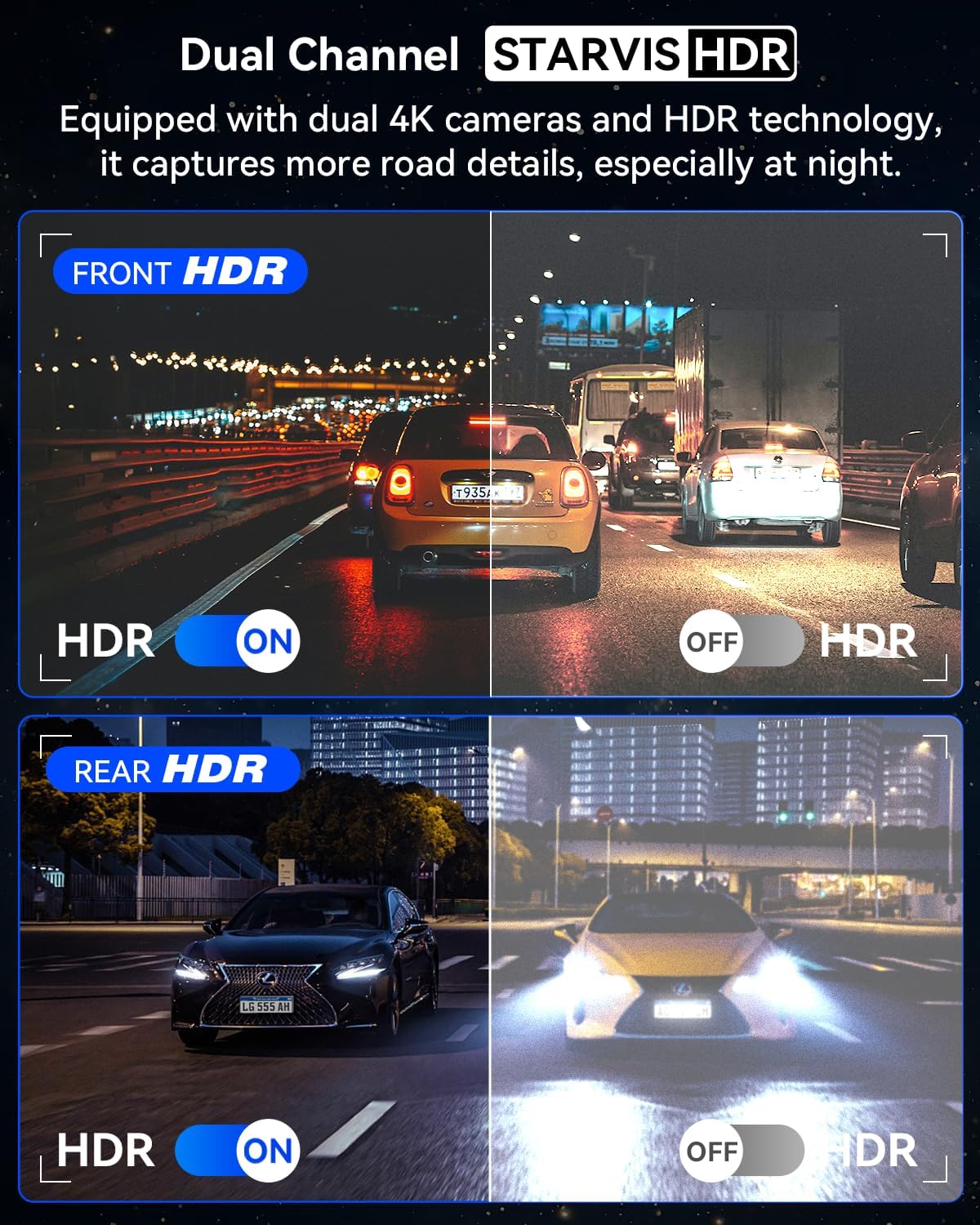
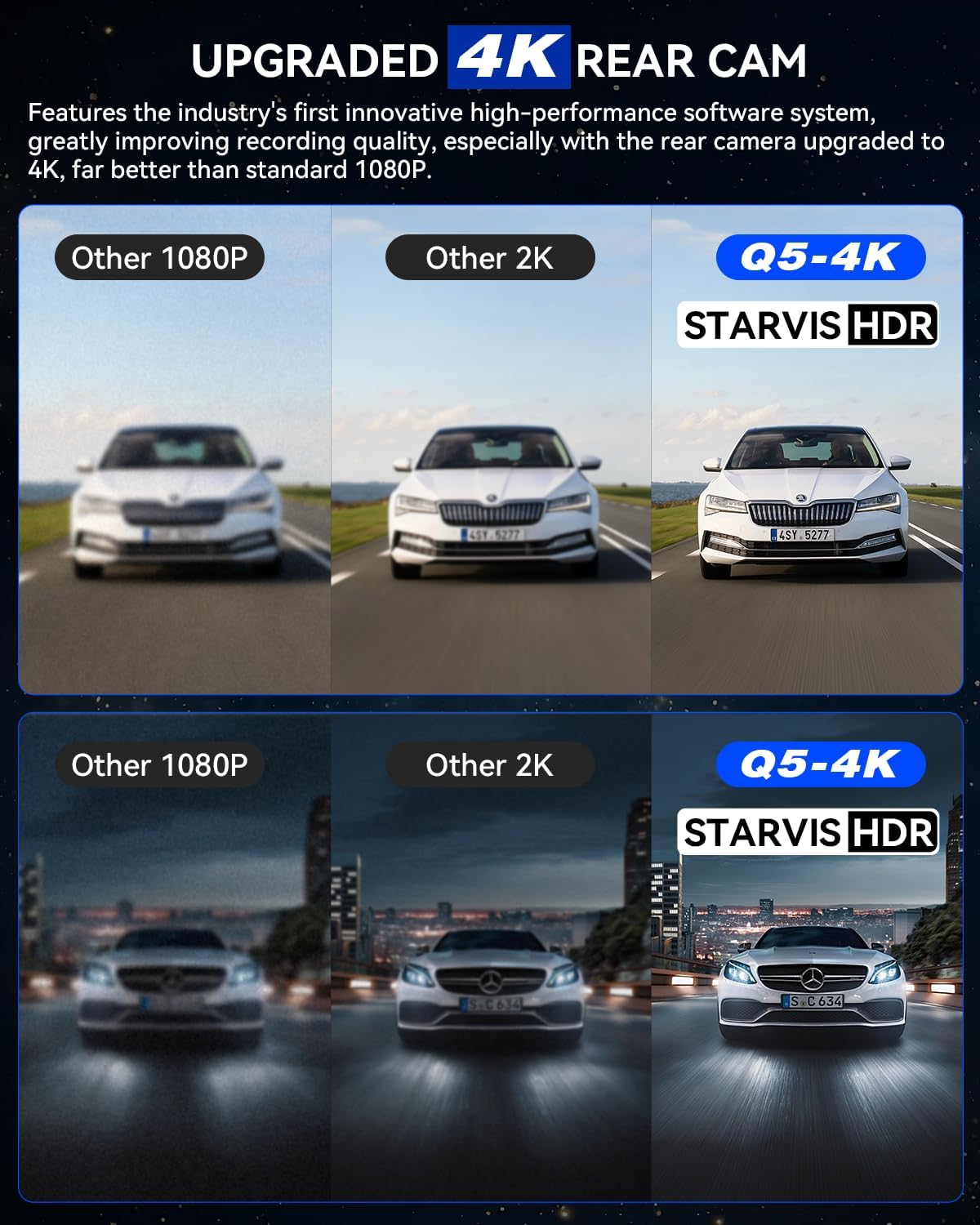
The IIWEY Q5 records simultaneously from both front and rear cameras in true 4K (2160P) resolution. Both cameras are equipped with advanced STARVIS sensors and f/1.6 large apertures, combined with HDR (High Dynamic Range) technology. This combination enhances clarity and brightness in low-light conditions, reducing noise and improving detail capture for both day and night footage.
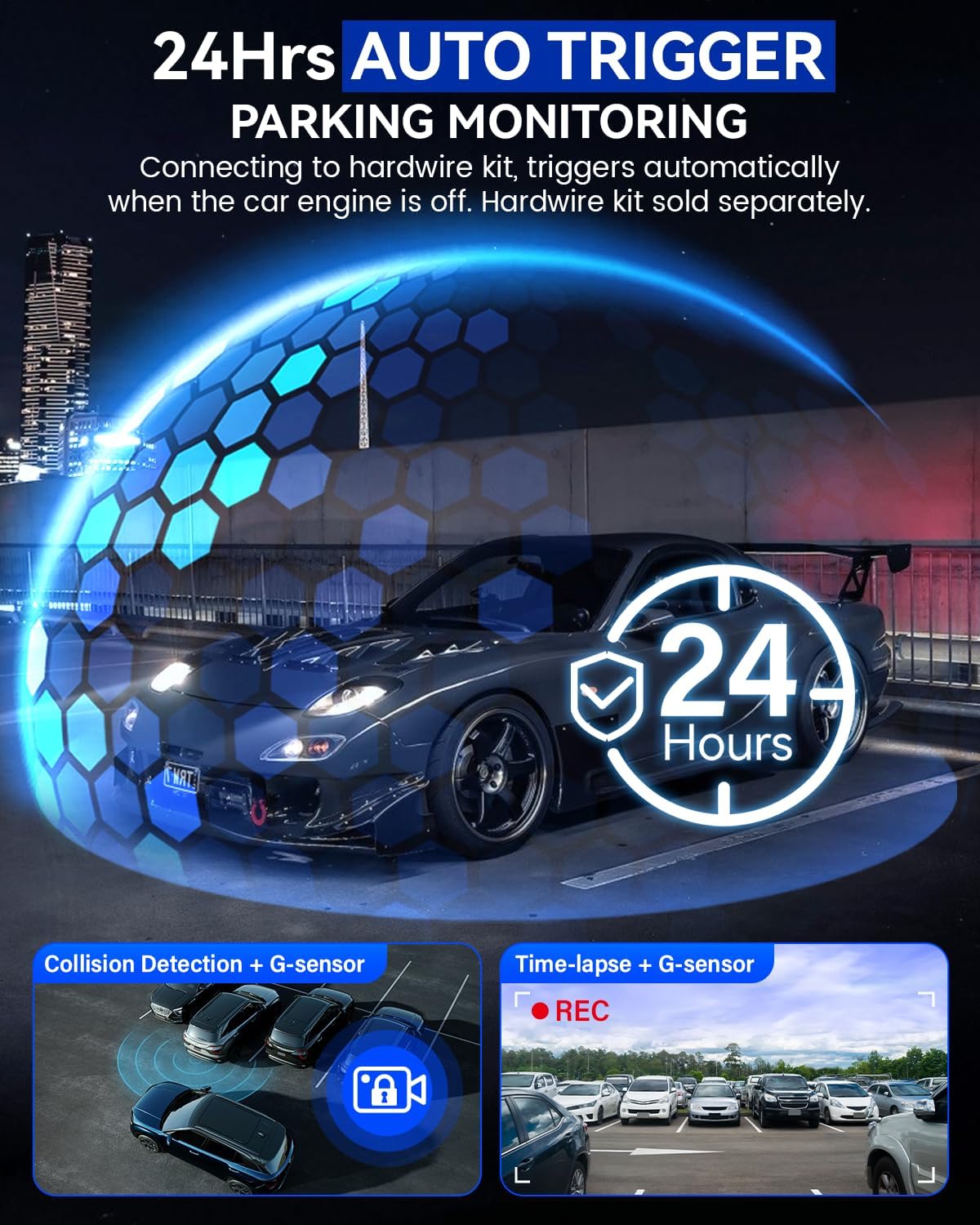
4.3 24-Hour Parking Monitoring
For continuous 24-hour parking monitoring, the dash cam requires a hardwire kit (sold separately, ASIN: B0F9XWY9F1). Once connected, you can select from two parking monitoring modes:
- Impact-Triggered Mode: The camera will automatically record and lock footage when an impact or collision is detected while the vehicle is parked.
- Time-Lapse Recording: The camera continuously records at a low frame rate, providing extended coverage while minimizing file size. Recording duration can be customized to 8, 12, 24, or 72 hours.
4.4 G-Sensor and Emergency Lock
The built-in G-sensor automatically detects sudden impacts or collisions. When an event is detected, the current recording is automatically locked to prevent it from being overwritten by loop recording. Collision sensitivity can be adjusted to High, Medium, or Low via the camera settings.

4.5 Loop Recording
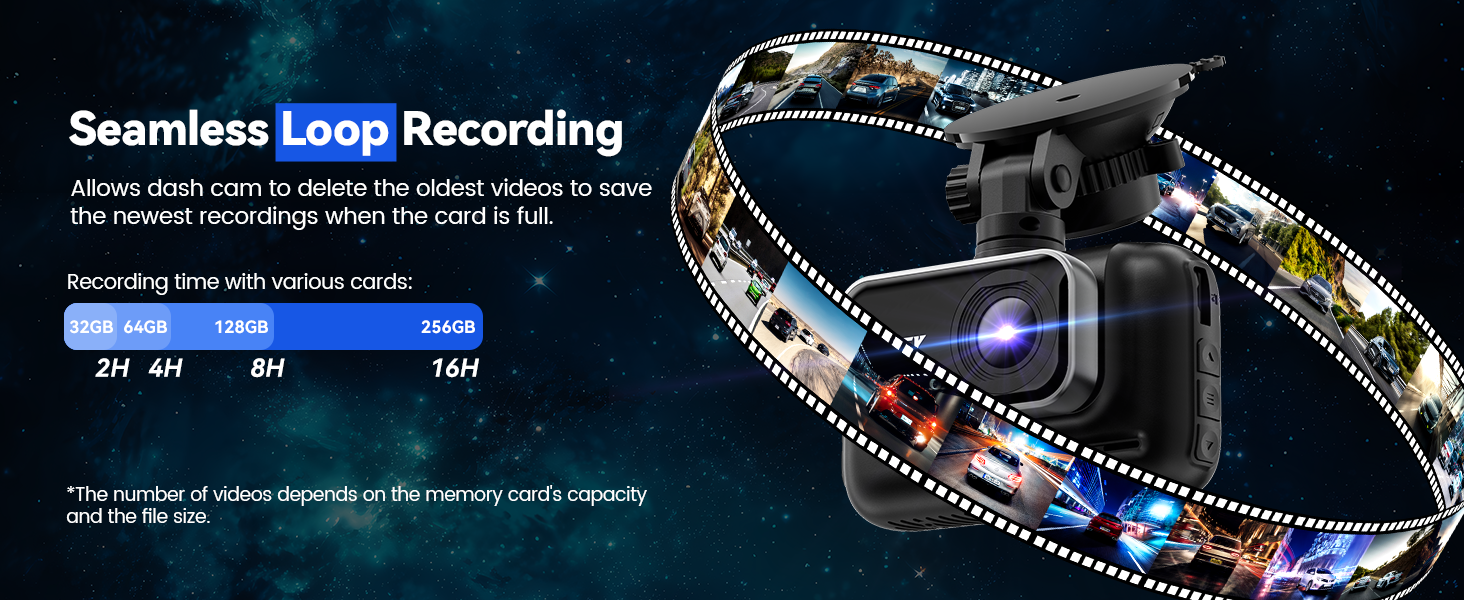
The dash cam utilizes loop recording, which continuously records video in segments. When the memory card is full, the oldest unlocked files are automatically overwritten by new recordings. This ensures continuous recording without manual intervention.
4.6 5G Wi-Fi Connectivity and App Usage
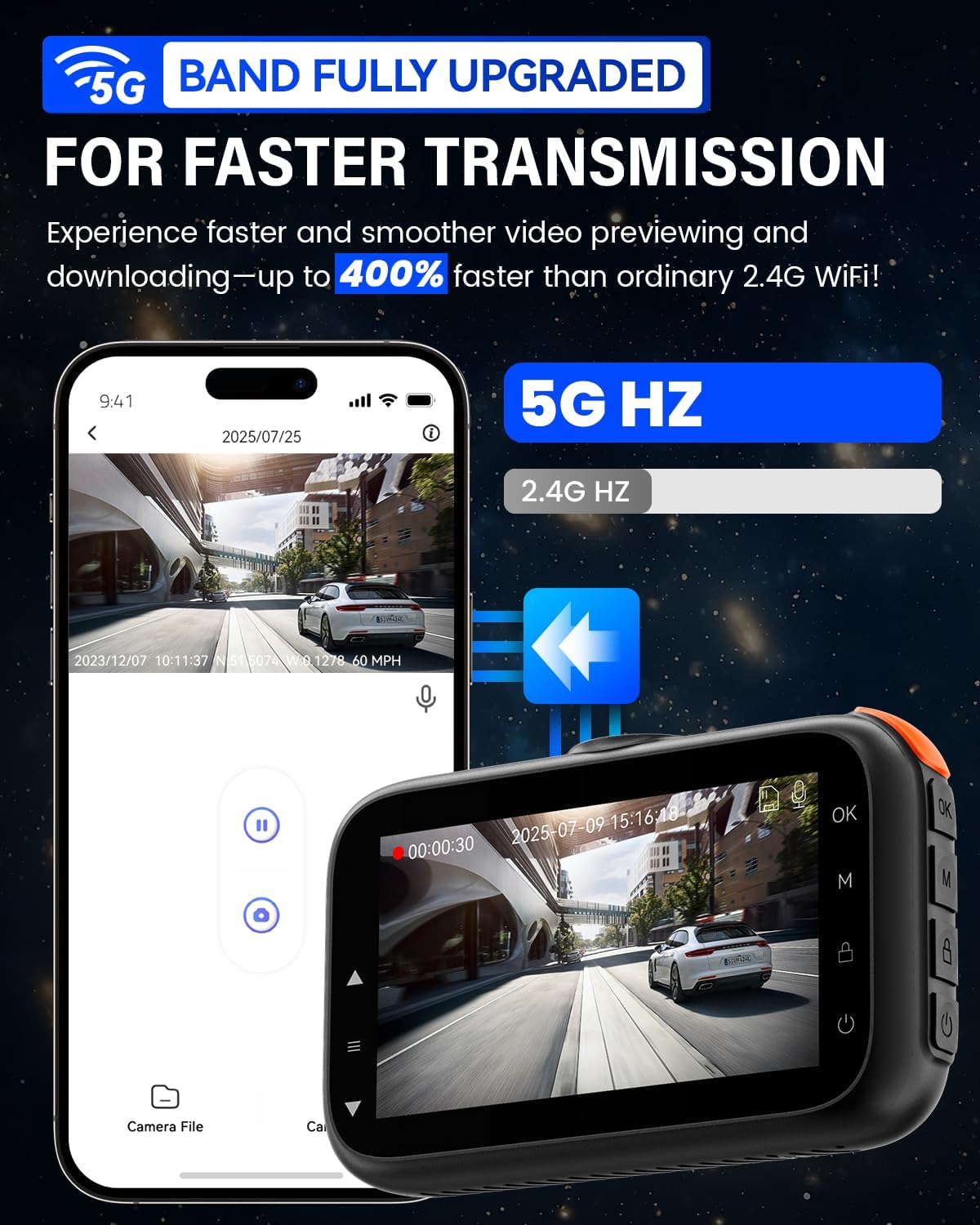
The IIWEY Q5 features optimized 5.8GHz Wi-Fi for high-speed data transfer. Download the IIWEY App on your smartphone to connect to the dash cam. This allows you to:
- Preview live video footage.
- Download recorded clips to your phone.
- Adjust camera settings.
- Share videos directly from the app.

5. Maintenance
- Clean Lenses: Regularly clean the front and rear camera lenses with a soft, lint-free cloth to ensure clear recordings.
- SD Card Formatting: It is recommended to format the Micro SD card every 2-4 weeks to maintain optimal performance and prevent data corruption. This can usually be done through the camera's menu settings.
- Firmware Updates: Check the official IIWEY website periodically for firmware updates. Keeping your dash cam's firmware updated can improve performance and add new features.
- Temperature Considerations: The dash cam is equipped with a super-capacitor for enhanced durability in extreme temperatures (-4°F to 158°F). However, avoid prolonged exposure to direct sunlight in extremely hot conditions when the vehicle is parked, if possible.

6. Troubleshooting
- Camera Not Turning On: Ensure the car charger is properly connected to both the dash cam and the vehicle's power outlet. Check if the vehicle's 12V power outlet is functioning.
- Recording Stops Unexpectedly: Format the SD card. Ensure the SD card is a high-speed Class 10, U3 card. If the issue persists, try a different compatible SD card.
- Video Footage is Blurry: Clean the camera lenses. Ensure the protective film has been removed from the lenses. Check if the camera is securely mounted and not vibrating.
- Wi-Fi Connection Issues: Ensure the IIWEY App is updated to the latest version. Restart your smartphone and the dash cam. Make sure you are within close proximity to the dash cam when attempting to connect.
- Parking Mode Not Working: Verify that the optional hardwire kit is correctly installed and connected. Ensure the parking monitoring setting is enabled in the camera's menu.
- G-Sensor Too Sensitive/Not Sensitive Enough: Adjust the G-sensor sensitivity setting in the camera's menu (High, Medium, Low).
7. Specifications
| Feature | Specification |
|---|---|
| Model Name | Q5 |
| Video Capture Resolution | 2160p (4K) Front & Rear |
| Field Of View | 170 Degrees |
| Connectivity Technology | 5G Wi-Fi |
| Special Features | 24/7 Parking Monitoring, Dual Channel, Automatic Incident Detection (G-Sensor), 3 Inch IPS Screen, Built-In 5G WiFi, STARVIS Night Vision, HDR |
| Mounting Type | Windshield Mount |
| Product Dimensions | 1.97 x 2.18 x 3.94 inches |
| Item Weight | 10.6 ounces |
| Included Components | Front Camera, Rear Camera, Car Charger, Rear Camera Cable, Installation Tool, User Manual, 64GB SD Card |
| Manufacturer | IIWEY |
8. Warranty and Support
All IIWEY dash cameras come with an 18-month worry-free support period. If you have any questions or encounter issues with your product, please contact IIWEY customer service through the platform where you purchased the device. Please provide your model number (Q5) and a detailed description of the issue for efficient support.