
SABLUTE KG812A
SABLUTE Wireless Keyboard User Manual
Model: KG812A | Brand: SABLUTE
1. Introduction
This user manual provides comprehensive instructions for the SABLUTE Wireless Keyboard (Model KG812A). Designed for enhanced comfort and productivity, this keyboard features an ergonomic wave design, a cushioned wrist rest, and versatile wireless connectivity. It is compatible with various operating systems including Windows, Mac, Linux, and Chrome OS, making it suitable for a wide range of computing environments.
Key features include:
- Premium Keyboard with Integrated Leather Wrist Rest: Offers cloud-like support with memory foam and luxury leather to reduce wrist fatigue.
- Revolutionary Wave Ergonomic Design: Contoured key wells promote natural finger angles, aiming to reduce typing errors.
- Universal Compatibility: Seamlessly switch between Windows / Mac / Linux / Chrome OS.
- Dual Connectivity: Includes USB-A and USB-C receivers for broad device support.
- Plug and Play, Zero Lag: 2.4GHz wireless ensures stable connection up to 33ft (10m).
- Effective Hotkeys: 8 one-touch hotkeys for improved efficiency.
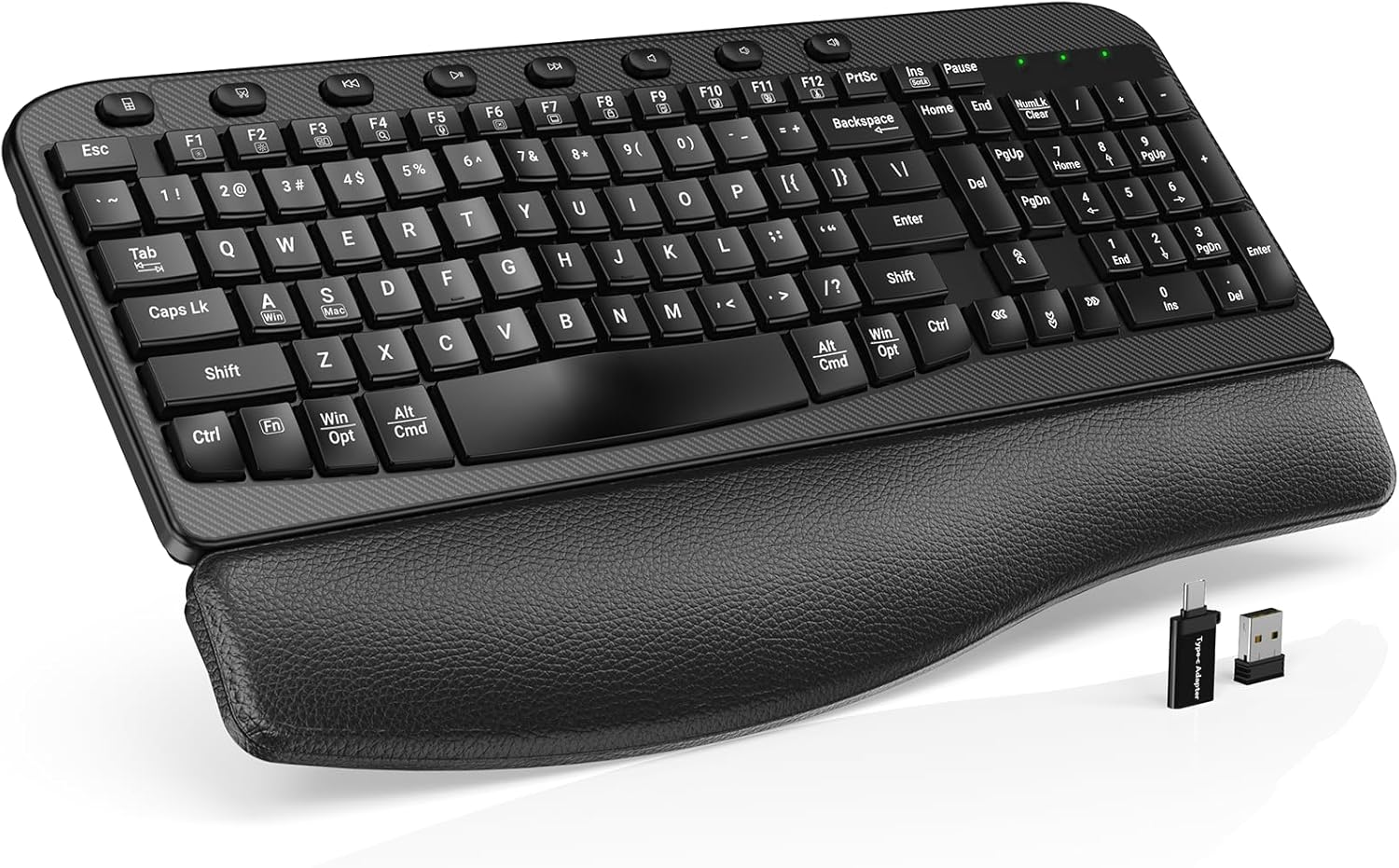
Figure 1.1: The SABLUTE Wireless Keyboard, featuring its ergonomic design and integrated wrist rest.
2. Package Contents
Upon opening the package, please verify that all components are present and in good condition:
- Wireless Keyboard x 1
- USB Receiver x 1
- Type-C Adapter x 1
- User Manual x 1

Figure 2.1: Illustration of the items included in the SABLUTE Wireless Keyboard package.
3. Setup
3.1 Battery Installation
The SABLUTE Wireless Keyboard requires one (1) AA battery for operation. The battery is not included in the package.
- Locate the battery compartment on the underside of the keyboard.
- Open the battery compartment cover.
- Insert one AA battery, ensuring correct polarity (+/-).
- Close the battery compartment cover securely.

Figure 3.1: View of the keyboard's underside, showing the battery compartment and adjustable feet.
Video 3.1: This video demonstrates the process of installing the AA battery into the keyboard and adjusting the foldable feet for optimal typing angle. (Relevant segment: 0:34-0:40)
3.2 Wireless Connection
The keyboard connects wirelessly via a 2.4GHz USB receiver, offering a stable connection up to 33 feet (10 meters). It supports both USB-A and USB-C ports through the included adapter.
- Locate the USB receiver and the Type-C adapter (if needed) from the package.
- For USB-A ports, directly plug the USB receiver into an available USB-A port on your computer.
- For USB-C ports, first insert the USB receiver into the Type-C adapter, then plug the adapter into a USB-C port on your computer.
- Turn on the keyboard using the ON/OFF switch located on the side. The keyboard is plug-and-play and should connect automatically.

Figure 3.2: The keyboard supports both USB-A and USB-C connections using the provided adapters.
Video 3.2: This video illustrates the wireless connection process, showing how to use both the USB receiver and the Type-C adapter for various devices. (Relevant segment: 0:29-0:33)
3.3 System Compatibility
The keyboard is universally compatible with Windows, Mac, Linux, and Chrome OS. You can switch between Windows and Mac layouts using specific function keys:
- To switch to Windows system layout: Press FN + A
- To switch to Mac system layout: Press FN + S

Figure 3.3: Instructions for switching between Windows and Mac system layouts using the FN key combinations.
Video 3.3: This video demonstrates how to switch between Windows and Mac system modes using the FN+A and FN+S key combinations. (Relevant segment: 0:50-0:54)
4. Operating Instructions
4.1 Ergonomic Design Features
The SABLUTE keyboard is engineered for comfort during extended use, incorporating several ergonomic features:
- Wave Keys: The contoured key wells are designed to align with natural finger angles, promoting a more comfortable and efficient typing posture.
- Cushioned Wrist Rest: An integrated wrist rest made of soft synthetic leather with a high-density support layer and rigid plastic base provides optimal wrist support, reducing strain and fatigue.
- Adjustable Tilt: The keyboard features foldable feet on the underside, allowing you to adjust the typing angle to a comfortable 7-degree tilt, further reducing wrist extension.

Figure 4.1: Detailed view of the 3-layer comfort system within the integrated wrist rest, providing ergonomic support.
Figure 4.2: The ergonomic wave key design promotes a natural and comfortable typing posture.

Figure 4.3: The keyboard's adjustable feet allow for a 7-degree tilt, which is lab-verified to reduce wrist extension.
Video 4.1: This video highlights the ergonomic wave keys, the soft wrist rest, and the adjustable foldable feet for comfortable typing. (Relevant segment: 0:05-0:19)
4.2 Hotkeys and Media Keys
The keyboard includes 8 dedicated one-touch hotkeys for quick access to common functions, enhancing productivity:
- Calculator
- Screenshot
- Previous song
- Play/pause
- Next song
- Mute
- Volume-
- Volume+
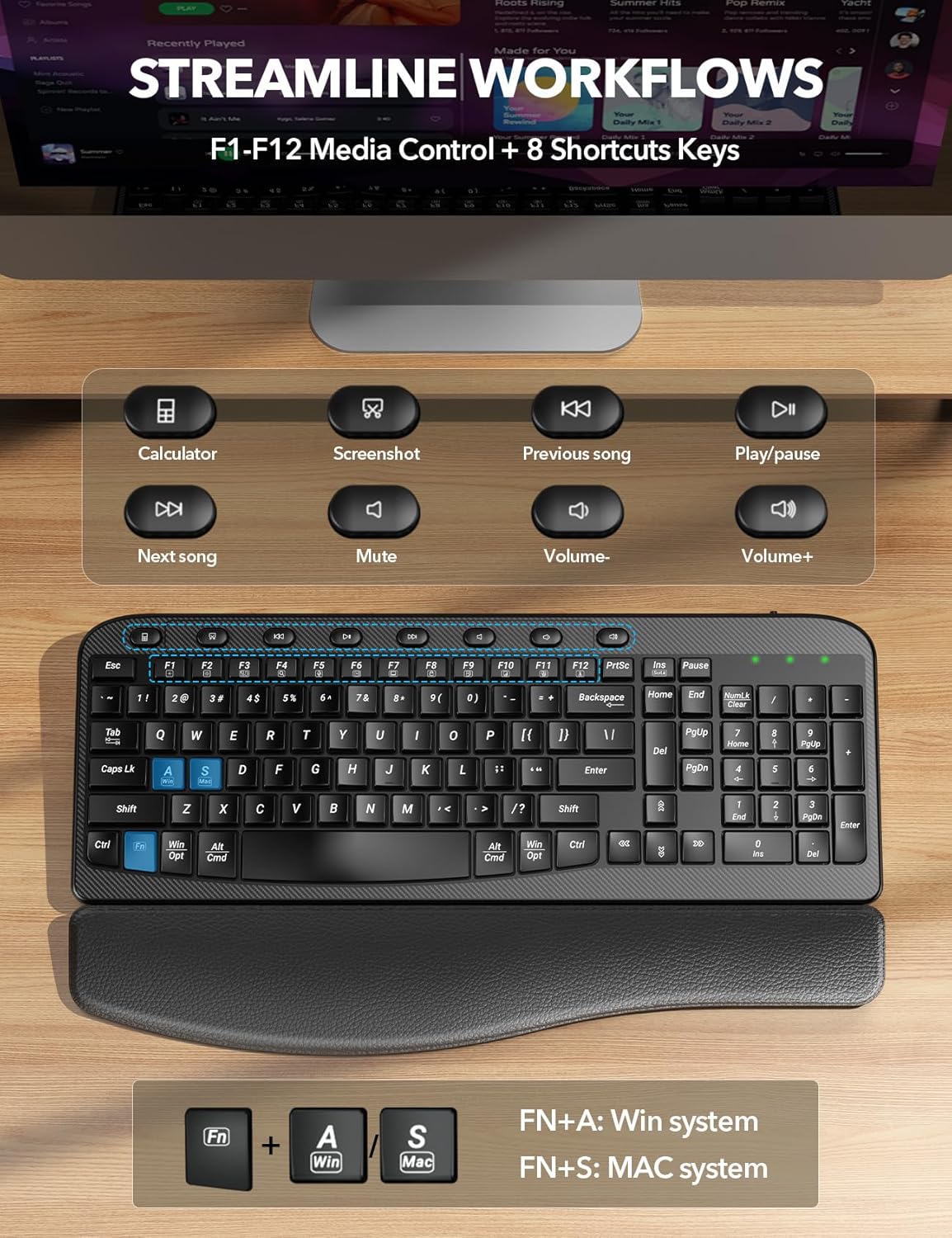
Figure 4.4: Overview of the dedicated hotkeys for streamlined workflow and media control.
Video 4.2: This video demonstrates the functionality of the one-touch hotkeys for various tasks such as calculator, screenshot, and media playback control. (Relevant segment: 0:20-0:25)
4.3 Power Management and Indicators
The keyboard is designed for ultra-long battery life with smart power-saving features:
- Auto-Sleep Mode: The keyboard automatically enters sleep mode after 10 minutes of inactivity to conserve battery. It instantly wakes with any key press.
- Battery Life: Provides up to 365 days of standby time and 250 hours of working time on a single AA battery.
- ON/OFF Switch: A physical switch is located on the side of the keyboard for manual power control.
Three indicator lights are located on the top right of the keyboard to provide status information:
- Num Lock Indicator
- Caps Lock Indicator
- Low Battery Warning

Figure 4.5: Overview of the keyboard's power-saving features, including auto-sleep and battery life.
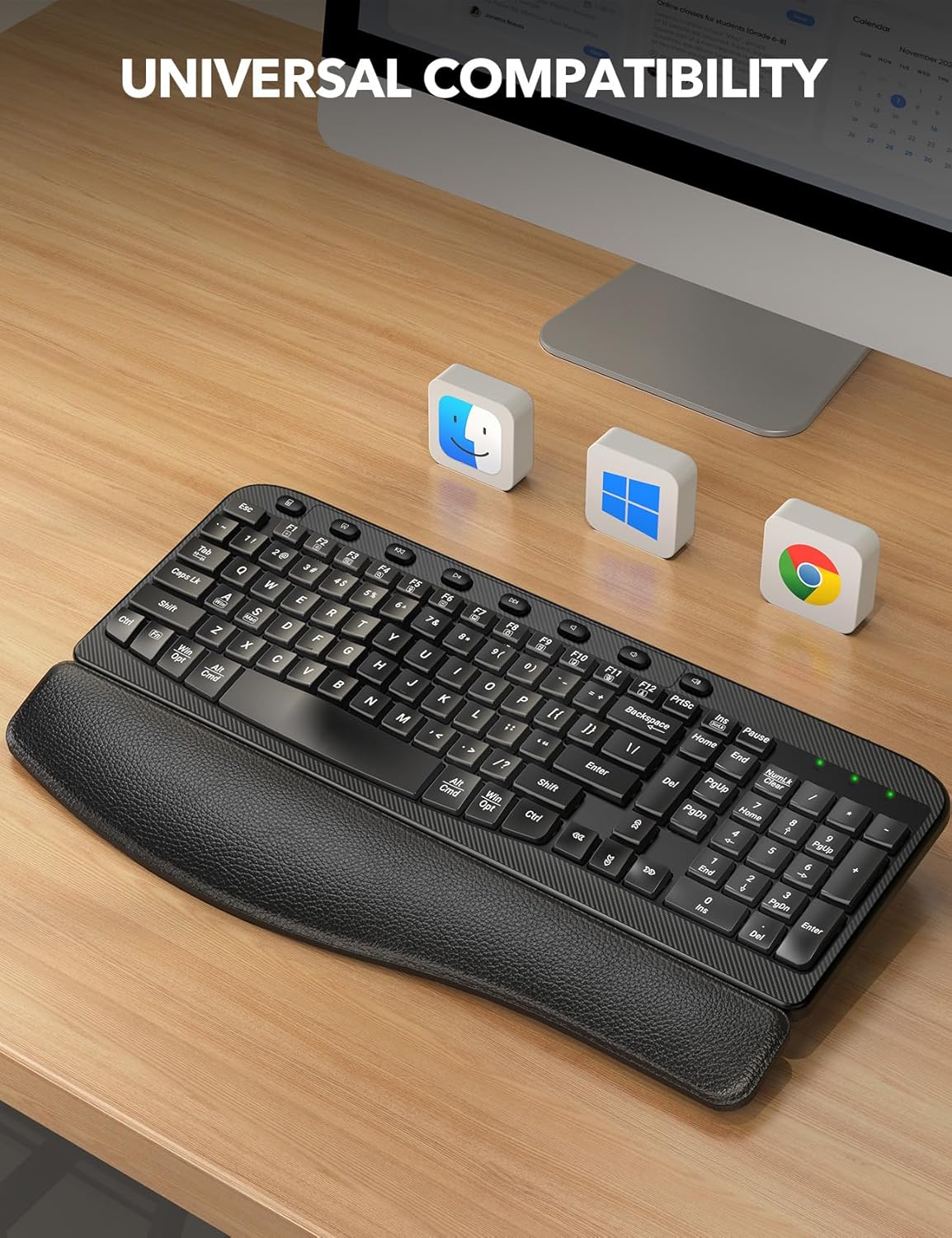
Figure 4.6: Close-up of the three indicator lights: Num Lock, Caps Lock, and Low Battery Warning.
Video 4.3: This video demonstrates the ON/OFF switch and highlights the indicator lights for Num Lock, Caps Lock, and low battery warning. (Relevant segment: 0:41-0:47)
5. Maintenance
To ensure the longevity and optimal performance of your SABLUTE Wireless Keyboard, follow these maintenance guidelines:
- Cleaning: The integrated wrist rest is made of premium scratch-resistant leather and can be easily cleaned with a single wipe. For the keys and keyboard surface, use a soft, dry cloth. For stubborn dirt, a slightly damp cloth with mild soap can be used, ensuring no liquid enters the keyboard.
- Storage: When not in use for extended periods, turn off the keyboard using the ON/OFF switch and store it in a dry, cool place away from direct sunlight and extreme temperatures.
- Battery Replacement: Replace the AA battery when the low battery warning indicator illuminates to ensure uninterrupted performance.
Video 5.1: This video demonstrates how to clean the premium scratch-resistant leather wrist rest with a simple wipe. (Relevant segment: 0:48-0:50)
6. Troubleshooting
If you encounter any issues with your SABLUTE Wireless Keyboard, please refer to the following common troubleshooting steps:
- Keyboard Not Responding:
- Ensure the keyboard is turned ON using the side switch.
- Check the battery. Replace with a fresh AA battery if the low battery indicator is on or if the keyboard has been in use for an extended period.
- Verify the USB receiver is securely plugged into a working USB port on your computer. Try a different USB port if necessary.
- Ensure the keyboard is within the 33ft (10m) wireless range of the receiver.
- Restart your computer.
- Keys Not Functioning Correctly:
- Check if the Caps Lock or Num Lock indicators are on or off as expected.
- Ensure the correct system mode (Windows/Mac) is selected using FN+A or FN+S.
- Clean around the affected keys to remove any debris that might be obstructing them.
- Lag or Disconnection:
- Move the keyboard closer to the USB receiver.
- Avoid placing the receiver near other wireless devices or large metal objects that might cause interference.
- Ensure there are no other strong wireless signals interfering with the 2.4GHz connection.
If these steps do not resolve the issue, please contact SABLUTE customer support for further assistance.
7. Specifications
| Feature | Detail |
|---|---|
| Brand | SABLUTE |
| Model Name | KG812A |
| Connectivity Technology | 2.4GHz USB Wireless |
| Keyboard Description | Membrane |
| Special Feature | Ergonomic, Hotkeys and Media Keys, Wrist Rest |
| Color | Black |
| Number of Keys | 111 |
| Material | Leather, Plastic |
| Item Weight | 2.18 pounds |
| Package Dimensions | 17.44 x 9.76 x 1.57 inches |
| Compatible Devices | Laptop, PC |
| Power Source | 1 AA Battery (not included) |
| Wireless Range | Up to 33ft (10m) |
| Auto-Sleep Time | 10 minutes idle |
| Standby Time | 365 Days |
| Working Time | 250 Hours |
8. Warranty and Support
SABLUTE is committed to customer satisfaction. Your SABLUTE Wireless Keyboard is backed by our promise of quality and support.
- 24-Hour Reply: Expect a response to your inquiries within 24 hours.
- 90-Day Replacement: Eligible for replacement within 90 days of purchase for any manufacturing defects.
- 360-Day Manufacturer Warranty: Comprehensive manufacturer warranty for 360 days from the date of purchase.
- Brand Care: Dedicated support to ensure your satisfaction.
Contact Information:
For pre-sales questions, troubleshooting, accessory reissue, returns, and exchanges, please contact us:
- Email Support: sabluteservices@outlook.com
- Phone Support (US): +1-888-858-1618 (Mon-Fri 9am-1pm PST, 2pm-6pm PST)

Figure 8.1: Overview of SABLUTE's after-sales support, including contact methods and services offered.

Figure 8.2: Details on SABLUTE's commitment to brand care, including response times and warranty periods.
Related documentsKG812A


Ask a question about this manual
Ask about setup, troubleshooting, compatibility, parts, safety, or missing instructions. Manuals+ will review the question and use this page’s manual context to help answer it.