
Introduction
This manual provides detailed instructions for the proper use and maintenance of your OPPO Pencil 2 OPN2404. Please read this manual thoroughly before using the product to ensure optimal performance and longevity. Keep this manual for future reference.
Product Overview
The OPPO Pencil 2 OPN2404 is a high-precision digital stylus designed to enhance your tablet experience with natural writing and drawing. It features an innovative low-latency engine and 240Hz sampling rate for smooth, responsive input, minimizing lag in compatible applications like OPPO Notes and WPS Office. The soft rubber pen tip provides a comfortable, paper-like writing feel, allowing for clear and precise strokes even without a paper-like screen protector. With 4096 levels of pressure sensitivity, it enables delicate and expressive line variations. A physical shortcut button on the stylus offers quick access to functions such as brush switching with a single tap and screenshot capture with a long press, supporting efficient note-taking and creative work.
Components
- OPPO Pencil 2 Stylus
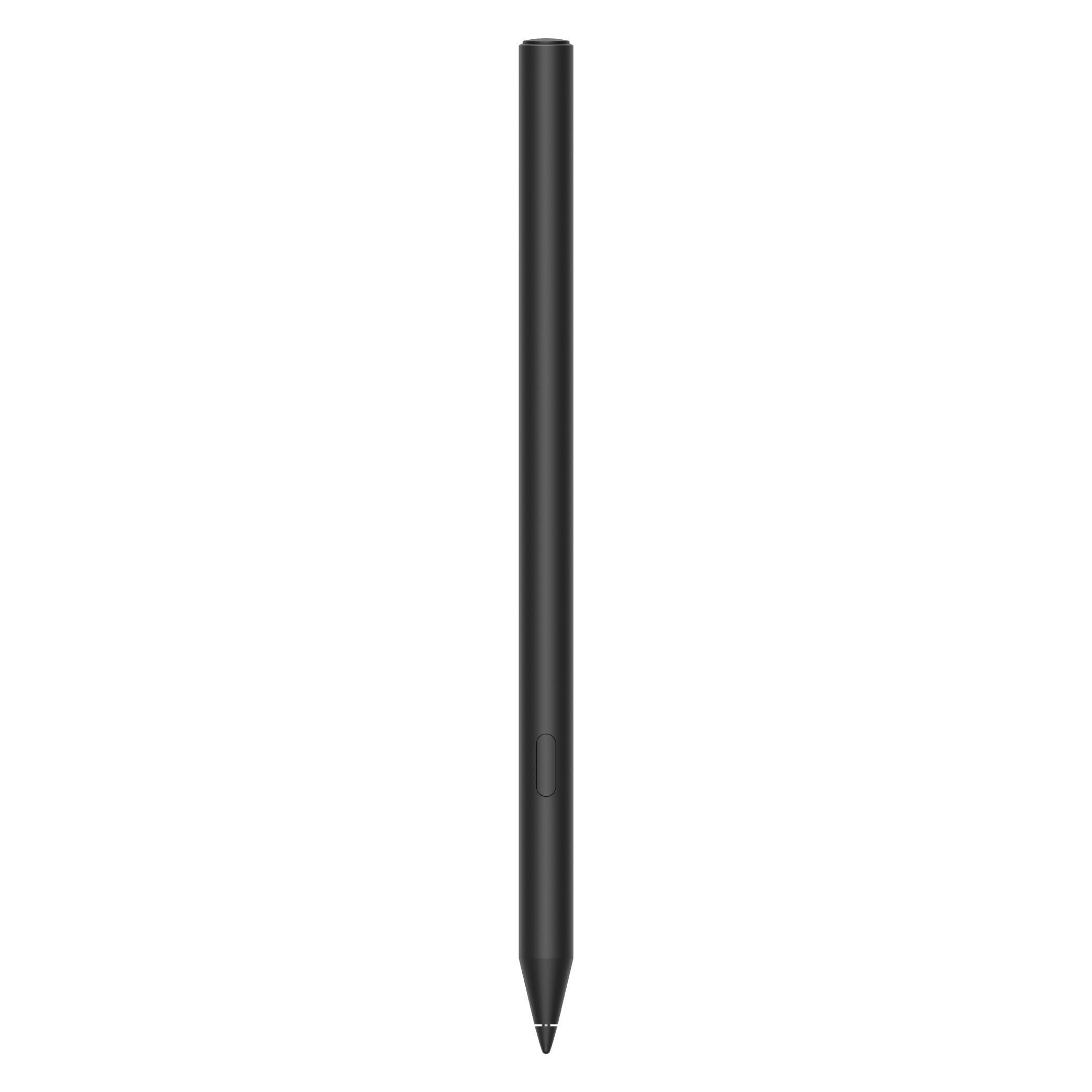
Image: The OPPO Pencil 2 stylus, featuring a sleek black design.
Setup
Charging the Stylus
The OPPO Pencil 2 charges wirelessly when attached to a compatible OPPO tablet. Ensure the stylus is correctly aligned with the designated magnetic charging area on your tablet.
Pairing with Your Tablet
- Attach the OPPO Pencil 2 to the magnetic charging area on your compatible OPPO tablet.
- Your tablet will typically display a pairing notification.
- Follow the on-screen prompts to complete the pairing process.
Once paired, the stylus is ready for use.
Compatibility
The OPPO Pencil 2 requires a compatible OPPO tablet running Android 11.0 or later for full functionality.
Operating Instructions
Basic Use
Hold the OPPO Pencil 2 as you would a traditional pen. The soft tip is designed to provide a natural writing and drawing experience directly on your tablet screen.
Pressure Sensitivity
The stylus supports 4096 levels of pressure sensitivity, allowing for varied line thickness and shading based on the pressure applied. This feature is supported in compatible applications, enabling delicate and expressive input.
Shortcut Button Functions
The physical shortcut button on the stylus provides quick access to common functions:
- Single Tap: In supported drawing applications, a single tap can switch between brush tools or other designated functions.
- Long Press: A long press of the button will capture a screenshot of your tablet display.
Low Latency Performance
The proprietary handwriting engine and 240Hz sampling rate minimize input lag, providing a smooth and responsive experience. This ultra-low latency is particularly noticeable and beneficial in applications such as OPPO Notes and WPS Office.
Maintenance
Cleaning
Wipe the stylus body with a soft, dry cloth. Do not use abrasive cleaners, solvents, or harsh chemicals, as these may damage the finish or internal components.
Tip Replacement
If the pen tip becomes worn or damaged, it may affect writing accuracy and feel. Refer to OPPO's official support resources or authorized service centers for information on replacement tips and instructions for their installation.
Storage
Store the stylus attached to your tablet's magnetic charging area or in a protective case when not in use. This helps prevent loss and physical damage.
Troubleshooting
Pen Not Responding
- Ensure the stylus is sufficiently charged.
- Re-attach the stylus to the tablet's magnetic charging area to re-establish the connection.
- Verify that your tablet's Bluetooth is enabled and functioning correctly.
- Restart your tablet.
Inaccurate Input or Skipping
- Check if the pen tip is clean and undamaged. Replace if necessary.
- Ensure there are no obstructions or debris on the tablet screen.
- Restart your tablet and try again.
Shortcut Button Not Working
- Ensure the stylus is properly paired and connected to your tablet.
- Verify that the application you are using supports the shortcut functions. Some applications may not utilize these features.
Charging Issues
- Ensure the stylus is correctly aligned with the tablet's magnetic charging area.
- Clean the charging contacts on both the stylus and the tablet with a soft, dry cloth.
- Try charging with a different compatible tablet (if available) to rule out tablet-specific issues.
Specifications
| Model Number | OPN2404 |
| Color | Black |
| Dimensions (L x W x H) | 16.53 x 0.88 x 0.88 cm (6.51 x 0.35 x 0.35 inches) |
| Weight | 60 g (2.12 oz) |
| Pressure Sensitivity | 4096 levels |
| Sampling Rate | 240Hz |
| Minimum OS Requirement | Android 11.0 |
| Battery | Integrated, rechargeable |
| Connectivity | Wireless (Magnetic Pairing) |
Warranty and Support
For detailed warranty information, technical support, and service inquiries, please visit the official OPPO support website or contact your local OPPO service center. It is recommended to keep your proof of purchase for any warranty claims.
OPPO Official Website: www.oppo.com

