
1. Introduction
The MCHOSE K7 Ultra is an advanced wireless gaming mouse designed for optimal performance and comfort. It features an ultra-lightweight design, high-precision sensor, and versatile connectivity options to enhance your gaming and productivity experience.
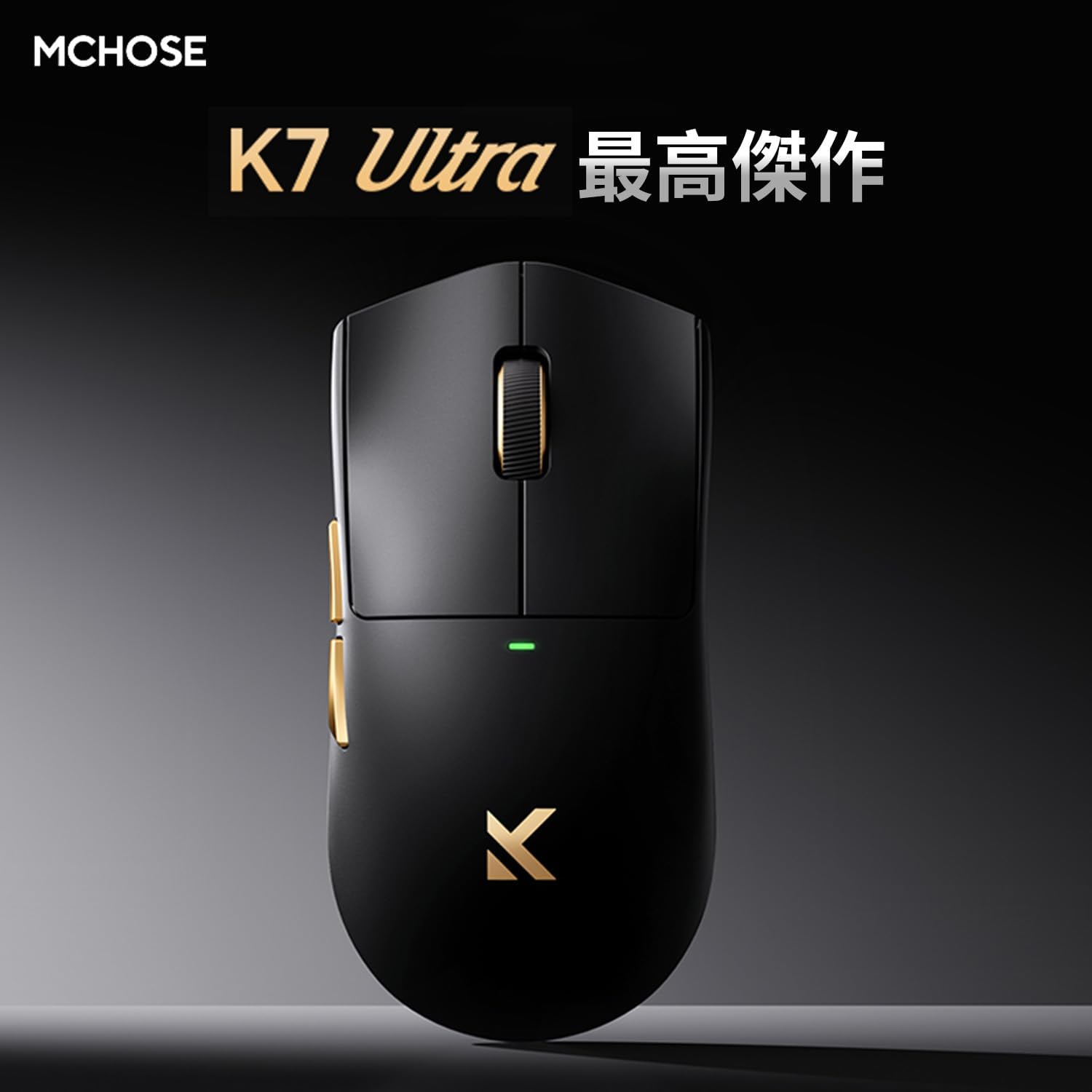
Image: MCHOSE K7 Ultra Gaming Mouse in black, highlighting its optimal performance.
2. Package Contents
Please verify that all items are present in your package:
- MCHOSE K7 Ultra Gaming Mouse
- 8K Dongle & Magnetic Wireless Charging Dock (Integrated)
- 1K NANO Receiver
- Paracord USB Cable
- Anti-slip Grip Tape
- Function Card
- Warranty Card
- Dedicated Mouse Storage Pouch
- "Burn" Mouse Pad (First Edition Standard Accessory)
- e-Sports Grade Glass Skates (First Edition Standard Accessory)
3. Product Overview
The MCHOSE K7 Ultra mouse is designed for right-handed users with a symmetrical shape, offering comfort during extended use. It features a lightweight construction and high-quality components.

Image: Top and side view of the MCHOSE K7 Ultra Gaming Mouse in white, showcasing its ergonomic design.
Key Features:
- Ultra-Lightweight: Approximately 59g for effortless movement.
- High-Precision Sensor: Pixart PAW3950 sensor with up to 42,000 DPI.
- Versatile Connectivity: 2.4GHz Wireless, Bluetooth, and USB-C Wired modes.
- Durable Switches: Omron optical micro switches for reliable clicks.
- Long-lasting Battery: 500mAh battery capacity.
- Advanced Polling Rate: Supports 8K polling rate in both wired and wireless modes.

Image: Visual representation of key features including 59g weight, Super Glide glass coating, Omron optical switches, TTC Gold scroll wheel, and 500mAh battery.

Image: Exploded view illustrating the internal components and construction of the MCHOSE K7 Ultra mouse, including the gold-plated PCB, Omron switches, and magnetic charging coil.
4. Setup
4.1 Charging the Mouse
Before first use, fully charge the mouse. Connect the USB-C cable to the charging dock and a power source, then place the mouse onto the magnetic charging dock. The RGB lighting on the dock will indicate charging status.
4.2 Connecting the Mouse
The MCHOSE K7 Ultra supports three connection modes: 2.4GHz Wireless, Bluetooth, and Wired USB-C.
2.4GHz Wireless Connection:
- Insert the 8K dongle into an available USB port on your computer.
- Turn on the mouse using the switch on the bottom.
- The mouse should automatically connect to the dongle. The indicator light on the mouse will confirm connection.
Bluetooth Connection:
- Turn on the mouse and switch it to Bluetooth mode (refer to the function card for specific switch position).
- On your computer or device, go to Bluetooth settings and search for new devices.
- Select "MCHOSE K7 Ultra" from the list of available devices to pair.
Wired USB-C Connection:
- Connect the paracord USB cable to the mouse and an available USB port on your computer.
- The mouse will automatically switch to wired mode and begin charging.

Image: The MCHOSE K7 Ultra mouse on its 8K dongle and magnetic wireless charging dock, illustrating the charging process and RGB lighting.
5. Operating Instructions
5.1 DPI Adjustment
The mouse features a dedicated DPI button (usually located on the bottom or top of the mouse, refer to the function card for exact placement) to cycle through preset DPI levels. The indicator light color will change to reflect the current DPI setting.
5.2 Programmable Buttons
The MCHOSE K7 Ultra has programmable buttons. You can customize button functions, macros, and RGB lighting effects using the M HUB software. Download the M HUB software from the official MCHOSE website.
5.3 Polling Rate Adjustment
The polling rate can be adjusted via the M HUB software. The mouse supports up to 8K polling rate for ultra-responsive tracking.
6. Maintenance
6.1 Cleaning
To clean the mouse, use a soft, dry cloth. For stubborn dirt, a slightly damp cloth with mild soap can be used, ensuring no liquid enters the mouse. Avoid abrasive cleaners or solvents.
6.2 Battery Care
To prolong battery life, avoid fully discharging the mouse frequently. Charge it regularly. If storing the mouse for an extended period, charge it to approximately 50% and store it in a cool, dry place.
7. Troubleshooting
7.1 Mouse Not Responding:
- Ensure the mouse is powered on.
- Check battery level and charge if necessary.
- For wireless connection, ensure the dongle is properly inserted and within range. Try a different USB port.
- For Bluetooth, ensure Bluetooth is enabled on your device and the mouse is paired.
- Try connecting via USB-C cable to rule out wireless issues.
7.2 Cursor Movement is Erratic:
- Clean the mouse sensor with a soft cloth.
- Ensure you are using the mouse on a suitable surface (e.g., a mouse pad).
- Check for any obstructions around the sensor.
7.3 M HUB Software Not Detecting Mouse:
- Ensure the mouse is connected to the computer (preferably wired or via 2.4GHz dongle).
- Restart the M HUB software and your computer.
- Check for software updates for M HUB.
8. Specifications
Detailed technical specifications for the MCHOSE K7 Ultra Gaming Mouse:

Image: Table detailing the MCHOSE K7 Ultra product specifications.
| Feature | Specification |
|---|---|
| Model | K7 Ultra |
| Size (L x W x H) | Approx. 127.3 x 63.8 x 39.9 mm |
| Chip | Realtek Flagship Chip |
| Transmission Technology | MCHOSE TOPSPEED Wireless Technology |
| Surface Finish | Super Glide Glass Coating |
| Special Processing | Gold-plated PCB, Side Button Electroplating, Aluminum Alloy Wheel Anodized Gloss Finish |
| Weight | Approx. 59g |
| Driver | Fully self-developed M HUB (Web Driver/Client Driver) |
| Micro Switch | Omron Optical Switch |
| Scroll Wheel | TTC Gold |
| Battery | 500mAh |
| Dongle/Charging | 8K Dongle & Magnetic Wireless Charging Dock (Integrated) |
| Polling Rate | Wired 8K + Wireless 8K |
| Connection Method | Wired/2.4G/Bluetooth |
9. Warranty and Support
The MCHOSE K7 Ultra Gaming Mouse comes with a limited warranty. Please refer to the included Warranty Card for detailed terms and conditions, including warranty period and coverage.
For technical support, driver downloads, or further assistance, please visit the official MCHOSE website or contact customer service through the information provided on your warranty card or product packaging.


