
1. Introduction
This manual provides essential information for the installation, operation, and maintenance of your maxsun GeForce RTX 3050 6GB Graphics Card. Designed for optimal performance in gaming PCs, including mini and small form factor (SFF) systems, this graphics card leverages the NVIDIA Ampere architecture to deliver enhanced visual experiences. Please read this manual thoroughly before installation and use.

Image 1.1: maxsun GeForce RTX 3050 SLP Graphics Card.
2. Safety Information
- Always disconnect power from your computer before installing or removing any components.
- Wear an anti-static wrist strap or frequently touch a grounded metal object to prevent electrostatic discharge (ESD) damage to the graphics card and other components.
- Handle the graphics card by its edges to avoid touching sensitive components.
- Ensure proper ventilation within your PC case to prevent overheating.
- Keep the graphics card away from moisture and extreme temperatures.
3. Package Contents
Verify that all items are present in the package:
- 1x maxsun GeForce RTX 3050 6GB Graphics Card
- 1x Standard Height I/O Bracket (pre-installed or separate)
- 1x Low Profile I/O Bracket (for SFF systems)

Image 3.1: The maxsun GeForce RTX 3050 graphics card and its retail packaging.
4. Product Overview
The maxsun GeForce RTX 3050 is a compact graphics card designed for performance and compatibility with various PC builds, including small form factor cases. It features a single fan cooling solution and multiple display outputs.
4.1 Key Features
- NVIDIA Ampere Architecture: Provides advanced graphics performance.
- NVIDIA DLSS: AI-powered rendering for increased frame rates with uncompromised image quality.
- 6GB GDDR6 Memory: High-speed memory for demanding applications and games.
- Low Profile Design: Compact dimensions (6.65 x 2.71 inches) suitable for Mini-ITX and SFF PC cases.
- PCI Express 4.0 x8 Interface: Ensures high bandwidth connectivity.
- Display Outputs: Includes HDMI 2.1 and DisplayPort 1.4a, supporting up to 8K resolution and multi-monitor setups.
4.2 Card Layout and Ports

Image 4.1: Top view of the graphics card, showing the single cooling fan.

Image 4.2: The standard and low-profile I/O brackets, illustrating the display output options (HDMI and DisplayPort).
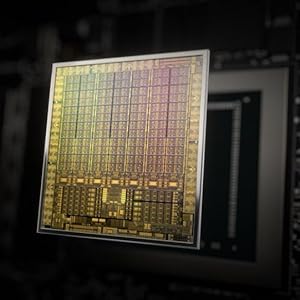
Image 4.3: Diagram illustrating the NVIDIA Ampere GPU architecture, which powers the RTX 3050.
5. Setup and Installation
Follow these steps to install your maxsun GeForce RTX 3050 graphics card into your computer system.
5.1 Preparing Your System
- Power down your computer completely and unplug the power cable from the wall outlet.
- Open your computer case. Refer to your computer's manual for specific instructions on how to open the case.
- Locate an available PCI Express x16 slot on your motherboard.
- Remove any existing graphics card or the metal slot cover from the PCI Express slot.
5.2 Installing the Graphics Card
- If your PC case requires a low-profile bracket, carefully remove the pre-installed standard bracket from the graphics card and attach the included low-profile bracket.
- Align the graphics card with the PCI Express x16 slot.
- Gently but firmly press the card straight down into the slot until it is fully seated. You should hear a click as the retention clip engages.
- Secure the graphics card to the PC case with the screw(s) from the slot cover.

Image 5.1: Diagram showing the process of inserting a graphics card into a PCI Express slot within a computer case.
5.3 Connecting Displays
- Connect your monitor(s) to the DisplayPort or HDMI outputs on the graphics card.
- Close your computer case and reconnect the power cable.
- Power on your computer.
6. Operating Instructions
6.1 Driver Installation
After physical installation, you must install the appropriate drivers for your graphics card to function correctly and achieve optimal performance.
- Boot your computer. The operating system may detect new hardware and install a basic driver, or display a low-resolution image.
- Visit the official NVIDIA website (www.nvidia.com/drivers) to download the latest drivers for the GeForce RTX 3050.
- Follow the on-screen instructions to complete the driver installation. A system restart may be required.

Image 6.1: Icon representing the download and installation of graphics drivers.
6.2 Multi-Monitor Setup
The maxsun RTX 3050 supports multiple displays. Once drivers are installed, you can configure your display settings through your operating system's display settings or the NVIDIA Control Panel.

Image 6.2: Illustration of a multi-monitor setup connected via DisplayPort and HDMI outputs.
7. Maintenance
Proper maintenance ensures the longevity and performance of your graphics card.
- Dust Removal: Periodically clean dust from the fan and heatsink using compressed air. Ensure the fan is held stationary during cleaning to prevent damage.
- Temperature Monitoring: Use monitoring software to keep track of your GPU temperatures, especially during heavy loads. Ensure temperatures remain within safe operating limits.
- Driver Updates: Regularly update your graphics drivers from the NVIDIA website to benefit from performance improvements and bug fixes.
8. Troubleshooting
If you encounter issues with your graphics card, refer to the following common troubleshooting steps:
- No Display Output:
- Ensure the monitor cable is securely connected to both the graphics card and the monitor.
- Verify that the graphics card is fully seated in the PCI Express slot.
- Check if your monitor is set to the correct input source.
- Test with a different display cable or monitor if possible.
- Driver Installation Issues:
- Uninstall any previous graphics drivers using a utility like Display Driver Uninstaller (DDU) in Safe Mode, then attempt a fresh installation of the latest NVIDIA drivers.
- Ensure your operating system is up to date.
- Overheating/Loud Fan Noise:
- Clean dust from the graphics card fan and heatsink.
- Ensure adequate airflow within your PC case. Consider adding or improving case fans.
- Monitor GPU temperatures during load. If temperatures are consistently high, reduce graphics settings in games or applications.
- System Instability/Crashes:
- Ensure your power supply unit (PSU) meets the minimum wattage requirements for your system, including the new graphics card.
- Check for any conflicts with other hardware components.
- Run system diagnostics to identify other potential hardware issues.
9. Specifications
Detailed technical specifications for the maxsun GeForce RTX 3050 6GB Graphics Card:
| Feature | Specification |
|---|---|
| Graphics Coprocessor | NVIDIA GeForce RTX 3050 |
| Graphics RAM Size | 6 GB GDDR6 |
| Memory Interface | 96-bit |
| Memory Clock Speed | 14000 MHz |
| GPU Core Clock | 1042 MHz |
| Boost Clock Speed | 1470 MHz |
| Video Output Interface | 1x HDMI 2.1, 1x DisplayPort 1.4a |
| PCI Express | PCI-E X8 4.0 |
| Product Dimensions | 6.65 x 2.71 x 0.04 inches (16.9 x 6.9 cm) |
| Item Weight | 8.5 ounces |
| Manufacturer | MAXSUN |
| Model Number | RTX 3050 |

Image 9.1: Rear view of the product packaging, detailing key features and specifications.
10. Warranty and Support
10.1 Limited Warranty
The maxsun GeForce RTX 3050 Graphics Card comes with a 3-Year Limited Warranty. This warranty covers defects in materials and workmanship under normal use. For specific terms and conditions, please refer to the warranty information provided with your product or contact maxsun customer support.
10.2 Customer Support
For technical assistance, warranty claims, or general inquiries, please contact maxsun customer support through their official website or the contact information provided in your product documentation.


