
1. Introduction
The URFRU 7-inch GPS Navigator (Model X30) is designed to provide reliable, network-independent navigation for various vehicles including cars, trucks, and RVs. This device connects directly to GPS satellites, ensuring accurate route guidance even in areas without mobile network coverage. It comes preloaded with the latest North American maps (USA, Canada, Mexico) and offers free lifetime map updates.
Key features include:
- GPS Satellite Connection: Operates independently of mobile networks for consistent navigation.
- Preloaded Maps: Includes North American maps with free lifetime updates.
- Versatile Navigation: Supports search by zip code, address, coordinates, favorites, and Points of Interest (POI).
- Multiple Route Modes: Optimized routes for cars, trucks, buses, taxis, bicycles, emergency vehicles, and pedestrians.
- Customized Routes: Allows route planning based on vehicle dimensions (weight, length, height, width) to avoid restrictions, and offers options like Fast, Green, Short, or Convenient routes.
- Smart Voice Navigation: Provides speed camera alerts, voice-guided directions, road name announcements, current speed, lane guidance, and estimated arrival times.
2. Setup
2.1. What's in the Box
Before you begin, ensure all components are present:
- GPS Device (1)
- USB Cable + DC Cable (1)
- Suction Cup Bracket (1)
- Owner's Manual (1)

Image: The URFRU GPS Navigator and its included accessories: GPS device, USB+DC cable, suction cup bracket, and owner's manual.
2.2. Mounting the Device
The URFRU GPS Navigator offers two primary installation methods: windshield mount and dashboard mount.
- Windshield Mount: Attach the suction cup bracket to a clean, smooth area on your windshield, ensuring it does not obstruct your view. Secure the GPS device to the bracket.
- Dashboard Mount: Use the provided dashboard disc (if applicable) or a suitable adhesive mount to secure the suction cup bracket to your dashboard. Attach the GPS device to the bracket.
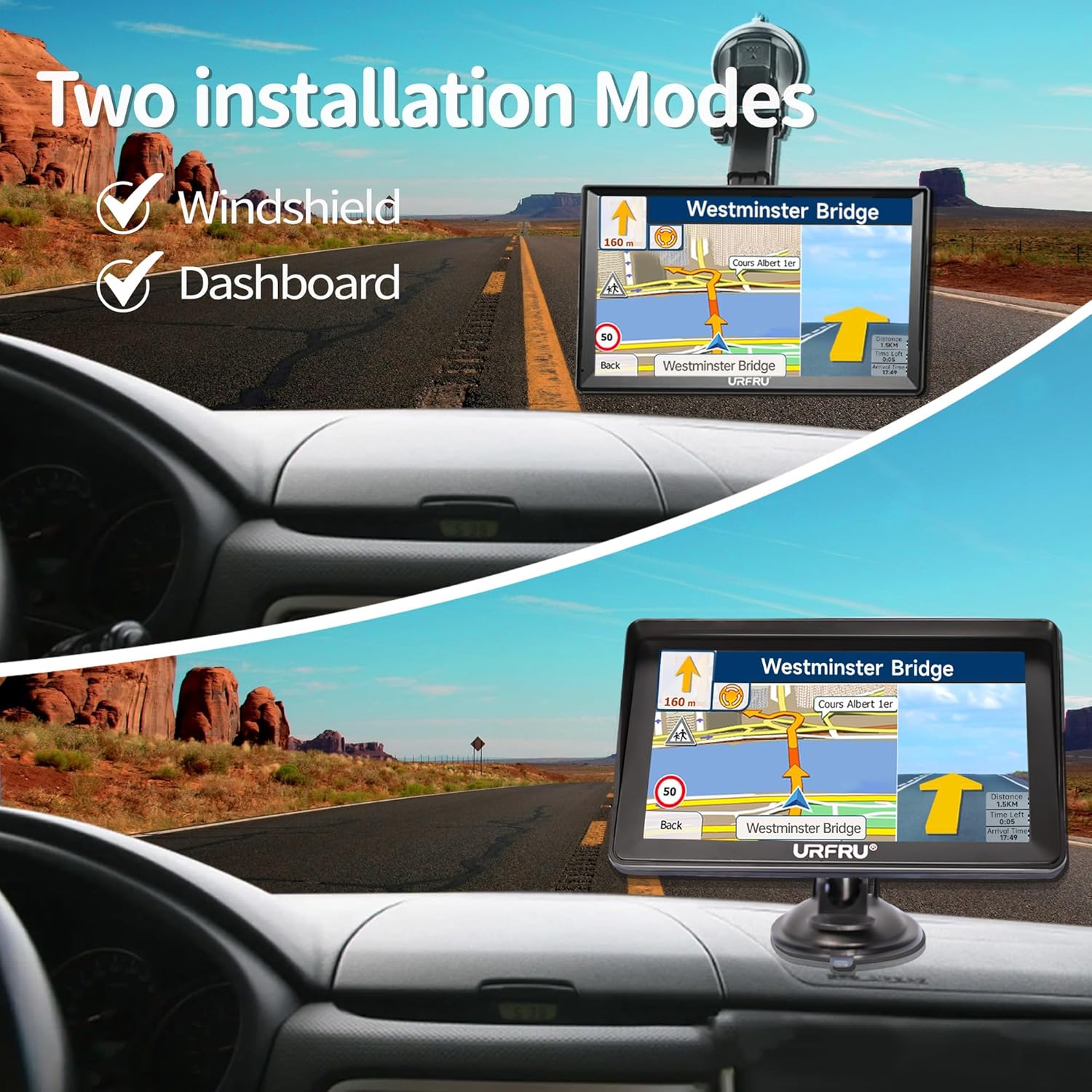
Image: Two installation modes for the GPS navigator, showing it mounted on a car's windshield and dashboard.
2.3. Initial Power On and Satellite Connection
For the GPS navigator to function correctly and acquire satellite signals, it must be used outdoors or near an outdoor window. Indoor or underground parking lots will prevent satellite connection.
- Connect the device to power using the provided USB+DC cable.
- Power on the device.
- Place the device in an open outdoor area to allow it to establish a connection with GPS satellites. This may take a few minutes during the first use.

Image: A notice indicating that the URFRU GPS Navigator must be used outdoors or near an outdoor window for proper satellite connection, as indoor and underground parking lots are unavailable for signal acquisition.

Image: Illustration showing the URFRU GPS Navigator's ability to connect directly to GPS satellites for reliable navigation, even when mobile networks are offline.
3. Operating Instructions
3.1. Entering a Destination
To begin navigation, you can enter your destination using several methods:
- Address: Input the street address, city, and state.
- Zip Code: Enter the postal zip code.
- Coordinates: Input geographical coordinates.
- Points of Interest (POI): Search for nearby gas stations, restaurants, parking lots, and other points of interest.
- Favorites: Select from previously saved destinations.
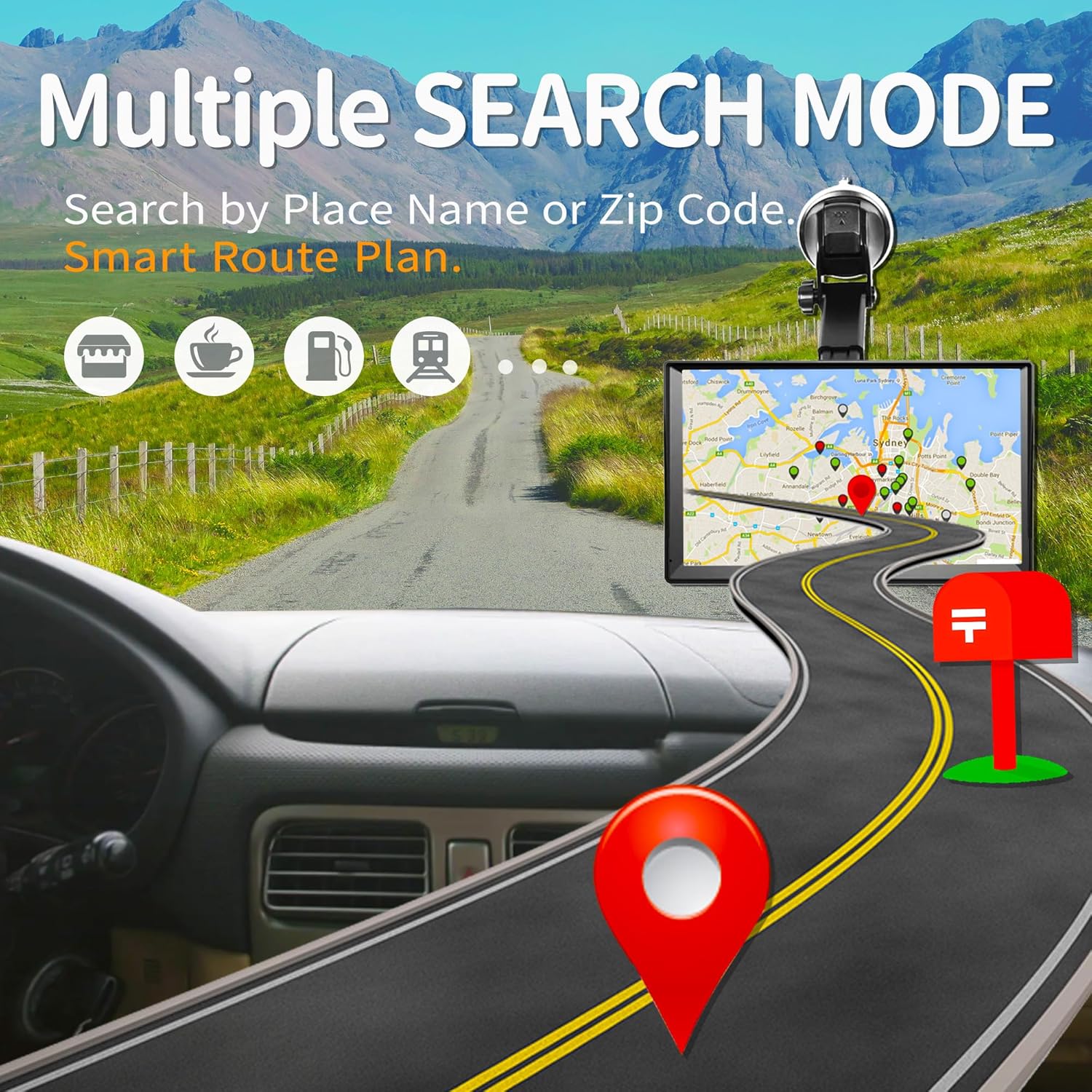
Image: The GPS navigator screen displaying various search modes, including searching by place name or zip code, and options for smart route planning.
3.2. Route Customization
The device allows you to customize your route based on your preferences and vehicle type:
- Route Options: Choose from Fast, Green (eco-friendly), Short, or Convenient routes.
- Vehicle Type: Select your vehicle type (car, truck, RV, bus, taxi, bicycle, pedestrian, emergency vehicle) to optimize routes.
- Truck-Specific Settings: For trucks, you can input vehicle weight, length, height, and width to avoid roads with restrictions.
Video: This video demonstrates how to access and adjust route settings on the URFRU GPS Navigator, including selecting vehicle type and entering specific vehicle details for customized navigation.
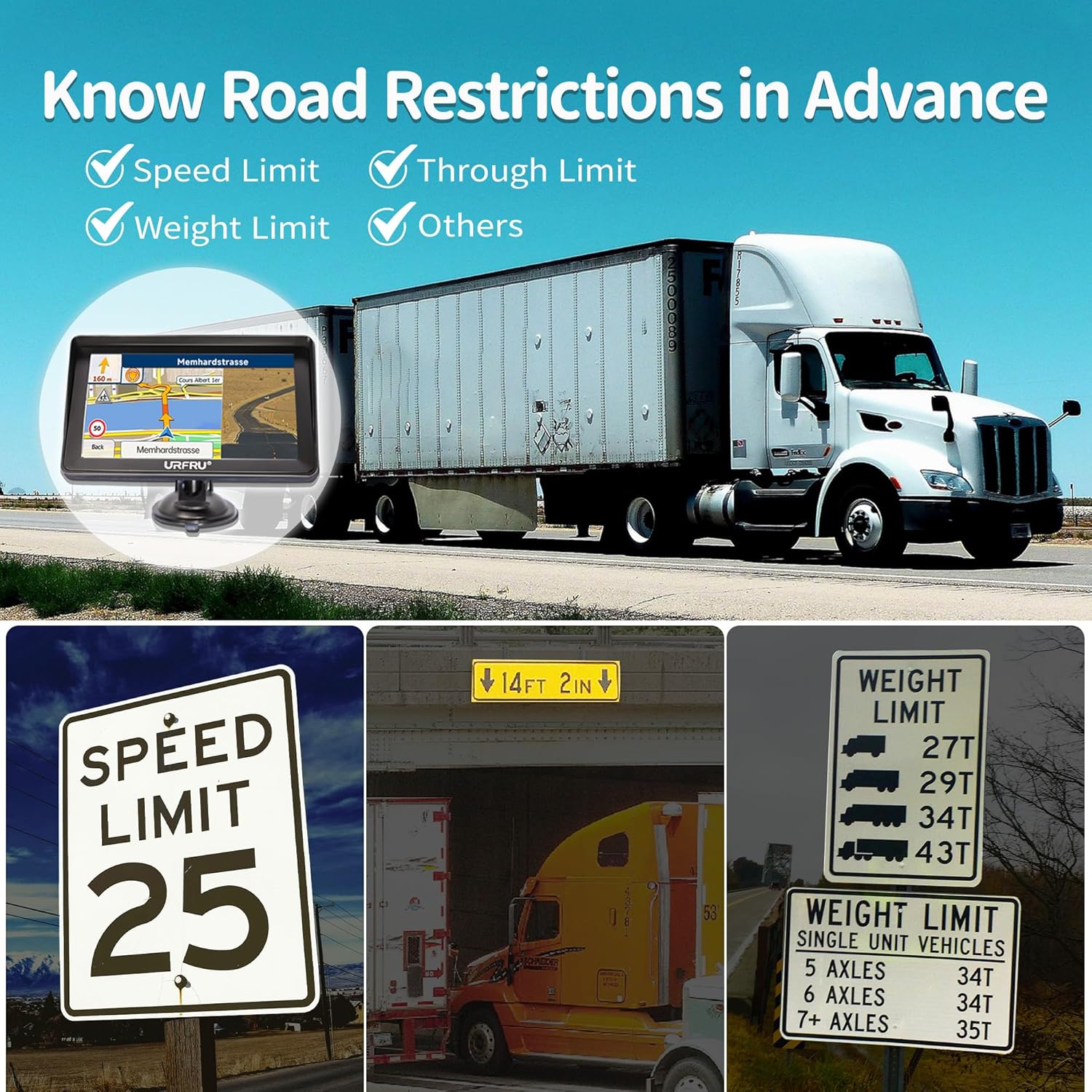
Image: The GPS navigator displaying road restriction information, such as speed limits, through limits, and weight limits, which is crucial for truck drivers.
3.3. Voice Guidance and Alerts
The navigator provides clear voice prompts and alerts to enhance your driving experience:
- Turn-by-Turn Directions: Voice announcements for upcoming turns and road names.
- Speed Camera Alerts: Notifies you of approaching speed cameras.
- Current Speed Display: Shows your current driving speed.
- Lane Guidance: Helps you get into the correct lane for exits and turns.
- ETA: Provides estimated arrival time and remaining distance to your destination.
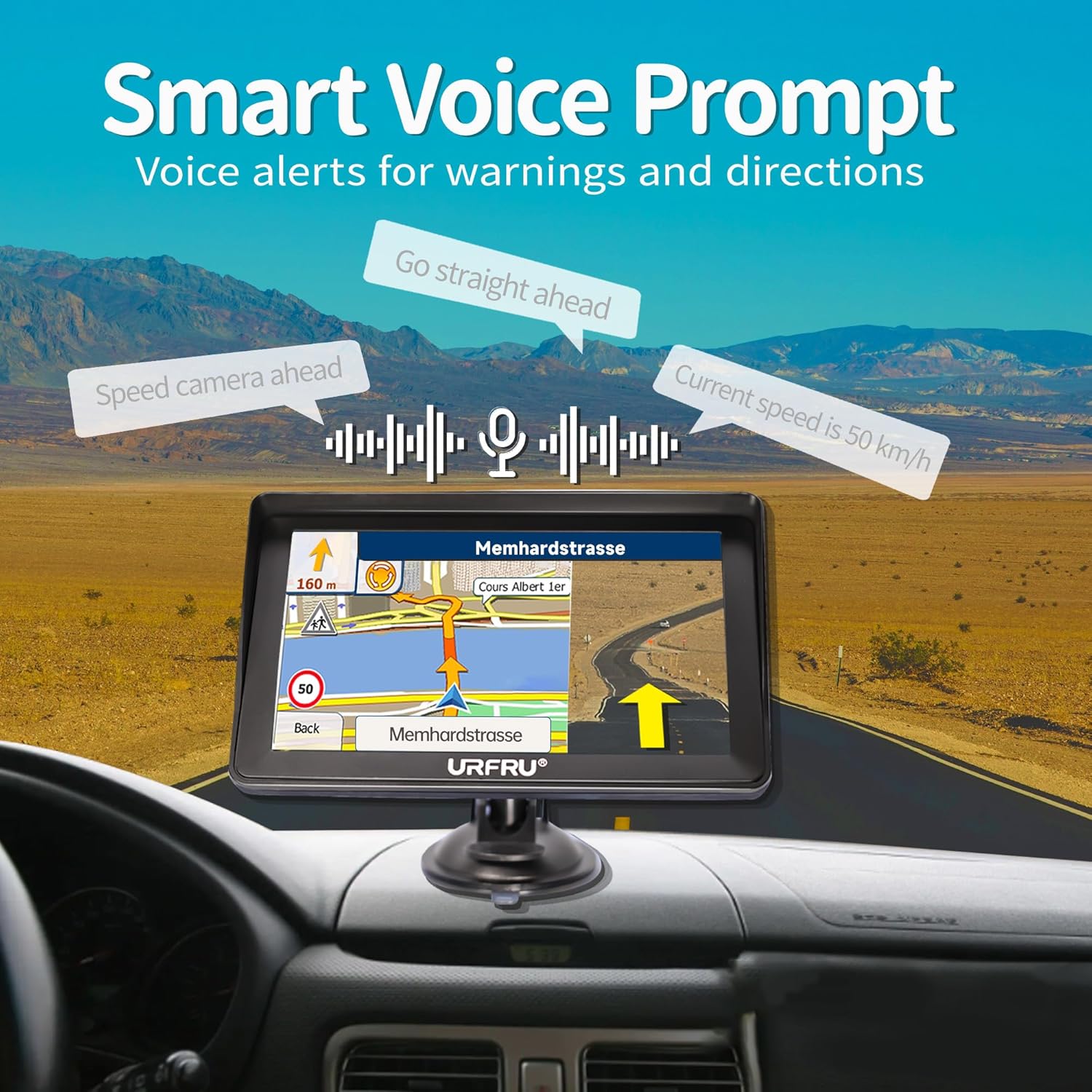
Image: The GPS navigator screen illustrating smart voice prompts, including alerts for speed cameras, current speed, and directional guidance.
4. Maintenance
4.1. Cleaning and Care
- Use a soft, dry cloth to clean the screen and exterior of the device.
- Avoid using abrasive cleaners or solvents, as these can damage the device.
- Keep the device away from extreme temperatures and direct sunlight for prolonged periods.
4.2. Map Updates
The URFRU GPS Navigator includes free lifetime map updates for North America. To update your maps:
- Connect the GPS device to a computer using the provided USB cable.
- Follow the instructions provided in the Owner's Manual or on the URFRU support website to download and install the latest map files.
- Alternatively, you may download new map files to a Mini SD card (not included) and insert it into the device for updates.
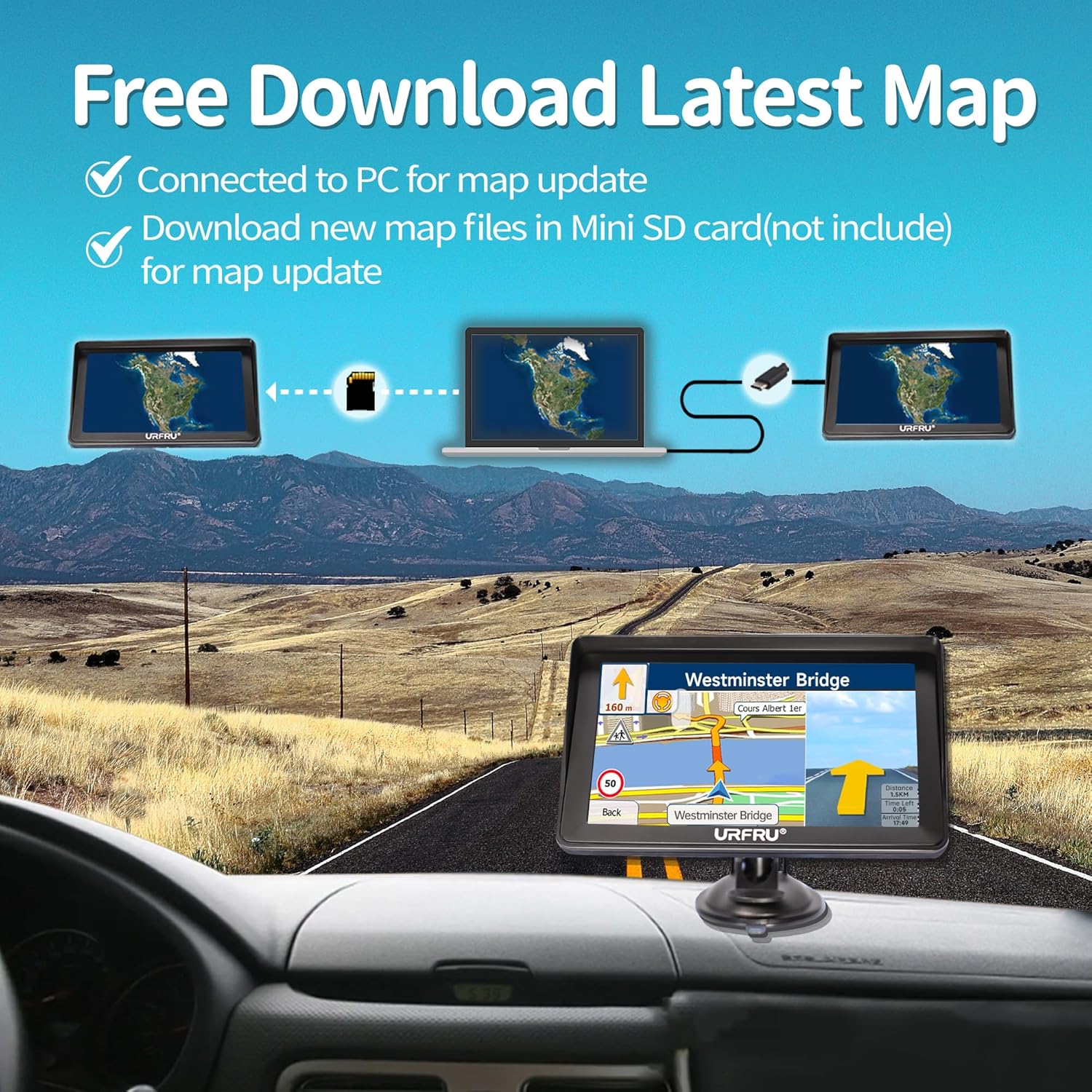
Image: Diagram illustrating the process of updating maps on the URFRU GPS Navigator by connecting it to a PC or using a Mini SD card.
5. Troubleshooting
| Problem | Possible Cause | Solution |
|---|---|---|
| No GPS signal / Cannot acquire satellites | Device is indoors or in an obstructed area. | Move the device to an open outdoor area with a clear view of the sky. Ensure no large buildings or structures are blocking the signal. |
| Device does not power on | Low battery or power cable issue. | Ensure the device is fully charged or connected to a working power source using the provided cable. Check cable connections. |
| Screen is unresponsive | Software glitch or temporary freeze. | Perform a soft reset (refer to the Owner's Manual for specific instructions). If the issue persists, ensure the screen is clean and free of debris. |
| Maps are outdated | Maps have not been updated recently. | Follow the map update instructions in Section 4.2 to download and install the latest maps. |
6. Specifications
| Feature | Detail |
|---|---|
| Brand | URFRU |
| Model Name | GPS Navigator |
| Model Number | X30 |
| Screen Size | 7 inches |
| Display Type | LCD |
| Touch Screen Type | Capacitive |
| Connectivity Technology | GPS Satellite |
| Supported Satellite Navigation System | GPS |
| Map Type | North America, South America |
| Memory Storage Capacity | 8 GB |
| Compatible Flash Memory Type | microSD |
| Operating System | Windows |
| Vehicle Service Type | Car, Minivan, RV, SUV, Truck |
| Mounting Type | Windshield Mount, Dashboard Mount |
| Item Dimensions (L x W x H) | 0.8"L x 4.3"W x 7.3"H |
| Item Weight | 11.2 ounces |
7. Warranty and Support
The URFRU 7-inch GPS Navigator (Model X30) comes with free lifetime map updates, ensuring your navigation data remains current. For specific warranty details, please refer to the documentation included with your product or contact URFRU customer support.
For technical assistance, troubleshooting, or further inquiries, please visit the official URFRU website or contact their customer service department. Contact information can typically be found in the Owner's Manual included in the box.