
1. Introduction
This manual provides detailed instructions for the setup, operation, and maintenance of your JYXCN 55" 4K Dual-OS Smart Board. This interactive display is designed for versatile use in offices, classrooms, and other collaborative environments, offering both Android 11 and Windows 10 Pro operating systems.

Figure 1: The JYXCN 55" 4K Dual-OS Smart Board, illustrating its dual operating system capability with Android 11 and Windows 10 Pro.
The Smart Board features a 4K UHD display with 20-point touch precision, enabling interactive and collaborative work. It supports wireless sharing from multiple devices and comes with a wall mount for installation.
2. Setup
2.1 Unpacking and Inspection
Carefully unpack the Smart Board and all accessories. Inspect for any signs of damage during transit. Ensure all components listed in the packing list are present.
2.2 Wall Mount Installation
The Smart Board includes a wall mount for secure installation. Follow these steps for proper mounting:
- Measure Location: Determine the optimal location for the wall mount. It is recommended to position the center of the board at eye level for most users. Use a level to ensure accuracy.
- Mark Drill Holes: Hold the wall mount bracket against the wall at the desired height and mark the positions for drilling.
- Drill Holes: Use an appropriate drill bit to create holes at the marked locations.
- Insert Wall Anchors: Insert the provided wall anchors (expansion plugs) into the drilled holes.
- Secure Bracket: Attach the wall mount bracket to the wall using the screws, ensuring it is level and securely fastened.
- Attach Vertical Brackets to Smart Board: Mount the two vertical mounting brackets onto the back of the Smart Board.
- Hang Smart Board: Carefully lift the Smart Board and hang it onto the installed wall mount bracket. Ensure it is properly seated and secure.
Video 1: JYXCN Wall Mount Installation Guide. This video demonstrates the step-by-step process of installing the wall mount bracket and hanging the Smart Board.
2.3 Initial Power On
Connect the power cable to the Smart Board and a power outlet. Press the power button located on the front or side of the device. The system will boot up, typically starting with the Android OS.
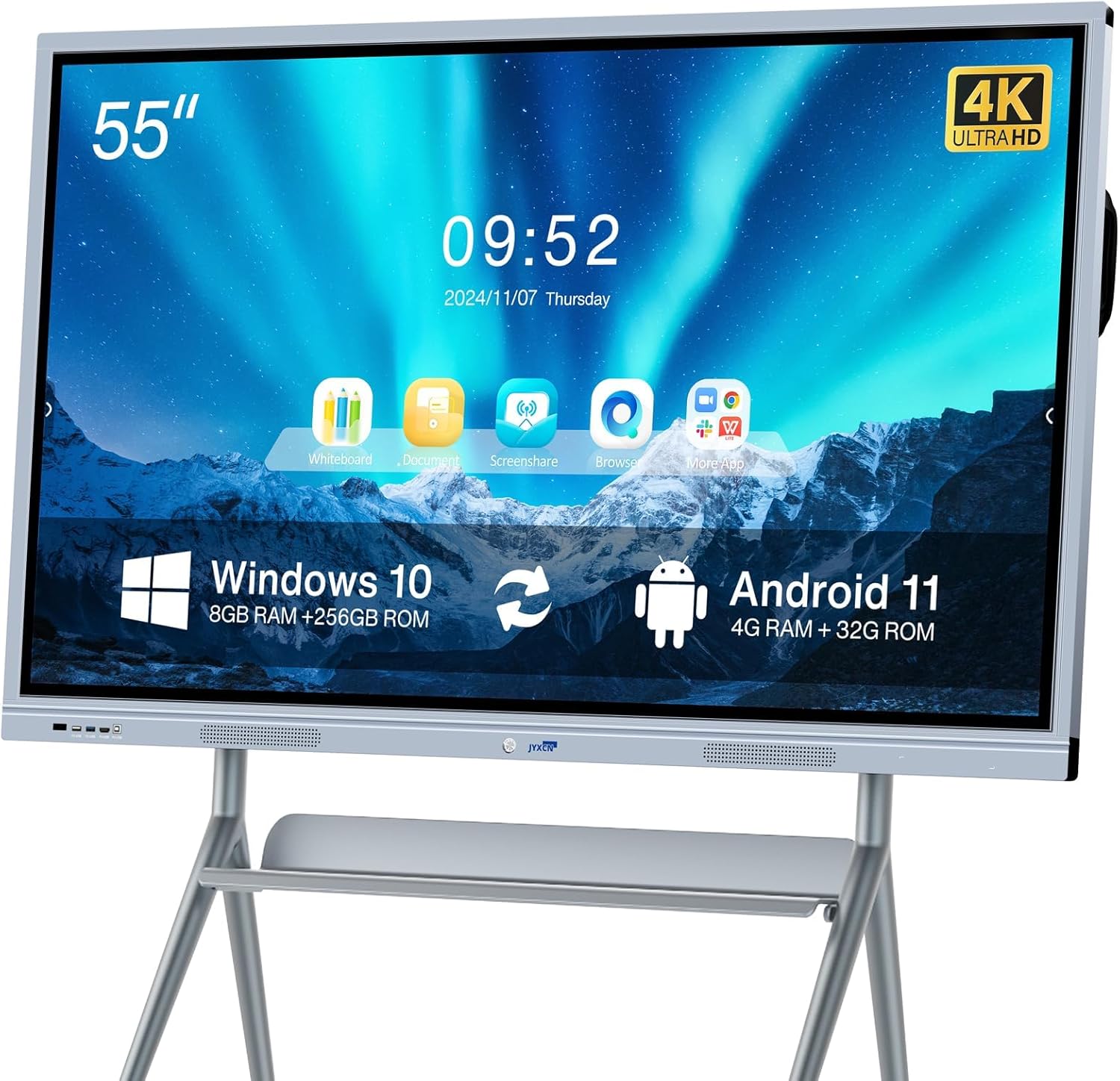
Figure 2: Front view of the JYXCN Smart Board, highlighting the location of the power button and USB ports for easy access.
3. Operating Systems
The JYXCN Smart Board features a dual-OS system, allowing seamless switching between Android 11 and Windows 10 Pro.
3.1 Android 11
The Android 11 system (4GB RAM + 32GB ROM) provides access to a wide range of applications suitable for presentations, media consumption, and basic productivity tasks. You can install apps like Zoom and Google Meet directly from the app store.

Figure 3: The Smart Board displaying the Android 11 operating system interface, ready for app usage.
3.2 Windows 10 Pro
The integrated Windows 10 Pro system (Intel i5/8GB/256GB SSD) offers a full desktop experience, ideal for running professional software, complex data analysis, and advanced presentations. This allows for seamless integration with existing office and educational ecosystems.

Figure 4: The Smart Board displaying the Windows 10 Pro operating system interface, suitable for professional applications.
3.3 Switching Between OS
To switch between Android 11 and Windows 10 Pro, use the dedicated switch button or the on-screen menu option. This allows for quick transitions without requiring a full system reboot.
Video 2: Overview of the JYXCN Smart Board's interactive digital whiteboard features, demonstrating general usage and interface.
4. Touchscreen Features
The 55" 4K display offers a highly responsive 20-point multi-touch experience, designed for collaborative interaction and precise input.
4.1 20-Point Touch Precision
The screen supports up to 20 simultaneous touch points, allowing multiple users to interact with the board at once. This is ideal for group activities, brainstorming sessions, and interactive lessons. The touch accuracy is ±1mm with a 4ms response time.
4.2 Intelligent Writing and Annotation
Utilize the intelligent writing features for smooth and accurate digital ink. The system supports various annotation tools, templates, font input conversion, and chart drawing functions. Writing accuracy is less than 3mm, providing a natural writing experience.

Figure 5: The Smart Board demonstrating intelligent writing capabilities and the option to share content via QR code.
4.3 Gesture Commands
The Smart Board recognizes multiple gesture commands for intuitive navigation and interaction. These include multi-point writing, picture roaming, two-finger zoom in/out, and palm erasing.

Figure 6: Illustration of various gesture commands supported by the Smart Board for enhanced user interaction.
5. Wireless Sharing
The Smart Board supports wireless screen sharing from up to four devices simultaneously, including laptops, tablets, and smartphones. This feature facilitates dynamic presentations and collaborative work.
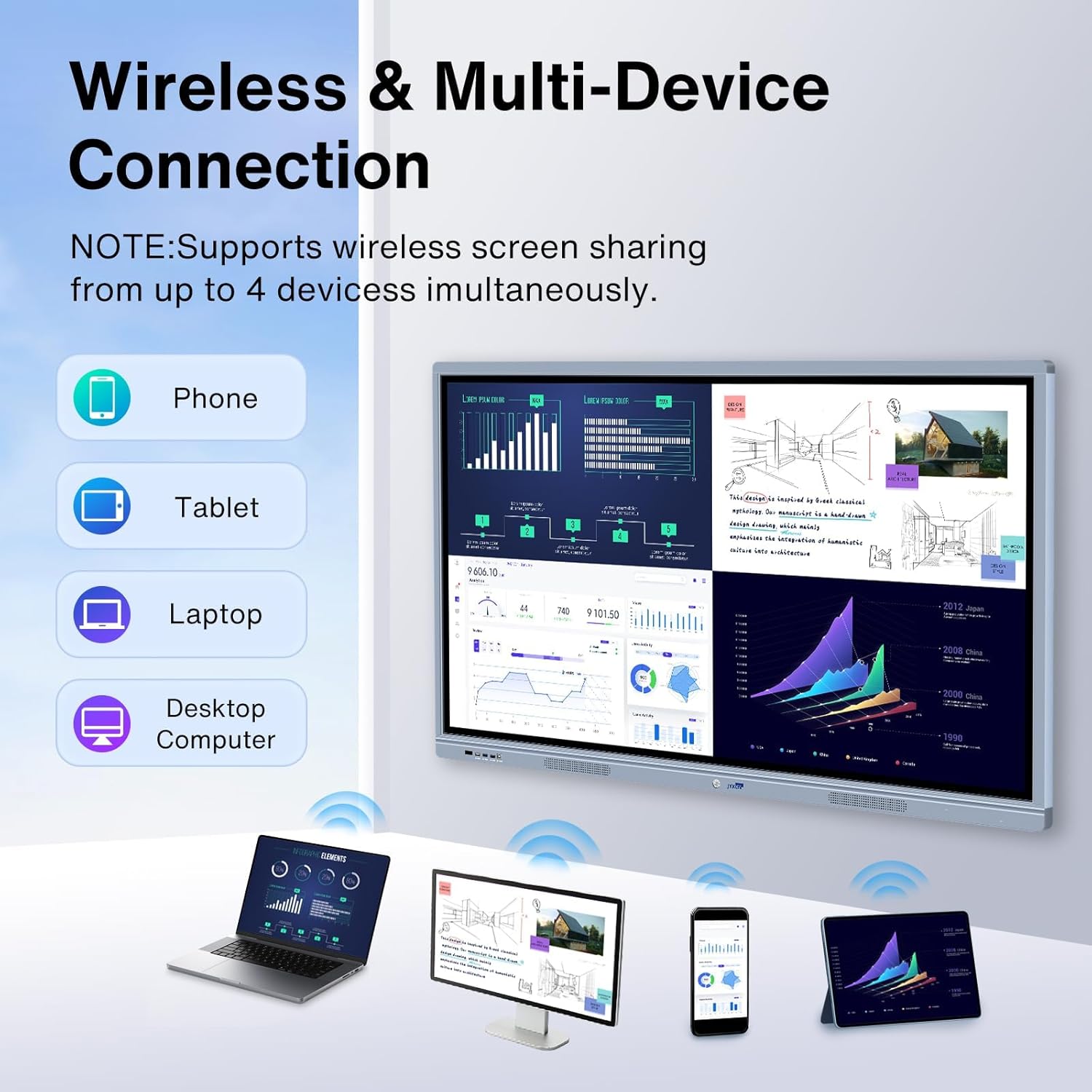
Figure 7: The Smart Board connected wirelessly to multiple devices (phone, tablet, laptop, desktop) for simultaneous screen sharing.
5.1 Screen Projection
Easily project content from your device to the Smart Board for larger viewing. This feature is designed for fast and efficient content display.
5.2 Split-Screen Support
The board supports 4-way split-screen, allowing content from four different sources to be displayed concurrently, enhancing comparative analysis and multi-tasking.
5.3 Saving Annotations
Annotations made on the board can be saved and distributed instantly via QR code, ensuring that all participants have access to the discussed content.
Video 3: Overview of the 55" Digital Interactive Whiteboard with 4K Touchscreen. This video highlights the dual-OS functionality, interactive features, and wireless sharing capabilities of the Smart Board.
6. Connectivity
The JYXCN Smart Board offers a comprehensive range of connectivity options to integrate with various devices and networks.
6.1 Ports and Interfaces
The board is equipped with multiple ports for external connections:
- HDMI: Multiple HDMI ports (Total 4) for connecting external video sources.
- DisplayPort: For high-resolution video input.
- USB: Various USB ports (2x USB 2.0, 2x USB 3.0) for peripherals and data transfer.
- Ethernet (LAN): For wired network connectivity.
- Audio: Earphone and Microphone jacks for audio input/output.
- VGA: For legacy video connections.
- RS232: For serial communication and control.
- AV In/Out: For analog video and audio connections.
- SPDIF Out: For digital audio output.
Video 4: A detailed view of the JYXCN Smart Board's various connectivity ports, including USB, HDMI, LAN, and audio jacks.
6.2 Wireless Connectivity
The Smart Board supports Wi-Fi for internet access and wireless screen sharing. Ensure your device is connected to a stable network for optimal performance.
7. Maintenance
Proper maintenance ensures the longevity and optimal performance of your JYXCN Smart Board.
7.1 Cleaning the Screen
To clean the 7H tempered glass screen, use a soft, lint-free cloth slightly dampened with a non-abrasive screen cleaner. Avoid harsh chemicals or abrasive materials that could damage the screen surface.
7.2 General Care
- Keep the Smart Board away from direct sunlight and heat sources.
- Ensure adequate ventilation around the device to prevent overheating.
- Avoid placing heavy objects on the board or applying excessive pressure to the screen.
- Use the child lock feature in environments with children to prevent unintended operation.
8. Troubleshooting
This section addresses common issues you might encounter with your Smart Board. For problems not listed here, please contact customer support.
| Problem | Possible Cause | Solution |
|---|---|---|
| No Power | Power cable not connected or power outlet issue. | Ensure the power cable is securely connected to both the board and a working power outlet. Check the power switch. |
| No Display | Incorrect input source selected or external device issue. | Verify the correct input source (HDMI, DisplayPort) is selected. Check the connection to the external device. |
| Touchscreen Unresponsive | Software glitch or calibration issue. | Restart the Smart Board. If the issue persists, try recalibrating the touchscreen through the system settings. |
| Wireless Sharing Fails | Network connectivity issues or incorrect sharing settings. | Ensure both the Smart Board and the sharing device are connected to the same Wi-Fi network. Check sharing application settings. |
| Cannot Switch OS | System error or incorrect procedure. | Ensure you are using the correct method (dedicated button or on-screen menu) to switch OS. Restart the device and try again. |
9. Specifications
| Feature | Detail |
|---|---|
| Brand | JYXCN |
| Model Name | 55-inch Smart Whiteboard |
| Screen Size | 55 Inches |
| Resolution | 4K UHD 2160p (3840 x 2160) |
| Aspect Ratio | 16:9 |
| Screen Surface Description | Glossy (7H tempered glass) |
| Contrast Ratio | 1500:1 |
| Display Type | LED |
| Touch Points | 20-Point Touch |
| Response Time | 4 Milliseconds |
| Operating Systems | Android 11 (4GB RAM + 32GB ROM) & Windows 10 Pro (Intel i5/8GB/256GB SSD) |
| Connectivity Technology | HDMI (x4), DisplayPort, USB (2x 2.0, 2x 3.0), Ethernet, Audio In/Out, VGA, RS232, AV In/Out, SPDIF Out |
| Adaptive Sync | FreeSync, G-Sync Compatible |
| Certifications | FCC, CE, RoHS |
| Included Accessories | Wall mount, remote control, touch pen, magnetic pen, power cord, instruction manual, after-service card |
10. Warranty and Support
10.1 Product Warranty
The JYXCN Smart Board comes with a 3-year warranty. This warranty covers manufacturing defects and ensures reliable operation under normal use conditions. For detailed terms and conditions, please refer to the included after-service card.
10.2 Customer Support
For any technical assistance, troubleshooting, or inquiries regarding your Smart Board, please contact JYXCN customer support. Our team is available to provide prompt and helpful service.
- Email Support: mc-jyxcn@outlook.com
- Online Chat: 24/7 Live Chat Support (refer to product website for access)

Figure 8: JYXCN's commitment to customer support and product quality, including contact information and certifications.


