
Bluesound Pulse Flex 2i WHT + BP100 WHT + FLEX SKIN CHARCOAL
Bluesound Pulse Flex 2i User Manual
Model: Pulse Flex 2i WHT + BP100 WHT + FLEX SKIN CHARCOAL
Brand: Bluesound
Introduction
This manual provides comprehensive instructions for the setup, operation, and maintenance of your Bluesound Pulse Flex 2i Portable Wireless Multi-Room Bluetooth Speaker. This bundle includes the BP100 battery pack and a charcoal gray protective skin, enhancing portability and durability. The Pulse Flex 2i is designed to deliver high-resolution audio with versatile connectivity options, including Wi-Fi, Bluetooth aptX HD, and AirPlay 2, integrated seamlessly into the BluOS multi-room ecosystem.
What's in the Box
Carefully unpack the contents and ensure all items are present:
- Bluesound Pulse Flex 2i Speaker
- BP100 Battery Pack
- Charcoal Gray Protective Skin
- 120V & 230V AC Power Cord
- Toslink Optical to 3.5mm Mini & Adaptor

Image: Contents of the Bluesound Pulse Flex 2i bundle, showing the speaker, battery pack, and protective skin packaging.
Setup Guide
1. Installing the BP100 Battery Pack
The BP100 battery pack allows for portable operation. To install:
- Locate the battery compartment on the rear of the Pulse Flex 2i speaker.
- Align the BP100 battery pack with the compartment and gently slide it into place until it clicks securely.
- Ensure the battery pack is fully seated to establish proper electrical contact.
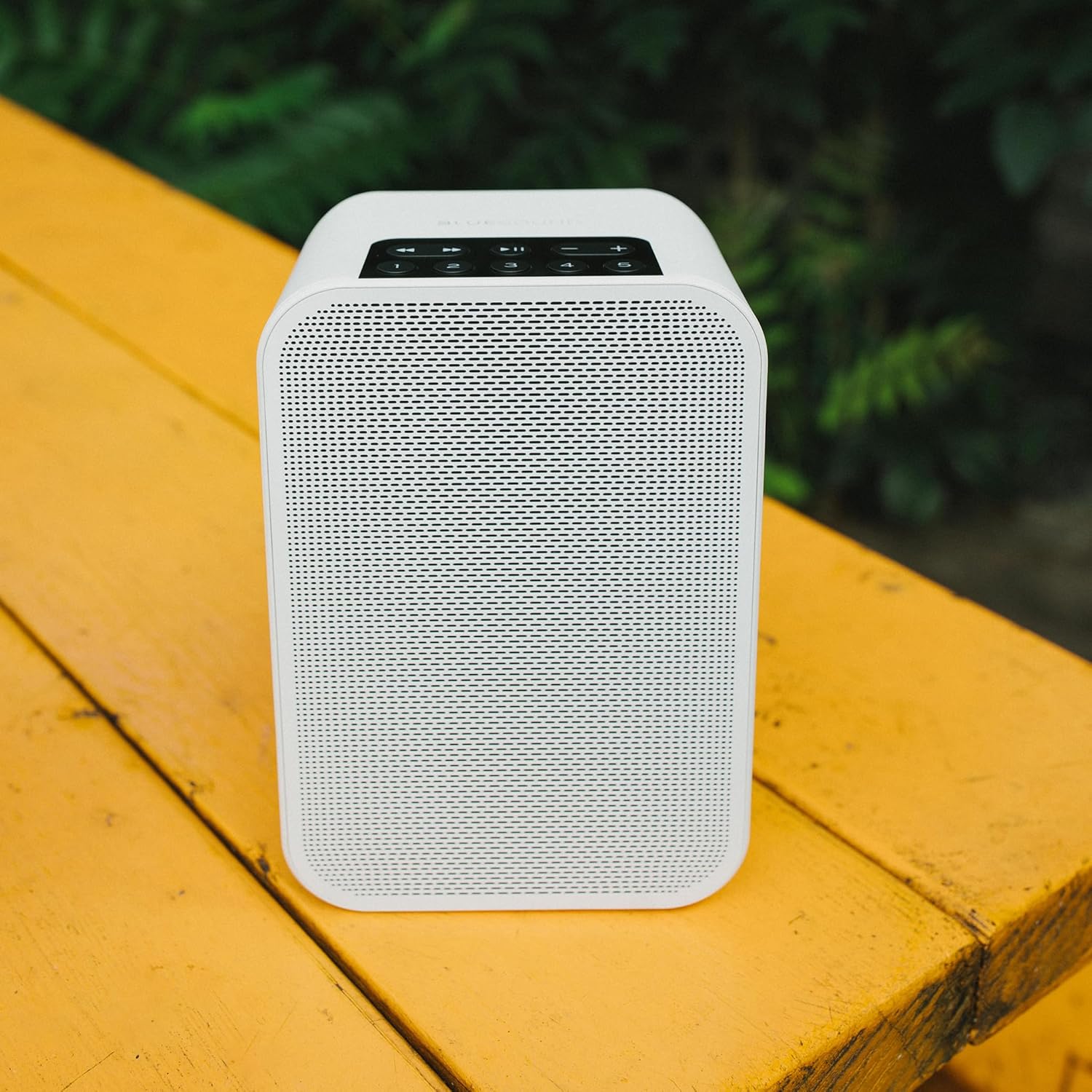
Image: The Bluesound BP100 battery pack, designed for the Pulse Flex 2i speaker.
2. Initial Power-Up and Charging
Before first use, it is recommended to fully charge the battery pack or connect the speaker to AC power.
- Connect the provided AC power cord to the speaker's power input and then to a wall outlet.
- The speaker will automatically power on. The LED indicator will show charging status.
3. Installing the Protective Skin
The charcoal gray protective skin provides an extra layer of defense for your speaker.
- Gently slide the Pulse Flex 2i speaker into the protective silicone skin, ensuring all ports and buttons align with the skin's openings.
- Smooth out any wrinkles to ensure a snug fit.
4. Connecting to Your Network (BluOS App)
For full functionality, including multi-room audio and high-resolution streaming, connect your Pulse Flex 2i to your home Wi-Fi network using the BluOS Controller app.
- Download the BluOS Controller app from your device's app store (iOS, Android, Windows, macOS).
- Open the app and follow the on-screen instructions to add your new Pulse Flex 2i to your network. This typically involves selecting the speaker from a list of available devices and entering your Wi-Fi password.
5. Bluetooth Pairing
For direct wireless connection from a mobile device without a Wi-Fi network:
- Press and hold the Bluetooth button on the top panel of the Pulse Flex 2i until the LED indicator begins to flash blue.
- On your mobile device, go to Bluetooth settings and select "Pulse Flex 2i" from the list of available devices.
- Once paired, the LED indicator will turn solid blue.

Image: Top panel of the Bluesound Pulse Flex 2i, showing the control buttons including Bluetooth, Play/Pause, Volume, and preset buttons.
Operating Instructions
Basic Controls
The top panel of the Pulse Flex 2i features intuitive controls:
- Play/Pause: Press the center button to play or pause current audio.
- Volume Up/Down: Use the '+' and '-' buttons to adjust the volume.
- Track Skip: Use the left and right arrow buttons to skip to the previous or next track.
- Preset Buttons (1-5): Assign your favorite radio stations, playlists, or music services to these buttons via the BluOS app for quick access.
Multi-Room Streaming with BluOS
The Bluesound Pulse Flex 2i is part of the BluOS ecosystem, allowing you to stream music to multiple Bluesound devices throughout your home.
- Grouping Players: Use the BluOS app to group your Pulse Flex 2i with other BluOS players for synchronized playback.
- Independent Playback: Each player can also play different music independently.
- Supported Services: Access a wide range of streaming services (e.g., Spotify, Tidal, Qobuz) and internet radio directly through the BluOS app.
Voice Control
The Pulse Flex 2i is compatible with popular voice assistants for hands-free control:
- Amazon Alexa: Enable the BluOS skill in the Alexa app and link your Bluesound account.
- Google Assistant: Link your Bluesound account through the Google Home app.
- Apple Siri: Control via AirPlay 2 from Apple devices.
Note: A compatible voice assistant device (e.g., Amazon Echo, Google Home) is required for voice commands.
Connectivity Options
- Wi-Fi: Primary connection for high-resolution audio and multi-room functionality.
- Bluetooth aptX HD: High-quality Bluetooth streaming from compatible devices.
- AirPlay 2: Stream audio directly from Apple devices.
- Optical/Analog Input: Use the included Toslink optical to 3.5mm mini adaptor for connecting external audio sources.
Maintenance
Cleaning
To maintain the appearance and performance of your Pulse Flex 2i:
- Wipe the speaker and protective skin with a soft, dry, lint-free cloth.
- Do not use abrasive cleaners, waxes, or solvents.
- Avoid spraying liquids directly onto the speaker.
Battery Care
To maximize the lifespan of your BP100 battery pack:
- Avoid fully discharging the battery frequently.
- Store the speaker in a cool, dry place when not in use for extended periods.
- If storing for a long time, ensure the battery has a partial charge (around 50%).
Firmware Updates
Bluesound regularly releases firmware updates to improve performance and add new features. These updates are managed through the BluOS Controller app. Ensure your speaker is connected to Wi-Fi and follow the app's prompts for updates.
Troubleshooting
If you encounter issues with your Pulse Flex 2i, refer to the following common solutions:
| Problem | Possible Cause | Solution |
|---|---|---|
| No Sound | Volume too low; Muted; Incorrect source selected; Speaker not powered on. | Increase volume; Check mute status in app/on speaker; Select correct input source; Ensure power cable is connected or battery is charged. |
| Cannot Connect to Wi-Fi | Incorrect Wi-Fi password; Speaker too far from router; Router issues. | Verify Wi-Fi password; Move speaker closer to router; Restart router; Perform a factory reset (see below). |
| Bluetooth Pairing Fails | Speaker not in pairing mode; Device already paired; Interference. | Ensure speaker LED is flashing blue; Forget device on your phone and re-pair; Move closer to speaker; Turn off other Bluetooth devices. |
| Short Battery Life | Battery not fully charged; High volume usage; Battery degradation over time. | Ensure full charge before use; Reduce volume; Battery lifespan is finite and may decrease with age. |
Factory Reset
A factory reset can resolve persistent issues by restoring the speaker to its original settings. Warning: This will erase all network settings and presets.
- Disconnect the speaker from power.
- Press and hold the Play/Pause button on the top panel.
- While holding the Play/Pause button, reconnect the power.
- Continue holding the Play/Pause button until the LED indicator turns red, then green, then back to red. Release the button.
- The speaker will restart and enter setup mode.
Specifications
| Feature | Detail |
|---|---|
| Speaker Type | Portable Speaker |
| Color | White |
| Product Dimensions | 4.92"D x 3.9"W x 7.2"H |
| Speaker Size | 7.2 Inches |
| Specific Uses | Portable, Home Entertainment, Multi-Room Streaming |
| Connectivity Technology | Bluetooth, Wi-Fi, Ethernet (via optional USB-to-Ethernet adapter) |
| Speaker Maximum Output Power | 25 Watts |
| Mounting Type | Tabletop Mount |
| Battery Life (BP100) | Up to 6 hours |
| Supported Audio Formats | MQA, FLAC, WAV, AIFF, MP3, AAC, WMA, OGG, ALAC |
| Wireless Protocols | Wi-Fi (802.11ac, dual-band), Bluetooth aptX HD, AirPlay 2 |
Warranty and Support
Warranty Information
Bluesound products are covered by a limited warranty. Please refer to the warranty card included with your product or visit the official Bluesound website for detailed warranty terms and conditions specific to your region.
Note: The included BP100 battery pack and protective skin are subject to their own warranty terms, if applicable.
Customer Support
For technical assistance, troubleshooting beyond this manual, or warranty claims, please contact Bluesound customer support:
- Online Support: Visit the official Bluesound support page for FAQs, knowledge base articles, and support tickets. www.bluesound.com/support
- Contact Information: Refer to the Bluesound website for regional contact numbers or email addresses.
Related documentsPulse Flex 2i WHT + BP100 WHT + FLEX SKIN CHARCOAL


Ask a question about this manual
Ask about setup, troubleshooting, compatibility, parts, safety, or missing instructions. Manuals+ will review the question and use this page’s manual context to help answer it.