
AULA S75 Pro

AULA S75 PRO Wireless Mechanical Keyboard User Manual
Model: S75 Pro
1. Introduction
This manual provides detailed instructions for the setup, operation, maintenance, and troubleshooting of your AULA S75 PRO Wireless Mechanical Keyboard. Please read this manual thoroughly before using the product to ensure optimal performance and longevity.
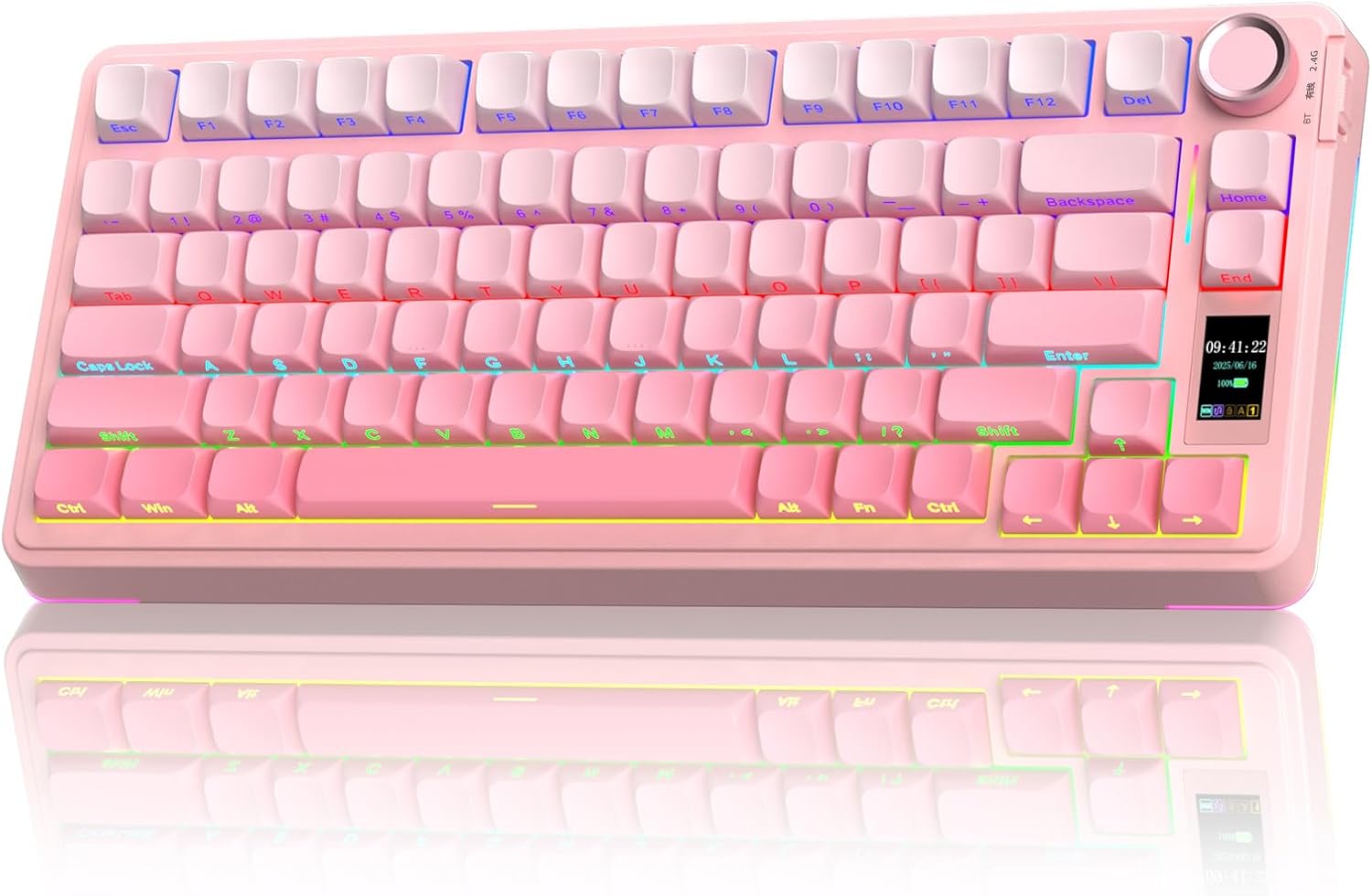
Image: The AULA S75 PRO Wireless Mechanical Keyboard in Gradient Pink, showcasing its compact layout, RGB backlighting, and integrated screen and knob.
2. Package Contents
Verify that all items are present in the package:
- Mechanical Keyboard x1
- USB Cable x1
- Keycap/Switches Puller x1
- Extra Linear Switch x4
3. Product Overview
The AULA S75 PRO is a 75% compact mechanical gaming keyboard designed for versatility and performance. It features a customizable LCD screen, a multi-function knob, and tri-mode connectivity.

Image: An overview highlighting key features such as BT5.0/2.4G/Wired connectivity, advanced structure, LCD screen & knob, hot-swappable switches, programmable driver, RGB backlight, 75% compact layout, and 4000mAh battery.
3.1. Customizable Screen & Multi-function Knob
The keyboard features an LCD screen for real-time updates and customization. It displays battery status, date, time, operating system, GIF images, volume, and backlight effects. The multi-function knob allows quick customization of most keyboard functions.
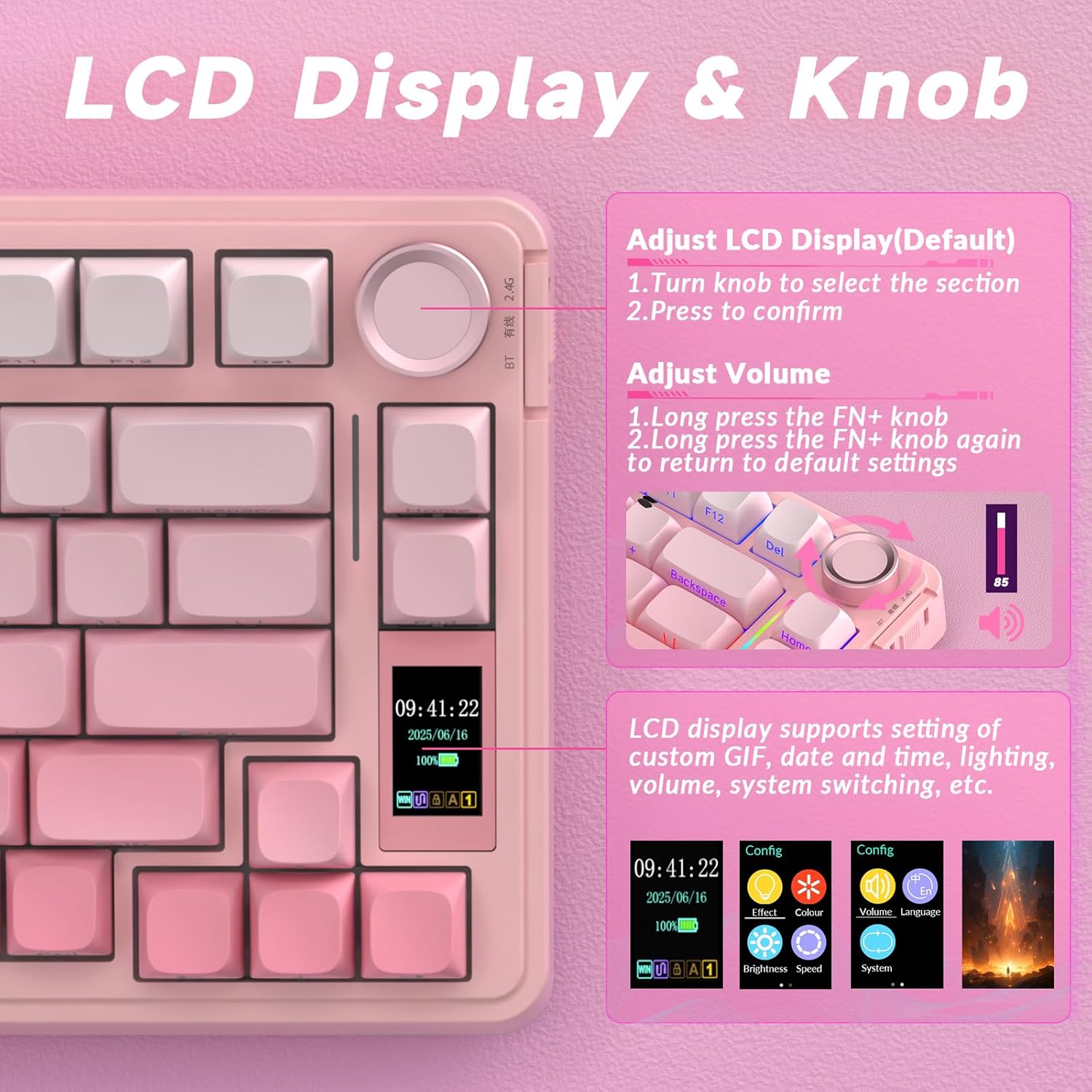
Image: A detailed view of the LCD screen displaying time, date, and battery, alongside the multi-function knob. Instructions for adjusting the display and volume are shown.
3.2. Tri-mode Connectivity
The AULA S75 PRO supports three connection modes: Bluetooth 5.0, 2.4GHz wireless, and USB-C wired. This allows for versatile use across various devices including PCs, laptops, tablets, smartphones, PS, and XBOX. The keyboard is compatible with Windows, Mac, iOS, and Android operating systems.

Image: The keyboard connected to multiple devices (tablet, phone, monitor) illustrating its three connection modes: Bluetooth, 2.4GHz wireless, and USB-C wired.
3.3. Hot-swappable Switches
The keyboard features a hot-swappable base, supporting both 3-pin and 5-pin switches. This allows users to easily customize their typing experience without soldering. Pre-lubricated stabilizers and switches contribute to a smooth and creamy typing sound.

Image: A close-up of the keyboard with several keycaps and switches removed, demonstrating the hot-swappable feature. Details about the Star Vector Switch are also shown.
3.4. Advanced Structure
The S75 Pro incorporates an advanced internal structure with an extended integrated silicone pad and PCB single key slotting. This design optimizes resilience and stability, providing a softer and more elastic feel. Five layers of filling silencer material reduce cavity noise, resulting in a solid typing experience.

Image: An exploded diagram illustrating the multi-layer shock-absorbing padding and components of the keyboard's advanced structure, including the metal volume knob, PBT keycaps, screen, switches, and various sound-absorbing layers.
3.5. 75% Compact Layout & PBT Keycaps
This 80-key 75% layout keyboard saves desktop space while retaining essential arrow keys. The side-engraved PBT keycaps are manufactured using double injection molding and heat sublimation, ensuring durability, fade resistance, and a soft touch. South-facing LEDs provide clear backlighting.
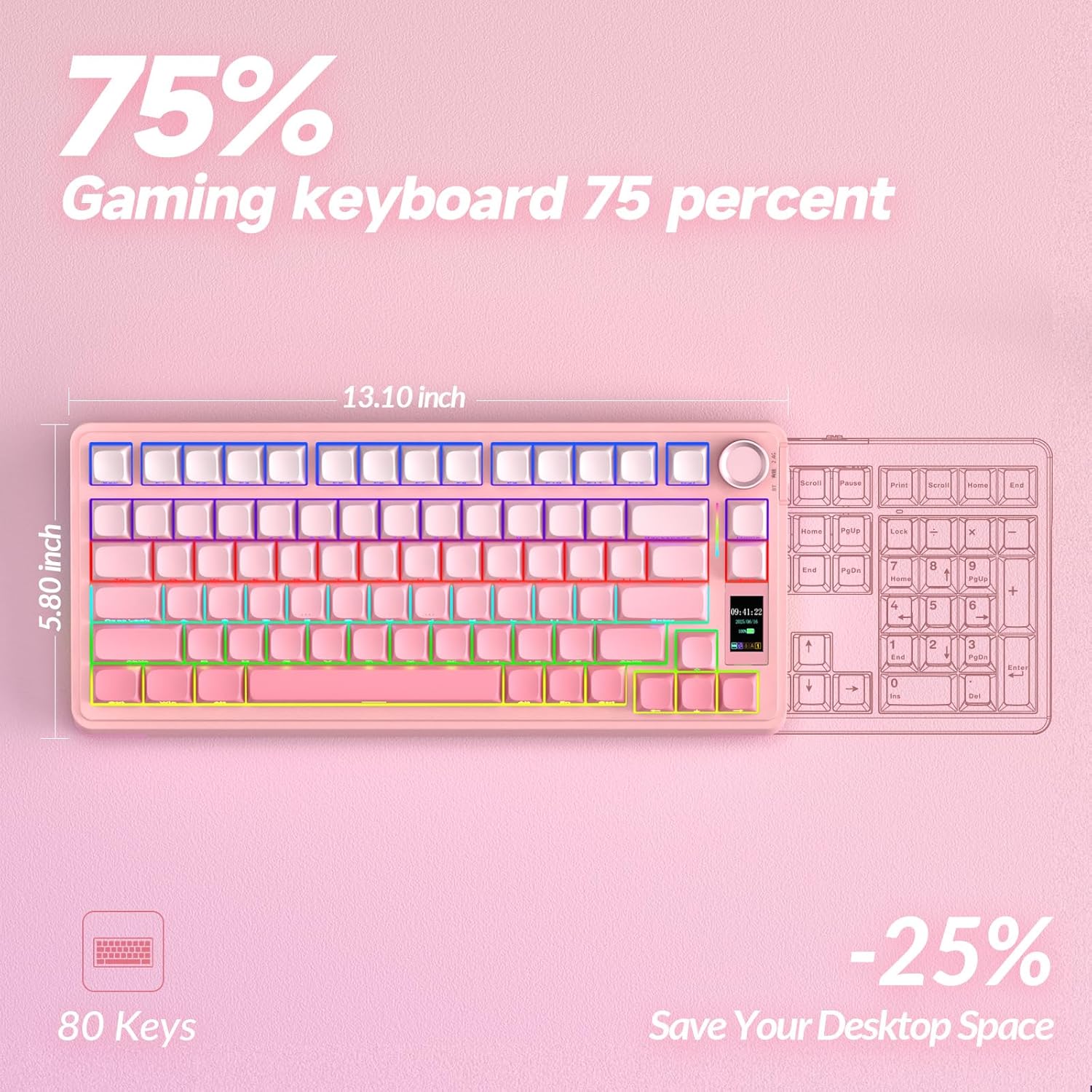
Image: A visual comparison of the 75% compact layout (80 keys) of the AULA S75 Pro with a full-size keyboard, highlighting its space-saving design and dimensions (13.10 inches x 5.80 inches).
3.6. RGB Backlight & Programmable Software
The keyboard features 19 RGB lighting effects with over 16.8 million colors and side lighting. RGB effects and colors can be adjusted via the knob, software, or shortcut keys. The S75 Pro driver (Windows only) allows macro customization for all keys, enhancing efficiency and gameplay.
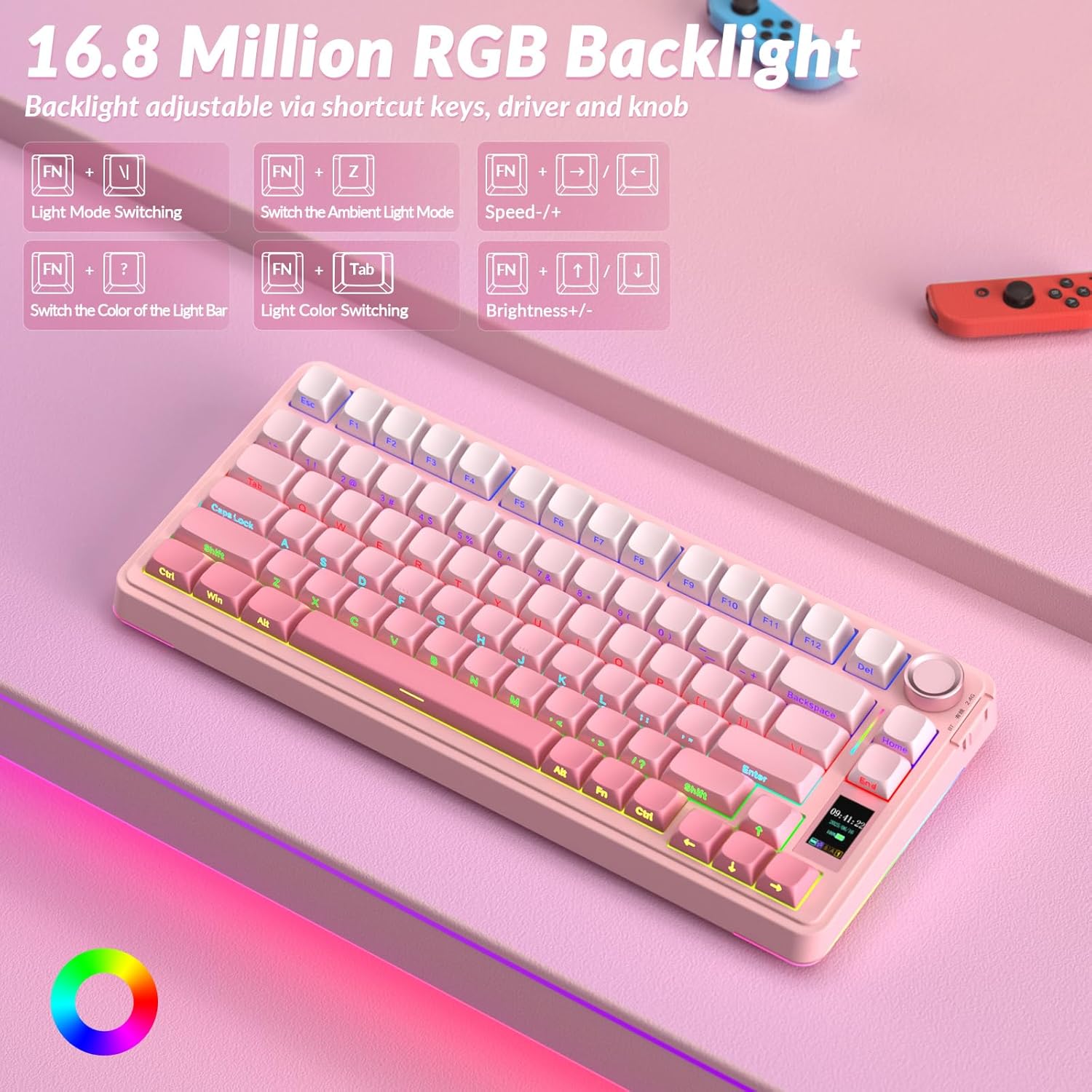
Image: The keyboard displaying its vibrant RGB backlighting, with a guide to shortcut keys for light mode switching, ambient light switching, speed adjustment, brightness control, and light bar color/mode switching.

Image: Screenshots of the AULA S75 Pro driver software interface, showing options for macro recording and editing, custom shortcut keys, setting RGB effects and colors, and customizing screen GIFs and time. Note: The driver supports Windows only.
3.7. Battery Life & Ergonomics
The keyboard is equipped with a 4000mAh battery for extended wireless use. It also features an ergonomic design with a 7-degree tilt for comfortable typing.

Image: A graphic indicating the 4000mAh battery capacity of the AULA S75 Pro keyboard.
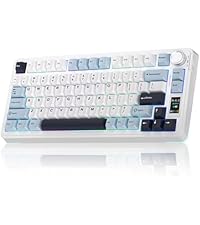
Image: A side view of the keyboard illustrating its ergonomic design with a 7-degree adjustable tilt for improved comfort.
4. Setup
4.1. Initial Charging
Before first use, connect the keyboard to a USB power source using the provided USB-C cable to ensure it is fully charged. The LCD screen will indicate battery status.
4.2. Connecting via USB-C Wired Mode
- Connect the USB-C end of the cable to the keyboard and the USB-A end to your computer.
- The keyboard will automatically be recognized and ready for use.
4.3. Connecting via 2.4GHz Wireless Mode
- Locate the 2.4GHz USB receiver (usually stored in a compartment on the keyboard).
- Plug the USB receiver into an available USB port on your computer.
- Switch the connection mode on the keyboard to 2.4GHz using the side button or knob. The keyboard should connect automatically.
4.4. Connecting via Bluetooth Mode
- Switch the connection mode on the keyboard to Bluetooth using the side button or knob.
- On your device (PC, laptop, tablet, smartphone), enable Bluetooth and search for new devices.
- Select "AULA S75 Pro" from the list of available devices to pair. The keyboard can save up to five devices.
4.5. Software Installation (Windows Only)
To access advanced customization features, including GIF uploads to the screen, macro programming, and detailed RGB control, download the official driver software from bit.ly/m/AULA. This software is compatible with Windows operating systems only and requires the keyboard to be in wired mode for certain settings.
5. Operating Instructions
5.1. Switching Connection Modes
Use the dedicated switch or knob on the side of the keyboard to cycle between Bluetooth, 2.4GHz wireless, and USB-C wired modes.
5.2. LCD Screen Functions
The LCD screen displays various information:
- Battery Status: Shows the current charge level.
- Date and Time: Displays the current date and time. Calibration requires the software in wired mode.
- Operating System: Indicates the currently detected OS.
- GIF Images: Customizable animated images. Requires software in wired mode for upload.
- Volume: Shows the current system volume level.
- Backlight Effect: Displays the active RGB lighting mode.
5.3. Multi-function Knob Usage
- Adjust LCD Display: Turn the knob to select a section on the LCD, then press to confirm.
- Adjust Volume: Long press the FN+knob to enter volume adjustment mode. Turn the knob to change volume. Long press FN+knob again to return to default settings.
5.4. RGB Backlight Control
The RGB backlight can be controlled via:
- Shortcut Keys: Refer to the keyboard's keycap legends or the product overview image for specific FN key combinations to change modes, colors, speed, and brightness.
- Knob: The multi-function knob can also be used to cycle through certain backlight effects.
- Software: The AULA S75 Pro driver (Windows only) provides extensive customization options for RGB lighting.
5.5. Hot-swapping Switches
To replace switches:
- IMPORTANT: Turn off the keyboard's power before replacing switches.
- Use the provided keycap puller to carefully remove the desired keycap.
- Use the provided switch puller to gently grip and pull out the switch.
- Align the pins of the new 3-pin or 5-pin switch with the sockets on the PCB.
- Press the new switch firmly until it clicks into place. Ensure it is seated correctly and not bent.
- Replace the keycap.
5.6. Programmable Keys and Macros
Using the AULA S75 Pro driver software (Windows only), you can:
- Record and edit macros for complex command sequences.
- Assign custom functions to individual keys.
6. Maintenance
6.1. Cleaning the Keyboard
- Disconnect the keyboard from all power sources before cleaning.
- Use a soft, lint-free cloth slightly dampened with water or a mild cleaning solution to wipe the keycaps and chassis.
- For dust and debris between keys, use compressed air or a small brush.
- Avoid using harsh chemicals or abrasive materials.
6.2. Keycap and Switch Replacement
Refer to section 5.5 for instructions on safely replacing keycaps and switches. Ensure the keyboard is powered off during this process.
6.3. Battery Care
- Charge the keyboard regularly to maintain battery health.
- Avoid fully discharging the battery frequently.
- If storing the keyboard for an extended period, charge it to approximately 50% and store in a cool, dry place.
7. Troubleshooting
| Problem | Possible Cause | Solution |
|---|---|---|
| Keyboard not connecting (2.4GHz/Bluetooth) | Low battery, incorrect mode, pairing issue, receiver not plugged in. | Charge keyboard. Ensure correct mode is selected. Re-pair Bluetooth or re-insert 2.4GHz receiver. |
| Keyboard not responding (wired mode) | Loose cable connection, temporary software glitch. | Ensure USB-C cable is securely connected. Unplug and replug the cable. Try a different USB port. |
| RGB backlight not working/customizing | Incorrect settings, software not installed/running. | Check backlight settings via shortcut keys or knob. Install/run the driver software (Windows only) for full customization. |
| LCD screen not updating/displaying GIFs | Software not used for customization, incorrect settings. | Ensure the driver software (Windows only) is used to set screen images/GIFs and calibrate date/time while in wired mode. |
| Keys not registering input | Faulty switch, debris under keycap, connectivity issue. | Check connectivity. Remove keycap and inspect for debris. If hot-swappable, try replacing the switch with one of the spares. |
8. Specifications
| Feature | Detail |
|---|---|
| Model Number | S75 Pro |
| Brand | AULA |
| Connectivity Technology | 2.4GHz Wireless, BT5.0, USB-C |
| Keyboard Description | Mechanical |
| Special Features | Backlit, Hot-Swappable, Programmable Keys, Rechargeable, Volume Roller, LCD Screen |
| Keyboard Backlighting | RGB |
| Compatible Devices | Gaming Console, Laptop, PC, Smartphone, Tablet |
| Material | Plastic |
| Item Weight | 2.97 pounds |
| Package Dimensions | 14.92 x 7.36 x 2.44 inches |
| Batteries | 2 A batteries required (included) |
| Manufacturer | AULA |
9. Warranty and Support
For warranty information and technical support, please refer to the official AULA website or contact their customer service directly. Details regarding specific warranty periods and support channels are typically provided with your purchase documentation or on the manufacturer's official support pages.
Related documentsS75 Pro


Ask a question about this manual
Ask about setup, troubleshooting, compatibility, parts, safety, or missing instructions. Manuals+ will review the question and use this page’s manual context to help answer it.