
1. Introduction
Thank you for choosing the EAMIRUO EA-60 Biometric Handgun Safe. This safe is designed to provide secure storage for your handgun and other valuables, offering multiple quick access methods including fingerprint, keypad, mechanical key, and mobile application. Please read this manual thoroughly before operating the safe to ensure proper setup and functionality.
2. Safety Information
- Always store firearms unloaded in the safe.
- Keep the safe locked and secured at all times when not in use.
- Store mechanical keys in a secure location away from the safe and out of reach of unauthorized individuals.
- Do not store the safe keys inside the safe.
- Ensure children and unauthorized persons do not have access to the safe or its unlocking methods.
- Verify the safe is securely mounted or tethered to prevent unauthorized removal.
- This safe is not water resistant. Avoid exposure to moisture.

Figure 2.1: Emphasizing safe storage of firearms away from children. The top left shows a child near the safe, while the top right shows a child reaching for an unsecured handgun. The bottom image shows the safe with an internal LED light, positioned next to a bed, with a person accessing a handgun.
3. Package Contents
Please check the package contents upon receipt to ensure all items are present:
- Smart Safe x 1
- Mechanical Key x 2
- AA Batteries x 4 (Note: Product specifications state batteries are not included, but included components list them. Please verify upon unboxing.)
- Mounting Bracket x 2
- Steel Safety Rope x 1
- USB-C Cable x 1
- Instruction Manual x 1
- Screws x 6
- Stickers x 1 (for mounting)

Video 3.1: Overview of the EAMIRUO EA-60 safe and its included accessories.
4. Setup
4.1 Initial Power-Up and Battery Installation
- Locate the battery compartment, typically on the underside or rear of the safe.
- Insert 4 AA batteries, ensuring correct polarity.
- The safe will provide voice prompts during initial setup and operation.
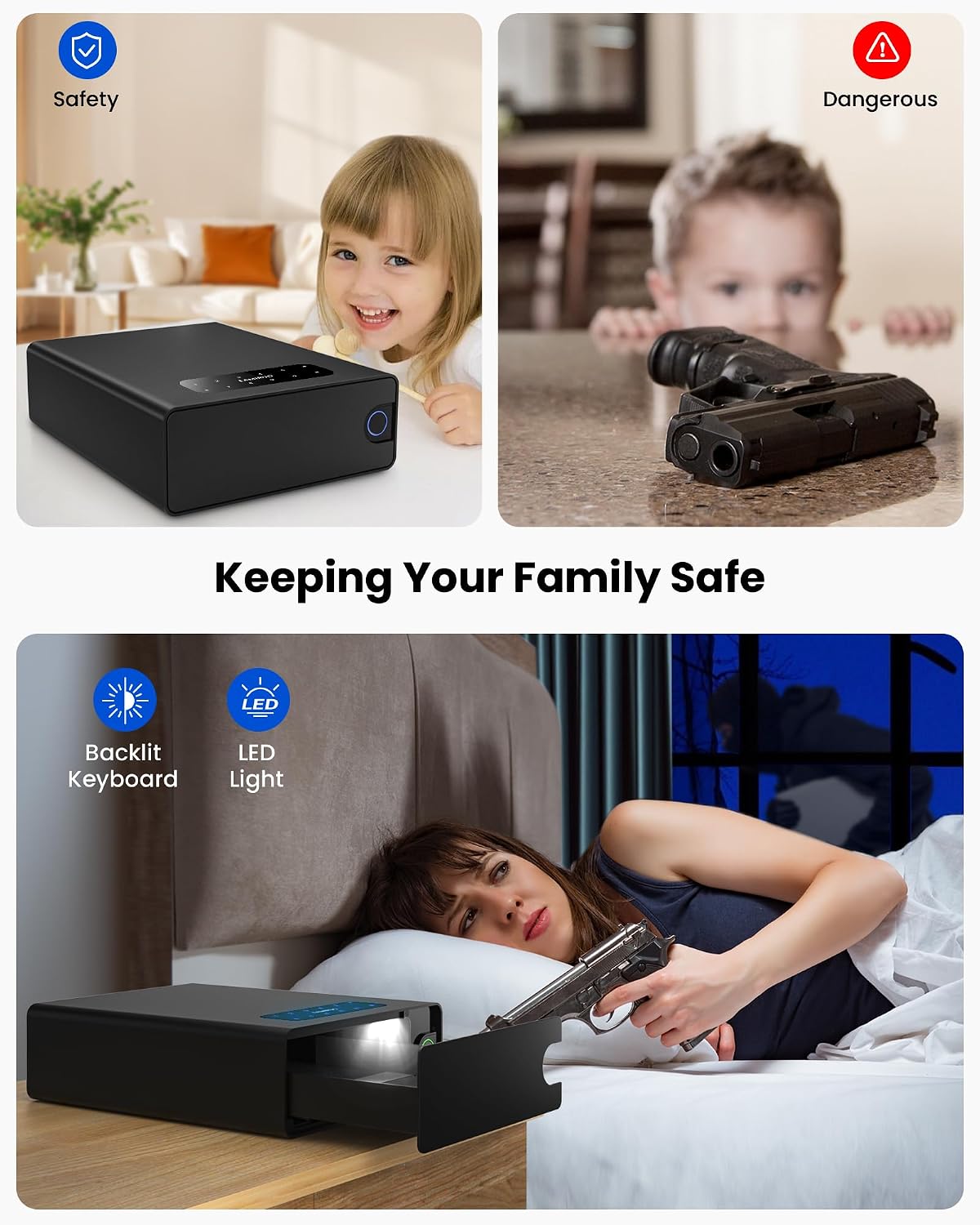
Figure 4.1: Interior view of the safe with the drawer open, showing space for a handgun.
4.2 Setting Up Fingerprints
The safe uses a 650DPI semiconductor biometric fingerprint sensor. It can store up to 50 fingerprints.
- Refer to the specific instructions in the included manual for entering programming mode.
- Follow the voice prompts to register your fingerprints. Typically, this involves scanning your finger multiple times from different angles.
- It is recommended to register multiple fingers for convenience and redundancy.

Figure 4.2: User interacting with the biometric fingerprint sensor for unlocking.
4.3 Setting Up Keypad Password
The safe supports a full numeric password.
- Enter programming mode as per the manual.
- Follow voice prompts to set your desired numeric password.
- Test the password to ensure it unlocks the safe correctly.
4.4 Mobile App Setup (Smart Life App)
The safe can be controlled via a mobile application, supporting WIFI 2.4G.
- Download the "Smart Life" app from your device's app store (App Store for iOS, Google Play for Android).
- Register or log in to your Smart Life account.
- Follow the in-app instructions to add the EAMIRUO EA-60 safe as a new device. This typically involves putting the safe into pairing mode and connecting it to your 2.4Ghz Wi-Fi network.
- Once connected, you can use the app for remote unlock, alarm management, viewing access history, and managing users.

Figure 4.3: Smart Life App interface for controlling the safe.
4.5 Mounting Options
The safe can be secured using the provided steel safety rope or mounted using the brackets.
- Security Cable: Loop the steel safety rope around a fixed object (e.g., furniture leg) and secure it to the designated point on the safe.
- Under-Desk/Wall Mounting: Use the provided brackets and screws to secure the safe to a stable surface such as under a desk or to a wall. Ensure the mounting surface is strong enough to support the safe's weight and contents.

Figure 4.4: Various installation scenarios for the EAMIRUO EA-60 safe.
5. Operating the Safe
5.1 Unlocking Methods
- Fingerprint Unlock: Place a registered finger on the biometric sensor. The safe will unlock in approximately 0.5 seconds.
- Keypad Unlock: Enter your programmed numeric password on the backlit keypad.
- Mechanical Key Unlock: Insert the mechanical key into the emergency keyhole and turn to unlock. This is for emergency access or when batteries are depleted.
- Mobile App Unlock: Open the Smart Life app, select your safe, and use the remote unlock function. This feature offers remote dynamic codes and temporary codes.
Video 5.1: Demonstration of the four quick access methods: keypad, fingerprint, mechanical key, and mobile app unlock.
5.2 Voice Prompts and Indicators
- The safe provides voice prompts during password and fingerprint setup.
- Voice prompts will also alert you to incorrect password entries and low battery status.
- The keypad is backlit for easy operation in low-light conditions.
- A built-in LED light illuminates the interior when the drawer is open.
6. Maintenance
- Battery Replacement: When the low battery voice prompt sounds, replace all four AA batteries promptly.
- Emergency Power: In case of complete battery depletion, use the provided USB-C cable to connect an external power source (e.g., power bank) to the emergency USB-C port for temporary power to unlock the safe.
- Cleaning: Wipe the safe exterior with a soft, dry cloth. Avoid abrasive cleaners or solvents.
- Fingerprint Sensor: Keep the fingerprint sensor clean and dry for optimal performance.

Figure 6.1: USB-C emergency charging port for external power.
7. Troubleshooting
- Safe not unlocking with fingerprint:
- Ensure your finger is clean and dry.
- Try different registered fingers.
- Re-register your fingerprints, ensuring full coverage during the scanning process.
- Check battery level; low batteries can affect sensor performance.
- Keypad not responding:
- Ensure the keypad lights up when touched. If not, check batteries.
- Verify the correct password is being entered.
- Try pressing the keypad firmly.
- App connectivity issues:
- Ensure your phone is connected to a 2.4Ghz Wi-Fi network during setup.
- Check if the safe is within range of your Wi-Fi router.
- Restart the app and the safe.
- Refer to the Smart Life app's troubleshooting guide for device pairing.
- Safe not opening after battery depletion:
- Use the mechanical key for emergency access.
- Connect an external power source via the USB-C emergency charging port.
- Voice prompts are unclear or too loud/quiet:
- Refer to the detailed instruction manual for voice prompt volume adjustment or language settings.
8. Specifications
| Brand | EAMIRUO |
| Model Number | EA-60 |
| Product Dimensions | 10.23"D x 8.07"W x 3.03"H |
| Item Weight | 9 Pounds |
| Material | Alloy Steel (2mm thick) |
| Color | Black |
| Capacity | Holds 2 small handguns or 1 medium to large handgun (max length 9.2 inches), or other valuables. |
| Lock Type | Fingerprint, Password, Key, App Remote Unlock, Remote Dynamic Code, Temporary Code |
| Fingerprint Sensor | 650DPI Semiconductor Biometric |
| Fingerprint Capacity | Up to 50 fingerprints |
| Special Features | Biometric Fingerprint, WIFI Remote Unlock (no distance limitation), Travel Mode, Voice Prompts, Backlit Keypad, Built-in LED Light, Emergency USB-C Port |
| Mounting Type | Tabletop, Under Desk, Wall-mountable |
| Power Source | 4 x AA Batteries (not included as per spec, but listed as included in components - please verify) |
| Alarm | Audible (for wrong password, low battery) |
| Water Resistance Level | Not Water Resistant |
9. Warranty and Support
For warranty information and technical support, please refer to the contact details provided with your purchase or visit the official EAMIRUO website. Keep your purchase receipt as proof of purchase.