
ZZA Z24B1K200HZ
ZZA 24-Inch Curved Gaming Monitor (Model Z24B1K200HZ) User Manual
Your guide to setup, operation, and maintenance
1. Introduction
This manual provides essential information for the proper installation, operation, and maintenance of your ZZA 24-inch Curved Gaming Monitor (Model Z24B1K200HZ). Please read this manual thoroughly before using the product to ensure optimal performance and safety.
The ZZA 24-inch Curved Gaming Monitor features a 23.8-inch FHD (1920x1080) curved display with a 2800R curvature, offering a wide 178° viewing angle. It supports a refresh rate of up to 200Hz (via DisplayPort 1.4) and 180Hz, with a 1ms response time. Key features include AMD FreeSync technology, flicker-free operation, and low blue light mode for eye comfort. The monitor also boasts an ultra-slim 1cm profile and a 3-sided bezel-less design.
2. Safety Information
Observe the following safety precautions to prevent damage to the monitor and ensure user safety:
- Do not expose the monitor to rain, moisture, or extreme temperatures.
- Ensure the power cord is securely connected and not damaged.
- Avoid placing heavy objects on the power cord.
- Do not attempt to open or service the monitor yourself. Refer all servicing to qualified personnel.
- Place the monitor on a stable, level surface to prevent it from falling.
- Unplug the monitor from the power outlet before cleaning.
3. Package Contents
Verify that all items are present in the package:
- ZZA 24-inch Curved Gaming Monitor
- Monitor Stand (Base and Neck)
- DisplayPort (DP) Cable
- Power Cable
- User Manual (this document)
4. Setup
4.1 Assembling the Stand
- Carefully remove the monitor from its packaging, keeping it protected.
- Attach the stand neck to the monitor panel.
- Secure the stand base to the stand neck.
- Place the assembled monitor on a stable desk.
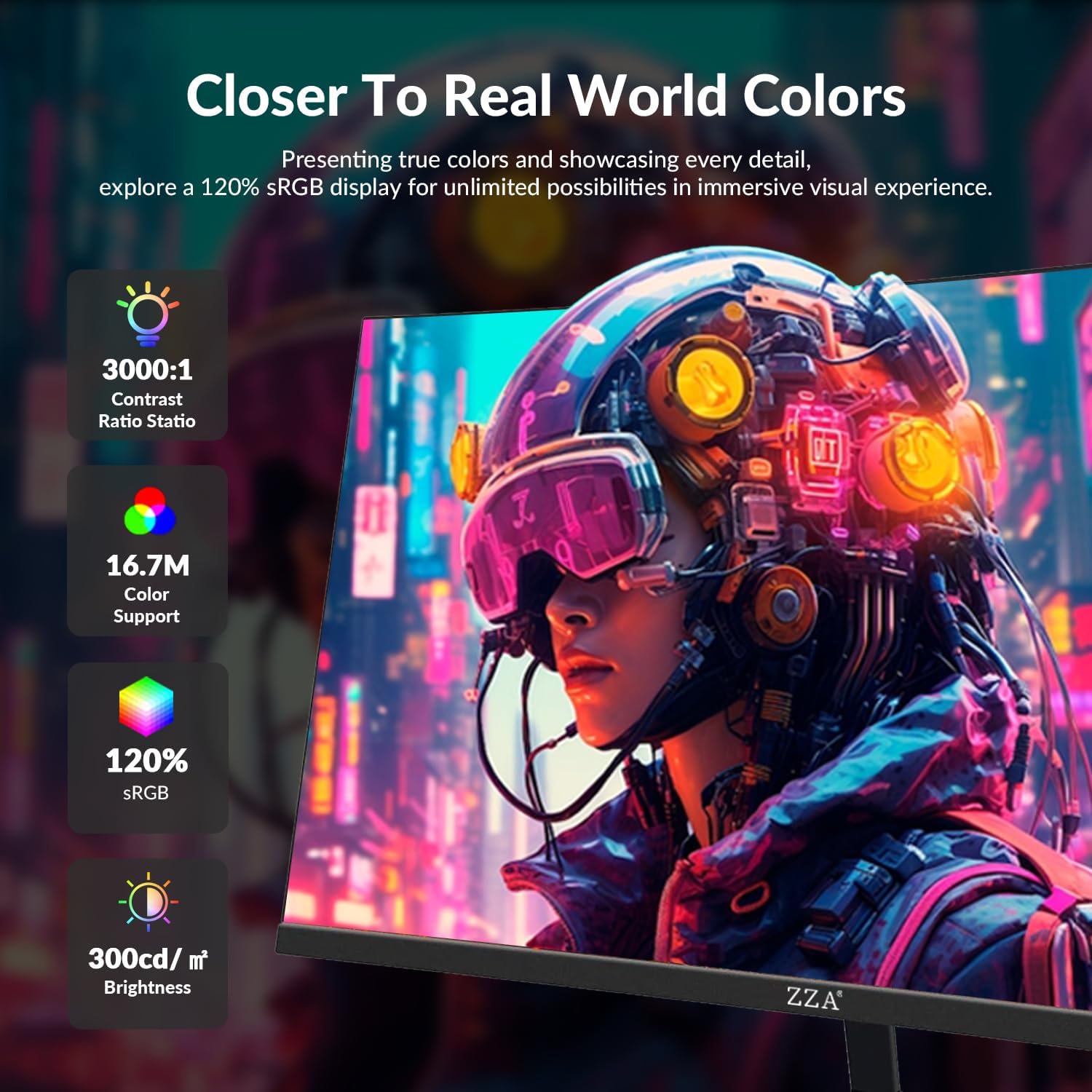
Image: ZZA 24-inch curved gaming monitor with its stand assembled and placed on a desk.
4.2 Connecting Cables
Connect the necessary cables to the monitor and your computer or gaming console:
- Power Cable: Connect one end of the power cable to the monitor's power input and the other end to a power outlet.
- DisplayPort (DP) Cable: For optimal performance (up to 200Hz refresh rate), connect the included DisplayPort 1.4 cable from your computer's graphics card to the monitor's DP input.
- HDMI Cable: Alternatively, connect an HDMI 2.0 cable from your device to the monitor's HDMI input. Note that HDMI 2.0 supports a maximum refresh rate of 120Hz on this monitor.

Image: Front view of the ZZA 24-inch curved gaming monitor, showing the display and stand.
4.3 Initial Power On
After connecting all cables, press the power button on the monitor to turn it on. The monitor should automatically detect the input signal. If no signal is detected, ensure your source device is powered on and the correct input is selected on the monitor.
5. Operating Instructions
5.1 Power On/Off
Press the power button located on the monitor to turn it on or off. The power indicator light will illuminate when the monitor is active.
5.2 On-Screen Display (OSD) Menu
The OSD menu allows you to adjust various monitor settings. Typically, buttons are located on the back or bottom of the monitor. Use these buttons to navigate the menu and select options.
- Navigation: Use the directional buttons to move through menu options.
- Selection: Press the 'OK' or 'Enter' button to confirm a selection.
- Exit: Use the 'Exit' or 'Back' button to return to the previous menu or close the OSD.
5.3 Adjusting Refresh Rate
The monitor supports up to 200Hz refresh rate via DisplayPort 1.4. To achieve this, ensure your graphics card and cable support DP 1.4. For HDMI 2.0, the maximum refresh rate is 120Hz. You may need to adjust the refresh rate setting in your operating system's display settings.
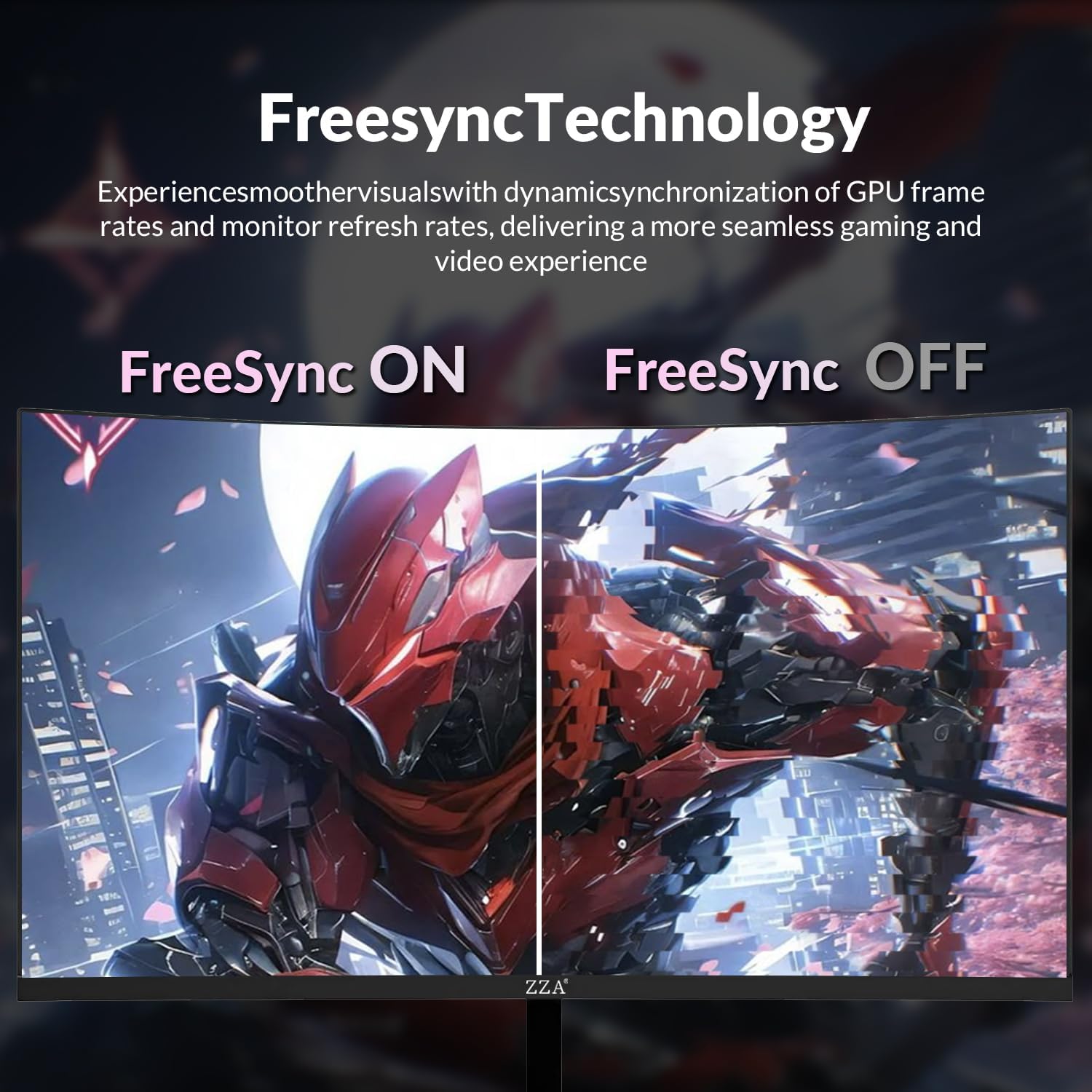
Image: Visual representation of the difference between 200Hz and 60Hz refresh rates, showing smoother motion at higher rates.
5.4 AMD FreeSync Technology
This monitor incorporates AMD FreeSync technology to synchronize the monitor's refresh rate with your GPU's frame rate, eliminating screen tearing and stuttering. To enable FreeSync:
- Ensure your graphics card is AMD FreeSync compatible.
- Connect the monitor using a DisplayPort cable.
- Enable FreeSync in the monitor's OSD menu.
- Enable FreeSync (or Adaptive Sync) in your graphics card's control panel software.
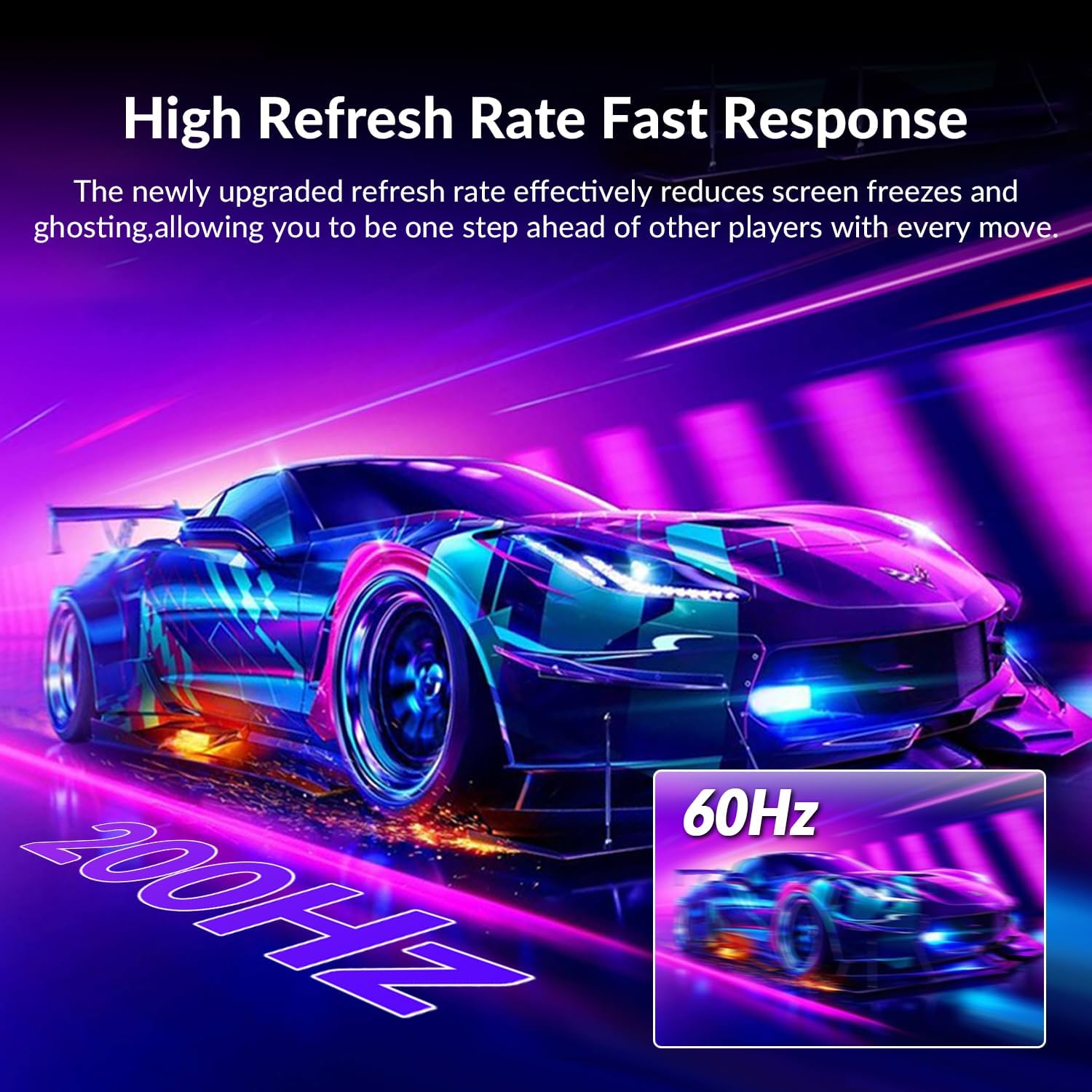
Image: A split screen showing the visual difference between FreeSync ON (smooth image) and FreeSync OFF (image tearing).
5.5 Eye Care Features
The monitor includes flicker-free technology and a low blue light mode to reduce eye strain during prolonged use. These features can typically be enabled or adjusted within the OSD menu.

Image: An illustration highlighting the monitor's color capabilities, including 3000:1 contrast ratio, 16.7 million colors, 120% sRGB coverage, and 300 cd/m² brightness.
6. Maintenance
6.1 Cleaning the Monitor
To clean your monitor, follow these steps:
- Turn off the monitor and unplug the power cable.
- Use a soft, lint-free cloth lightly dampened with water or a non-abrasive screen cleaner.
- Gently wipe the screen and exterior surfaces.
- Avoid using harsh chemicals, abrasive cleaners, or spraying liquid directly onto the screen.
7. Troubleshooting
If you encounter issues with your monitor, refer to the following common problems and solutions:
| Problem | Possible Solution |
|---|---|
| No image on screen | Ensure power cable is connected and monitor is turned on. Verify video cable (DP/HDMI) is securely connected to both monitor and source device. Check if the correct input source is selected on the monitor. |
| Image flickering or stuttering | Ensure video cable is securely connected. Enable AMD FreeSync in both monitor OSD and graphics card settings. Check refresh rate settings in your operating system. |
| Colors appear incorrect | Adjust color settings in the monitor's OSD menu. Ensure your graphics card drivers are up to date. |
| Monitor not reaching 200Hz | Confirm you are using a DisplayPort 1.4 cable. Verify your graphics card supports 200Hz at 1080p. Adjust refresh rate in your operating system's display settings. HDMI 2.0 supports a maximum of 120Hz. |
8. Specifications
| Feature | Detail |
|---|---|
| Model Number | Z24B1K200HZ |
| Screen Size | 24 Inches (23.8" visible) |
| Resolution | FHD 1920 x 1080 Pixels |
| Aspect Ratio | 16:9 |
| Curvature | 2800R |
| Refresh Rate | 200Hz (DP 1.4), 180Hz, 120Hz (HDMI 2.0 max) |
| Response Time | 1ms |
| Brightness | 300 cd/m² |
| Contrast Ratio | 3000:1 |
| Color Support | 8-bit (16.7 million hues), 120% sRGB |
| Viewing Angle | 178° (Horizontal/Vertical) |
| Connectivity | DisplayPort, HDMI |
| VESA Mount Compatible | Yes |
| Product Dimensions | 23.4 x 4.64 x 15.4 inches |
| Item Weight | 7.65 pounds |
| Screen Surface Description | Matte |
9. Warranty and Support
9.1 Customer Assurances
ZZA is committed to delivering high-quality monitors and premium customer service. We strive to ensure your satisfaction with our products.
9.2 Technical Support
Should you have any questions, require assistance with setup, or encounter any issues not covered in this manual, please contact our dedicated support team. Refer to the product packaging or the official ZZA website for the most current contact information.
Ask a question about this manual
Ask about setup, troubleshooting, compatibility, parts, safety, or missing instructions. Manuals+ will review the question and use this page’s manual context to help answer it.