1. Introduction
The GIGABYTE GA-H77M-D3H is a micro-ATX motherboard designed for Intel LGA 1155 processors, supporting Intel Core i7, i5, i3, Pentium, and Celeron CPUs. It features the Intel H77 Express Chipset, DDR3 memory support, and various expansion slots and storage interfaces.
1.1 Important Information
- This product is a used item. While functions are fully normal, slight signs of prior use may be present.
- Professional installation is recommended due to the technical nature of motherboard installation. Incorrect installation can lead to damage.
- The appearance and color of the product may vary slightly depending on the manufacturing batch, but this does not affect functionality.
- Ensure all components are compatible with the LGA 1155 socket and DDR3 memory standard before installation.
2. Product Overview and Features
2.1 Key Features
- CPU Support: Intel Core i7/i5/i3/Pentium/Celeron processors in LGA1155 package.
- Chipset: Intel H77 Express Chipset.
- Memory: 4 x 1.5V DDR3 DIMM sockets, up to 32 GB system memory. Supports DDR3 2200(OC)/1600/1333/1066 MHz. Dual channel architecture.
- Expansion Slots: 1 x PCI Express x16 (x16, PCIe 3.0), 1 x PCI Express x16 (x4), 1 x PCI Express x1 (PCIe 2.0).
- Storage Interface: 2 x SATA 6Gb/s connectors, 4 x SATA 3Gb/s connectors. Supports RAID 0, 1, 5, 10.
2.2 Visual Guide

Figure 1: Top-down view of the GIGABYTE GA-H77M-D3H motherboard, highlighting the layout of major components such as the LGA 1155 CPU socket, four DDR3 DIMM slots, PCI Express slots, and SATA ports.
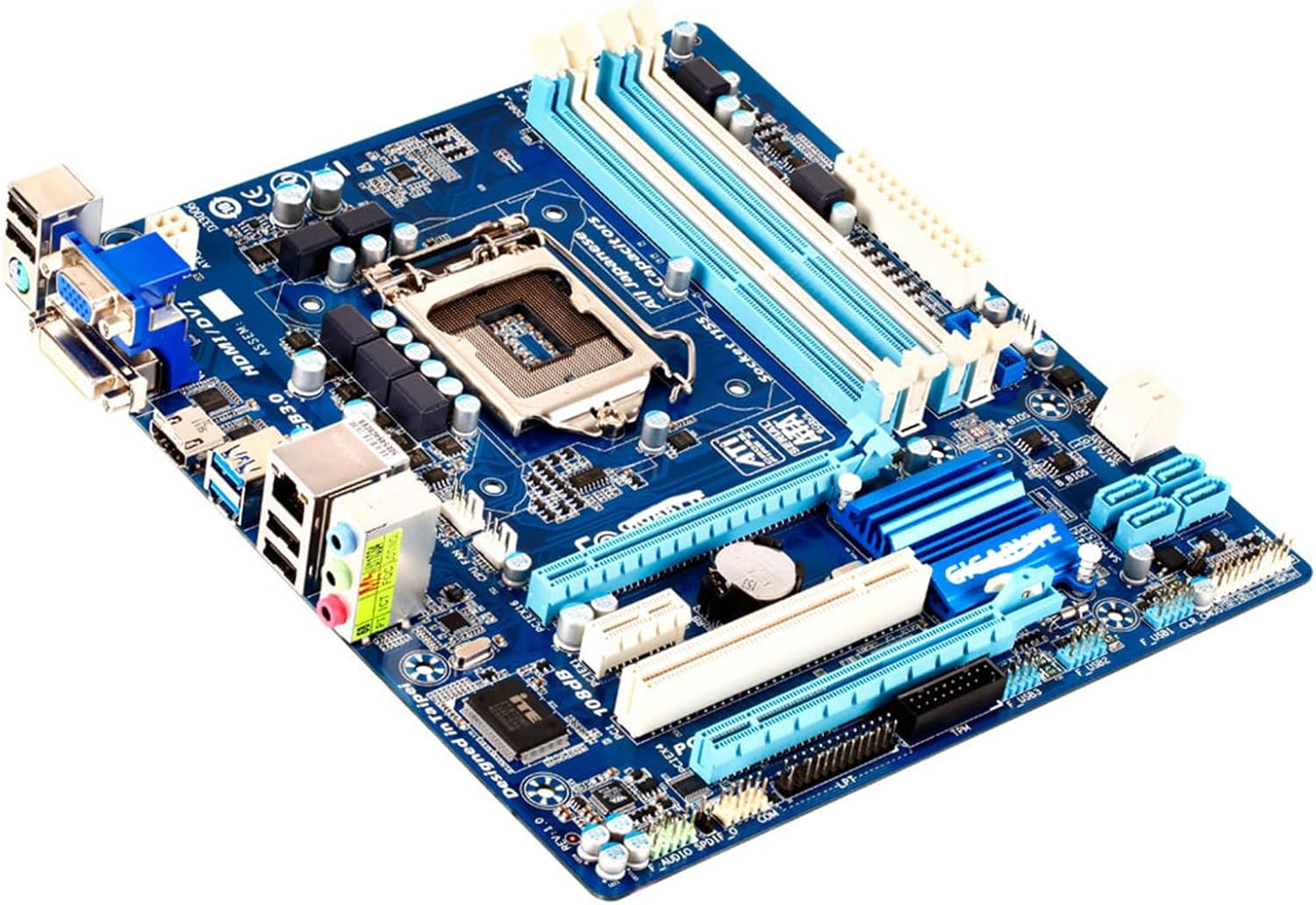
Figure 2: Angled perspective of the motherboard, providing a clearer view of the chipset heatsinks, power connectors, and the general three-dimensional arrangement of components.

Figure 3: The rear I/O panel, illustrating the available ports including USB 2.0, USB 3.0, PS/2, VGA, DVI, HDMI, Gigabit Ethernet, and 7.1-channel audio jacks.
3. Setup and Installation
This section guides you through the process of installing your motherboard and essential components. Always handle components with care and observe anti-static precautions.
3.1 Before You Begin
- Safety First: Disconnect power from your system before installing or removing any components.
- Anti-Static Precautions: Wear an anti-static wrist strap or frequently touch a grounded metal object to discharge static electricity.
- Tools Required: Phillips head screwdriver, anti-static wrist strap (recommended), thermal paste (for CPU).
- Compatibility Check: Ensure your CPU, RAM, and other components are compatible with the LGA 1155 socket and DDR3 memory standard.
3.2 Motherboard Installation
- Prepare your PC case by installing the I/O shield provided with the motherboard into the designated opening at the rear of the case.
- Carefully align the motherboard with the standoffs inside your PC case. Ensure all screw holes on the motherboard match the standoffs.
- Secure the motherboard to the case using the appropriate screws. Do not overtighten.
3.3 Component Installation
3.3.1 CPU Installation
1. Open the CPU socket lever and lift the metal load plate. 2. Carefully place the Intel LGA 1155 CPU into the socket, ensuring the triangular markers on the CPU and socket align. Do not force the CPU. 3. Close the load plate and secure it with the lever. 4. Apply a thin, even layer of thermal paste to the top of the CPU. 5. Install the CPU cooler according to its manufacturer's instructions, ensuring it makes firm contact with the CPU.
3.3.2 RAM Installation
1. Open the clips at both ends of the DDR3 DIMM slots. 2. Align the notch on the RAM module with the key in the DIMM slot. 3. Insert the RAM module firmly into the slot until the clips snap into place. For dual-channel operation, refer to your motherboard's specific manual for recommended slot pairing (e.g., slots 1 and 3, or 2 and 4).
3.3.3 Storage Devices (SATA)
Connect your SATA hard drives or SSDs to the SATA ports on the motherboard using SATA data cables. Connect the power cables from your power supply to the drives. For optimal performance, connect primary drives to the SATA 6Gb/s ports (SATA3 0/1).
3.3.4 Expansion Cards (PCIe)
Insert your graphics card into the PCI Express x16 slot (PCIEX16) for maximum performance. For other expansion cards (e.g., sound cards, network cards), use the available PCI Express x1 or x4 slots. Ensure the card is fully seated and secured with a screw to the case.
3.3.5 Power Supply Connection
Connect the 24-pin ATX main power connector and the 8-pin (or 4-pin) ATX 12V CPU power connector from your power supply to the corresponding ports on the motherboard. Ensure all connections are secure.
4. Operating Your System
After all components are installed and connected, you can power on your system. The motherboard's BIOS/UEFI firmware allows you to configure system settings, boot order, and monitor hardware. Install your preferred operating system (e.g., Windows) and necessary drivers for optimal performance.
5. Maintenance
Regular maintenance helps ensure the longevity and stable operation of your motherboard and PC components.
- Dust Removal: Periodically clean dust from inside your PC case, especially from heatsinks and fans, using compressed air. Ensure the system is powered off and unplugged before cleaning.
- BIOS/UEFI Updates: Check the manufacturer's website for BIOS/UEFI updates. Only update if necessary and follow instructions carefully.
- Driver Updates: Keep your system drivers (chipset, graphics, audio, network) updated for best performance and compatibility.
6. Troubleshooting
If you encounter issues, refer to the following common troubleshooting steps:
- No Power: Ensure all power cables (24-pin ATX, 8-pin CPU) are securely connected to the motherboard and power supply. Check the power supply unit (PSU) switch.
- No Display: Verify that your monitor is connected to the graphics card or motherboard's integrated graphics output. Reseat the graphics card and RAM modules.
- System Instability/Crashes: Check RAM modules for proper seating. Ensure CPU cooler is correctly installed and making good contact. Monitor temperatures.
- Component Not Detected: Reseat the component (e.g., RAM, graphics card, SATA drive). Check cable connections. Verify component compatibility.
- BIOS/UEFI Issues: If the system fails to boot or behaves erratically, try clearing the CMOS. Refer to the motherboard's specific manual for the CMOS clear jumper location or battery removal procedure.
7. Technical Specifications
| Feature | Specification |
|---|---|
| Model Name | GA-H77M-D3H |
| CPU Socket | LGA 1155 |
| Compatible Processors | Intel Core i7/i5/i3/Pentium/Celeron |
| Chipset Type | Intel H77 Express |
| RAM Memory Technology | DDR3 |
| Memory Slots Available | 4 |
| Memory Clock Speed | 1600 MHz (Supports up to 2200(OC) MHz) |
| Product Dimensions | 9.6 x 9.4 x 2 inches |
| Platform | Windows |
| Manufacturer | GIGA |
| Compatible Devices | Personal Computer |
8. Warranty and Support
As this is a used product, specific warranty terms may vary. Please refer to the seller's policy for details regarding returns or limited warranty. For technical support, it is recommended to consult online resources, community forums, or a qualified PC technician.
For general information about GIGABYTE products, you may visit the official GIGABYTE website.