
1. Overview
The Keychron Q6 HE 8K Edition is a full-size wired keyboard featuring Hall Effect magnetic switches, an 8000 Hz polling rate, and a full aluminum body. Designed for precision and responsiveness, it offers extensive customization through the Keychron Launcher web configurator and is compatible with Mac, Windows, and Linux operating systems.
Key Features
- Full Aluminum Body: Provides a durable and stable typing experience.
- Magnetic Switches: Pre-lubed Keychron Ultra-Fast Lime Magnetic Switches offer adjustable actuation points and rapid trigger functionality.
- 8000 Hz Polling Rate: Ensures ultra-responsive performance and minimal input lag in wired mode.
- Keychron Launcher Web Configurator: Allows for key remapping, actuation point adjustment, macro creation, and RGB customization without software installation.
- Non-Shine-Through PBT Keycaps: Offers oil resistance and enhanced typing feel.
- Customizable RGB Backlight: Features 22+ customizable RGB effects.
- Hot-Swappable Design: Allows for easy switch replacement.
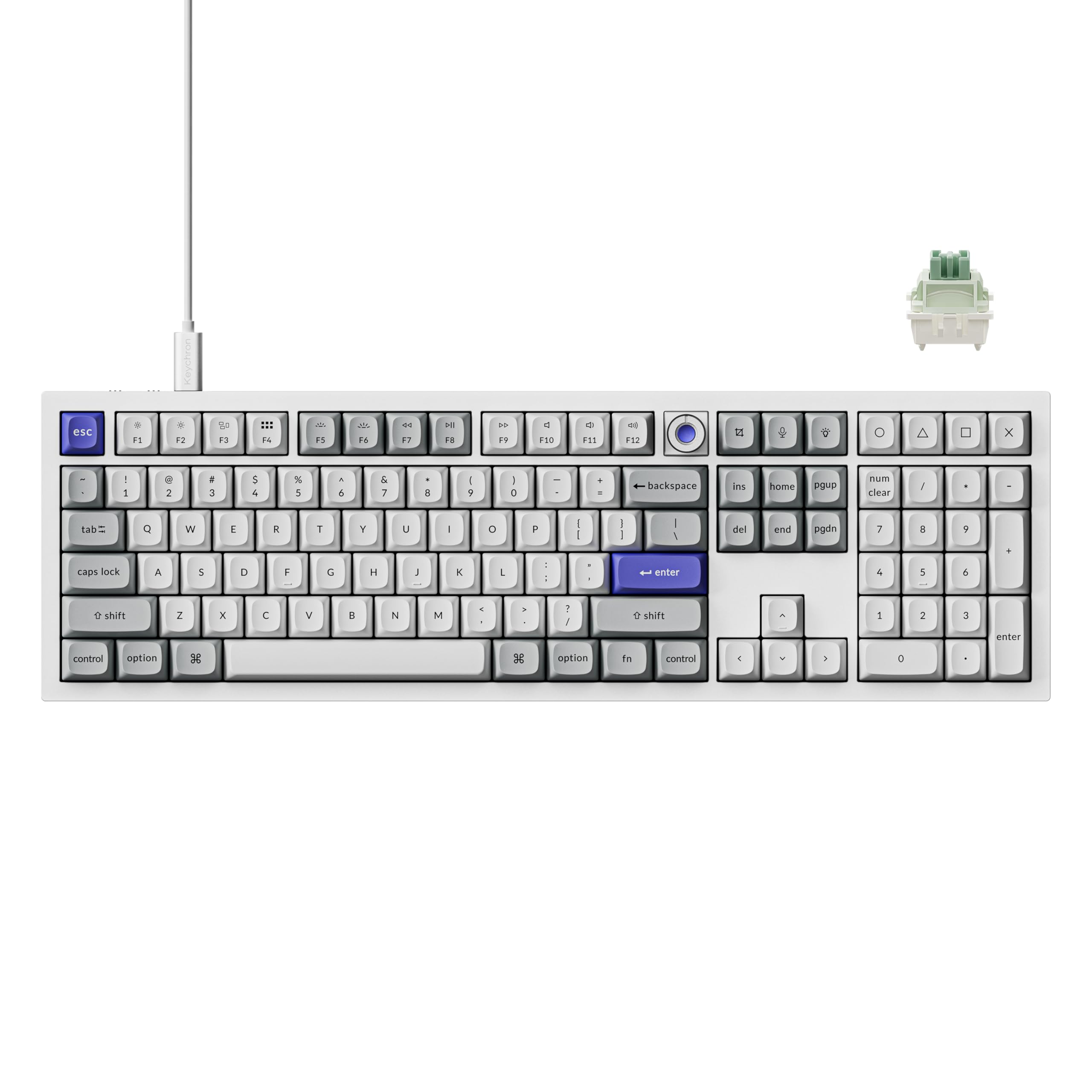
Image 1.1: The Keychron Q6 HE Wired Hall Effect Keyboard in White.
2. What's in the Box
The Keychron Q6 HE keyboard package includes the following components:
- 1x Fully Assembled Keyboard
- 1x Type-C Cable
- 1x Type-A to Type-C Adapter
- 1x Keycap & Switch Puller
- 1x Screwdriver
- 1x Hex Key

Image 2.1: Included components for the Keychron Q6 HE keyboard.
3. Setup
3.1 System Compatibility
The Keychron Q6 HE keyboard is compatible with Mac, Windows, and Linux operating systems. Ensure your system meets the minimum requirements for optimal performance, especially for the 8K polling rate feature (Intel i7 9th Gen, AMD Ryzen 7 2nd Gen or above).
3.2 Connection
This keyboard operates exclusively in wired mode via a Type-C connection. To connect your keyboard:
- Locate the Type-C port on the keyboard.
- Connect one end of the provided Type-C cable to the keyboard.
- Connect the other end of the Type-C cable to an available USB port on your computer. Use the Type-A to Type-C adapter if your computer only has Type-A ports.
- The keyboard will be automatically recognized by your operating system.

Image 3.1: The Keychron Q6 HE keyboard is designed for wired USB connectivity across various devices.
4. Operating Instructions
4.1 Keychron Ultra-Fast Lime Magnetic Switches
The Q6 HE features pre-lubed Keychron Ultra-Fast Lime Magnetic Switches. These switches utilize Hall Effect technology, allowing for adjustable actuation points and rapid trigger functionality. This provides precise control over key sensitivity and response.

Image 4.1: Detailed specifications of the Keychron Ultra-Fast Lime Magnetic Switch.
4.2 8000 Hz Polling Rate
The Q6 HE supports an 8000 Hz polling rate in wired mode, minimizing input lag for highly responsive performance. The polling rate can be adjusted to 1000 Hz or 4000 Hz via the Keychron Launcher web configurator.

Image 4.2: The keyboard features an 8000 Hz polling rate for ultra-fast response.
4.3 Keychron Launcher Web Configurator
Customize your keyboard settings using the Keychron Launcher web app. This tool allows you to remap keys, adjust actuation points, set magnetic switch behaviors, and customize macros, shortcuts, or key combinations. Access it directly through a web browser (Chromium-based browsers recommended) without needing to install any software.

Image 4.3: The Keychron Launcher web configurator for advanced keyboard programming.
4.4 Rapid Trigger
Rapid Trigger allows keys to reset and reactivate almost simultaneously, providing enhanced responsiveness for fast-paced actions. This feature can be configured via the Keychron Launcher.

Image 4.4: Illustration of Rapid Trigger functionality with magnetic switches.
4.5 Last Key Priority (LKP)
The Last Key Priority feature ensures that when multiple keys are pressed simultaneously, the last key pressed takes precedence. This can be particularly useful in gaming scenarios for precise movement control.

Image 4.5: Demonstration of Last Key Priority (LKP) in action.
4.6 One Key, Multiple Actions
Program a single key to perform multiple actions based on the depth of the keypress. This allows for complex commands to be executed with a single key, enhancing efficiency in various applications.

Image 4.6: Visual representation of assigning multiple actions to a single key based on press depth.
4.7 Analog Mode
The Analog Mode feature allows for pressure-sensitive input, similar to a joystick, providing finer control in compatible applications and games. This can be enabled and configured through the Keychron Launcher.

Image 4.7: The keyboard supports Analog Mode for nuanced input.
4.8 Customizable RGB Backlighting
The keyboard features south-facing RGB LED lights with over 22 customizable backlight effects. These can be adjusted directly on the keyboard or fine-tuned using the Keychron Launcher web app for personalized lighting.

Image 4.8: The keyboard features south-facing RGB LED lights for customizable illumination.
5. Maintenance
5.1 Cleaning
To maintain the keyboard's appearance and functionality:
- Disconnect the keyboard from your computer before cleaning.
- Use a soft, lint-free cloth slightly dampened with water or a mild cleaning solution to wipe the aluminum body.
- For keycaps, use the provided keycap puller to remove them and clean with a soft brush or compressed air.
- Avoid spraying liquids directly onto the keyboard.
5.2 Keycap and Switch Replacement
The Keychron Q6 HE features hot-swappable switches, allowing for easy replacement without soldering. Use the provided keycap and switch puller tools for safe removal and installation.
- To remove a keycap, gently pull it upwards using the keycap puller.
- To remove a switch, use the switch puller to grasp the top and bottom clips of the switch and pull it straight up.
- To install a new switch, align its pins with the holes on the PCB and press down gently until it clicks into place. Ensure the pins are not bent.
- To install a new keycap, align it with the switch stem and press down firmly.

Image 5.1: The hot-swappable design allows for easy switch replacement.
6. Troubleshooting
6.1 Common Issues
- Keyboard not responding: Ensure the Type-C cable is securely connected to both the keyboard and the computer. Try a different USB port or cable.
- Keys not registering: Check if the switches are properly seated. If a specific key is not working, try replacing its switch.
- RGB backlight not working: Verify RGB settings in the Keychron Launcher or adjust directly on the keyboard. Ensure the keyboard is receiving sufficient power.
- Polling rate issues: Confirm your computer meets the processor requirements for 8K polling rate. Adjust the polling rate in the Keychron Launcher.
6.2 Firmware Updates
Periodically check for firmware updates to ensure optimal performance and access to new features. Firmware updates can be performed through the Keychron Launcher web app. Follow the on-screen instructions carefully during the update process.
7. Specifications
| Feature | Detail |
|---|---|
| Brand | Keychron |
| Model Number | Q6HW-P1 |
| Connectivity Technology | Type-C wired |
| Compatible Devices | Mac, Windows, Linux |
| Keyboard Description | Gaming |
| Special Features | 8000 Hz Polling Rate, Magnetic Hall Effect Switches, Programmable Keys |
| Color | White |
| Keyboard Backlighting | RGB |
| Material | Aluminum |
| Number of Keys | 104 |
| Switch Type | Linear (Keychron Ultra-Fast Lime Magnetic Switches) |
| Keyboard Layout | QWERTY |
| Power Source | Corded Electric |
8. Warranty and Support
8.1 Warranty Information
This product typically comes with a manufacturer's warranty. Please refer to the warranty card included in your package or visit the official Keychron website for detailed warranty terms and conditions. Protection plans may also be available for purchase separately.
8.2 Customer Support
For technical assistance, troubleshooting, or further inquiries, please visit the official Keychron support page or contact their customer service. You can find contact information and FAQs on the Keychron Store on Amazon or their official website.


