
ULTIMEA U2600
Contents
ULTIMEA Poseidon D70 7.1ch Sound System User Manual
Model: U2600
1. Introduction
This manual provides detailed instructions for setting up and operating your ULTIMEA Poseidon D70 7.1ch Sound System. Please read this manual thoroughly before use to ensure proper functionality and to maximize your audio experience.

Image 1.1: Overview of the ULTIMEA Poseidon D70 7.1ch Sound System components including the soundbar, wireless subwoofer, and four wired surround speakers.

Image 1.2: The Poseidon D70 sound system integrated into a living room environment, highlighting its 7.1 channel virtual surround sound, four surround speakers, and app control capabilities.
2. What's in the Box
Carefully unpack all components and ensure all items are present before proceeding with setup.
- 1x Soundbar
- 1x Wireless Subwoofer
- 4x Wired Surround Speakers
- 1x Power Adaptor (for soundbar)
- 1x Subwoofer Power Cable
- 2x Stereo RCA to RCA Audio Cables (20 feet, for surround speakers)
- 1x HDMI Cable
- 1x Digital Optical Cable
- 1x Stereo 3.5mm to RCA Audio Cable
- 1x Remote Control (Battery not included)
- 1x User Manual
- Wall Mounted Kit (Wall Bracket, Mounting Screws)
Video 2.1: An unboxing and setup guide for the ULTIMEA Poseidon D70 sound system, demonstrating how to unpack and identify all included components.
3. Product Overview
The ULTIMEA Poseidon D70 is a 7.1ch virtual surround sound system designed to enhance your home audio experience. It features a soundbar, a wireless subwoofer, and four wired surround speakers.
3.1 Key Components
- Soundbar: Contains three mid-high drivers (Left, Center, Right channels) for clear dialogue and front soundstage.
- Wireless Subwoofer: A 6.5-inch subwoofer providing deep bass, connecting wirelessly to the soundbar.
- Surround Speakers: Four wired speakers (two front, two rear) with mid-high drivers to expand the soundstage and create an immersive environment.

Image 3.1: A visual representation of the 7.1 surround sound system, illustrating the placement of the soundbar, subwoofer, and four surround speakers, along with their respective driver configurations.
3.2 Dimensions
- Soundbar: 15.75"D x 3.54"W x 2.76"H
- Subwoofer: 7.3"D x 10.2"W x 11.3"H
- Surround Speakers: 5.3"D x 3.5"W x 2.8"H
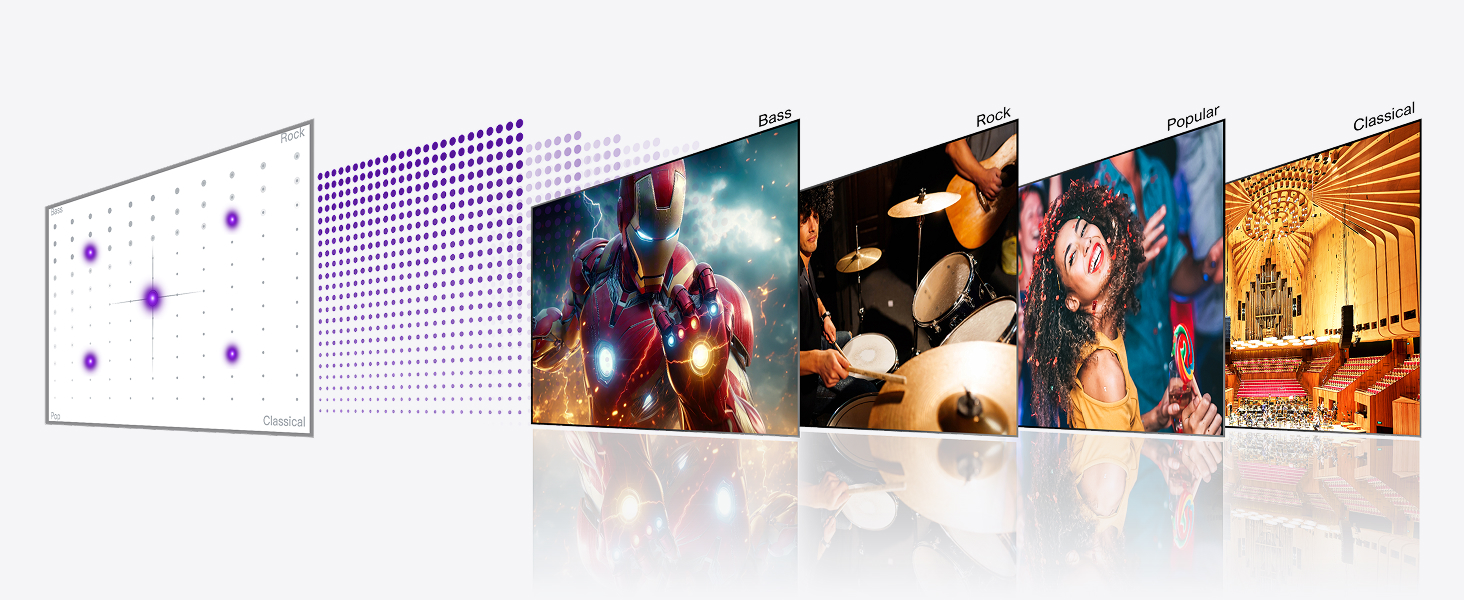
Image 3.2: Detailed dimensions of the soundbar, subwoofer, and individual surround speakers for planning placement.
4. Setup Guide
4.1 Connecting Front Surround Speakers to Soundbar
- Identify the two front surround speakers.
- Use the provided Stereo RCA-RCA cables to connect the front surround speakers to the corresponding ports on the soundbar. Ensure color interfaces (white/red) match.
- Place the front surround speakers on either side of your TV, near the soundbar.

Image 4.1: The soundbar positioned with two front surround speakers, enhancing audio spatiality and immersion.
4.2 Connecting Rear Surround Speakers to Subwoofer
- Identify the two rear surround speakers.
- Use the provided 20-foot Stereo RCA-RCA cables to connect the rear surround speakers to the corresponding ports on the wireless subwoofer. Ensure color interfaces (white/red) match.
- Place the rear surround speakers behind your listening position, ideally at or near ear level for optimal effect.

Image 4.2: Two rear surround speakers positioned behind a couch, designed to improve surround sound immersion.
4.3 Subwoofer Pairing
The subwoofer is factory-paired with the soundbar. If there is no sound from the subwoofer, re-pairing may be necessary.
- Press and hold the "SUB PAIR" button on the remote control for 3 seconds. The LED on the soundbar will show "SUB" flashing.
- On the subwoofer, press and hold the ON/OFF button for 5 seconds. The white LED light will flash rapidly.
- Once successfully paired, the white LED light on the subwoofer will remain solid.
4.4 Placement Recommendations
For optimal sound performance, consider the following placement guidelines:
- Soundbar: Place centrally below your TV.
- Front Surround Speakers: Position on either side of the TV, equidistant from the soundbar.
- Rear Surround Speakers: Place behind your main listening area, at ear level, or slightly above. Wall mounting kits are included, but speaker stands are not.
- Subwoofer: Can be placed anywhere in the room due to its wireless connection, but often performs well in a corner or near a wall.
Video 4.3: A demonstration of the ULTIMEA Poseidon D70's surround sound capabilities and speaker placement in a living room setting.
5. Connecting to Your TV
The soundbar offers multiple connection options for your TV. HDMI ARC is generally preferred for optimal performance and features.
5.1 Available Ports on Soundbar

Image 5.1: The rear panel of the soundbar, indicating the various input and output ports for connectivity.
5.2 HDMI ARC Connection (Preferred)
- Locate the HDMI ARC or eARC port on your TV. This port is usually labeled.
- Connect one end of the provided HDMI cable to the HDMI ARC/eARC port on your TV.
- Connect the other end of the HDMI cable to the HDMI ARC port on the soundbar.
- Turn on the soundbar and TV. Select ARC mode on the soundbar using the remote control.
- In your TV's sound settings, select the HDMI ARC output.
Note: When using HDMI ARC, the CEC (Consumer Electronics Control) function is supported, allowing your TV remote to control basic soundbar functions like power and volume simultaneously.
5.3 Optical Connection (Better)
- Remove the protective caps from both ends of the digital optical cable.
- Connect one end of the optical cable to the OPTICAL OUT port on your TV.
- Connect the other end of the optical cable to the OPTICAL port on the soundbar.
- Turn on the soundbar and TV. Select OPT mode on the soundbar using the remote control.
- In your TV's sound settings, select the Optical output.
5.4 AUX Connection (Good)
- Connect the Stereo 3.5mm to RCA Audio Cable to the AUDIO OUT port on your TV.
- Connect the 3.5mm end of the cable to the AUX port on the soundbar.
- Turn on the soundbar and TV. Select AUX mode on the soundbar using the remote control.
- In your TV's sound settings, select the Analog Audio Out (or similar) output.
5.5 Bluetooth Connection (Wireless)
- Turn on the soundbar and select BT mode using the remote control. The soundbar will indicate "BT" and enter pairing mode.
- On your smartphone or TV, go to Bluetooth settings and search for "Poseidon D70".
- Select "Poseidon D70" to connect. You will hear an audible confirmation when connected successfully.
Video 5.2: A detailed video guide on connecting the ULTIMEA Poseidon D70 soundbar to your TV using various methods including HDMI ARC, Optical, AUX, and Bluetooth.
5.6 TV Audio Settings
For best audio results, ensure your TV's digital audio output is set to PCM. When streaming on platforms like Netflix, select "English Original" or "Other Languages Original" in the "Audio & Subtitles" menu for optimized audio output.
6. ULTIMEA Smart App Control
The ULTIMEA Smart App provides comprehensive control and customization options for your Poseidon D70 sound system. Download the app from your device's app store.
6.1 6 Tailored EQ Modes
Choose from six dedicated equalizer modes, each calibrated for specific listening scenarios:
- Movie
- Music
- Voice
- Sport
- Game
- Night
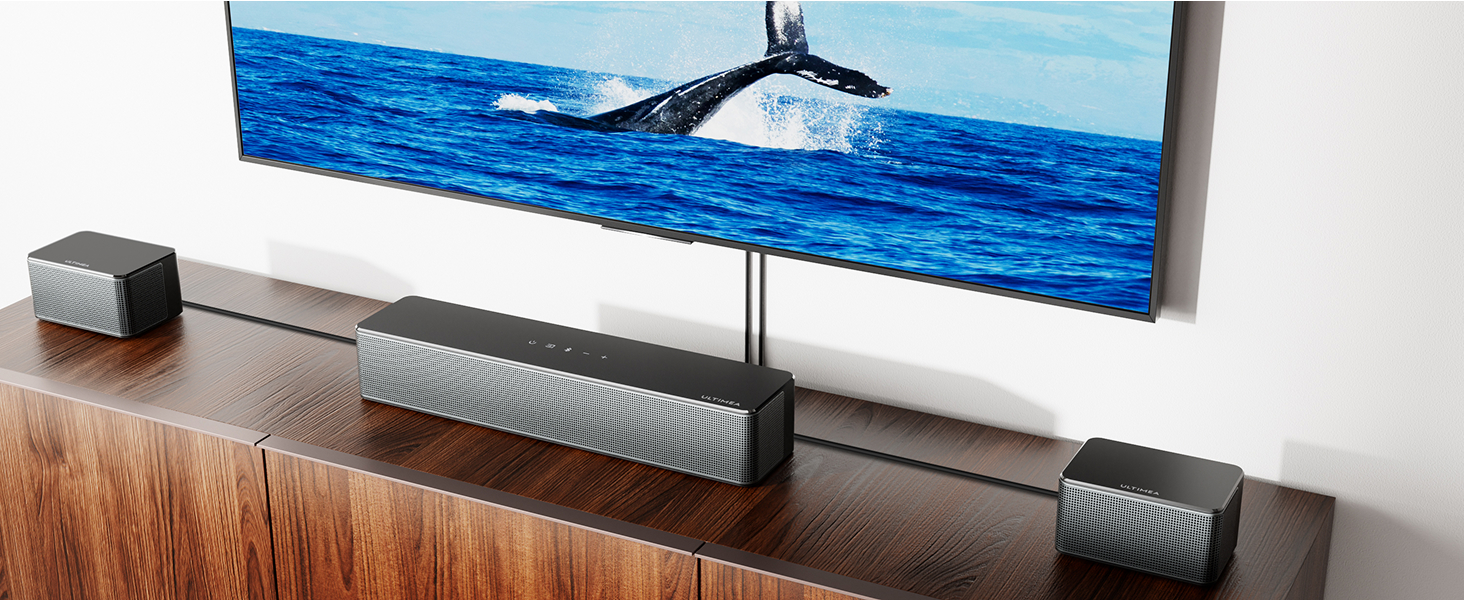
Image 6.1: The ULTIMEA Smart App displaying the six tailored EQ modes, allowing users to select the best audio profile for their content.
Video 6.2: A demonstration of the ULTIMEA Smart App's 6 tailored EQ modes, showing how to switch between Movie, Music, Voice, Sport, Game, and Night settings.
6.2 10-Band Equalizer Settings
For advanced customization, use the "Customize" feature in the app to adjust the 10-band equalizer and fine-tune your sound preferences.
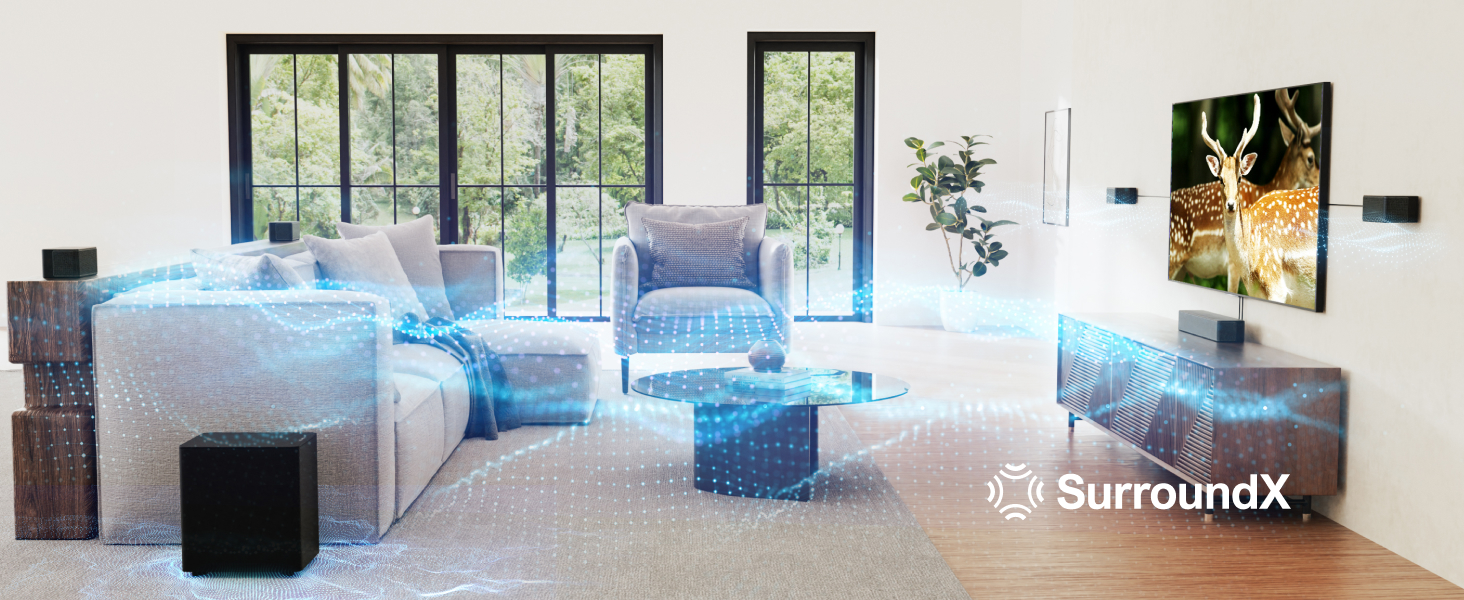
Image 6.3: The ULTIMEA Smart App's 10-band equalizer interface, allowing precise adjustment of audio frequencies.
6.3 121 Preset EQ Matrices
Explore 121 expertly designed preset EQ options available in the ULTIMEA App. Switch between four main styles (Bass, Pop, Classical, and Rock) and fine-tune every note for a tailored soundscape.
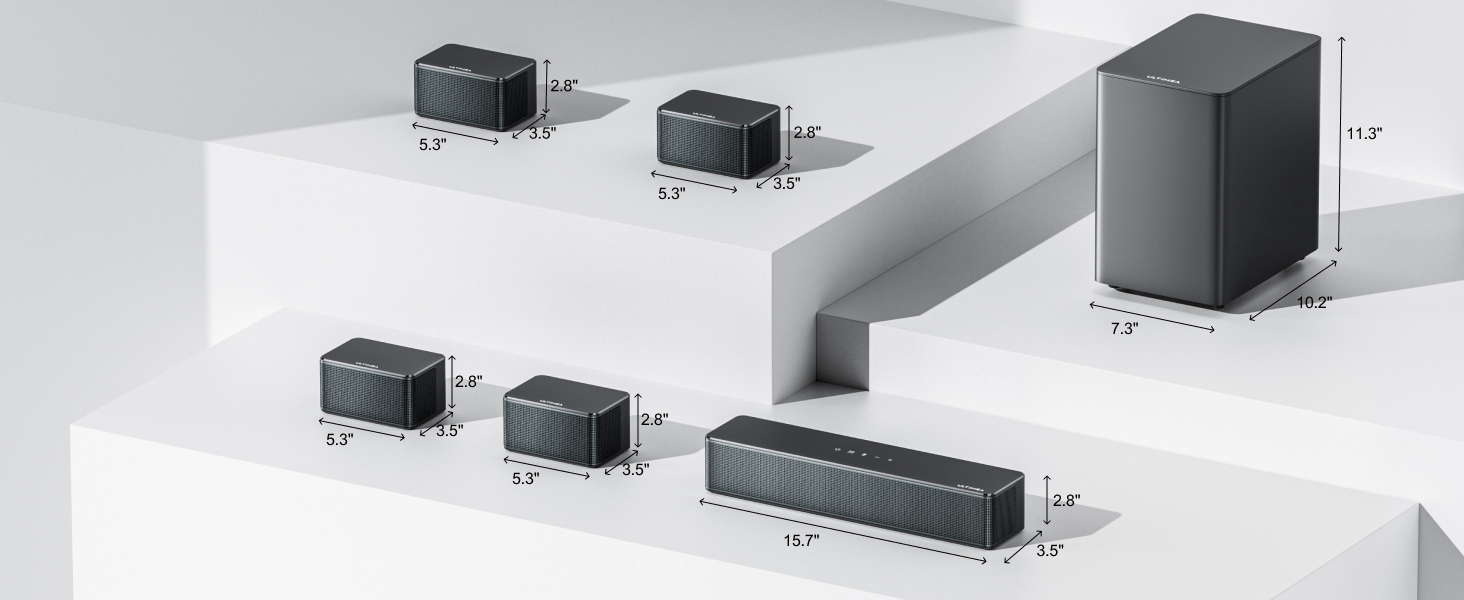
Image 6.4: The ULTIMEA Smart App's interface for 121 preset EQ matrices, offering various sound styles like Bass, Pop, Classical, and Rock.
7. Remote Control
The included remote control provides convenient access to all soundbar functions, including input selection, volume adjustment, EQ modes, and bass/treble control.
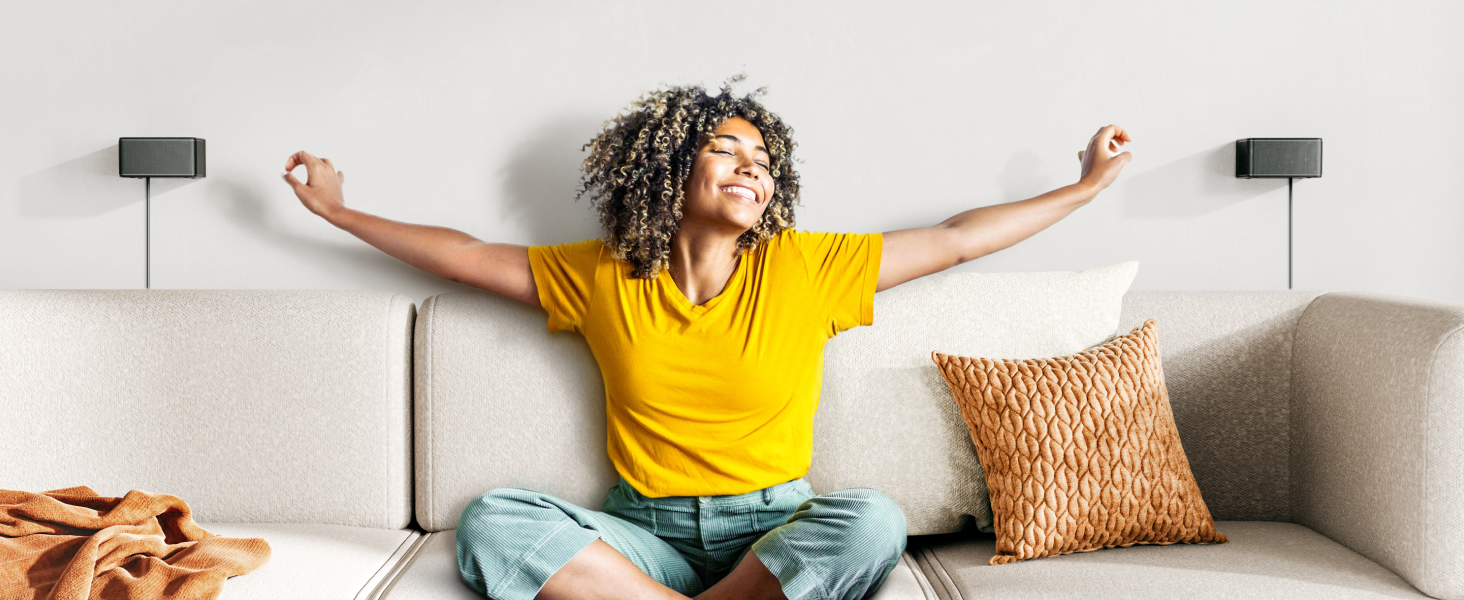
Image 7.1: The remote control for the ULTIMEA Poseidon D70, showing buttons for various audio adjustments and input selections.
7.1 Remote Functions
- Power: Turn the soundbar on/off.
- Input Selection: Buttons for ARC, HD IN, OPT, AUX, BT, USB.
- Volume Control: Increase or decrease volume.
- Mute: Mute/unmute audio.
- Bass MX: Adjust bass level.
- Midrange: Adjust midrange level.
- Treble: Adjust treble level.
- EQ Modes: Dedicated buttons for Movie, Music, Voice, Sport, Game, Night.
- Surround: Adjust surround sound level.
- Up-Firing: Adjust up-firing volume level.
- LED Dimmer: Adjust LED display brightness.
8. Specifications
| Feature | Specification |
|---|---|
| Model Name | Poseidon D70 |
| Item Model Number | U2600 |
| Surround Sound Channel Configuration | 7.1 |
| Speaker Maximum Output Power | 410 Watts |
| Subwoofer Diameter | 6.5 Inches |
| Speaker Size (Surround) | 2.25 Inches |
| Wireless Communication Technology | Bluetooth |
| Connectivity Technology | Auxiliary, Bluetooth, HDMI, Optical |
| Audio Output Mode | Surround |
| Frequency Response | 18 KHz |
| Mounting Type | Wall Mount |
| Item Weight | 19.96 pounds |
9. Troubleshooting
9.1 No Sound from System
- Check Connections: Ensure all cables (HDMI ARC, Optical, AUX) are securely connected to both the soundbar and your TV.
- Input Selection: Verify that the correct input source is selected on the soundbar (e.g., ARC, OPT, AUX, BT).
- TV Audio Settings: Confirm your TV's audio output settings are correctly configured for the chosen connection type (e.g., HDMI ARC, Optical, or Analog Out). For digital connections, ensure the TV's digital audio format is set to PCM.
- Subwoofer Pairing: If there is no bass, check the subwoofer's pairing status. Re-pair if necessary as described in Section 4.3.
- Volume Levels: Ensure both the soundbar and TV volumes are not muted and are set to an audible level.
9.2 Remote Control Not Working
- Battery Check: Replace the remote control batteries if they are low or depleted.
- Line of Sight: Ensure there are no obstructions between the remote control and the soundbar's sensor.
- Distance: Operate the remote within its effective range.
10. Safety Information
To reduce the risk of electric shock, fire, or damage to the unit, please observe the following safety precautions:
- Do not expose this appliance to rain or moisture.
- Do not open the casing. Refer all servicing to qualified personnel.
- Ensure proper ventilation around the unit.
- Use only the power adapter supplied with the unit.
- Keep the unit away from heat sources and direct sunlight.
11. Warranty and Support
Your ULTIMEA Poseidon D70 sound system comes with a manufacturer's warranty. For detailed warranty information, product support, or technical assistance, please visit the official ULTIMEA website or contact customer service.
- Online Support: Visit www.ultimea.com
- Email Support: Refer to your product packaging or the official website for contact email.
Ask a question about this manual
Ask about setup, troubleshooting, compatibility, parts, safety, or missing instructions. Manuals+ will review the question and use this page’s manual context to help answer it.