
Wooask Wooask-w09
Wooask W09 Language Translator Device User Manual
Model: W09
1. Introduction
The Wooask W09 Language Translator Device is an advanced AI-powered tool designed to facilitate seamless communication across various languages. It supports 144 online languages and 16 offline languages, offering real-time voice, offline, and photo translation capabilities. This manual provides comprehensive instructions for setting up, operating, and maintaining your device to ensure optimal performance.
2. What's in the Box

This image displays the Wooask W09 translator device along with its included accessories: a clear protective case and a lanyard with the Wooask logo. The device itself is dark grey with a black screen, showing icons for Voice Translation, Photo Translation, Offline Translation, and Settings.
- W09 Translator Device x1
- USB-A to Type-C Charging Cable x1
- Protective Shell x1
- Lanyard x1
- User Manual x1

This diagram visually confirms the contents of the package, showing the W09 translator device, product instruction manual, USB-A to Type-C charging cable, lanyard, protective shell, and the packing box.
3. Product Features

This image highlights the key specifications and features of the Wooask W09, including support for 144 online translations, 16 offline translations, 43 photo translations, 98% translation accuracy, 0.5s response time, a 1500mAh battery, 5-megapixel camera, and a 2.4-inch HD touchscreen.
- 144 Languages AI Translator: Supports 144 online languages and 16 offline languages for comprehensive communication.
- Real-Time Language Translator: Utilizes next-generation AI for ultra-fast 0.5s voice translation with 98% accuracy.
- 2.4" HD Touchscreen & Dual Control: Features an HD touchscreen with adjustable text size, touch, and physical button controls for accessibility. Includes a noise-canceling speaker system.
- 500MP Camera for Instant Text Translation: High-resolution camera for instant translation of text from menus, signs, and documents. Features auto-focus and low-light enhancement.
- Extended Battery & Portable Design: Long-lasting battery (up to 35 hours continuous use), lightweight (260g), pocket-sized design. USB-C fast charging (1.5 hours for full charge).
4. Setup
4.1 Charging the Device
Before first use, fully charge the Wooask W09 device. Connect the provided USB-A to Type-C charging cable to the device's Type-C port and a compatible USB power adapter (not included). The charging indicator will show the charging status. A full charge typically takes approximately 1.5 hours.

This image illustrates the battery features of the Wooask W09, highlighting its 1500mAh capacity, Type-C quick charging, 1.5 hours for a full charge, and up to 10 hours of continuous working time.
4.2 Powering On/Off
- To Power On: Press and hold the power button (usually located on the side) until the screen illuminates and the Wooask logo appears.
- To Power Off: Press and hold the power button until a power-off menu appears on the screen. Select "Power Off" or slide the power-off icon.
4.3 Initial Setup
Upon first power-on, the device may guide you through an initial setup process. This typically includes selecting your preferred system language, connecting to a Wi-Fi network (for online translation and updates), and agreeing to terms of service. Follow the on-screen prompts.
5. Operating Instructions
5.1 Voice Translation (Online)
For real-time voice translation, ensure your device is connected to a Wi-Fi network. The device supports 144 online languages.
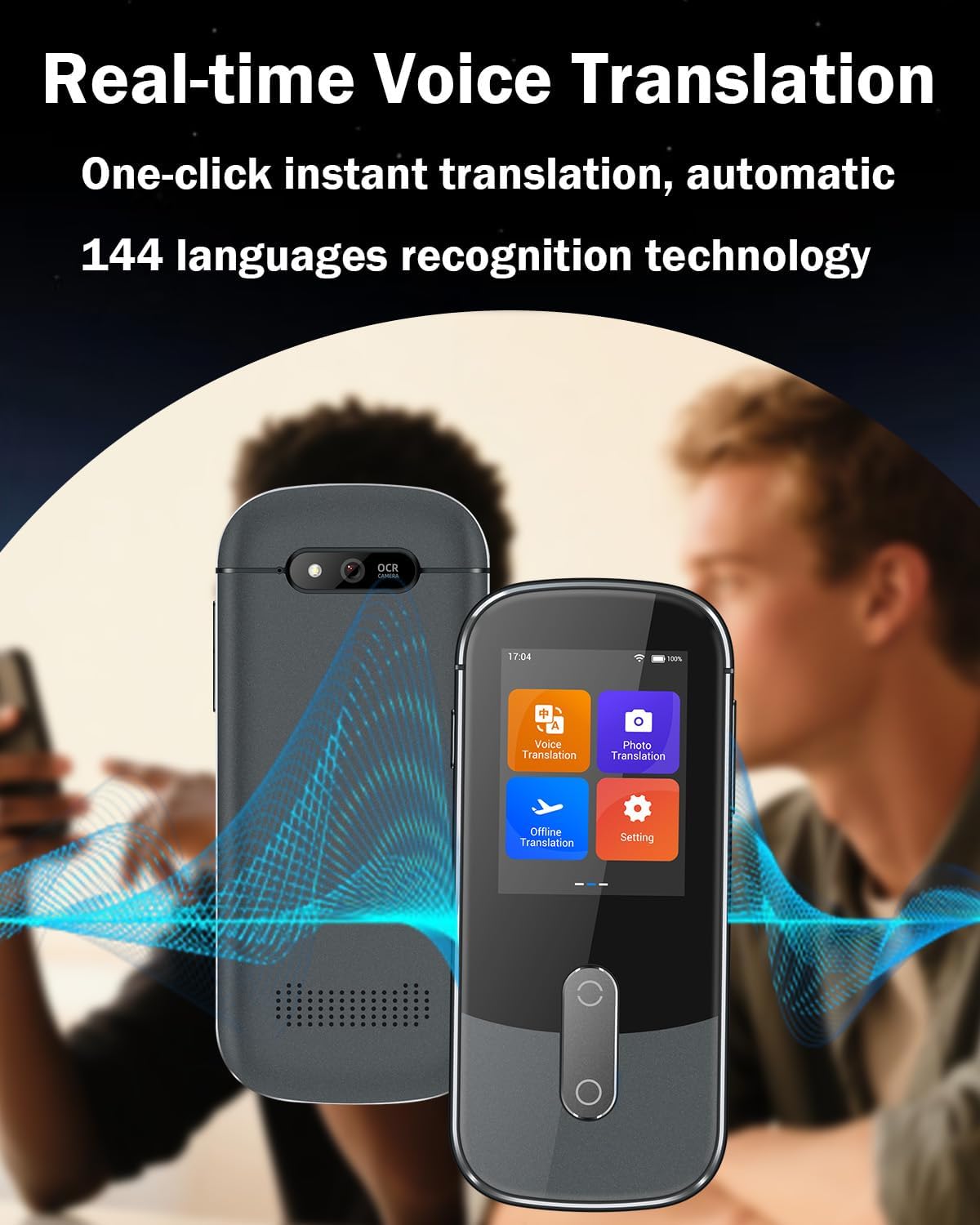
This image depicts the Wooask W09 device actively performing real-time voice translation, with sound waves emanating from the device, indicating its audio processing capabilities. The screen shows the main translation interface.
- From the main screen, tap the "Voice Translation" icon.
- Select the source language (your language) and the target language (the language you want to translate to).
- Press and hold the corresponding language button on the device (or the on-screen microphone icon) and speak clearly into the microphone.
- Release the button, and the device will translate and speak the translation aloud. The translated text will also appear on the screen.
5.2 Offline Translation
The Wooask W09 supports 16 offline languages, allowing translation without an internet connection. Ensure the necessary language packs are downloaded beforehand.

This image illustrates the 16 languages available for offline translation, including English, Spanish, Simplified Chinese, Traditional Chinese, Japanese, Korean, German, French, Russian, Arabic, Vietnamese, Thai, Italian, Portuguese, Hindi, and Indonesian. It emphasizes that no internet is required for these translations.
- Navigate to the "Offline Translation" section from the main menu.
- If not already downloaded, connect to Wi-Fi and download the desired offline language packs from the settings menu.
- Once downloaded, select the source and target offline languages.
- Proceed with voice input as described in the Voice Translation section.
5.3 Photo Translation
The device's 5-megapixel camera can translate text from images in 43 languages.

This image shows the Wooask W09 device being used for HD photo translation, specifically translating text from a street sign. The screen displays the translated text, demonstrating its ability to process visual information.
- Tap the "Photo Translation" icon on the main screen.
- Point the camera at the text you wish to translate (e.g., a menu, sign, or document). Ensure the text is well-lit and clear within the frame.
- Tap the capture button on the screen.
- The device will process the image and display the translated text. You can often select the source and target languages for photo translation as well.
5.4 Settings and Customization
Access the "Settings" menu to customize various aspects of your device, including:
- Wi-Fi Connection: Manage network connections.
- Language Settings: Change system language, download offline language packs.
- Display Settings: Adjust brightness, text size, and screen timeout.
- Volume: Control speaker volume.
- System Updates: Check for and install firmware updates to ensure optimal performance and new features.
- About Device: View device information, model number, and software version.
6. Maintenance
6.1 Cleaning
To clean your Wooask W09 device, use a soft, lint-free cloth. For stubborn smudges, slightly dampen the cloth with water or a screen cleaner. Avoid using harsh chemicals, abrasive materials, or excessive moisture, as these can damage the device.
6.2 Storage
Store the device in a cool, dry place away from direct sunlight and extreme temperatures. When not in use for extended periods, it is recommended to charge the battery to about 50% before storing to prolong battery life.
6.3 Battery Care
To maximize battery lifespan, avoid fully discharging the battery frequently. Charge the device regularly and avoid leaving it plugged in for prolonged periods after it is fully charged.
7. Troubleshooting
| Problem | Possible Cause | Solution |
|---|---|---|
| Device does not power on. | Low battery; device frozen. | Charge the device for at least 30 minutes. Perform a forced restart by holding the power button for 10-15 seconds. |
| Translation is inaccurate or slow. | Poor internet connection (for online); unclear speech; outdated firmware. | Ensure stable Wi-Fi connection. Speak clearly and at a moderate pace. Check for and install system updates. |
| Offline translation not working. | Language pack not downloaded. | Connect to Wi-Fi and download the required offline language packs from settings. |
| Photo translation fails. | Poor lighting; blurry image; text too small/complex. | Ensure adequate lighting. Hold the device steady. Position the device closer or further to get a clear focus. |
| Device screen is unresponsive. | Software glitch; device frozen. | Perform a forced restart. If the issue persists, contact customer support. |
8. Specifications
| Feature | Detail |
|---|---|
| Model Number | Wooask-w09 |
| Online Languages Supported | 144 |
| Offline Languages Supported | 16 |
| Photo Translation Languages | 43 |
| Translation Accuracy | 98% |
| Response Time | 0.5 seconds |
| Screen Size | 2.4 inches HD Touchscreen |
| Camera Resolution | 5 Megapixels |
| Battery Capacity | 1500mAh |
| Charging Time | Approx. 1.5 hours (USB-C) |
| Continuous Use Time | Up to 35 hours (standby), 10 hours (continuous working) |
| Item Weight | 9.9 ounces (approx. 280g) |
| Dimensions | 6.3 x 3.43 x 1.65 inches (Package Dimensions) |
| Manufacturer | Wooask Tech |
9. Warranty and Support
For warranty information, technical support, or any inquiries regarding your Wooask W09 Language Translator Device, please refer to the warranty card included in your package or visit the official Wooask website. You may also contact Wooask customer service directly through the contact information provided on their website or through your purchase platform.
Wooask Official Store: Visit the Wooask Store on Amazon
Related documentsWooask-w09


Ask a question about this manual
Ask about setup, troubleshooting, compatibility, parts, safety, or missing instructions. Manuals+ will review the question and use this page’s manual context to help answer it.