1. Introduction
Thank you for choosing the DELUX MF20 Wireless Bluetooth Travel Mouse. This manual provides detailed instructions for setting up, operating, and maintaining your device. Please read it carefully to ensure optimal performance and longevity of your mouse.
2. Product Overview
The DELUX MF20 is a versatile 2-in-1 sliding mouse designed for portability and efficiency. It features dual-mode connectivity (Bluetooth 5.2 and 2.4G wireless), adjustable DPI settings, quiet clicks, and a rechargeable battery.
Key Features:
- 2-in-1 Sliding Design: Compact and portable for travel and mobile use.
- Rechargeable Battery: Built-in 300mAh Li-ion battery, offering up to one week of use on a single charge. USB-C charging port.
- Dual Mode Connectivity: Seamless switching between Bluetooth 5.2 and 2.4G wireless modes.
- 5 Adjustable DPI Levels: 800/1200/1600/2400/4000 DPI for precise control.
- Wide Compatibility: Supports Windows 7/8/10, macOS, and Android devices.
- Noise-Free Clicks: Quiet operation to minimize distractions.
Mouse Components:
Familiarize yourself with the different parts of your DELUX MF20 mouse.

Image: DELUX MF20 mouse with a physical scroll wheel.

Image: Detailed diagram illustrating the left button, right button, scrolling wheel, forward button, backward button, 2.4G/BT mode switch, DPI switch, and the magnetic slot for the USB receiver.
3. Setup
3.1 Unboxing and Initial Inspection
Upon opening the package, ensure all components are present and undamaged.
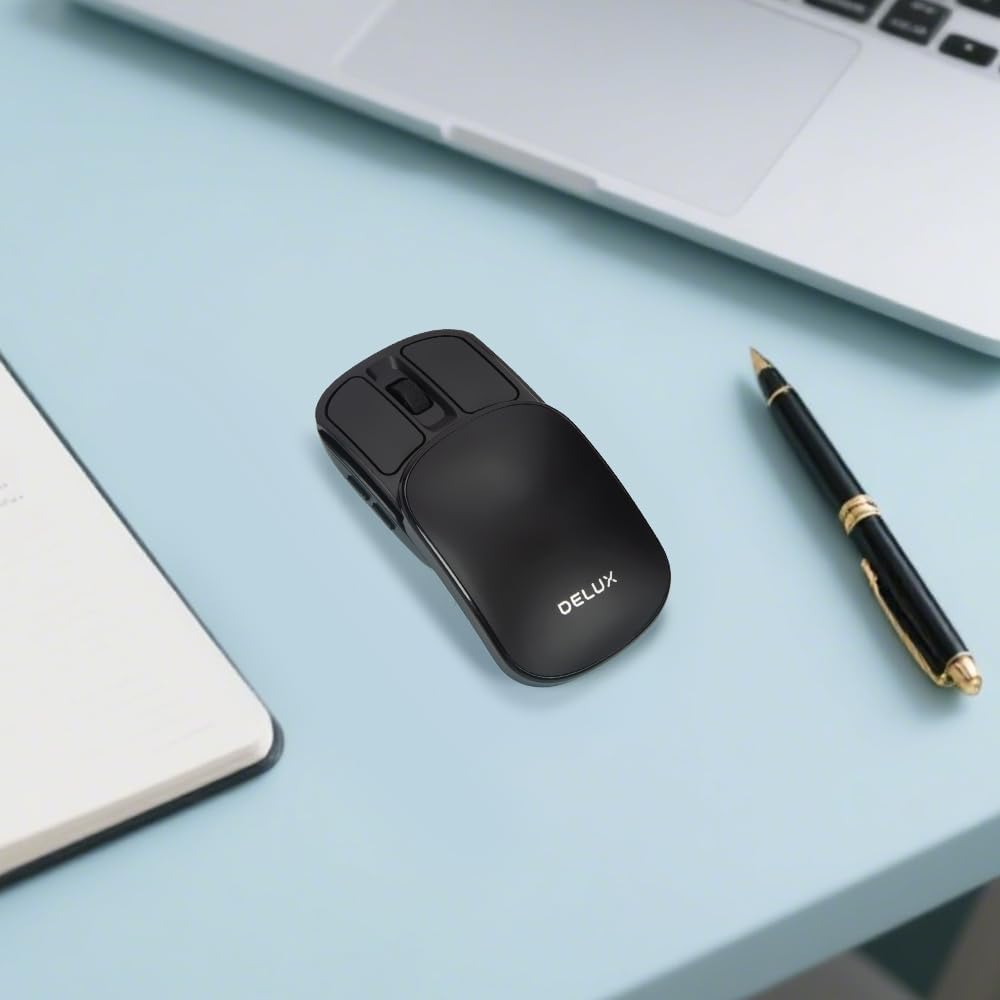
Image: The DELUX MF20 mouse, instruction manual, USB-C charging cable, and a carrying pouch are included in the box.
3.2 Charging the Mouse
The mouse is equipped with a built-in rechargeable battery. Before first use, or when the battery is low, connect the mouse to a power source using the provided USB-C cable.
- Locate the USB-C charging port on the front of the mouse.
- Connect the USB-C cable to the mouse and the other end to a USB power adapter or computer.
- The charging indicator light will illuminate during charging and turn off when fully charged.

Image: The DELUX MF20 mouse connected to a USB-C charging cable.
3.3 Connectivity Modes
The DELUX MF20 supports two connection modes: 2.4G Wireless and Bluetooth 5.2.
3.3.1 2.4G Wireless Connection
- Slide the top cover of the mouse to reveal the USB receiver.
- Carefully remove the USB receiver from its magnetic storage slot.
- Plug the USB receiver into an available USB port on your computer.
- Slide the mode switch on the bottom of the mouse to the '2.4G' position.
- The mouse should automatically connect to your computer.

Image: The DELUX MF20 mouse demonstrating dual-mode connectivity with a 2.4G USB receiver and Bluetooth 5.2.
3.3.2 Bluetooth 5.2 Connection
- Slide the mode switch on the bottom of the mouse to the 'BT' position.
- The indicator light on the mouse will start blinking, indicating it's in pairing mode.
- On your device (computer, tablet, or phone), go to Bluetooth settings.
- Search for new devices and select 'DELUX MF20' from the list.
- Once paired, the indicator light will stop blinking.
Note: The mouse can be paired with multiple Bluetooth devices, but only one can be active at a time. Use the mode switch to select the desired connection.
Video: An unboxing and setup demonstration of the DELUX MF20 Wireless Bluetooth Travel Mouse, showing how to connect it via 2.4G and Bluetooth modes.
4. Operating Instructions
4.1 Power On/Off and Sliding Mechanism
The mouse features a unique sliding design. To power on the mouse, slide the top cover forward until it clicks into place. To power off and protect the buttons, slide the cover backward to its closed position.

Image: The DELUX MF20 mouse in its open position, ready for use.
Video: A demonstration of the DELUX MF20 Wireless Bluetooth Travel Mouse, highlighting its 2-in-1 sliding design and compact form factor.
4.2 Adjusting DPI Settings
The mouse offers five adjustable DPI levels to suit your preference and task requirements. You can cycle through these settings using the DPI switch button located on the bottom of the mouse.
- Press the DPI switch button to change the sensitivity.
- The available DPI settings are 800, 1200, 1600, 2400, and 4000.
- Each press will cycle to the next DPI level.

Image: Illustration of the DPI switch on the mouse's underside and the five adjustable DPI settings.
4.3 Multi-Device Switching
When connected to multiple devices (one via 2.4G and others via Bluetooth), you can switch between them using the mode switch on the bottom of the mouse.
- Set the switch to '2.4G' to use the mouse with the device connected via the USB receiver.
- Set the switch to 'BT' to use the mouse with the currently paired Bluetooth device.
4.4 Silent Clicks
The DELUX MF20 mouse is designed with silent click buttons, providing a quiet user experience suitable for various environments without disturbing others.
5. Maintenance
5.1 Cleaning
To maintain the mouse's performance and appearance:
- Use a soft, dry cloth to wipe the surface of the mouse.
- For stubborn dirt, slightly dampen the cloth with water or a mild cleaning solution.
- Avoid using harsh chemicals or abrasive materials, as these can damage the surface.
- Ensure no liquid enters the mouse's internal components.
5.2 Battery Care
To prolong battery life:
- Charge the mouse regularly, especially when the battery indicator is low.
- Avoid fully discharging the battery frequently.
- If storing the mouse for an extended period, charge it to about 50% and store it in a cool, dry place.
6. Troubleshooting
If you encounter issues with your DELUX MF20 mouse, please refer to the following common solutions:
6.1 Mouse Not Responding
- Check Battery: Ensure the mouse is charged. Connect it to a power source and try again.
- Power On: Make sure the mouse is slid open to the 'on' position.
- Mode Switch: Verify the mode switch on the bottom is set to the correct connection type (2.4G or BT).
6.2 2.4G Wireless Connection Issues
- USB Receiver: Ensure the USB receiver is securely plugged into a working USB port. Try a different USB port.
- Interference: Move the mouse closer to the receiver and away from other wireless devices that might cause interference.
6.3 Bluetooth Connection Issues
- Pairing Mode: Ensure the mouse is in Bluetooth pairing mode (blinking indicator light). If not, switch to BT mode and re-initiate pairing.
- Device Bluetooth: Confirm that Bluetooth is enabled on your device and that the device is discoverable.
- Forget Device: If previously paired, try 'forgetting' or 'removing' the mouse from your device's Bluetooth settings and then re-pairing.
6.4 Inconsistent Scrolling
- Clean Scroll Wheel: Ensure the scroll wheel area is free from dust or debris.
- DPI Setting: Experiment with different DPI settings, as very high DPI might feel too sensitive for some users.
If the problem persists after trying these steps, please contact customer support.
7. Specifications
| Feature | Detail |
|---|---|
| Product Dimensions | 4.27 x 2.2 x 0.1 inches |
| Item Weight | 1.76 ounces |
| Model Number | MF20 |
| Batteries | 1 Nonstandard Battery (included) |
| Brand | DELUX |
| Connectivity Technology | Bluetooth, USB (2.4G Wireless) |
| Special Features | 2-in-1 Sliding Design, 5 Adjustable DPI, Dual Mode Connectivity, Foldable and Slim, Rechargeable Battery |
| Movement Detection Technology | Optical |
8. Warranty and Support
DELUX products are designed for reliability and performance. This product comes with a standard manufacturer's warranty. For specific warranty terms and conditions, please refer to the warranty card included in your product packaging or visit the official DELUX website.
For technical support, troubleshooting assistance, or warranty claims, please contact DELUX customer service through the following channels:
- Website: DELUX Official Store on Amazon
- Email: [Insert Customer Service Email Here, if available]
- Phone: [Insert Customer Service Phone Number Here, if available]
Please have your product model number (MF20) and purchase information ready when contacting support.


