
1. Introduction
This manual provides detailed instructions for setting up, operating, and maintaining your Ninkear N10 Mini PC. Please read this manual thoroughly before using the device to ensure proper functionality and longevity.
2. Package Contents
Verify that all items are present in the package:
- 1 x Ninkear N10 Mini PC (16GB RAM, 512GB SSD)
- 1 x HDMI cable
- 1 x VESA Mount with Screws
- 1 x Power Adapter
- 1 x User Manual (this document)
3. Product Overview
The Ninkear N10 Mini PC is a compact desktop computer designed for various applications, from home use to business tasks. It features an Intel N100 processor, 16GB DDR4 RAM, and a 512GB M.2 SSD, offering efficient performance in a small form factor.
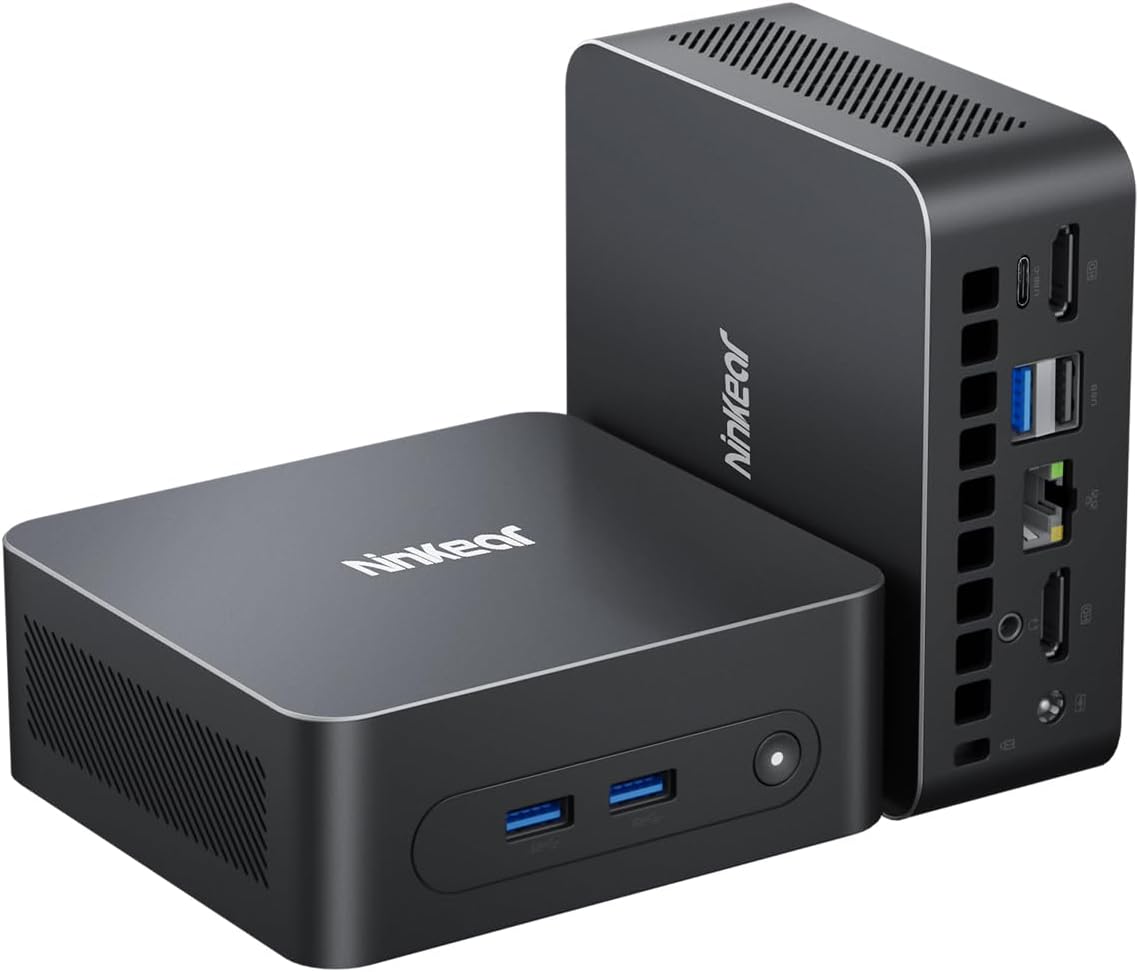
Image: The Ninkear N10 Mini PC, showcasing its compact design and various ports on the front and rear.
3.1 Key Features
- Processor: 12th Gen Intel Twin Lake N100 (up to 3.6GHz, 4 cores, 6MB Cache)
- Memory: 16GB DDR4 RAM
- Storage: 512GB M.2 2280 SSD (expandable up to 2TB via 2.5" SSD, not included)
- Graphics: Integrated Intel UHD Graphics (750MHz)
- Display Output: Dual 4K UHD (4096 x 2160) at 60Hz via 2x HDMI ports
- Connectivity: Gigabit Ethernet, Dual-band 2.4G/5.0G WiFi, Bluetooth 4.2
- Ports: 2x USB 3.0, 2x USB 2.0, 2x HDMI, 1x Type-C, 1x RJ45 Gigabit Ethernet, 1x 3.5mm Audio Jack, 1x DC Power Input
- Operating System: Supports Windows 11 and Linux OS

Image: Detailed diagram illustrating the various ports available on the Ninkear N10 Mini PC, including USB, HDMI, Ethernet, and audio jacks.
4. Setup Instructions
4.1 Initial Connection
- Connect Display: Connect your monitor(s) to the Mini PC using the provided HDMI cable(s). The N10 supports dual 4K displays.
- Connect Peripherals: Plug in your keyboard, mouse, and any other USB devices into the available USB ports.
- Connect Power: Connect the power adapter to the DC input port on the Mini PC, then plug the adapter into a power outlet.
- Power On: Press the power button located on the front of the Mini PC. The power indicator light will illuminate.
4.2 Operating System Setup
Upon first boot, you will be guided through the initial setup process for the pre-installed operating system (e.g., Windows 11). Follow the on-screen instructions to configure language, region, network, and user accounts.

Image: The Ninkear N10 Mini PC shown mounted behind a monitor using the VESA bracket, and also placed on a desk next to a monitor, illustrating flexible placement options.
4.3 VESA Mount Installation
The Ninkear N10 Mini PC includes a VESA mount for attaching the device to the back of a compatible monitor or TV. This allows for a clean, space-saving setup.
- Attach the VESA bracket to the back of your monitor using the provided screws. Ensure the bracket is securely fastened.
- Slide the Mini PC onto the VESA bracket until it clicks into place.
5. Operating Instructions
5.1 Network Connectivity
- Wi-Fi: To connect to a wireless network, navigate to the network settings in your operating system, select your desired Wi-Fi network, and enter the password.
- Ethernet: For a wired connection, plug an Ethernet cable into the RJ45 port on the Mini PC and connect the other end to your router or modem.
- Bluetooth: Enable Bluetooth in your operating system settings to pair with Bluetooth-enabled devices such as keyboards, mice, or headphones.

Image: The Ninkear N10 Mini PC highlighting its wireless and wired connectivity options: WiFi 6, Bluetooth 5.2, and Gigabit LAN.
5.2 Dual Display Configuration
The Ninkear N10 supports connecting two monitors simultaneously for extended desktop or mirrored display modes. Connect both monitors via the HDMI ports. Your operating system's display settings will allow you to configure the display arrangement and resolution.

Image: A Ninkear N10 Mini PC connected to two monitors, demonstrating its dual 4K@60Hz output capability for enhanced productivity.
5.3 Intel Unison App
The Intel Unison App allows seamless connection between your Mini PC and mobile devices (phone or tablet). This enables features such as viewing photo galleries, transferring files, extending your PC screen, making/receiving phone calls, controlling your tablet, sharing files, sending/receiving text messages, and managing device notifications from your PC.

Image: A visual representation of the Intel Unison App connecting a Ninkear N10 Mini PC with a smartphone, illustrating various cross-device functionalities.
6. Maintenance
6.1 Storage Expansion
The Ninkear N10 Mini PC's storage can be expanded by adding a 2.5-inch SSD (not included) up to 2TB. Refer to the internal diagram for the location of the 2.5-inch drive bay. Ensure the device is powered off and disconnected from power before performing any internal upgrades.

Image: An internal view of the Ninkear N10 Mini PC, highlighting the 16GB DDR4 RAM module and the 512GB M.2 SSD, with an indication of support for Windows and Ubuntu operating systems.
6.2 Cooling System
The Mini PC is designed with an efficient cooling system, including a heat pipe and a silent system fan, to ensure stable performance and quiet operation. Keep the ventilation openings clear of obstructions to maintain optimal airflow.

Image: An exploded view diagram illustrating the internal components of the Ninkear N10 Mini PC's cooling system, including the heat pipe and silent system fan, designed for low heat and high energy efficiency.
7. Troubleshooting
- No Power: Ensure the power adapter is securely connected to both the Mini PC and a working power outlet. Try a different outlet if necessary.
- No Display: Check that the HDMI cable(s) are firmly connected to both the Mini PC and the monitor(s). Verify the monitor input source is correctly selected.
- No Internet Connection: For Wi-Fi, ensure the correct password is entered and the signal is strong. For Ethernet, check the cable connection and router status.
- Slow Performance: Close unnecessary applications. Ensure adequate ventilation for the Mini PC. Check for available system updates.
- Peripheral Not Detected: Try connecting the peripheral to a different USB port. Ensure drivers are installed if required by the peripheral.
8. Specifications
| Feature | Specification |
|---|---|
| Processor | Intel N100 (3.6 GHz Turbo, 4 Cores, 6MB Cache) |
| RAM | 16GB DDR4 |
| Storage | 512GB M.2 SSD (Expandable to 2TB via 2.5" SSD) |
| Graphics | Integrated Intel UHD Graphics |
| Max Screen Resolution | 3840x2160 Pixels (4K) |
| Display Output | 2x HDMI 2.0 (4K@60Hz) |
| USB Ports | 2x USB 3.0, 2x USB 2.0 |
| Other Ports | 1x Type-C, 1x RJ45 Gigabit Ethernet, 1x 3.5mm Audio Jack, 1x DC Power |
| Wireless Connectivity | Dual-band 2.4G/5.0G WiFi, Bluetooth 4.2 |
| Operating System | OS Pro (Supports Windows 11, Linux OS) |
| Item Weight | 1.63 pounds |
| Package Dimensions | 7.05 x 6.57 x 4.17 inches |
9. Warranty and Support
The Ninkear N10 Mini PC is backed by FCC, ROHS, and CE certifications. It comes with a 1-year limited warranty. For technical assistance or warranty claims, please contact Ninkear customer support via Amazon or through the official Ninkear website.


