
EWEADN V96
EWEADN V96 Wireless Keyboard and Mouse Combo User Manual
Model: V96
1. Introduction
This manual provides detailed instructions for the setup, operation, and maintenance of your EWEADN V96 Wireless Keyboard and Mouse Combo. This 2.4G wireless full-sized retro typewriter style keyboard with round keycaps and a matching mouse is designed for seamless plug-and-play functionality across various operating systems.

Image: The EWEADN V96 Wireless Keyboard and Mouse Combo, showcasing its gradient pink and black design with round keycaps and a compact USB receiver.
2. Key Features
- 2.4GHz Wireless Connection: Reliable and stable connection with a 33ft (10m) range.
- Full-Sized 104-Key Keyboard: Includes a numeric keypad and 13 easy-to-reach function keys.
- Retro Typewriter Style: Vintage round keycaps for a unique aesthetic and comfortable typing experience.
- Quiet Clicking Mouse: Designed for whisper-quiet operation to minimize disturbance.
- Adjustable Mouse DPI: Three DPI levels (800-1200-1600) for customizable cursor sensitivity.
- Automatic Sleep Mode: Both keyboard and mouse enter power-save mode after 5 seconds of inactivity.
- Wide Compatibility: Supports Windows 10/8/7/XP/Vista, Mac OS, Chrome OS, and Linux.
- Ergonomic Design: Minimizes wrist strain for comfortable extended use.
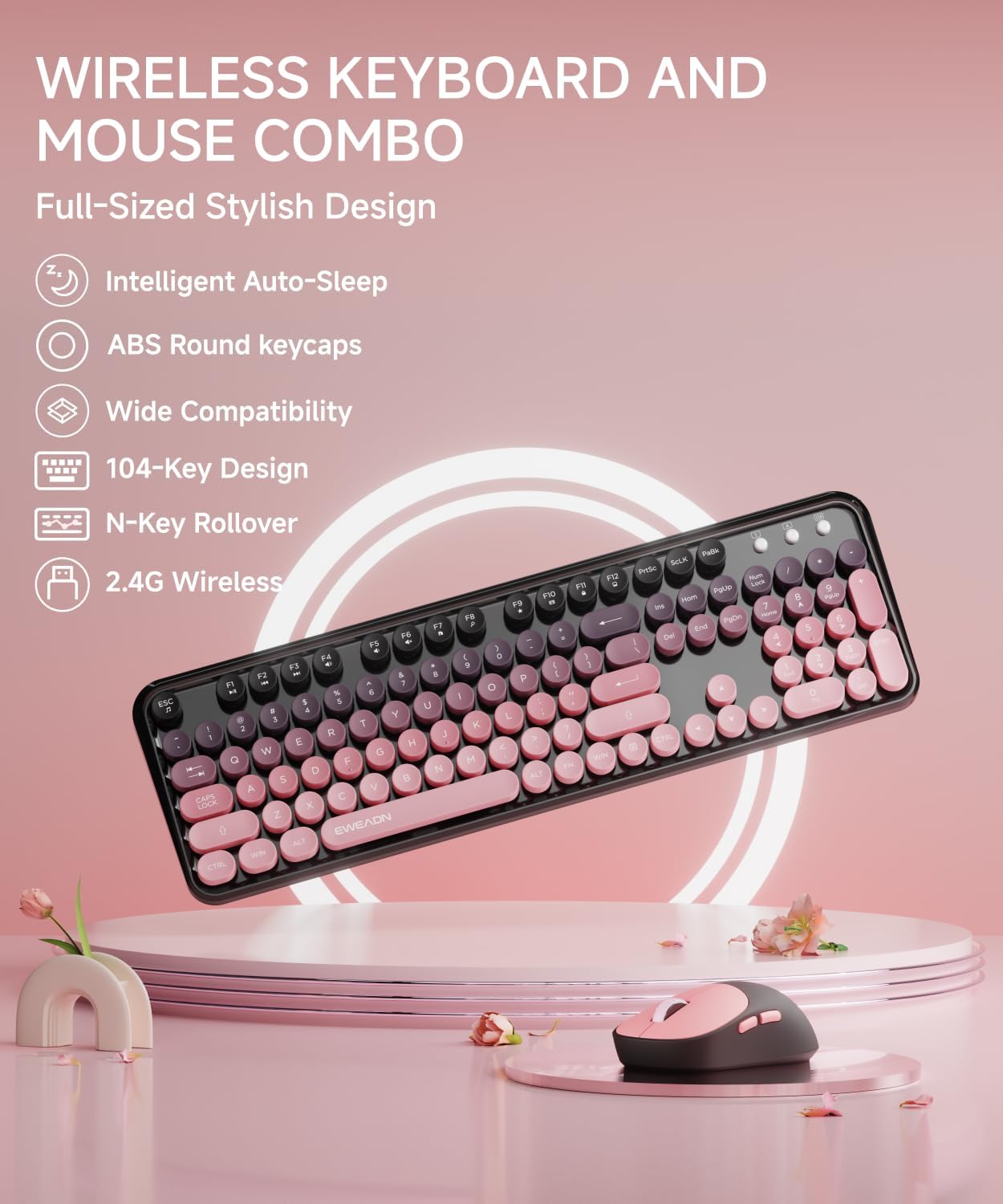
Image: An illustrative diagram showcasing the key features of the V96 combo, including intelligent auto-sleep, ABS round keycaps, wide compatibility, 104-key design, N-key rollover, and 2.4G wireless connectivity.
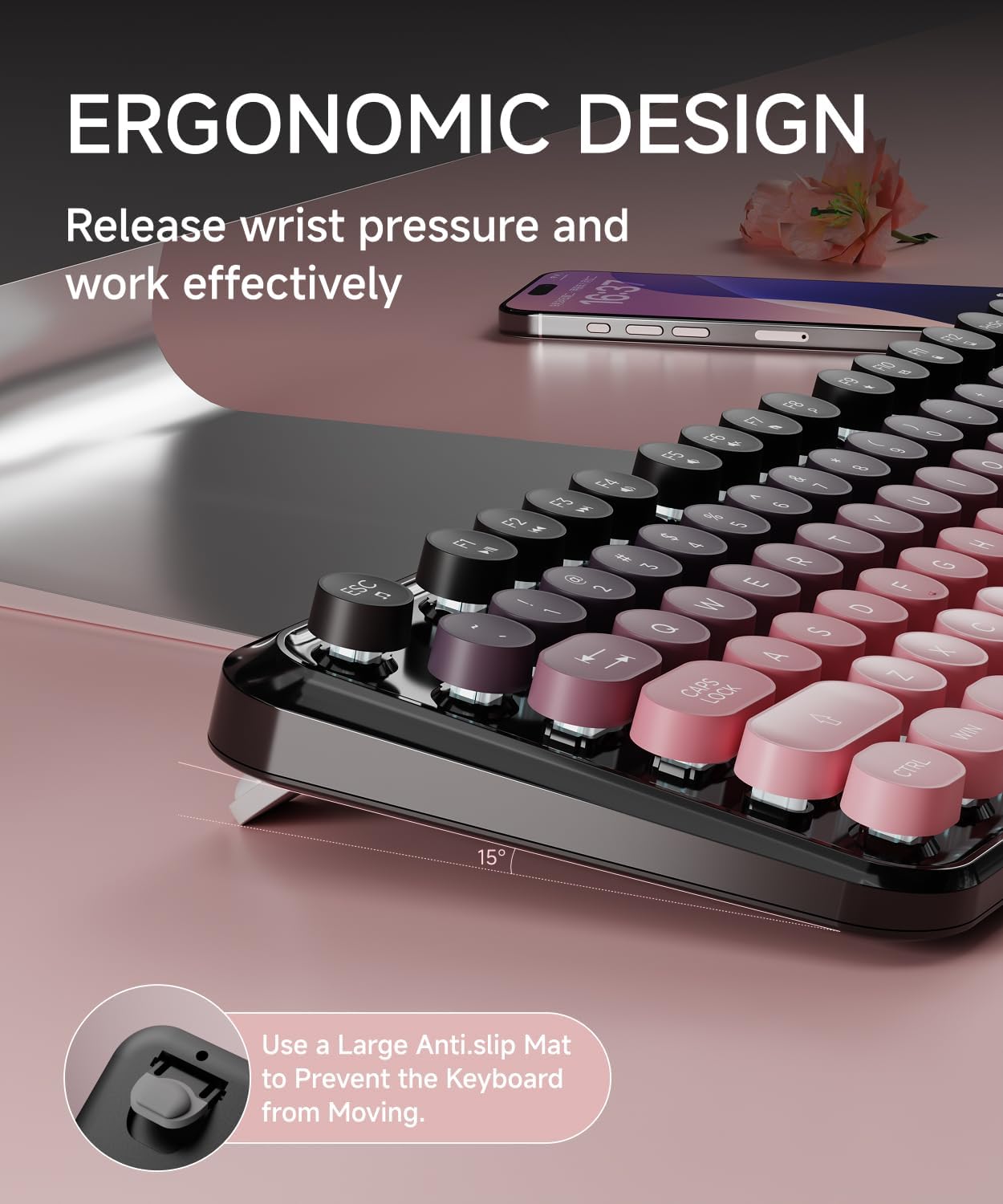
Image: A close-up view of the keyboard demonstrating its ergonomic design with a 15-degree tilt angle and anti-slip mat to prevent movement.
3. Package Contents
Please ensure all items are present in your package:
- 1 x EWEADN V96 Wireless Keyboard
- 1 x EWEADN Wireless Mouse
- 1 x USB Receiver (stored inside the keyboard's battery compartment)
- 1 x User Manual (this document)
Note: AAA batteries for the keyboard (2 required) and AA battery for the mouse (1 required) are not included.
4. Setup Guide
Follow these steps to set up your wireless keyboard and mouse combo:
- Install Batteries:
- Open the battery compartment on the back of the keyboard and insert two AAA batteries, ensuring correct polarity.
- Open the battery compartment on the bottom of the mouse and insert one AA battery, ensuring correct polarity.
- Locate USB Receiver: The USB receiver is conveniently stored inside the keyboard's battery compartment. Carefully remove it.
- Plug in USB Receiver: Insert the USB-A receiver into an available USB port on your computer (desktop, laptop, Chromebook, etc.).
- Power On Devices:
- For the keyboard, ensure the power switch (usually located near the battery compartment) is in the 'ON' position.
- For the mouse, ensure the power switch on the bottom is in the 'ON' position.
- Automatic Connection: The keyboard and mouse should automatically connect to your computer. No additional drivers are typically required.

Image: A visual guide illustrating the 2.4G wireless technology, showing the USB receiver being plugged into a laptop and its storage location within the keyboard's battery compartment.

Image: A four-step user guide showing battery insertion, USB receiver plugging, keyboard switch, and successful connection.

Image: An underside view of the keyboard and mouse, highlighting the battery compartments, power switches, and the dedicated slot for the USB receiver within the keyboard.
5. Operating Instructions
5.1 Keyboard Usage
The V96 keyboard features a standard 104-key layout with additional multimedia functions.
Multimedia Shortcut Keys:
To use the multimedia functions (F1-F12), press and hold the Fn key, then press the desired function key.
- Fn + F1: Music Player
- Fn + F2: Play/Pause
- Fn + F3: Previous Track
- Fn + F4: Next Track
- Fn + F5: Volume Down
- Fn + F6: Volume Up
- Fn + F7: Mute
- Fn + F8: Web Browser
- Fn + F9: Search
- Fn + F10: Favorites
- Fn + F11: Email
- Fn + F12: Lock/Windows Key

Image: A detailed layout of the V96 keyboard, highlighting the multimedia shortcut keys (F1-F12) and their corresponding functions when used with the Fn key.
5.2 Mouse Usage
The wireless mouse provides precise and quiet clicking. It features adjustable DPI settings.
Adjusting DPI:
The mouse has three adjustable DPI levels: 800, 1200 (default), and 1600. To change the DPI, press the DPI button located on the top of the mouse, usually behind the scroll wheel. Each press cycles through the available DPI settings.

Image: A close-up of the wireless mouse, indicating its quiet operation and the location of the DPI adjustment button, along with the 2.4G/OFF switch.
6. Power Management
Both the keyboard and mouse are designed with automatic sleep functions to conserve battery life.
- Automatic Sleep: After 5 seconds of inactivity, both devices will enter a power-saving sleep mode.
- Waking Up: To wake up the keyboard, press any key. To wake up the mouse, click any button.
- Low Battery Indication: The keyboard features a low battery indicator light in the top right corner. When the battery is low, this light will illuminate, reminding you to replace the batteries.

Image: An illustration detailing the automatic sleep function (10 mins auto sleep) and standby time (180 days), along with the battery requirements for both the keyboard (2 AAA) and mouse (1 AA).
7. Compatibility
The EWEADN V96 Wireless Keyboard and Mouse Combo is widely compatible with various operating systems:
- Windows 10 / 8 / 7 / XP / Vista
- Mac OS
- Chrome OS
- Linux
It is suitable for use with desktops, Chromebooks, PCs, laptops, and more.

Image: The keyboard and mouse combo on a desk, with icons indicating compatibility with Mac OS, Windows, Chrome OS, and Linux.
8. Maintenance
To ensure the longevity and optimal performance of your keyboard and mouse combo, follow these maintenance guidelines:
- Cleaning: Use a soft, dry cloth to wipe down the surfaces of the keyboard and mouse. For stubborn dirt, a slightly damp cloth can be used, but ensure no moisture enters the internal components.
- Avoid Liquids: Do not expose the devices to water or other liquids. Spills can cause permanent damage.
- Battery Replacement: Replace batteries promptly when the low battery indicator appears to maintain consistent performance. Dispose of old batteries responsibly.
- Storage: When not in use for extended periods, turn off both the keyboard and mouse to conserve battery life. Store the USB receiver in its designated slot within the keyboard's battery compartment.
- Handle with Care: Avoid dropping or subjecting the devices to strong impacts.
9. Troubleshooting
If you encounter issues with your EWEADN V96 combo, refer to the following common solutions:
- No Connection / Devices Not Responding:
- Ensure both the keyboard and mouse are turned ON.
- Check if the USB receiver is securely plugged into a working USB port on your computer. Try a different USB port.
- Replace the batteries in both the keyboard and mouse, even if the low battery indicator is not on.
- Re-pairing Procedure: If the devices lose connection, you may need to re-pair them. This can sometimes be achieved by pressing Fn + Q simultaneously, then Fn + W until the keyboard lights up briefly, indicating a successful re-connection.
- Lag or Intermittent Connection:
- Move the keyboard and mouse closer to the USB receiver.
- Ensure there are no large metal objects or other wireless devices (like Wi-Fi routers, cordless phones) operating too close to the receiver, as they can cause interference.
- Mouse Cursor Jumps or is Inaccurate:
- Clean the optical sensor on the bottom of the mouse.
- Try using the mouse on a different surface. A mouse pad is recommended.
- Adjust the DPI setting to a lower value if the cursor is too sensitive.
- Keys Not Registering / Sticky Keys:
- Ensure the keyboard is clean and free of debris under the keycaps.
- Check battery levels.
10. Specifications
| Feature | Specification |
|---|---|
| Model Number | V96 |
| Brand | EWEADN |
| Connectivity Technology | 2.4G Wireless |
| Keyboard Layout | 104 Keys, Full-Sized |
| Keycap Style | Round, Retro Typewriter |
| Mouse DPI Settings | 800-1200-1600 (Adjustable) |
| Keyboard Battery | 2 x AAA (Not Included) |
| Mouse Battery | 1 x AA (Not Included) |
| Wireless Range | Up to 33 feet (10 meters) |
| Compatible Devices | Laptop, Desktop, PC, Chromebook |
| Operating Systems | Windows 10/8/7/XP/Vista, Mac OS, Chrome OS, Linux |
| Item Weight | 1.67 pounds (Keyboard and Mouse) |
| Color | Gradient Pink |
11. Warranty and Support
EWEADN is committed to providing powerful after-sales backing for its products. If you encounter any issues or have questions regarding your V96 Wireless Keyboard and Mouse Combo, please contact our support team.
Customer Support:
- Email Support: eweadnkeyboard@outlook.com
Our support team can assist with pre-sales inquiries, troubleshooting, accessory reissues, and returns/exchanges.

Image: An illustration depicting various customer support services offered by EWEADN, including pre-sales Q&A, troubleshooting, accessories reissue, and returns and exchanges, with an email contact provided.
Related documentsV96


Ask a question about this manual
Ask about setup, troubleshooting, compatibility, parts, safety, or missing instructions. Manuals+ will review the question and use this page’s manual context to help answer it.