
Introduction
This manual provides essential information for setting up, operating, and maintaining your Lenovo ThinkCentre M700 Tiny Desktop PC. This compact desktop computer is designed for productivity and efficiency, offering a small footprint to maximize your workspace. It comes equipped with a 6th Gen Quad Core i5-6500 processor, 16GB DDR4 RAM, a 256GB Solid State Drive, and runs on Windows 11 Pro. The system includes a 24-inch Full HD monitor, keyboard, and mouse for a complete computing experience.

Figure 1: Complete Lenovo ThinkCentre M700 Tiny Desktop PC setup.
What's in the Box
Your package should contain the following items:
- 1 Lenovo ThinkCentre M700 Tiny Business Desktop PC
- 1 24-inch FHD Monitor
- 1 Keyboard
- 1 Mouse
- 1 Power Cord
Setup Guide
Follow these steps to set up your Lenovo ThinkCentre M700 Tiny Desktop PC:
- Unpack Components: Carefully remove all items from the packaging. Ensure all listed components are present.
- Connect the Monitor: Connect the 24-inch FHD monitor to one of the DisplayPort outputs on the rear of the ThinkCentre M700 Tiny PC using a DisplayPort cable. Connect the monitor's power cable to an electrical outlet.
- Connect Keyboard and Mouse: Plug the USB keyboard and mouse into any available USB 3.0 ports on the front or rear of the PC.
- Connect Power: Connect the PC's power cord to the power input on the rear of the PC, then plug it into an electrical outlet.
- Power On: Press the power button on the front of the ThinkCentre M700 Tiny PC. Then, power on the monitor. The system will boot into Windows 11 Pro.
- Initial Setup: Follow the on-screen instructions to complete the Windows 11 Pro initial setup, including network connection (WiFi or Ethernet via RJ-45 port), user account creation, and privacy settings.

Figure 2: Rear ports of the ThinkCentre M700 Tiny, including DisplayPort connections.

Figure 3: Front ports of the ThinkCentre M700 Tiny, including USB 3.0 ports.
Operating Instructions
Your Lenovo ThinkCentre M700 Tiny PC comes pre-installed with Windows 11 Pro, offering a secure and efficient operating environment.
- Power On/Off: Press the power button on the front of the PC to turn it on. To shut down, click the Start button, then Power, and select "Shut down."
- Connectivity: Utilize the multiple USB 3.0 ports for peripherals. Connect to the internet via integrated WiFi or the RJ-45 Ethernet port. Bluetooth is also available for wireless accessories.
- Display: The system supports dual display output via its two DisplayPort connections, allowing for extended desktop configurations.
- Performance: The Intel Quad Core i5-6500 processor and 16GB DDR4 RAM provide ample power for multitasking, web browsing, office applications, and multimedia consumption. The 256GB SSD ensures fast boot times and quick application loading.
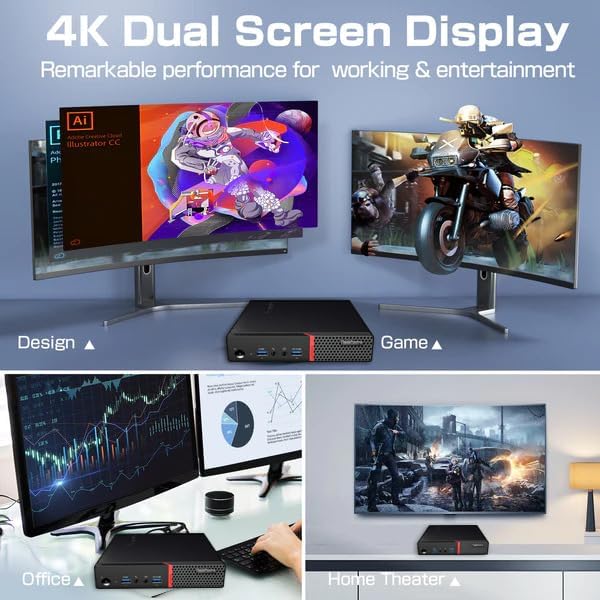
Figure 4: Illustrates dual screen display functionality for various applications.
Maintenance
Regular maintenance helps ensure the longevity and optimal performance of your PC.
- Keep it Clean: Regularly clean the exterior of the PC and monitor with a soft, dry cloth. Use compressed air to clear dust from vents to prevent overheating.
- Software Updates: Ensure Windows 11 Pro and all drivers are kept up-to-date. This improves security and performance.
- Data Backup: Periodically back up important data to an external drive or cloud storage.
- Antivirus Protection: Maintain active antivirus software to protect against malware and viruses.
Troubleshooting
If you encounter issues, try these basic troubleshooting steps:
- No Power: Check all power connections to the PC and monitor. Ensure the power outlet is functional.
- No Display: Verify the DisplayPort cable is securely connected to both the PC and the monitor. Ensure the monitor is powered on and set to the correct input source.
- Peripheral Not Working: Try plugging the keyboard or mouse into a different USB port. Ensure drivers are installed if required (usually automatic for basic peripherals).
- No Internet Connection: Check your WiFi connection settings or ensure the Ethernet cable is properly connected to the RJ-45 port and your router/modem.
- System Slowdown: Close unnecessary applications. Check for background processes consuming high resources using Task Manager (Ctrl+Shift+Esc).
Specifications
| Feature | Detail |
|---|---|
| Brand | Lenovo |
| Model | ThinkCentre M700 Tiny |
| Processor | 6th Gen Intel Quad Core i5-6500 (up to 3.6GHz) |
| RAM | 16GB DDR4 |
| Storage | 256GB Solid State Drive (SSD) |
| Operating System | Windows 11 Pro (64-bit) |
| Graphics Coprocessor | Intel UHD Graphics 630 (Integrated) |
| Monitor | 24-inch FHD (1920 x 1080) |
| Front Ports | 2x USB 3.0 (one Always On/fast charge), 1x Microphone, 1x Headphone/Microphone combo jack |
| Rear Ports | 4x USB 3.0, 1x RJ-45 (Ethernet), 2x DisplayPort, 1x Headphone |
| Wireless | Bluetooth, WiFi |
| Dimensions (PC) | 7.1 x 1.3 x 7 inches (L x W x H) |
| Weight (PC) | 4.1 pounds |

Figure 5: Dimensions of the ThinkCentre M700 Tiny PC.
Warranty Information
This Lenovo ThinkCentre M700 Tiny Desktop PC comes with a 90-day limited warranty. Please refer to the warranty documentation included with your purchase for full terms and conditions.
Support
For technical assistance, driver downloads, or further support, please visit the official Lenovo support website or contact your seller. Ensure you have your product model number and serial number ready when seeking support.


