
Introduction
Thank you for choosing the Salange HY300PRO+ Smart Projector. This compact and versatile projector is designed to provide an immersive entertainment experience with its 4K support, built-in Android OS, advanced connectivity options, and automatic adjustments. This manual will guide you through the setup, operation, and maintenance of your new projector.
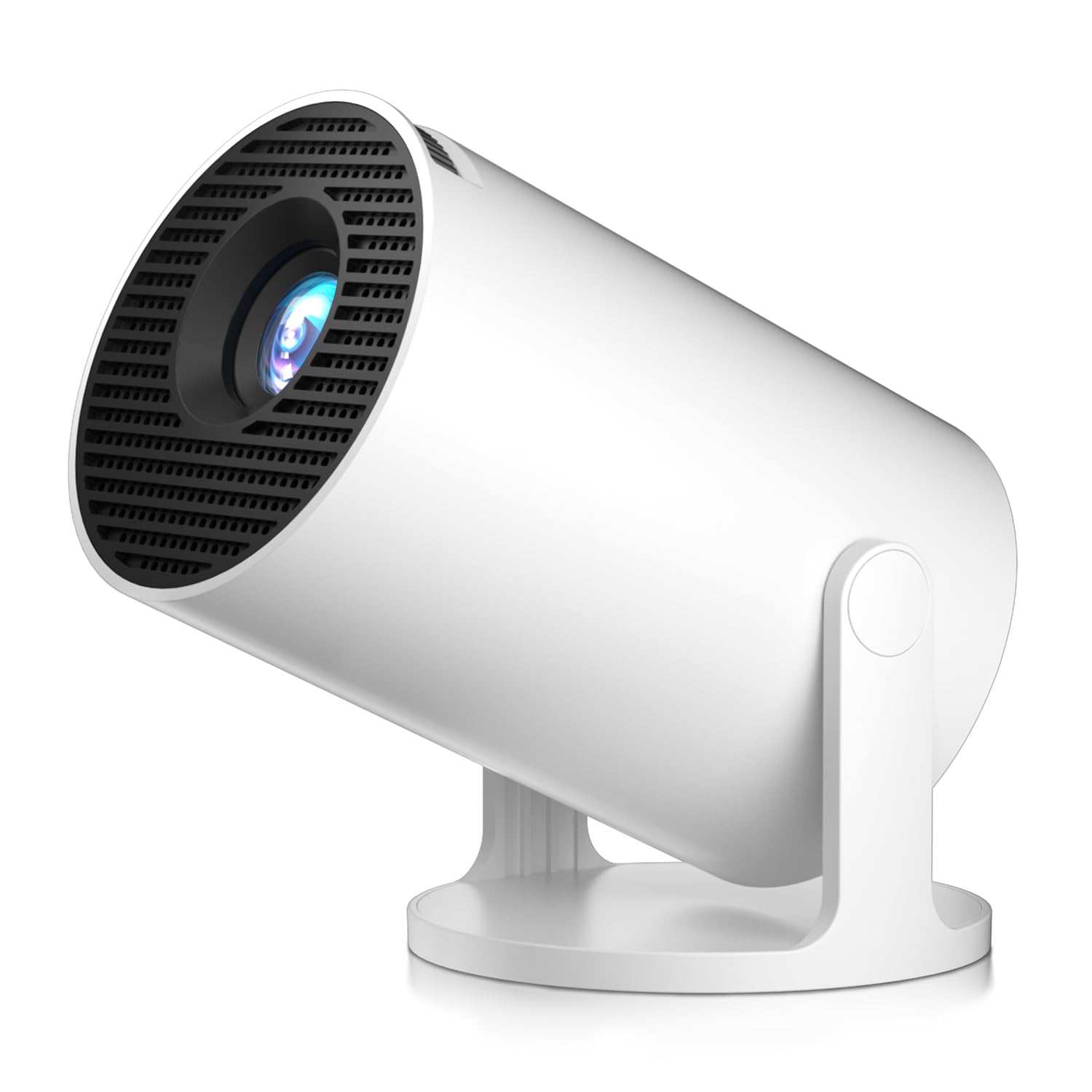
Image: The Salange HY300PRO+ Smart Projector in white, showcasing its compact cylindrical design with an adjustable base.
Package Contents
- HY300PRO+ Smart Projector
- Power Cable
- Remote Control
- User Manual
Product Overview
The HY300PRO+ features a compact design with an integrated 181° adjustable stand for flexible positioning. Key ports are located at the rear for easy access.

Image: A close-up of the rear of the projector, highlighting the USB and HDMI ports, audio jack, and power input.
Ports and Controls:
- HDMI Port: Connect external devices such as TV sticks, laptops, gaming consoles.
- USB Port: Connect USB drives for media playback.
- Audio Jack (3.5mm): Connect external headphones or speakers.
- Power Input: Connect the provided power cable.
- Focus Dial: Manual adjustment for image sharpness (located near the lens).
- Power Button: On/Off control.
Setup
1. Power Connection
- Connect the power cable to the projector's power input.
- Plug the other end of the power cable into a power outlet.
- Press the power button on the projector or remote control to turn it on.
2. Placement and Positioning
The projector's 181° adjustable stand allows for flexible placement. It supports ceiling, tabletop, tripod, and wall mounting.

Image: The projector is shown in an outdoor setting, projecting a movie onto a screen, demonstrating its portability and versatility.
3. Focus Adjustment
Use the manual focus dial near the lens to achieve a clear and sharp image. Adjust until the projected image is crisp.
4. Keystone Correction
The projector features automatic vertical keystone correction. If the image appears distorted (trapezoidal), the projector will automatically adjust it. For fine-tuning or more complex adjustments, use the 4-point keystone correction option in the settings menu.

Image: A visual representation of the projector automatically correcting a distorted image on a wall, showing the before and after of keystone correction.
Operating Instructions
1. Navigation
Use the provided remote control to navigate the projector's interface. The directional buttons and 'OK' button are used for selection, while the 'Back' and 'Home' buttons allow you to return to previous screens or the main menu.
2. Connectivity
- Wi-Fi 6: Connect to your home network for online streaming and app access. Navigate to 'Settings' > 'Network & Internet' > 'Wi-Fi' to select your network and enter the password.
- Bluetooth 5.4: Pair with external Bluetooth speakers, headphones, or soundbars for enhanced audio. Go to 'Settings' > 'Connected Devices' > 'Bluetooth' to search for and pair devices. (Note: Bluetooth supports audio only, not video).

Image: The projector is shown connected wirelessly to various Bluetooth audio devices, including headphones and a soundbar, illustrating its audio connectivity.
3. Built-in Android OS and Apps
The projector runs on an Android operating system, providing access to a wide range of applications. Pre-installed apps include Netflix, Prime Video, and YouTube. You can download more apps from the Google Play Store or the integrated app store.

Image: The projector displays its Android OS home screen on a wall, showing icons for popular streaming services like HBO Max, YouTube, Hulu, and Prime Video.
4. Screen Mirroring
The projector supports AirPlay, Miracast, and DLNA protocols for wireless screen mirroring from iOS, Android, or Windows 10 devices. To use this feature, select the 'Screen Mirroring' option from the main menu and follow the on-screen instructions.

Image: A smartphone screen is mirrored onto a large projected display, demonstrating the projector's screen mirroring capability for various devices.
Note on HDCP: Due to HDCP protocol limitations, direct streaming or mirroring from platforms like Netflix, Hulu, or Prime Video is not supported via screen mirroring. For copyrighted content, please use the built-in apps or connect a laptop, PC, or TV stick via HDMI.
5. External Devices (HDMI & USB)
Connect devices like TV sticks, laptops, smartphones, tablets, USB drives, and gaming consoles using the HDMI and USB ports. Select the appropriate input source from the projector's main menu.
6. Projection Size and Distance
The HY300PRO+ is a short-throw projector, capable of projecting an 80-inch to 100-inch image from just 5.25 to 6.5 feet away. For optimal viewing, a projection size of 80-100 inches is recommended.

Image: A diagram comparing the short throw distance of the Salange HY300PRO+ (5.98ft for 100 inches) versus other projectors (11.48ft for 100 inches), highlighting its space-saving advantage.
7. Image Settings
Adjust image parameters such as brightness, contrast, color, and sharpness through the 'Settings' menu. The projector also offers 100% - 50% zoom capability to resize the image without moving the unit.
Maintenance
- Cleaning: Use a soft, dry cloth to clean the projector's exterior. For the lens, use a lens cleaning cloth and solution specifically designed for optical surfaces.
- Ventilation: Ensure the projector's ventilation vents are not blocked to prevent overheating. The projector has a built-in cooling system.
- Storage: When not in use for extended periods, store the projector in a cool, dry place away from direct sunlight and dust.
Troubleshooting
- App Incompatibility: If an app prompts incompatibility, uninstall and re-download it from the App Store. If the issue persists, contact customer service.
- No Image/Poor Image: Check power connection, focus adjustment, and keystone correction settings. Ensure the correct input source is selected.
- No Sound: Check volume levels on the projector and any connected external audio devices. Ensure Bluetooth audio is correctly paired if used.
- Screen Mirroring Issues: Verify both devices are on the same Wi-Fi network. Remember HDCP limitations for copyrighted content.
Specifications
| Feature | Specification |
|---|---|
| Model Number | HY300PRO+ |
| Native Resolution | 1280 x 720 (1080P HD) |
| Display Resolution Maximum | 3840 x 2160 Pixels (4K Supported) |
| Brightness | 12000 Lumen |
| Contrast Ratio | 10000:1 |
| Connectivity Technology | Bluetooth 5.4, HDMI, USB, Wi-Fi 6 |
| Operating System | Android OS |
| Special Features | Built-In Cooling System, Built-In Speaker, Lightweight, Portable, Short Throw, Auto Keystone Correction |
| Product Dimensions | 9.48 x 9.46 x 15.67 cm |
| Item Weight | 0.34 Kilograms |
| Light Source Operating Life | 60000 Hours |
| Maximum Image Size | 300 Inches |
| Minimum Throw Distance | 0.25 Meters |
| Maximum Throw Distance | 7 Meters |
Warranty and Support
The Salange HY300PRO+ Smart Projector comes with a 2-year warranty. For any questions, technical support, or warranty claims, please contact Salange customer service. You can typically find contact information on the product packaging or the official Salange website.
For immediate assistance with common issues, refer to the troubleshooting section of this manual or visit the product support page online.
Official Product Video
Video: An official product video from SalangeDirect showcasing the Smart Projector with WiFi and Bluetooth 5.4 capabilities, including a demonstration of its various ports and user interface.


