
1. Introduction
Thank you for choosing the ULTIMEA Skywave F30 Boom 3.1.2ch Dolby Atmos Sound Bar. This system is designed to enhance your home entertainment experience with immersive surround sound, powerful bass, and clear dialogue. Featuring 3.1.2-channel audio with up-firing speakers, a 6.5-inch wired subwoofer, and advanced connectivity options like HDMI eARC and Bluetooth 5.4, this sound bar delivers a dynamic audio experience. This manual provides essential information for setup, operation, and maintenance of your new sound bar.
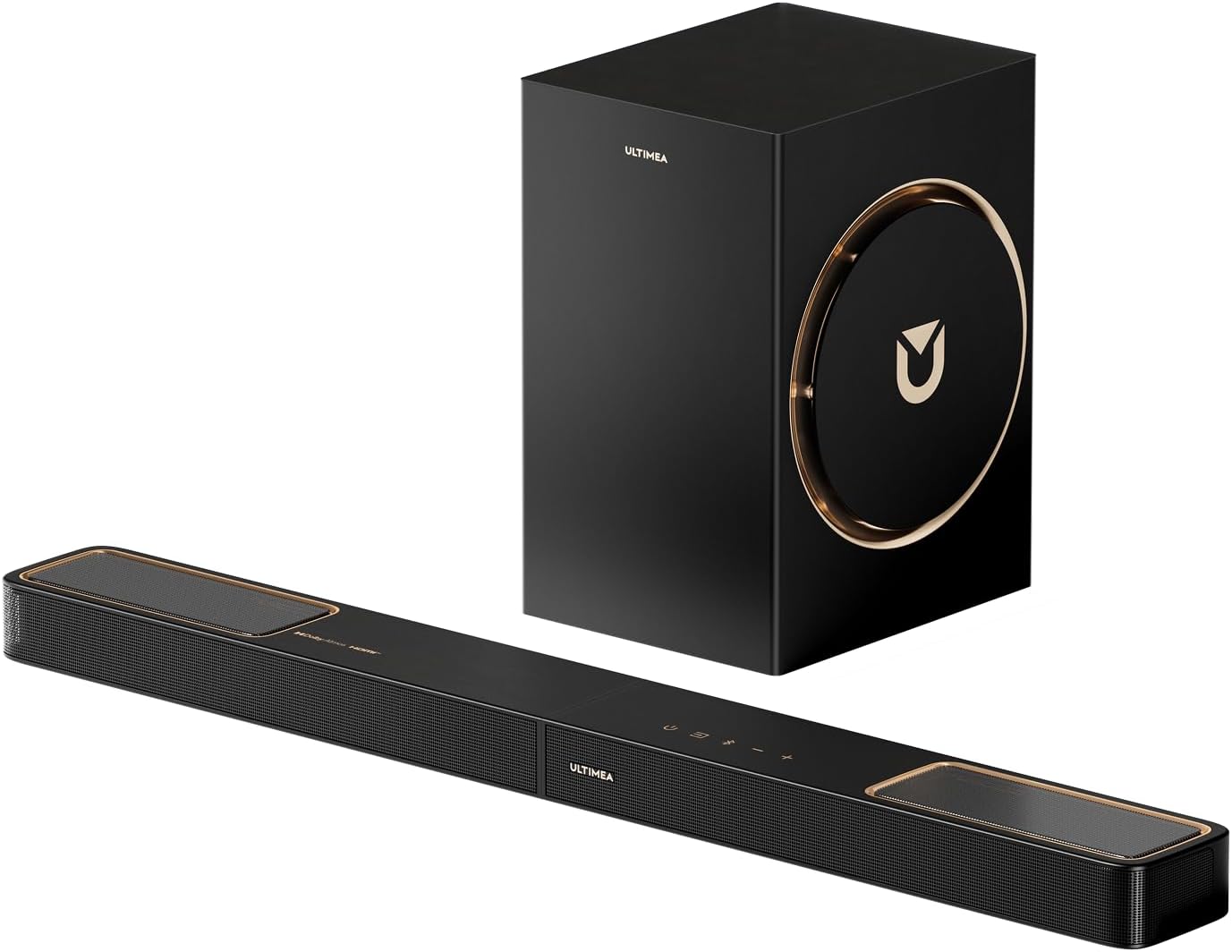
Image 1.1: The ULTIMEA Skywave F30 Boom U392B Sound Bar and its accompanying 6.5-inch wired subwoofer.
2. Safety Information
Please read all safety instructions carefully before using this product. Retain this manual for future reference.
- Do not expose the device to rain, moisture, or extreme temperatures.
- Ensure proper ventilation around the sound bar and subwoofer.
- Use only the power adapter supplied with the unit.
- Do not open the casing; refer all servicing to qualified personnel.
- Keep the product away from strong magnetic fields.
3. Package Contents
Verify that all items listed below are included in your package:
- 1 x Soundbar
- 1 x Subwoofer
- 1 x Remote Control (Battery not included)
- 1 x User Manual
- 1 x Soundbar Power Adaptor
- 1 x HDMI eARC Cable (1.5m)
- 1 x Digital Optical Cable (1.5m)
- 1 x HDMI Right Angle Adapter
- 4 x Wall Mount Kit
- 2 x Wall Bracket
- 2 x Mounting Screw on Speakers
4. Product Overview
4.1. Sound Bar Components
The ULTIMEA Skywave F30 Boom features a 3.1.2 channel configuration, including left, center, and right channels, along with two up-firing channels for Dolby Atmos height effects, and a dedicated subwoofer for low frequencies.

Image 4.1: Internal component diagram showing the Left, Center, Right, Left Up-firing, Right Up-firing channels of the sound bar and the 6.5-inch subwoofer.
4.2. Top Panel Controls
The sound bar features intuitive controls on its top panel for easy access to essential functions.

Image 4.2: Close-up view of the sound bar's top panel, displaying power, input, volume, and Bluetooth controls.
4.3. Rear Panel Ports
The rear panel provides various input and output ports for connecting to your television and other devices.

Image 4.3: Diagram of the sound bar's rear panel, showing HDMI to TV (eARC), Optical, USB, Sub Out, and DC In ports.
4.4. Remote Control
The included remote control provides full functionality for managing your sound bar settings, including input selection, volume, sound modes, and EQ adjustments.

Image 4.4: The remote control for the sound bar, showing various buttons for power, input, volume, sound modes, and EQ.
5. Setup
5.1. Placement
For optimal audio performance, place the sound bar centrally below your television. The subwoofer should be placed on the floor, ideally in a corner or near a wall to enhance bass response. Ensure there are no obstructions blocking the up-firing speakers on the sound bar.

Image 5.1: Recommended placement of the sound bar and subwoofer in a living room setting for optimal 3.1.2 channel Dolby Atmos sound.
5.2. Connecting to Your TV
The sound bar offers multiple connection options to your television. HDMI eARC is recommended for the best audio quality, especially for Dolby Atmos content.
5.2.1. HDMI eARC Connection (Recommended)
Connect one end of the provided HDMI eARC cable to the HDMI eARC port on your sound bar and the other end to the HDMI eARC/ARC port on your TV. This connection supports lossless audio transmission and CEC functionality.

Image 5.2: Diagram illustrating the connection of the sound bar to a TV using an HDMI eARC cable.
5.2.2. Optical Connection
If your TV does not have an HDMI eARC/ARC port, use the optical cable to connect the sound bar's OPTICAL port to your TV's Digital Audio Out (Optical) port.

Image 5.3: Diagram illustrating the connection of the sound bar to a TV using an Optical cable.
5.3. Bluetooth Connection
To connect a Bluetooth device, select the Bluetooth input on the sound bar. Enable Bluetooth on your device and select "ULTIMEA Skywave F30 Boom" from the list of available devices.

Image 5.4: A user streaming music via Bluetooth 5.4 from a smartphone to the sound bar and subwoofer system.
5.4. Power Connection
Connect the sound bar power adapter to the DC IN port on the sound bar and then to a power outlet. The subwoofer connects to the sound bar via a wired connection.
5.5. Wall Mounting
The sound bar includes a wall mount kit for installation. Refer to the included wall mount instructions for detailed steps.
6. Operating Instructions
6.1. Power On/Off and Input Selection
Press the power button on the sound bar or remote control to turn the unit on or off. Use the input button to cycle through available sources: HDMI eARC, Optical, Bluetooth, and USB.
6.2. Volume Control
Adjust the main volume using the volume buttons on the sound bar or remote. The remote also provides separate controls for Bass, Midrange, and Treble levels.
6.3. Dolby Atmos and Up-Firing Channels
The 3.1.2 channel system with up-firing drivers creates a multidimensional sound experience, projecting audio upwards to reflect off the ceiling and simulate overhead sound effects. This enhances immersion for Dolby Atmos content.
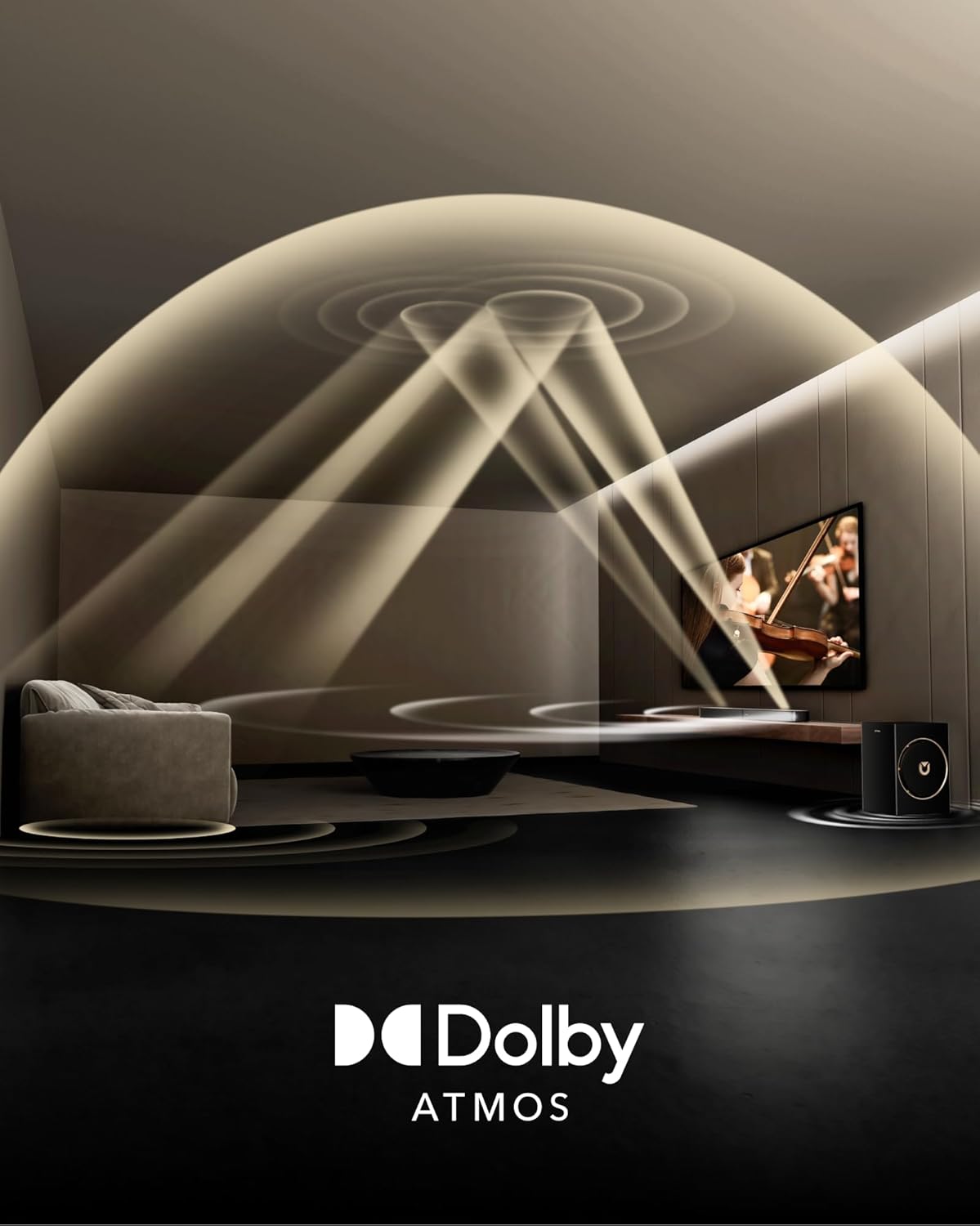
Image 6.1: Diagram illustrating how Dolby Atmos sound is projected upwards by the sound bar and reflected to create an immersive overhead audio experience.

Image 6.2: Close-up view of the sound bar's up-firing drivers, designed to project sound vertically for height effects.
6.4. BassMX Technology
The 6.5-inch wired subwoofer utilizes BassMX Technology, featuring a larger voice coil and expanded wooden cabinet, to deliver powerful, resonant low frequencies down to 38Hz. This provides deeper punch and improved control for action scenes and music.

Image 6.3: The 6.5-inch wired subwoofer, highlighting its design and BassMX Technology for enhanced low-frequency performance.
6.5. VoiceMX Technology
VoiceMX Technology enhances vocal clarity, ensuring dialogue is clear and distinct in any scene. Real-time DSP processing minimizes distortion and maintains consistent detail across all volume levels.

Image 6.4: A visual representation of VoiceMX Technology enhancing dialogue clarity from the sound bar during a TV program.
6.6. CEC Function
When connected via HDMI eARC, the CEC (Consumer Electronics Control) function allows your TV and sound bar to synchronize. This means you can control power, volume, and input selection for both devices using a single remote.
6.7. App Control
Customize your audio experience using the ULTIMEA App. The app offers a 10-band graphic equalizer, 121 preset sound settings, and allows for seamless OTA (Over-The-Air) updates to unlock new features and maintain optimal performance.

Image 6.5: A smartphone displaying the ULTIMEA App interface, showing options for sound modes, EQ settings, and firmware updates.

Image 6.6: The ULTIMEA App's equalizer interface, allowing users to customize sound frequencies for different audio content.
7. Maintenance
To ensure the longevity and optimal performance of your ULTIMEA sound bar, follow these maintenance guidelines:
- Cleaning: Gently wipe the surfaces of the sound bar and subwoofer with a soft, dry cloth. Do not use liquid cleaners or abrasive materials, as they may damage the finish.
- Ventilation: Ensure that the sound bar and subwoofer have adequate ventilation. Do not block any vents or place the units in enclosed spaces that could restrict airflow.
- Storage: If storing the unit for an extended period, disconnect it from power and store it in a cool, dry place, away from direct sunlight and extreme temperatures.
8. Troubleshooting
If you encounter issues with your sound bar, refer to the following common problems and solutions:
| Problem | Possible Cause | Solution |
|---|---|---|
| No power | Power cable not connected; Power outlet not active | Ensure power cable is securely connected to both the sound bar and a working power outlet. |
| No sound | Incorrect input selected; TV volume muted; Cables loose | Select the correct input source. Unmute TV and sound bar. Check all audio cable connections. |
| Distorted sound | Volume too high; Incorrect audio settings | Lower the volume. Adjust EQ settings via the app or remote. Check TV audio output settings. |
| Remote control not working | Batteries depleted; Obstruction between remote and sound bar | Replace remote control batteries. Ensure a clear line of sight to the sound bar's sensor. |
| Bluetooth connection issues | Device too far; Interference; Sound bar not in pairing mode | Move device closer to the sound bar. Restart Bluetooth on your device. Ensure sound bar is in Bluetooth pairing mode. |
9. Specifications
| Feature | Detail |
|---|---|
| Model Name | Skywave F30 Boom |
| Item Model Number | U392B |
| Speaker Type | 3.1.2ch Surround Sound with Dolby Atmos |
| Surround Sound Channel Configuration | 3.1.2 |
| Subwoofer Diameter | 6.5 Inches |
| Speaker Maximum Output Power | 360 Watts |
| Frequency Response | 38 Hz |
| Connectivity Technology | HDMI-eARC, Bluetooth 5.4, Optical |
| Wireless Communication Technology | Bluetooth |
| Bluetooth Range | 15 Meters |
| Control Method | App, Remote |
| Product Dimensions | 31.5"D x 18.11"W x 35.44"H |
| Item Weight | 15.07 pounds |
| Mounting Type | Tabletop Mount, Wall Mount |
| Compatible Devices | Television, Smartphone, Tablet, Laptop, Desktop |
| Included Components | Soundbar, Subwoofer, Remote Control, User Manual, Power Adaptor, HDMI eARC Cable, Digital Optical Cable, HDMI Right Angle Adapter, Wall Mount Kit, Wall Brackets, Mounting Screws |

Image 9.1: Diagram showing the dimensions of the sound bar (800mm x 90mm x 46mm) and the subwoofer (234mm x 200mm x 315mm).
10. Warranty and Support
10.1. Limited Warranty
The ULTIMEA Skywave F30 Boom U392B comes with a limited warranty. Please refer to the warranty card included in your package for specific terms and conditions.
10.2. Extended Protection Plans
Extended protection plans are available for purchase to provide additional coverage beyond the standard limited warranty:
- 2-Year Protection Plan
- 3-Year Protection Plan
- Complete Protect (monthly plan covering eligible past and future purchases)
10.3. Customer Support
ULTIMEA is committed to providing excellent customer service. For any inquiries, technical assistance, or support, please contact our customer service team. Our service promise includes pre-sale consultation, 7/24 service, and a worry-free warranty.
Image 10.1: Icons representing ULTIMEA's service promise: Pre-Sale Consultation, 7/24 Service, and Worry-Free Warranty.