
1. Introduction
Thank you for choosing the Dreo 110-Pint Smart Dehumidifier. This appliance is designed to efficiently remove excess moisture from large spaces up to 4500 square feet, such as basements, bedrooms, living rooms, bathrooms, and laundry rooms. Featuring smart controls, multiple operating modes, and dual drainage options, it provides a comfortable and healthy environment by maintaining optimal humidity levels. Please read this manual thoroughly before operation to ensure proper use and maintenance.
2. Important Safety Instructions
To reduce the risk of fire, electric shock, or injury, always follow basic safety precautions when operating this appliance.
- Read all instructions before using the dehumidifier.
- This appliance is for indoor use only.
- Ensure the power supply matches the voltage specified on the rating label.
- Do not operate the dehumidifier with a damaged cord or plug.
- Always unplug the unit before cleaning, servicing, or moving.
- Do not block air inlets or outlets.
- Keep the unit upright for at least 24 hours before plugging it in after transport.
- The Dreo Dehumidifier is ETL-certified to meet stringent electrical safety standards, featuring a 90° tilt waterproof design that automatically powers off when tilted, along with comprehensive thermal protection (23°F to 248°F) to prevent overheating and 15A overcurrent protection against power surges.
3. Product Overview
3.1. Components
The Dreo 110-Pint Smart Dehumidifier is designed for efficient and user-friendly operation. Below are the main components:
- Control Panel: Located on the top, with touch buttons and a digital display.
- Air Outlet: Top-mounted for efficient moisture expulsion.
- Air Inlet: Rear-mounted for air intake.
- Water Tank: Front-loading, 2-gallon (8L) capacity with a visible water level indicator.
- Drain Hose Outlet: Located at the rear for continuous drainage.
- Caster Wheels: 360° smooth-rolling wheels for easy mobility.
- Carry Handles: Integrated on the sides for convenient lifting.
- Washable Filter: Easily accessible for cleaning to maintain air quality.
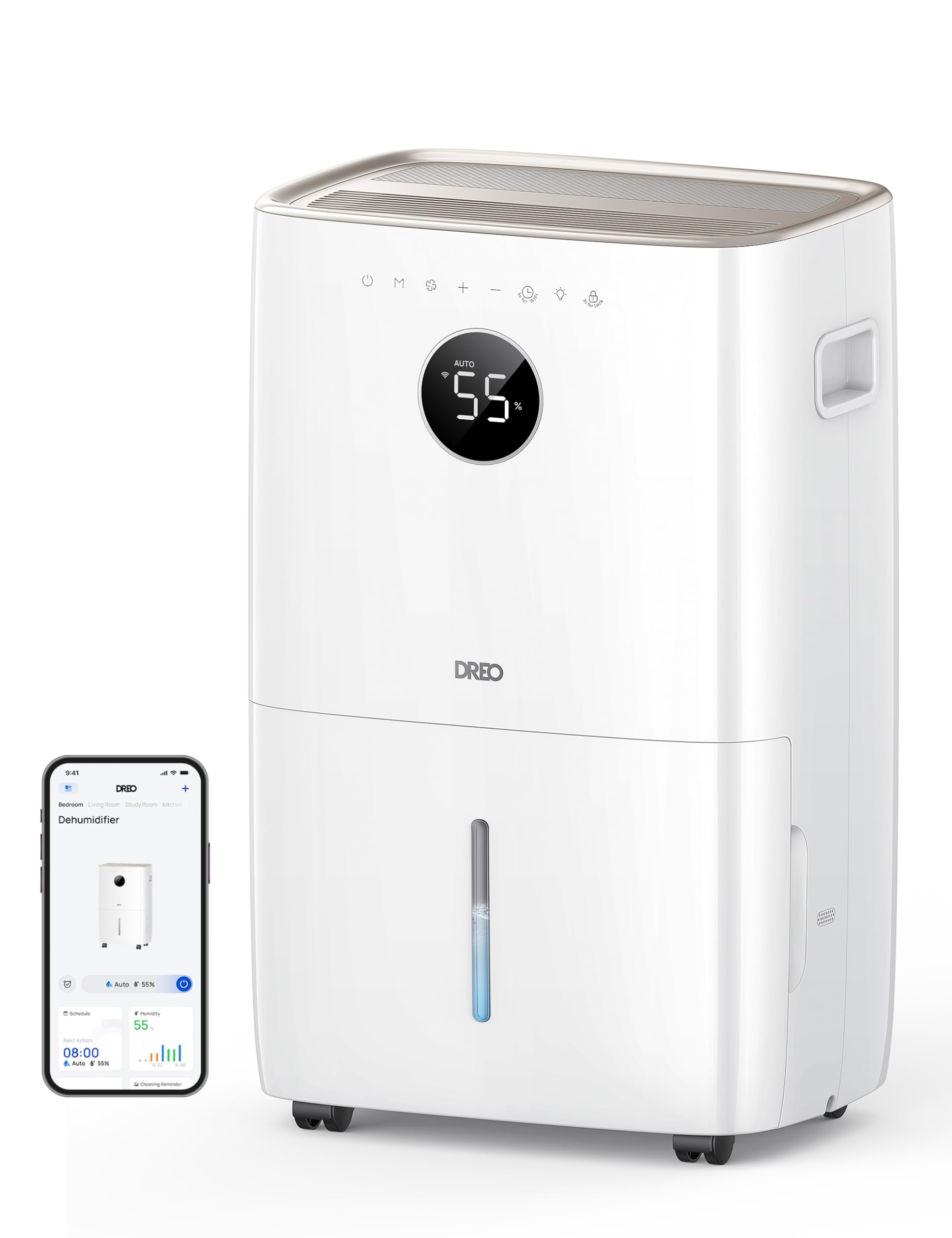
Image: Front view of the Dreo 110-Pint Smart Dehumidifier, highlighting its compact design and dimensions (11.3"D x 15.4"W x 24.4"H).
3.2. Control Panel
The intuitive control panel allows for easy operation and monitoring of your dehumidifier.
- Power Button: Turns the unit on or off.
- Mode Button: Cycles through Auto, Comfort, and Continuous modes.
- Fan Speed Button: Adjusts fan speed (Low, Medium, High).
- Humidity Adjustment Buttons (+/-): Sets desired humidity level in Auto Mode.
- Timer Button: Sets a 24-hour timer for automatic on/off.
- Wi-Fi Indicator: Shows Wi-Fi connection status.
- Child Lock Button: Locks the control panel to prevent accidental changes.
- Filter Reset Indicator: Lights up when the filter needs cleaning.
- Water Full Alert: Illuminates when the water tank is full, and the unit stops operation.
- Defrost Indicator: Activates automatically at 41°F (5°C) for optimal performance in cold environments.

Image: Close-up of the dehumidifier's control panel, showing the digital display set to 55% humidity in Auto Mode, with various function icons.
4. Setup
4.1. Unpacking and Placement
- Carefully remove the dehumidifier from its packaging.
- Place the unit upright on a flat, stable surface. Ensure there is at least 8 inches (20 cm) of space around the air inlets and outlets for proper airflow.
- Allow the unit to stand upright for at least 24 hours before plugging it in to allow the refrigerant to settle.
4.2. Power Connection
Plug the power cord into a grounded electrical outlet. Ensure the outlet meets the electrical requirements of the dehumidifier.
4.3. Drainage Options
The Dreo dehumidifier offers two drainage methods: manual emptying of the water tank or continuous drainage via a hose.

Image: The dehumidifier illustrating both the manual water tank removal and the continuous drainage hose connection.
4.3.1. Manual Drainage
- When the water tank is full, the unit will automatically stop and display a "Water Full" alert.
- Carefully pull out the water tank from the front of the unit using the integrated handle.
- Empty the collected water into a sink or drain.
- Slide the empty water tank back into the unit until it clicks into place. The dehumidifier will resume operation.
4.3.2. Continuous Drainage
- Locate the drain hose outlet at the rear of the dehumidifier.
- Remove the rubber stopper from the outlet.
- Connect the provided drain hose (or a standard garden hose) to the outlet. Ensure the connection is secure to prevent leaks.
- Route the hose to a suitable drain point (e.g., floor drain, sink, or sump pump). Ensure the hose is sloped downwards to allow gravity to drain the water and is free of kinks.
- The dehumidifier will now continuously drain water without needing to empty the tank manually.
5. Operating Instructions
Press the Power Button to turn the dehumidifier on. The unit will start operating in its last used mode and settings.
5.1. Operating Modes
Press the Mode Button to cycle through the available operating modes:
- Auto Mode: The dehumidifier intelligently adjusts fan speed to maintain your target humidity level within a 5% tolerance. Use the +/- buttons to set your desired humidity (e.g., 45-55% is generally recommended).
- Comfort Mode: The unit operates to maintain a comfortable humidity level based on ambient temperature.
- Continuous Mode: The dehumidifier runs continuously at the selected fan speed, regardless of the ambient humidity. This is ideal for very damp conditions or for continuous drainage.
5.2. Fan Speed Adjustment
In Auto or Continuous mode, press the Fan Speed Button to select between Low, Medium, or High fan speeds.
5.3. Timer Function
Press the Timer Button to set a desired operating duration (from 1 to 24 hours). The unit will automatically turn on or off after the set time has elapsed.
5.4. Smart Control (DREO App)
The Dreo 110-Pint Smart Dehumidifier can be controlled remotely via the DREO app on your smartphone or through voice assistants like Alexa and Google Home.

Image: A smartphone displaying the DREO app interface, showing remote control capabilities for the dehumidifier.
5.4.1. Connecting to the DREO App
- Download the DREO app from your smartphone's app store (available on iOS and Android).
- Create an account or log in.
- Follow the in-app instructions to add your Dreo 110-Pint Smart Dehumidifier (Model DH711S). Ensure your phone is connected to a 2.4GHz Wi-Fi network.
Video: This video demonstrates the process of downloading the DREO app and creating a new user account to manage your smart dehumidifier.
Video: This video provides a step-by-step guide on how to connect your Smart Dehumidifier DH711S to the DREO app for remote control and smart features.
5.4.2. App Features
Through the DREO app, you can:
- Monitor real-time humidity levels.
- Set schedules and timers.
- Adjust operating modes and fan speeds.
- Receive notifications (e.g., water tank full, filter cleaning reminder).
- Control the unit using voice commands with Alexa or Google Home.
6. Maintenance
Regular maintenance ensures optimal performance and longevity of your dehumidifier.
6.1. Cleaning the Air Filter
The filter reset indicator will light up after approximately 250 hours of operation, signaling that the filter needs cleaning.
- Unplug the dehumidifier from the power outlet.
- Remove the air filter from the rear of the unit.
- Wash the filter with clean water (no hotter than 104°F / 40°C) and a mild detergent.
- Rinse thoroughly and allow it to air dry completely before reinstalling.
- Once the filter is reinstalled, plug in the unit and press the Filter Reset Button for 3 seconds to clear the indicator.

Image: A hand removing the washable air filter from the back of the dehumidifier for cleaning.
6.2. Cleaning the Water Tank
Clean the water tank regularly to prevent mold and mildew growth.
- Remove the water tank as described in the Manual Drainage section.
- Wash the tank with warm water and a mild detergent.
- Rinse thoroughly and dry completely before placing it back into the unit.
6.3. General Cleaning
Wipe the exterior of the dehumidifier with a soft, damp cloth. Do not use harsh chemicals or abrasive cleaners.
7. Troubleshooting
If you encounter issues with your dehumidifier, refer to the following common problems and solutions:
| Problem | Possible Cause | Solution |
|---|---|---|
| Dehumidifier does not turn on. | No power, power cord loose, water tank full. | Check power connection, ensure plug is secure, empty water tank. |
| Unit is not collecting water. | Humidity level too low, room temperature too low, air filter clogged. | Increase target humidity, ensure room temp is above 41°F (5°C), clean air filter. |
| Unit is noisy. | Unit not on a level surface, air filter clogged. | Place on a flat surface, clean air filter. |
| Water leaks from the unit. | Water tank not properly installed, continuous drain hose is loose or kinked. | Reinstall water tank correctly, check drain hose connection and ensure no kinks. |
| Display shows fluctuating numbers. | Normal adjustment to current humidity. | This is normal operation as the sensor adjusts to ambient conditions. |
| Unit isn't defrosting automatically. | Issue with the condenser. | Contact customer support for assistance. |
8. Specifications
| Feature | Detail |
|---|---|
| Brand | Dreo |
| Model Name | DR-HDH001S |
| Capacity | 110 Pints (at 86°F, RH 90%) / 50 Pints per Day (DOE Standard) |
| Coverage Area | Up to 4500 Square Feet |
| Water Tank Volume | 2 Gallons (8L) |
| Operation Modes | Auto, Comfort, Continuous |
| Fan Speeds | 3 (Low, Medium, High) |
| Air Flow Capacity | 210 Cubic Feet Per Minute (CFM) |
| Humidity Control | Adjustable, with ±5% precision sensor |
| Special Features | Smart Control (DREO App, Alexa, Google Home), Auto-Defrost, 90° Tilt Waterproof Design, Thermal Protection, 15A Overcurrent Protection, Washable Filter, 360° Caster Wheels |
| Product Dimensions | 11.3"D x 15.4"W x 24.4"H |
| Item Weight | 43.7 pounds |
| Material | Metal, Plastic |
| Certifications | ETL-certified |
9. Warranty and Support
Dreo products come with a standard warranty. For specific warranty details, please refer to the warranty card included in your product packaging or visit the official Dreo website.
9.1. Customer Support
If you have any questions, concerns, or require assistance with your Dreo 110-Pint Smart Dehumidifier, please contact Dreo Customer Support:
- Email: support@dreo.com
- Website: www.dreo.com
Please have your model number (DR-HDH001S) and purchase information ready when contacting support.


