
Introduction to Your Kindle Fire HD 8 (12th Generation)
This user guide provides comprehensive instructions for setting up, operating, maintaining, and troubleshooting your Amazon Kindle Fire HD 8 (12th Generation) tablet. Familiarize yourself with its features and functions to maximize your device experience.
The Kindle Fire HD 8 (12th Generation) is a versatile tablet designed for entertainment, reading, and productivity. It features an 8-inch HD display, enhanced performance, and integration with Amazon's ecosystem of services.
1. Setup and Initial Configuration
Follow these steps to prepare your Kindle Fire HD 8 for first use.
1.1 Unboxing and Charging
- Carefully remove the Kindle Fire HD 8 and its accessories from the packaging.
- Connect the included USB-C cable to the tablet's charging port and the power adapter. Plug the adapter into a wall outlet.
- Allow the device to charge fully before initial use. The charging indicator light will change when complete.
1.2 Powering On/Off
- To power on: Press and hold the power button (located on the side) until the Amazon logo appears.
- To power off: Press and hold the power button, then select "Power Off" from the on-screen options.
- To restart: Press and hold the power button, then select "Restart" from the on-screen options.
1.3 Connecting to Wi-Fi
- After powering on, the device will guide you through the initial setup. Select your preferred language.
- Choose your Wi-Fi network from the list and enter the password if required.
- Ensure a stable internet connection for optimal performance and content downloads.
1.4 Registering Your Device
- Sign in with your existing Amazon account credentials. If you do not have an account, you will be prompted to create one.
- Registration links your device to your Amazon content library and services.
1.5 Setting Up User Profiles
- The Kindle Fire HD 8 supports multiple user profiles. This is useful for families.
- Navigate to Settings > Profiles & Family Library to add or manage profiles.
- Each profile can have personalized settings, content, and parental controls.
2. Operating Your Kindle Fire HD 8
Learn how to navigate and utilize the various features of your tablet.
2.1 Navigating the Interface
- Swipe Gestures: Swipe down from the top for Quick Settings and notifications. Swipe left/right to switch between content libraries (Books, Apps, Video, etc.).
- Home Screen: Displays recently used apps, recommended content, and a search bar.
- Navigation Bar: Located at the bottom, it includes Home, Back, and Recent Apps buttons.
2.2 Downloading and Managing Content
- Books: Access the Kindle Store to purchase and download eBooks. Your library is accessible via the "Books" tab.
- Apps: Use the Amazon Appstore to find and install applications. Manage installed apps via Settings > Apps & Notifications.
- Videos: Stream or download movies and TV shows from Prime Video or other supported services.
- Storage: Monitor and manage internal storage via Settings > Storage. You can offload content or move it to an SD card (if installed).
2.3 Adjusting Settings
- Display: Adjust brightness, font size, and screen timeout in Settings > Display.
- Sound: Control volume levels and notification sounds in Settings > Sound.
- Notifications: Customize app notifications in Settings > Apps & Notifications.
2.4 Using Alexa
- Your Kindle Fire HD 8 includes Alexa. To activate, say "Alexa" or tap the Alexa icon.
- Use Alexa for voice commands, information, smart home control, and more.
3. Maintenance and Care
Proper care ensures the longevity and optimal performance of your device.
3.1 Cleaning Your Device
- Use a soft, lint-free cloth to clean the screen and exterior.
- Avoid abrasive materials, sprays, or solvents that could damage the screen or finish.
- Do not immerse the device in water.
3.2 Battery Care
- Charge your device regularly, but avoid leaving it fully discharged for extended periods.
- Use only the provided charger or a compatible USB-C charger.
- Avoid exposing the device to extreme temperatures.
3.3 Software Updates
- Your Kindle Fire HD 8 will periodically receive software updates to improve performance and add features.
- Ensure your device is connected to Wi-Fi and has sufficient battery life during updates.
- You can manually check for updates in Settings > Device Options > System Updates.
4. Troubleshooting Common Issues
Solutions for frequently encountered problems.
4.1 Device Not Responding or Frozen
- Press and hold the power button for 20-30 seconds until the device restarts.
- Ensure the device has sufficient battery charge.
4.2 Wi-Fi Connection Problems
- Verify that Wi-Fi is enabled on your device (Settings > Wi-Fi).
- Restart your Wi-Fi router and modem.
- Forget the network and reconnect by re-entering the password.
- Ensure you are within range of your Wi-Fi network.
4.3 Apps Crashing or Not Loading
- Force close the app: Go to Settings > Apps & Notifications > [App Name] > Force Stop.
- Clear the app's cache: Go to Settings > Apps & Notifications > [App Name] > Storage > Clear Cache.
- Uninstall and reinstall the app.
- Ensure your device's software is up to date.
4.4 Factory Reset (Last Resort)
A factory reset will erase all data from your device and restore it to its original factory settings. Back up important data before proceeding.
- Go to Settings > Device Options > Reset to Factory Defaults.
- Confirm your decision when prompted.
5. Technical Specifications
Key technical details of the Kindle Fire HD 8 (12th Generation).
| Display | 8-inch HD (1280 x 800) IPS display |
| Processor | Hexa-core processor (2.0 GHz) |
| Storage | 32 GB or 64 GB internal (expandable up to 1 TB via microSD) |
| RAM | 2 GB |
| Battery Life | Up to 13 hours of reading, browsing the web, watching video, and listening to music |
| Connectivity | Dual-band Wi-Fi (802.11a/b/g/n/ac), Bluetooth 5.2 LE |
| Ports | USB-C (2.0), 3.5 mm stereo jack, microSD slot |
| Cameras | 2 MP front and 2 MP rear-facing cameras with 720p HD video recording |
| Dimensions | 201.90 x 137.34 x 9.60 mm (7.95" x 5.41" x 0.38") |
| Weight | 337 grams (11.9 ounces) |
6. Warranty and Customer Support
For official warranty information, technical support, and additional resources, please refer to the official Amazon support website.
- Official Amazon Support: Visit amazon.com/devicesupport for FAQs, troubleshooting guides, and contact options.
- Warranty Information: Details regarding your device's limited warranty can be found on the Amazon support website or within the device's legal section in settings.
7. Product Guide Images
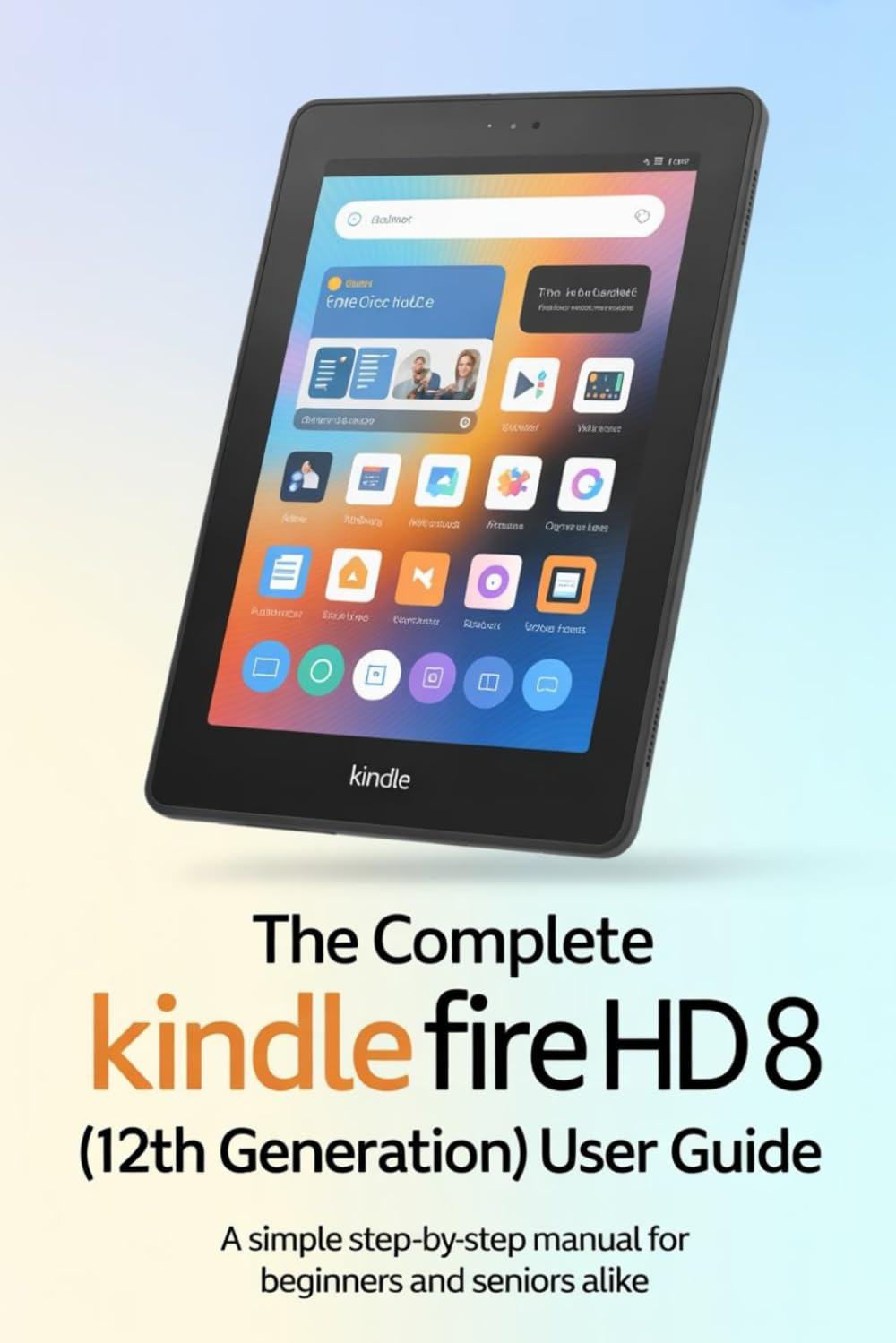
Image 1: Front cover of the user guide book for the Kindle Fire HD 8 (12th Generation). The cover features the title and author information.

Image 2: Back cover of the user guide book, displaying the ISBN barcode and additional publication details.