1. Introduction
This manual provides comprehensive instructions for the UISJL D181 Wireless CarPlay & Android Auto Adapter. This device converts your car's existing wired CarPlay or Android Auto system into a wireless connection, offering enhanced convenience and a clutter-free driving experience. It supports both Apple CarPlay and Android Auto functionalities.

Image 1: The UISJL D181 Wireless CarPlay and Android Auto Adapter, a compact black device with a play icon and a blue indicator light, shown next to a smartphone displaying Apple CarPlay and Android Auto logos.
2. Product Features
- Dual System Support: Seamlessly converts wired Apple CarPlay and Android Auto to wireless, supporting both platforms in one device.
- Compact Design: Ultra-miniature form factor designed to fit discreetly in your car's USB port, reducing clutter.
- Dual-Band Performance: Utilizes a dual-band chipset (2.4GHz-5.8GHz WiFi and Bluetooth 5.3) for stable, low-latency connectivity and faster pairing.
- Plug & Play Auto-Connect: After initial pairing, the device automatically connects to your smartphone when the car starts.
- Universal Compatibility: Compatible with 98% of cars equipped with factory-wired CarPlay or Android Auto. Supports iPhone (iOS 10+) and Android (11+).
- Efficient Heat Dissipation: Features a unique vent design to reduce operating temperature by 30%, ensuring stable performance and preventing overheating.
- Secure Fit: Ergonomic angled backplate and vibration-tested design ensure a stable connection even on uneven roads.

Image 2: Illustration highlighting the dual-band 2.4GHz and 5.8GHz WiFi and Bluetooth 5.3 capabilities of the adapter, emphasizing faster connection and zero lag.
3. Package Contents
Verify that all items are present in the package:
- 1x UISJL D181 2-in-1 Wireless Adapter
- 1x USB to USB-C Data Cable
- 1x USB Extension Cable
- 1x User Manual (this document)

Image 3: The UISJL D181 adapter and its included accessories: a USB to USB-C cable and a USB extension cable, displayed next to the product packaging.
4. Setup Instructions
Follow these steps for a quick and easy setup:
- Plug into your car: Connect the UISJL D181 adapter to your car's USB port that supports wired CarPlay or Android Auto. Use the provided USB-A to USB-C cable or USB extension cable if needed for compatibility or better placement.
- Enable Wi-Fi and Bluetooth on your phone: On your smartphone, ensure both Wi-Fi and Bluetooth are turned on. Do not connect to any Wi-Fi network manually; the adapter will manage this.
- Pair via Bluetooth: On your car's infotainment screen, navigate to the Bluetooth settings. Search for available devices and select the adapter's Bluetooth name (e.g., "AutoLink-XXXX"). Confirm the pairing code if prompted.
- Enjoy Wireless CarPlay/Android Auto: Once paired, your phone will automatically connect to the adapter, and your car's display will switch to the wireless CarPlay or Android Auto interface.
Note: After the initial setup, the adapter will automatically connect to your phone each time you start your car, provided Bluetooth and Wi-Fi are enabled on your phone.
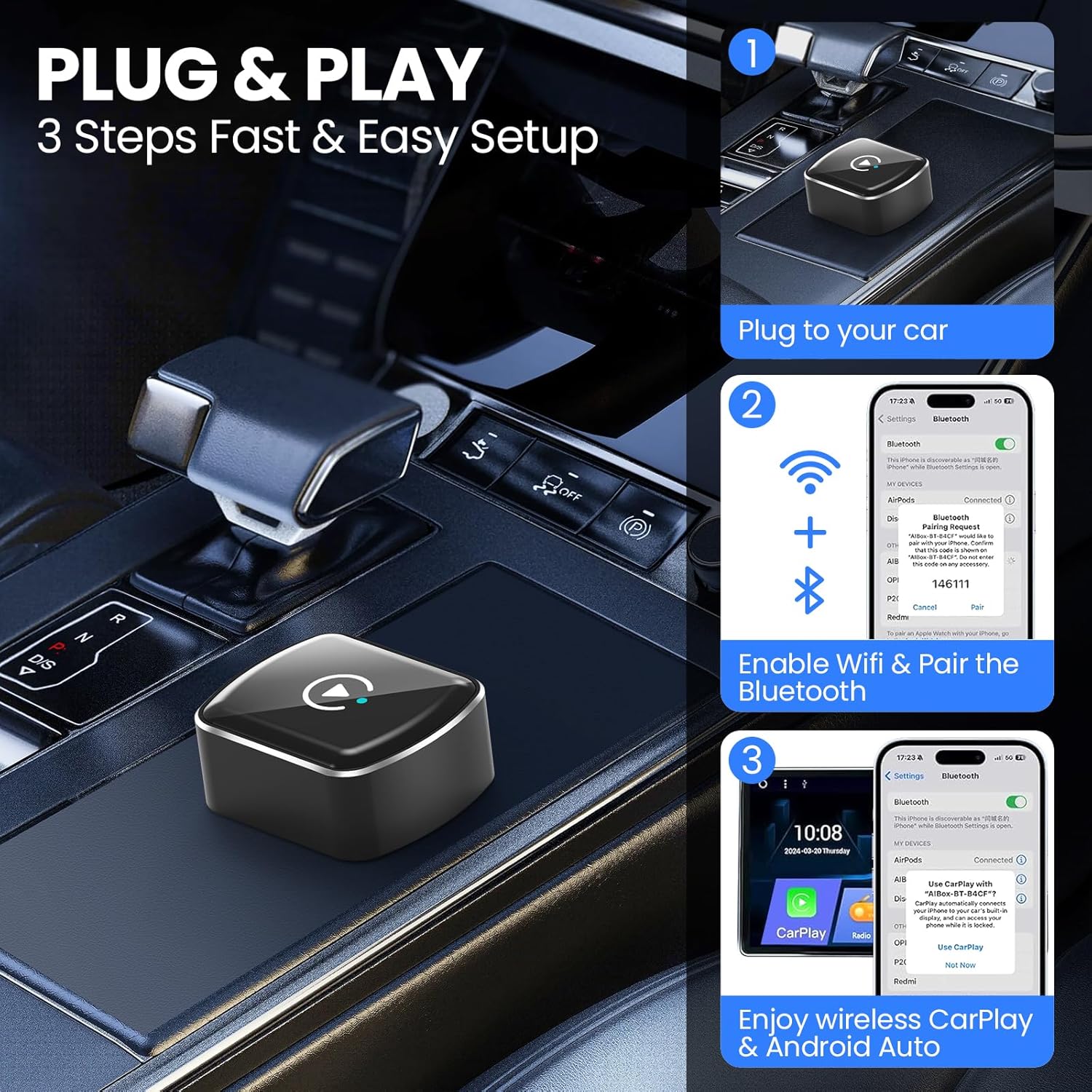
Image 4: Visual guide demonstrating the three-step setup: 1. Plug the adapter into the car's USB port. 2. Enable Wi-Fi and Bluetooth on the phone. 3. Pair the phone with the adapter via Bluetooth to initiate wireless CarPlay or Android Auto.
5. Operating Instructions
Once connected, the UISJL D181 adapter allows you to use your car's existing controls for a seamless experience:
- Voice Control: Utilize your car's built-in voice assistant (Siri for CarPlay, Google Assistant for Android Auto) by pressing the voice command button on your steering wheel or saying the wake word (e.g., "Hey Siri," "Hey Google").
- OEM Knob Control: Navigate through menus and select options using your car's original control knob.
- Steering Wheel Controls: Use your steering wheel buttons to control media playback, answer calls, or activate voice commands.
- Touch Screen Control: Interact directly with the infotainment screen as you would with wired CarPlay or Android Auto.
The adapter retains all original CarPlay/Android Auto functionalities, including navigation (Maps), communication (Calls, Messages), media playback (Music), and access to other compatible applications.

Image 5: Demonstrates how to control wireless CarPlay/Android Auto using the car's original controls: voice commands, OEM knob, steering wheel buttons, and touch screen.
6. Compatibility
The UISJL D181 adapter is designed for broad compatibility:
- Vehicle Compatibility: Works with vehicles that have factory-installed wired Apple CarPlay or Android Auto.
- Smartphone Compatibility:
- For Apple CarPlay: iPhone with iOS 10 or later.
- For Android Auto: Android phone with Android 11 or later.
- Connection Options: Includes both USB-A and USB-C extension cables to accommodate various car USB port types.
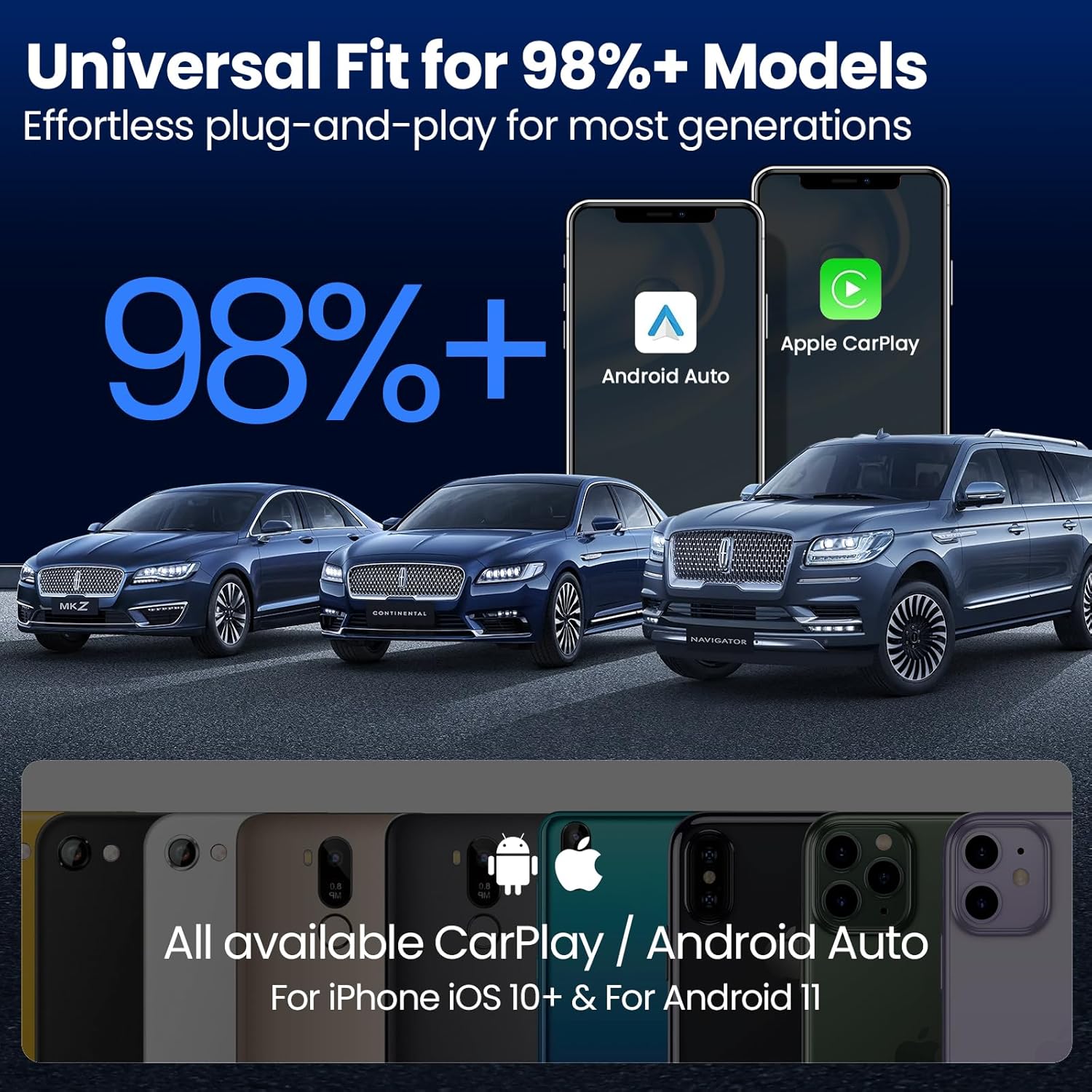
Image 6: Illustrates the universal compatibility of the adapter with over 98% of car models that support wired CarPlay/Android Auto, and with iPhones (iOS 10+) and Android phones (Android 11+).
7. Troubleshooting
If you encounter issues, try the following troubleshooting steps:
- No Connection:
- Ensure the adapter is securely plugged into the car's USB port.
- Verify that Wi-Fi and Bluetooth are enabled on your smartphone.
- Restart your car's infotainment system and your smartphone.
- Delete the adapter's Bluetooth pairing from your phone and car, then repeat the setup process.
- Intermittent Disconnections or Lag:
- Ensure your phone is close to the adapter and not obstructed.
- Check for any potential wireless interference from other devices.
- Restart the adapter by unplugging and replugging it.
- Ensure your phone's operating system is up to date.
- Overheating:
- The adapter is designed with a unique vent system to manage heat. If it feels excessively hot, ensure it is not covered or placed in an enclosed space that restricts airflow.
- Prolonged use in extreme temperatures may affect performance. Allow the device to cool if necessary.
- Firmware Update: Periodically check the manufacturer's website for firmware updates, which can improve performance and compatibility.
8. Specifications
| Model Number | D181 |
| Brand | UISJL |
| Connectivity Technology | Bluetooth, Wi-Fi (2.4GHz & 5.8GHz) |
| Special Features | Auto-Reconnect, Fast Pairing, Minimalist USB Design, Efficient Heat Dissipation |
| Color | Black |
| Item Weight | 20 Grams (0.705 ounces) |
| Package Dimensions | 3.58 x 3.54 x 1.26 inches |
| Manufacturer | UISJL |
9. Warranty and Support
For warranty information, technical support, or further assistance, please refer to the contact details provided with your purchase or visit the official UISJL website. Keep your purchase receipt for warranty claims.